Checking That the Trial Has Started
Overview
This page explains how to check whether the trial has started correctly in the Pleasanter Extensions Trial.
Operation Procedure
-
Restart Pleasanter.
-
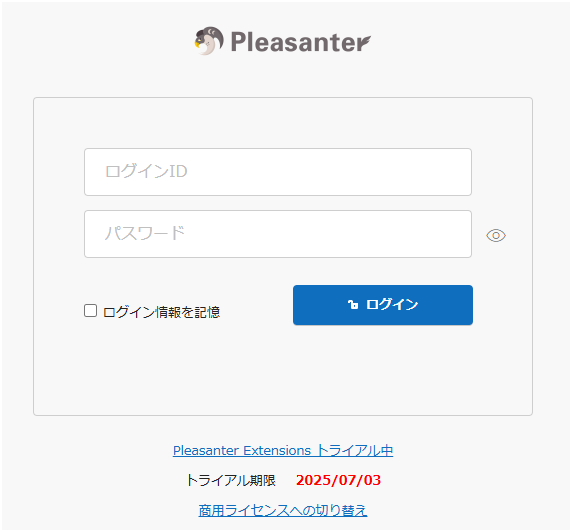
Access Pleasanter and confirm that the information indicating that the trial is in progress is displayed on the login screen as shown below.
-
Log in to Pleasanter, open the version information from "Help" - "Version" on the navigation menu, and confirm that the information indicating that the trial is in progress is displayed as shown below.

-
Log in to Pleasanter and open any table.
-
From "Administration" - Manage Table on the navigation menu, open the Editor tab and confirm that the columns (Classification001 to Classification100) are displayed in the Option List.