Upload source code to a specific site
Overview
Uploads source code, such as Scripts, Server scripts, and CSS, stored on your local PC to a specific Pleasanter site.
Limitations
- Conditions cannot be set. Conditions must be set from the Pleasanter web interface.
Operation Procedure
- Open "Settings.json" in Editor.
- Add the environment to be uploaded to Environments. Set the Name, Title, DBMS, and ConnectionString.
- Specify the parent directory path where the source code is stored in BasePath.
- Set the SiteId of the destination to be uploaded to Codes. Also, specify the code's Id / Title / Type / Path.
- Launch Implem.PleasanterManagementStudio.exe.
- Select the target environment from the list of environments.
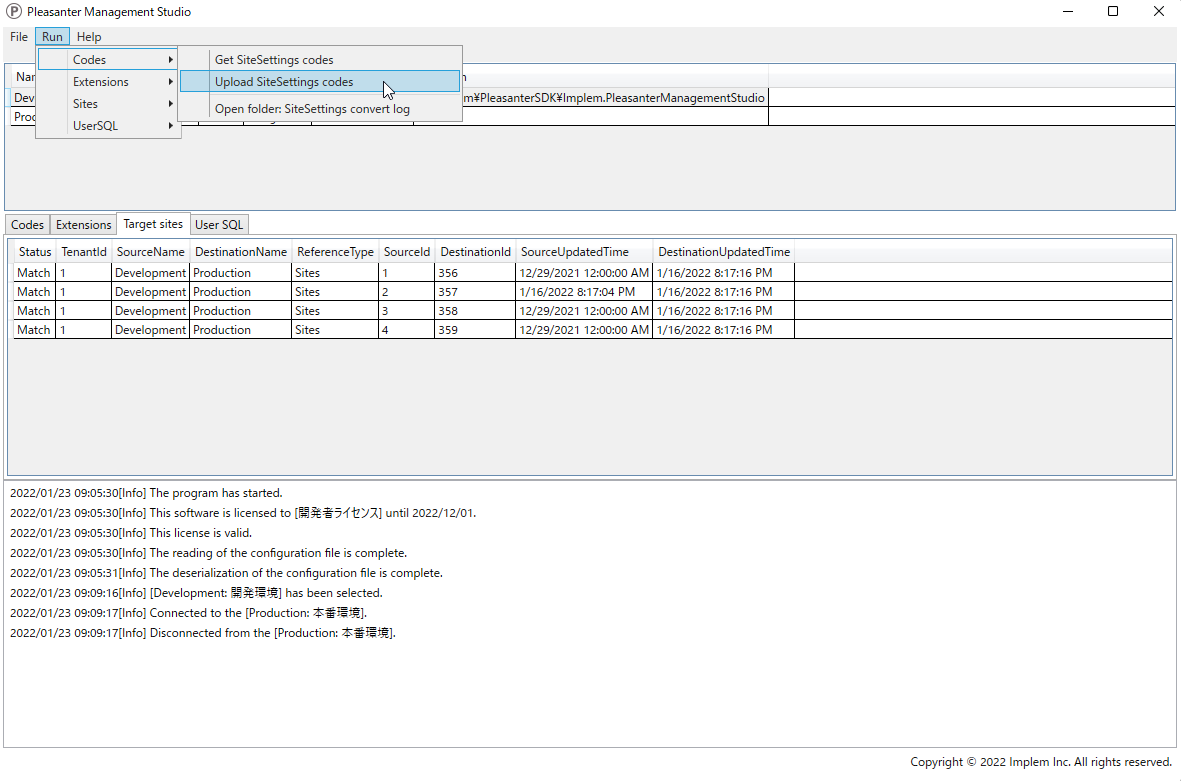
- Click [Run]-[Codes]-[Upload SiteSettings codes] from the menu at the top of the screen.
- Check the confirmation items in the dialog and click "Yes (Y)".
- Click [File]-[Open log folder] from the menu at the top of the screen to open the log folder.
- Open the [SiteSettingsConvertLog] folder in the log folder to view the source code before and after the changes. You can also open this folder by clicking [Codes]-[Open folder: SiteSettings convert log] from the menu at the top of the screen.