Docker
About the Docker version of Pleasanter
This is a procedure for using the official Pleasanter Docker image published on Docker Hub.
implem/pleasanter - Docker Image | Docker Hub
https://hub.docker.com/r/implem/pleasanter
Overview
This explains the setup and startup procedures for "Operations Tools".
Limitations
- Operations Tools cannot be used with MySQL.
Prerequisites
- This procedure assumes that Pleasanter has been upgraded to Enterprise Edition.
Operation Procedure
- Deploying resources
- Building and starting a container image
Operation Procedure
1. Deploying resources
-
Unzip "OperationsTools_x.x.x.zip" downloaded from the Operations Tools Releases page.
-
Change the name of the folder "OperationsTools_x.x.x" to "OperationsTools" and create the following folder structure.
-
Run the following command to stop the container.
-
Place the "OperationsTools" folder under the container's base folder (in the same location as the "Pleasanter" and "CodeDefiner" folders).
-
Open "\OperationsTools\ExtendedLibraries\OperationsTools\App_Data\Parameters\General.json" with any editor.
-
Specify the login IDs of users who can use the Operations Tools in the Login.Users array format.
Example)
General.json: Before modification
{
   "SetupPassword": "operations-tools",
    "Login": {
        "Users": [ "Administrator" ]
    },
    "PageSize": 50,
    "SQLCommandTimeout": 240,
    "DefaultParametersDir": "DefaultParameters"
}
General.json: After modification
{
   "SetupPassword": "operations-tools",
    "Login": {
        "Users": [ "Administrator", "AdminUser1", "AdminUser2" ]
    },
    "PageSize": 50,
    "SQLCommandTimeout": 240,
    "DefaultParametersDir": "DefaultParameters"
}
*For details on the OperationsTools parameter files, please refer to the supplementary notes "Parameter: General.json" and "Parameter: BackgroundService.json".
-
Place the default parameter JSON file (all files) for the version of Pleasanter you are using under the "\OperationsTools\ExtendedLibraries\OperationsTools\App_Data\DefaultParameters" folder.
Example of placement location:
\OperationsTools\ExtendedLibraries\OperationsTools\App_Data\
 └ DefaultParameters\
  ├ Api.json ★Place
  ├ Authentication.json ★Place
  ├ ・・・ ★Place all parameter files
Note
By placing it under the DefaultParameters folder, you can compare the differences in the parameter list screen described below.If you do not have the parameter JSON file before the change, download it from the GitHub release page.
https://github.com/Implem/Implem.Pleasanter/releases -
Open "\Pleasanter\Dockerfile" with any text editor and modify it as follows.
ARG VERSION=latest
FROM implem/pleasanter:${VERSION}

COPY app_data_parameters/ App_Data/Parameters/
COPY OperationsTools/ExtendedLibraries/ ExtendedLibraries/
COPY OperationsTools/wwwroot/operations-tools wwwroot/operations-tools/
COPY Implem.License.dll .
ENTRYPOINT [ "dotnet", "Implem.Pleasanter.dll" ]
Note
When upgrading the Operations Tools, stop the container, delete the "\OperationsTools" folder, and then perform steps 1 to 8 above.
Parameter: About General.json
These are parameters related to common settings. Each parameter is explained below.
| Parameter name | Value | Description |
|---|---|---|
| SetupPassword | operations-tools | Specifies the password to be entered during setup. |
| Login.Users | [ "Administrator" ] | Specifies the login IDs of users who can use the Operations Tools in array format. |
| PageSize | 50 | Specifies the default value for page forwarding. |
| SQLCommandTimeout | 240 | Specifies the timeout time for SQL commands in seconds. |
| DefaultParametersDir | DefaultParameters | Specifies the parameter placement directory before the change. (For the parameter list screen) |
Parameter: About BackgroundService.json
This parameter is related to the process of synchronizing the intermediate table for data display in the background. The explanation of each parameter is as follows.
| Parameter name | Value | Description |
|---|---|---|
| IntermediateTableSynchronize.Enable | true | Specify whether to enable or disable background processing with true/false. |
| IntermediateTableSynchronize.RunTime | [ "00:00", "12:00" ] | Specify the time to run background processing in array format. |
2. Build and start the container image
-
Execute the following command to build the container image.
-
Run the following command to recreate and restart the Pleasanter container that contains the OperationsTools resources.
-
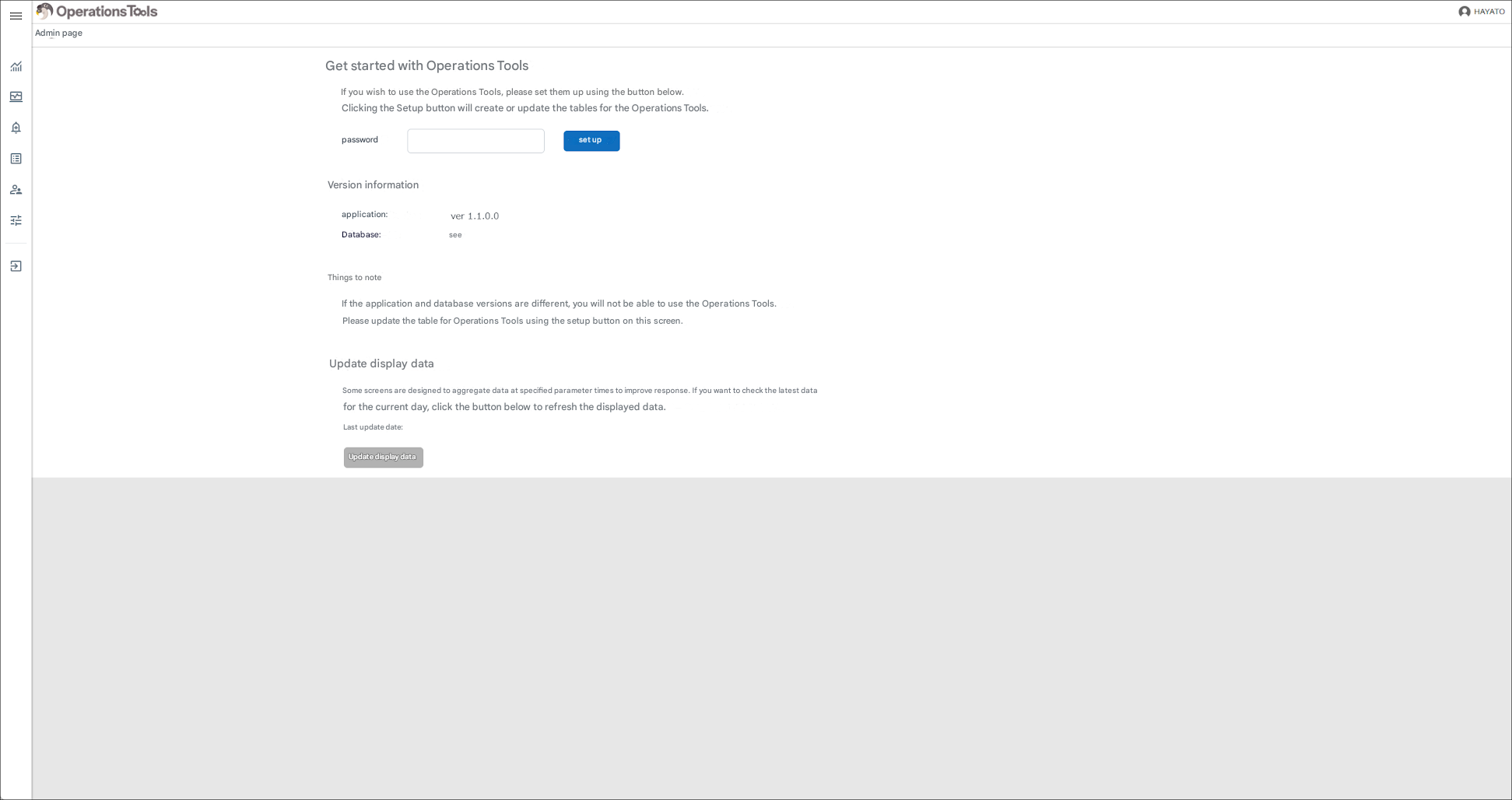
Access the following URL.
-
Enter the password and click the set up button.
Note
The password is the value of SetupPassword set in General.json (the default is "operations-tools"). -
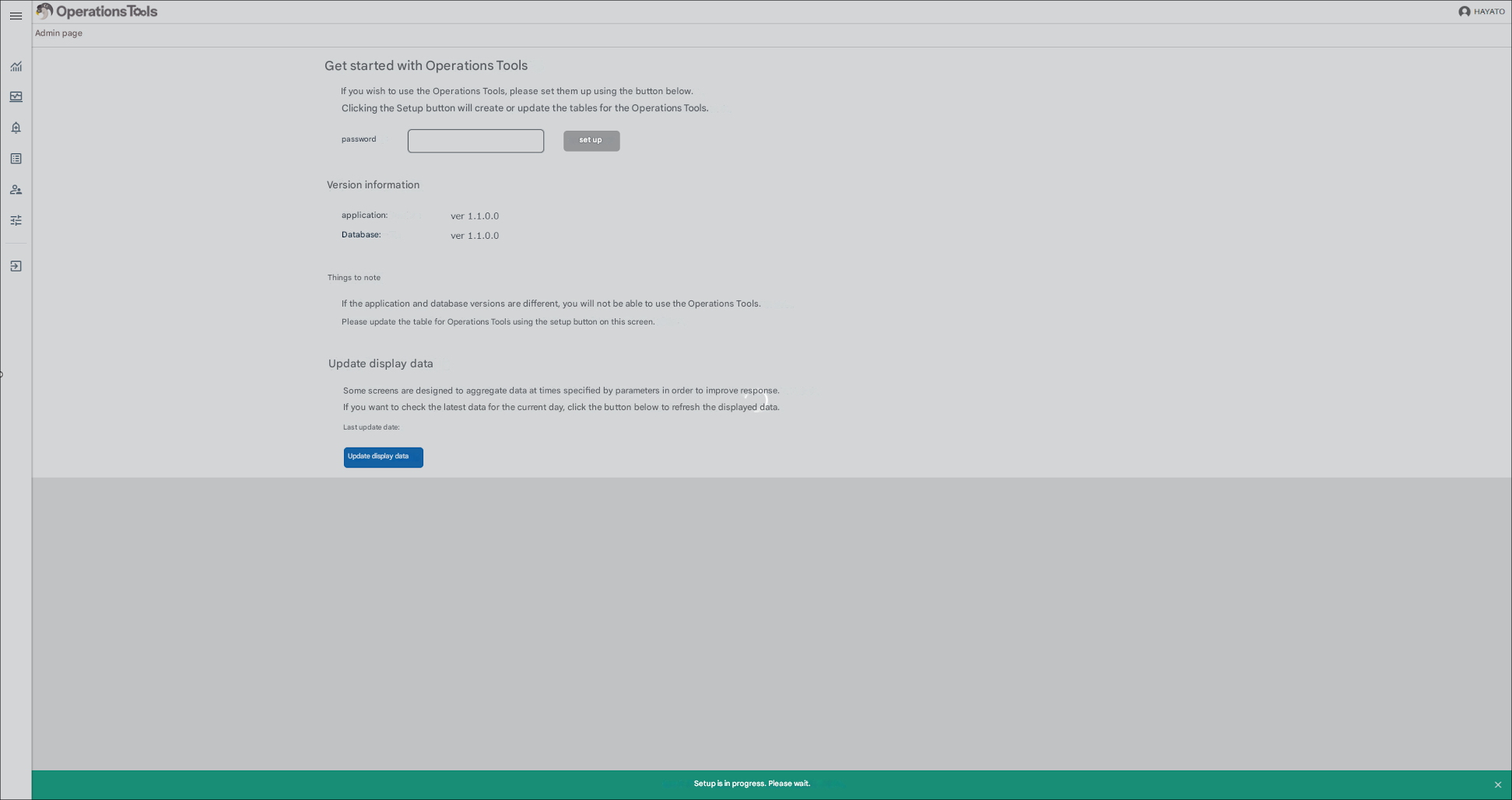
The message "Setup in progress. Please wait." is displayed.
-
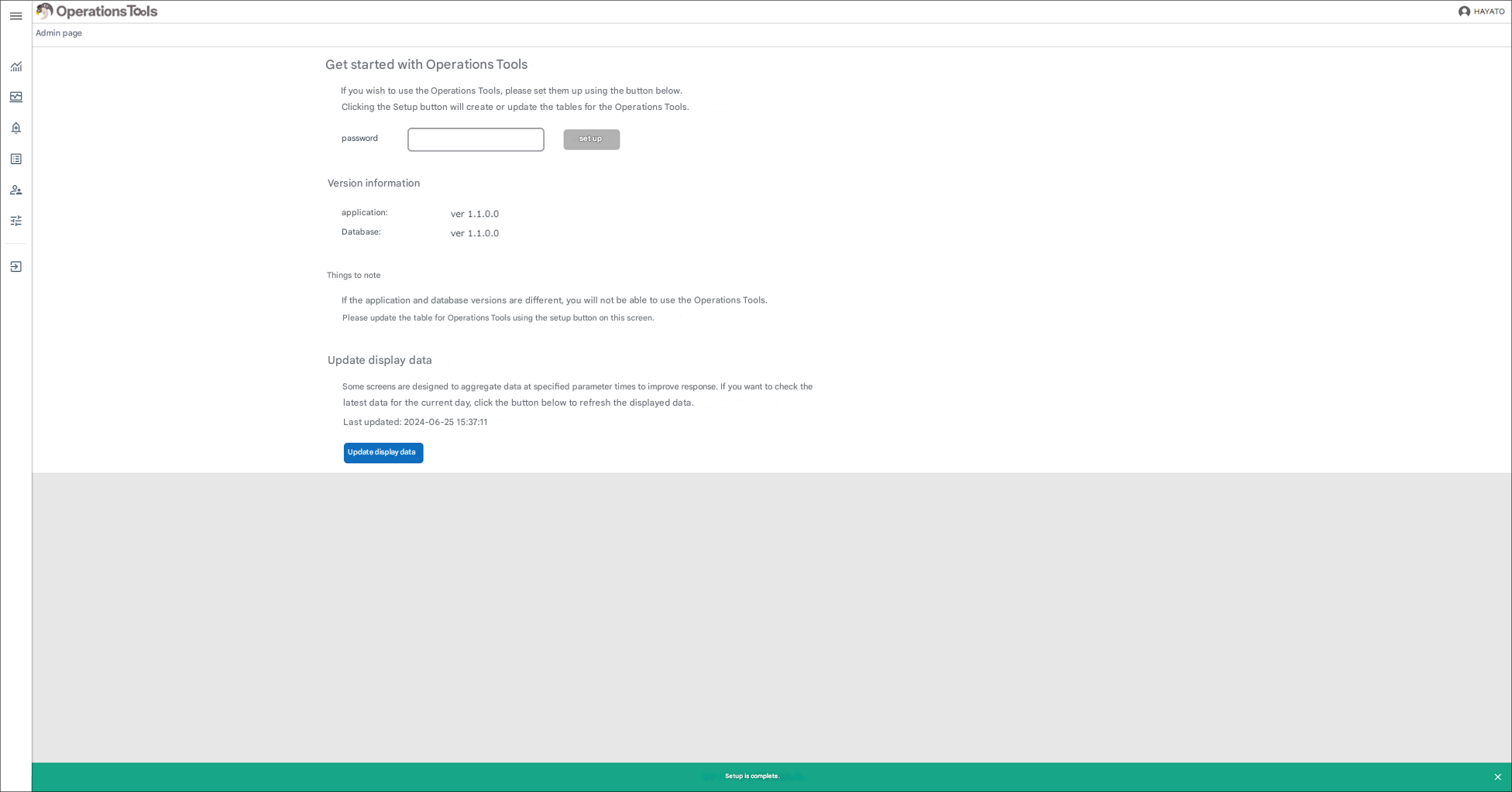
When the message "Setup is complete" is displayed, the setup is complete.
Note
The above operation creates a set of tables for Operations Tools (tables with the prefix "_eot").Note
The display data for some screens is created in an intermediate table when the setup is performed, and is synchronized in the background at the time specified by the IntermediateTableSynchronize.RunTime parameter in the Operations Tools' BackgroundService.json. If you want to see the most recent data, press the "Update Display Data" button to manually synchronize the data.
Troubleshooting
Q. When accessing the management page, the following message is displayed: "The license file is not configured correctly or is invalid."
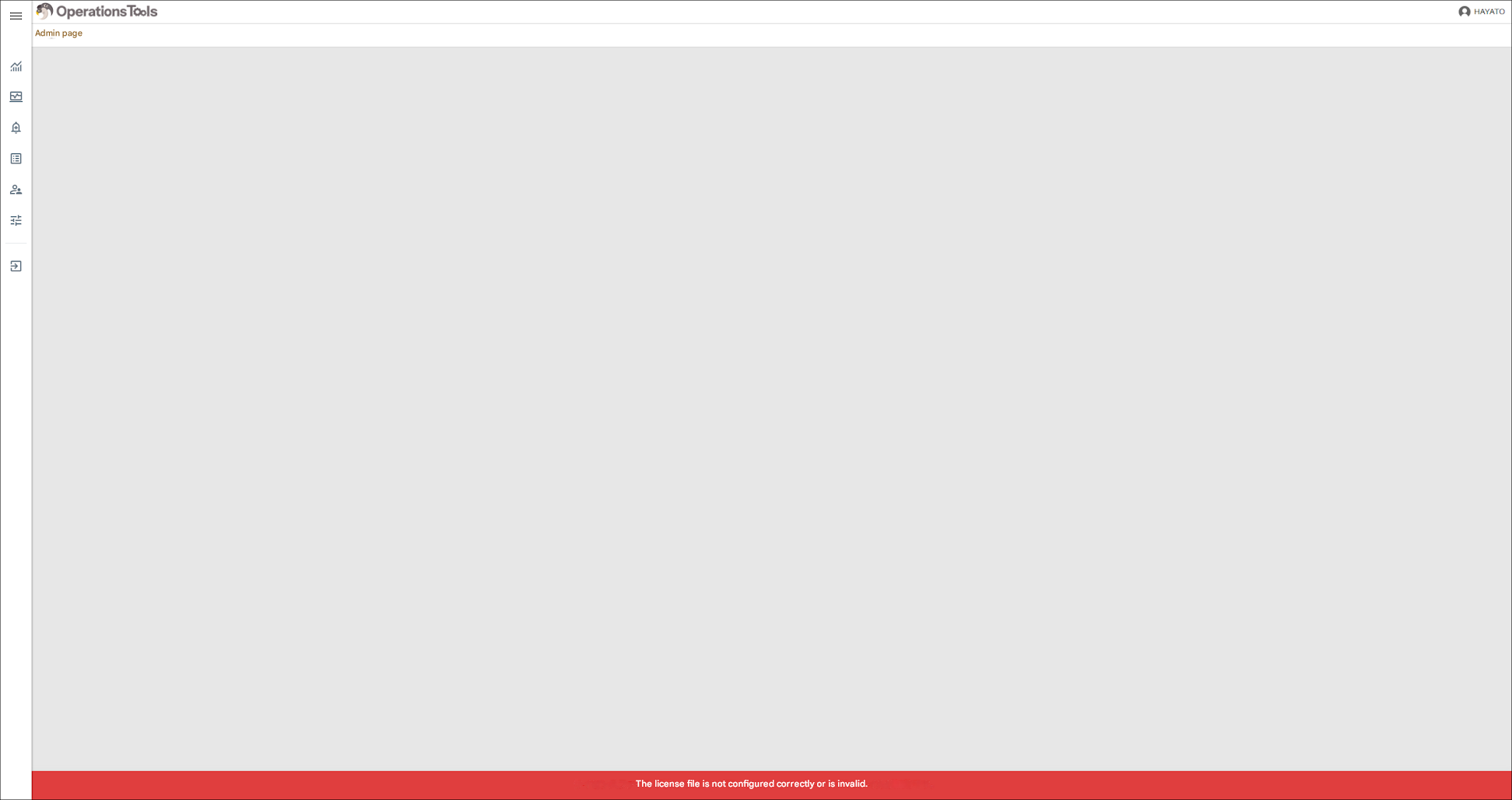
A. Please make sure that a valid license file is placed in the Pleasanter main unit.
Q. Results such as detailed information are not displayed for some screens.
A. Depending on the amount of data in the target environment, the setup process may be interrupted by a timeout, and the results of some screens may not be displayed. In that case, please try the following procedure.
<Steps>
1. Stop the container.
```text
docker compose stop
```
-
Adjust the value of "SQLCommandTimeout" in the Operations Tools parameter file: General.json.
-
Execute the following command.
-
Execute the following command.
-
Click the "Update displayed data" button on the Operations Tools management page screen.
-
Check the log in the [_eot_JobHistory] table and confirm the contents of Status, ErrMessage, and ErrStackTrace.
(If Status is 'Success' and ErrMessage and ErrStackTrace are blank, it is a success.)