ER Diagram Display
Overview
This page explains the ER diagram display function of Pleasanter Site Visualizer. It displays the ER diagram of a site of the Pleasanter you are logged in to.
ER diagrams in Pleasanter Site Visualizer
An ER diagram (Entity Relationship Diagram) is a diagram that visualises the relationships between tables and the columns contained in them. There are several notations for ER diagrams; Pleasanter Site Visualizer displays an ER diagram like the following. It models the data that makes up a site with three elements: entities (= tables), relationships (= links) and attributes (= columns).

On the line that shows a relationship (= a link), the foreign key (= the link column) is shown, and at both ends of the line the cardinality that shows the multiplicity is shown. The multiplicity expresses how many pieces of data in another table one piece of data in a table relates to. Pleasanter Site Visualizer shows only "0 or 1" and "0 or more".
The meaning of each part of the entity (= table) display is as shown in the table below.
| No | Item | Description |
|---|---|---|
| 1 | Title (site ID) | The title of the table and the site ID. |
| 2 | Column name | The name of the column in the database, such as "ClassA". |
| 3 | Column label | The default name, such as "Classification A". |
| 4 | PK or FK | PK indicates an ID column and FK indicates a link column. |
| 5 | Name displayed | The name set in "Manage Table: Editor: Column Advanced Settings: Name Displayed". |
Prerequisites
- "Site management permission" is required.
1. Operation Steps (common: displaying the screen and downloading the file)
- Log in as a user with site administrator permission.
- Move to the site whose setting information you want to display.
-
Click the Pleasanter Site Visualizer browser extension icon.
Icon State Description 
When the icon is blue, you can use it. 
When the icon is grey, you cannot use it. (This is the state when you are not logged in, or when the page you have open cannot open site management.) -
The operation screen of Pleasanter Site Visualizer is displayed.
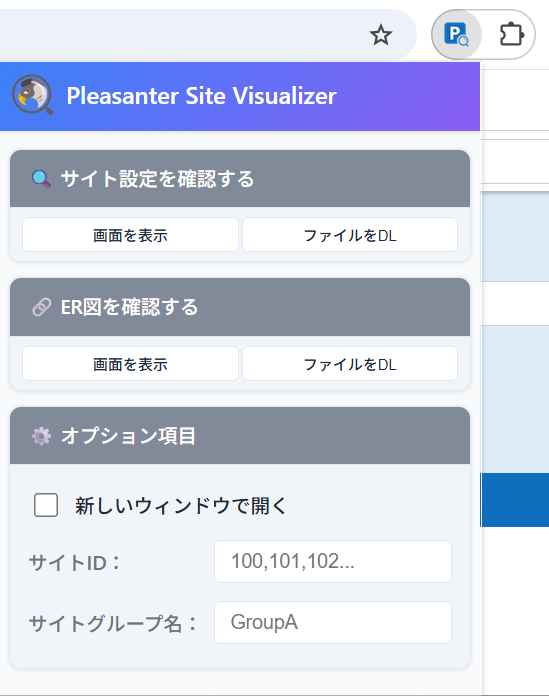
2. Operation Steps (displaying the screen)
-
Click "Show screen" under "Check the ER diagram".

-
The "ER diagram screen" opens. The ER diagram part can be scrolled with the cursor keys or by dragging with the mouse.

Five buttons are lined up at the top left of the screen. Their functions are as follows.
| Icon | Button Name | Function |
|---|---|---|
 | Zoom-in | When you click it, the ER diagram is enlarged by one step. |
 | Zoom-out | When you click it, the ER diagram is reduced by one step. |
 | Zoom-Reset | When you click it, the ER diagram is maximised to the window size. |
 | Save PNG | When you click it, the "Output PNG image" dialog (see below) opens. |
 | Text Search | When you click it, the "Search the ER diagram" dialog (see below) opens. |
The "Output PNG image" dialog
You can download the ER diagram as an image in PNG format.
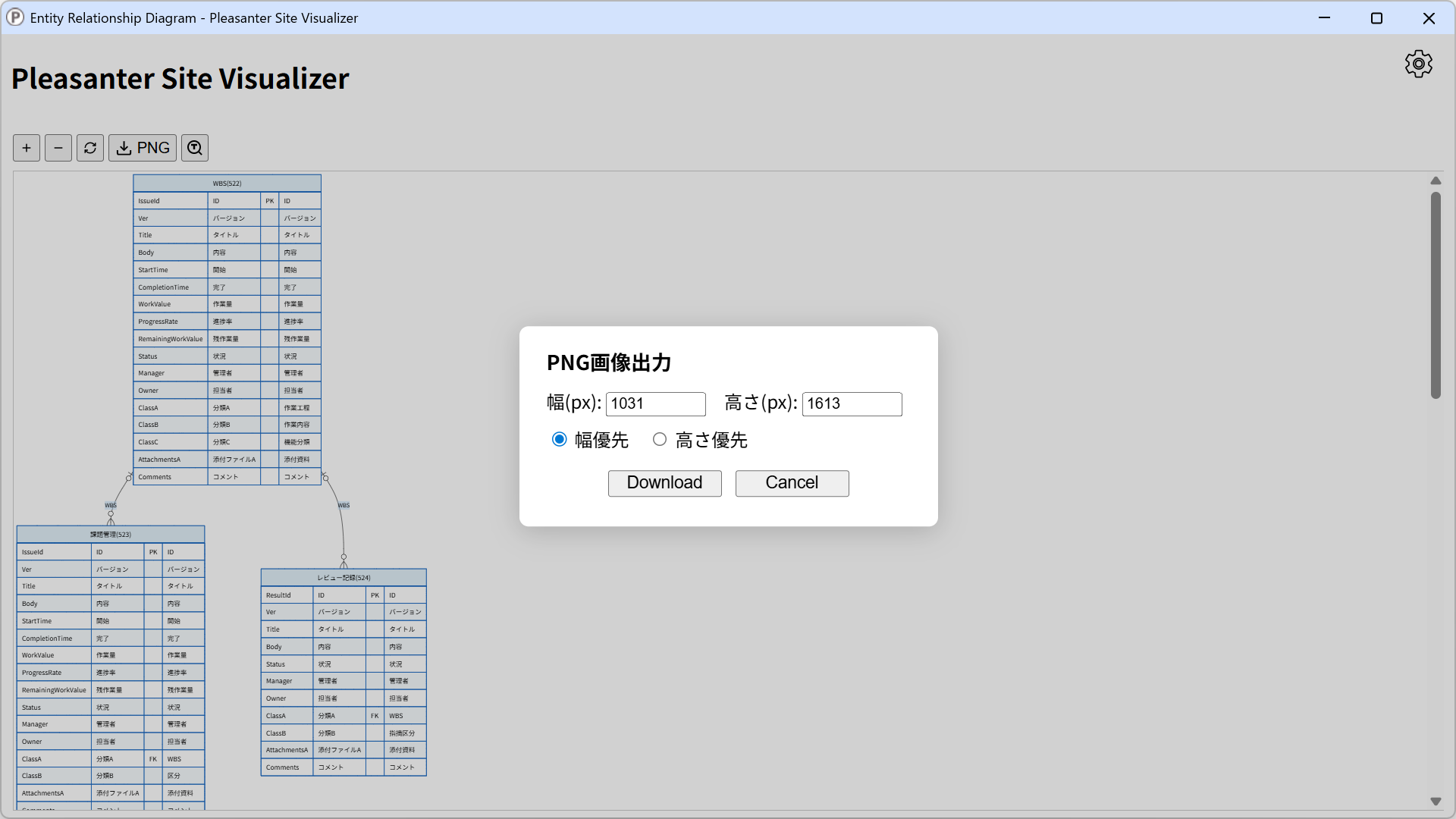
In this dialog you can specify the width and height of the PNG image to output.
| Option Selected | Effect |
|---|---|
| Select "Width first" | - When you change "Width (px)", "Height (px)" is calculated automatically keeping the aspect ratio. - When you change "Height (px)", the aspect ratio is ignored. |
| Select "Height first" | - When you change "Height (px)", "Width (px)" is calculated automatically keeping the aspect ratio. - When you change "Width (px)", the aspect ratio is ignored. |
The "Search the ER diagram" dialog
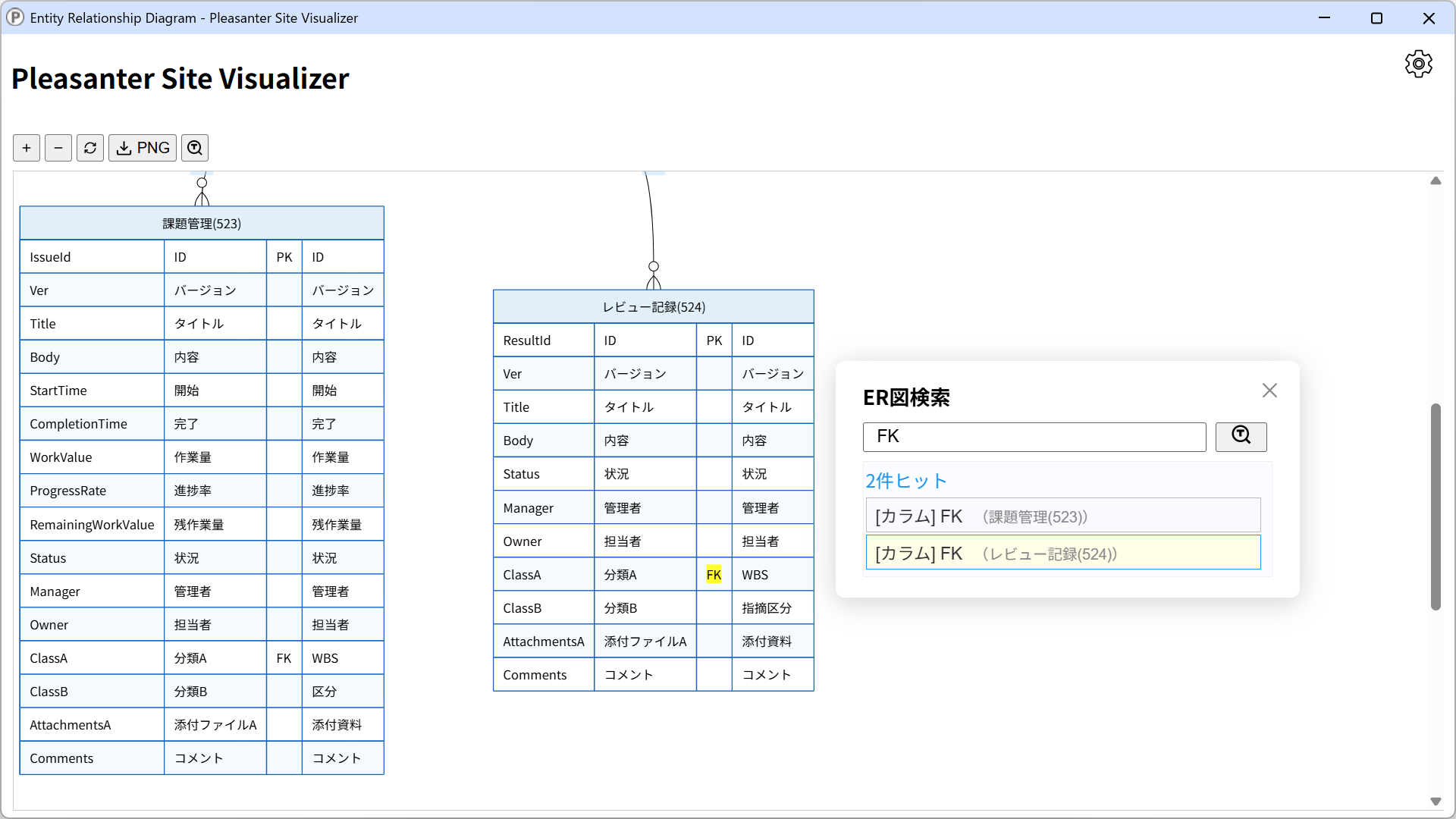
When you click the "Text Search" button, the "Search the ER diagram" dialog opens. If the dialog overlaps the search results and makes them hard to see, you can move it by dragging.

Searching by table name
When you search by table name, the table name (ID) is highlighted in yellow and the table is enlarged so that it fits the window.

Searching by column name
When you search by part of a column name and there are several hits, the table that contains the column you select first is enlarged so that it fits the window. Even if you then select another column, the zoom level does not change.

Other searches
When you search for the string "PK" or "FK", you can check the ID columns or the link columns.
3. Operation Steps (downloading the file)
-
Click "Download file".

You can download the ER diagram as a text file in Mermaid format.
How to use the downloaded Mermaid format (.mmd) file
You can preview the downloaded file in tools such as the Mermaid Live Editor, and you can also make use of it by embedding it in a Markdown document as a code block.
The figure below is displayed in VS Code with the Markdown Preview Mermaid Support extension installed.

Supported Versions
| Supported Version | Description |
|---|---|
| Pleasanter 1.4.21.0 and later | Newly created |