Overview
In an Active Directory-based environment, integrated Windows authentication allows single sign-on to Pleasanter.
Prerequisites
Server requirements
- The system is joined to the Active Directory domain.
- The settings for Link Pleasanter with Active Directory must be configured.
Client PC requirements
- The system is joined to the Active Directory domain.
- The client PC must be logged in as an Active Directory domain user.
- The browser must support integrated Windows authentication.
- Open "Internet Options" from the control panel and configure the following settings.
- "Advanced Settings" tab: "Use integrated Windows authentication" is checked.
- "Security" tab: The security zone of the Pleasanter server is registered as "Intranet" or "Trusted sites".
- "Security" tab: At the security zone level, the "User authentication - Logon" column is set to "Automatically log on with current user name and password".
Setup single sign-on using integrated Windows authentication
- Install Windows authentication
- Enable Windows authentication
- Settings for batch processing such as user synchronization and reminders
Install Windows authentication
-
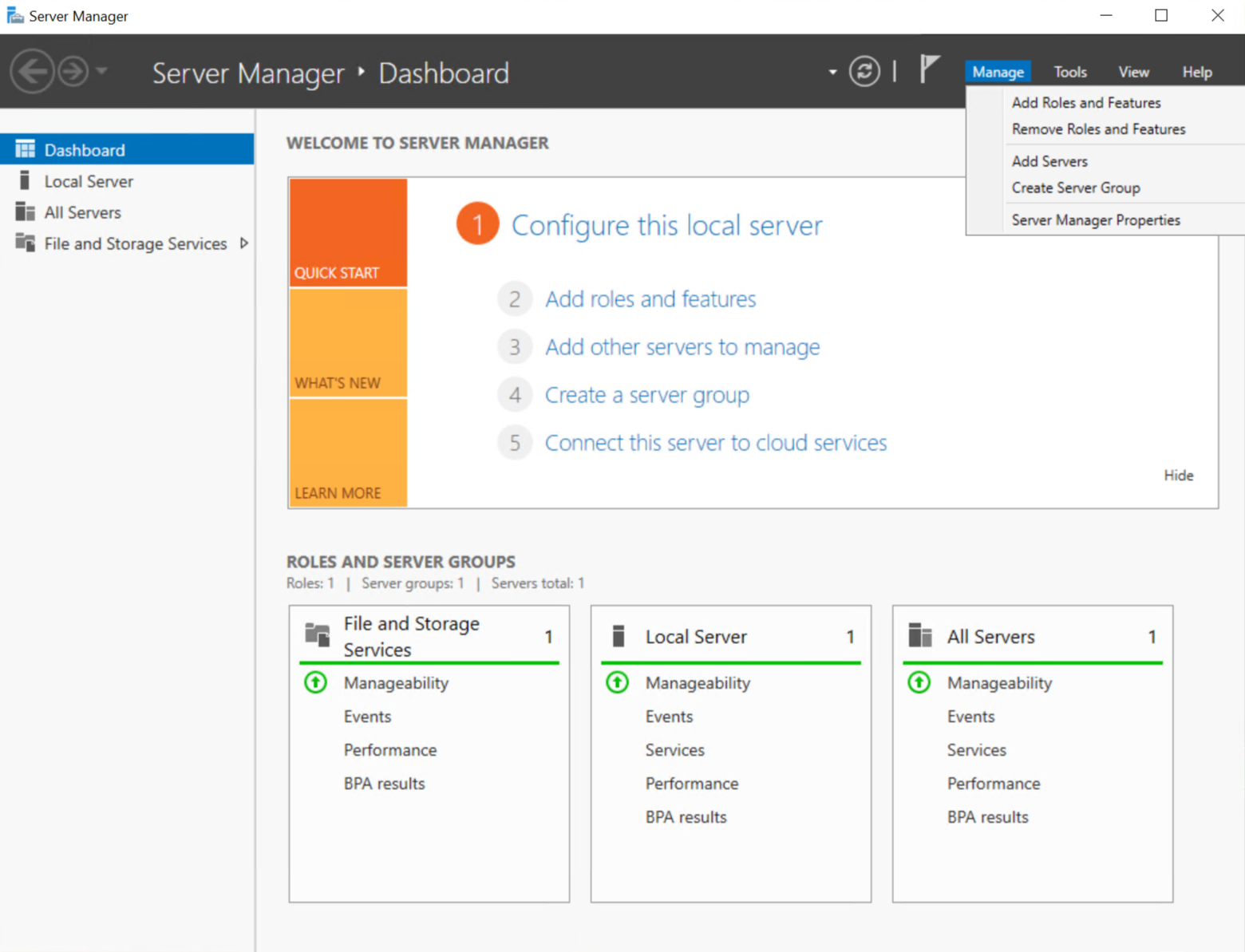
Launch "Server Manager".
-
Open the "Management (M)" menu and click "Add roles and functions".
-
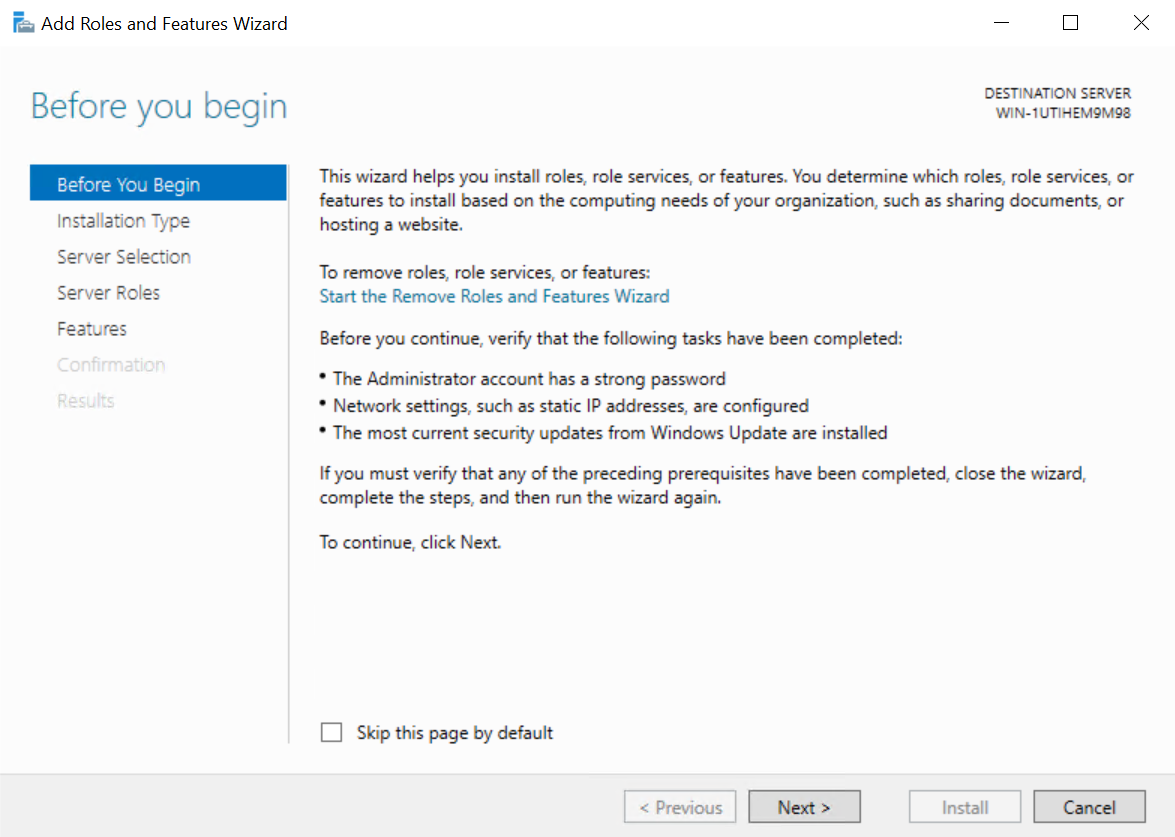
When the "Before you begin" screen appears, click the "Next (N)" button.
-
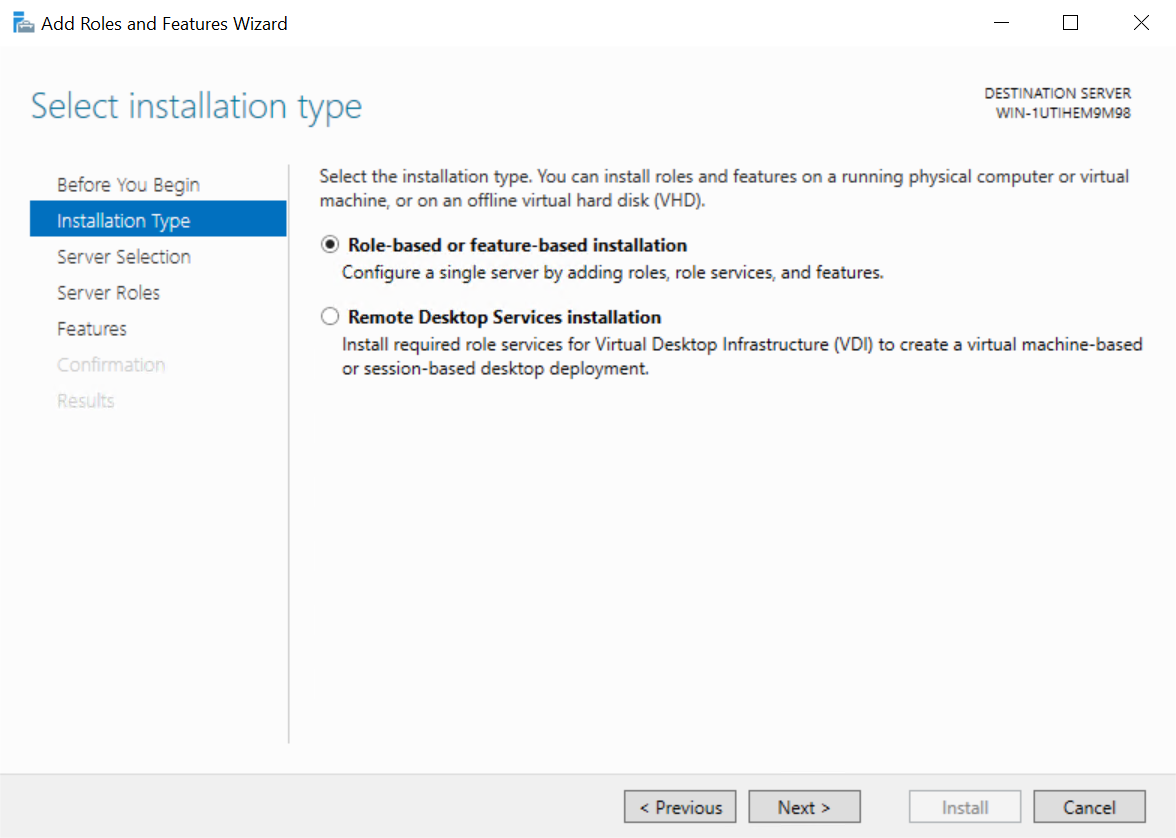
When the "Select installation type" screen appears, click the "Next (N)" button.
-
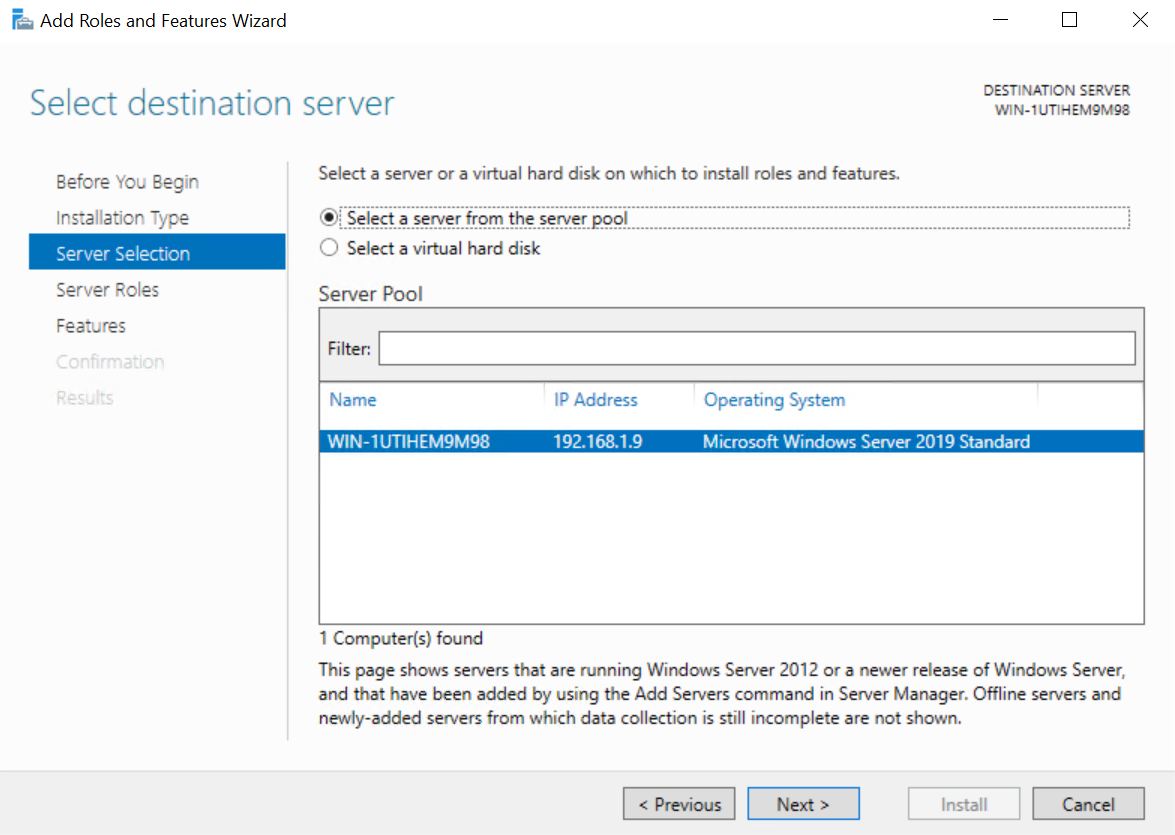
When the "Select server" screen appears, select the target server and click the "Next (N)" button.
-
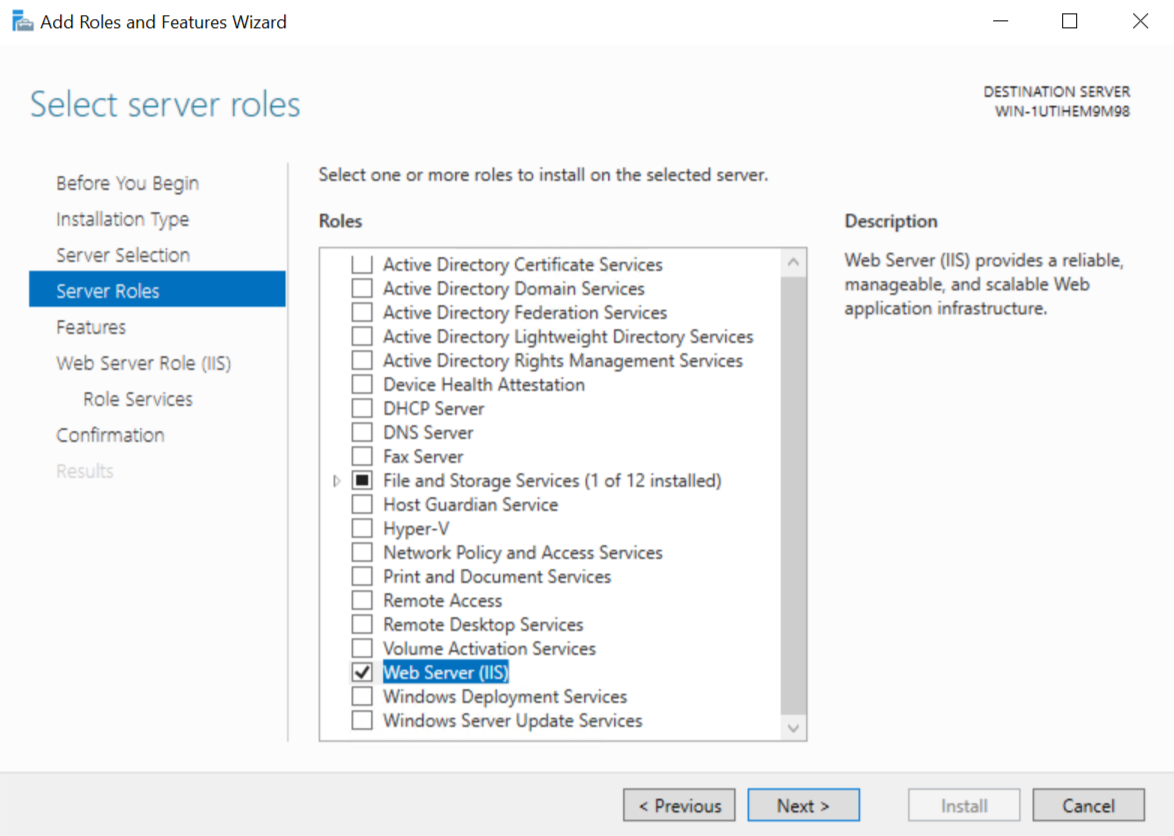
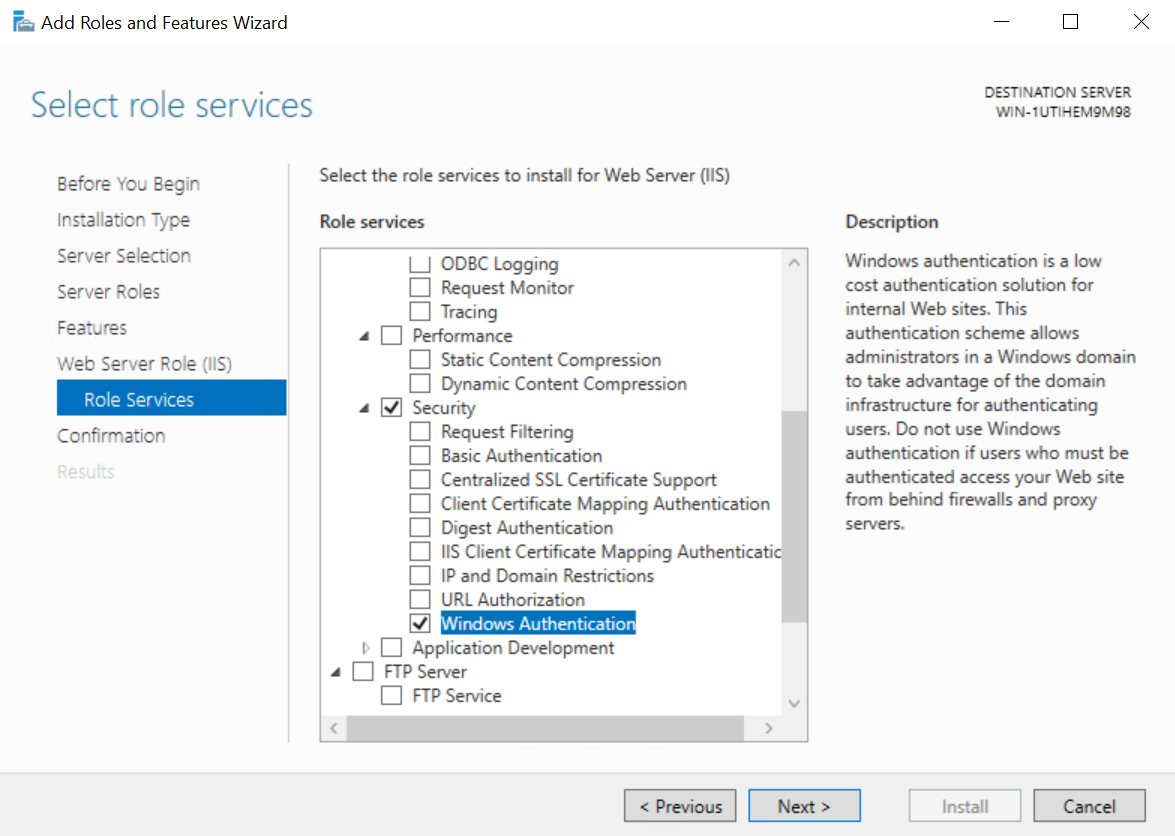
When the "Select server role" screen appears, check the "Windows Authentication" checkbox. Confirm that the check box is checked and click the "Next (N)" button.
-
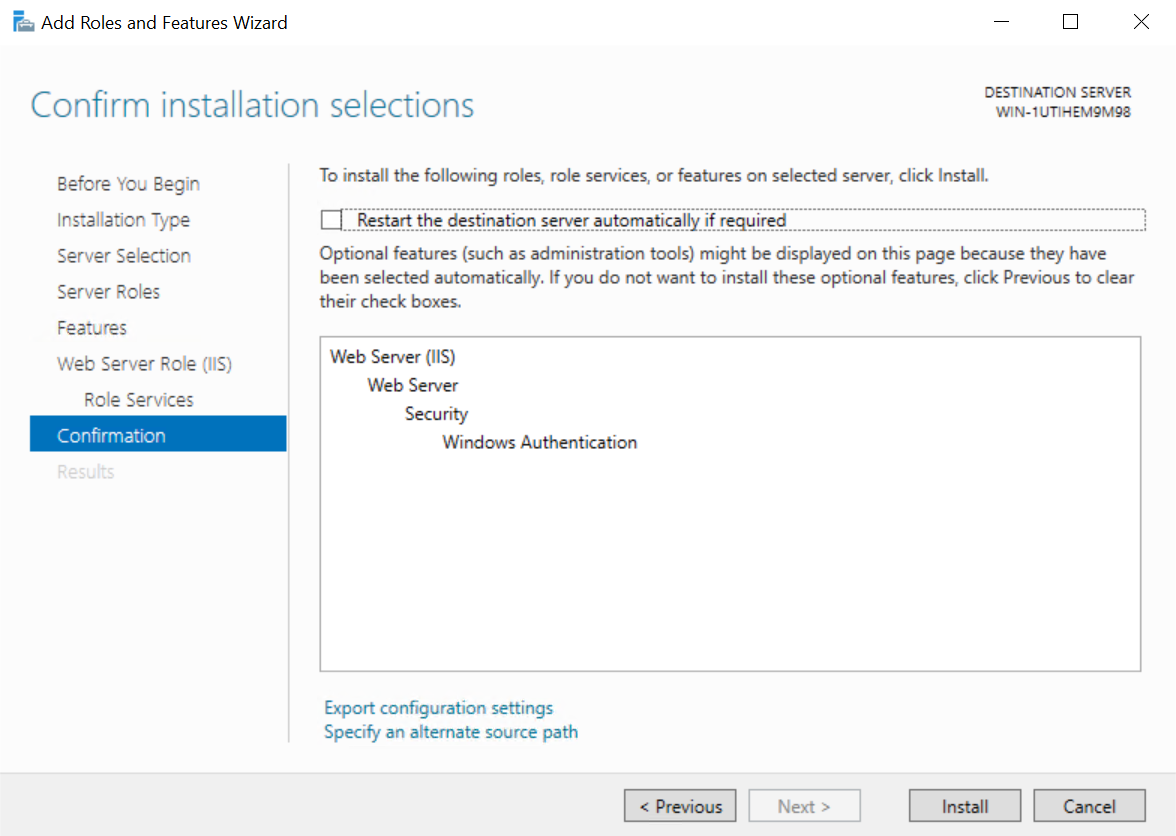
When the "Confirm Installation Options" screen appears, click the "Install (I)" button.
-
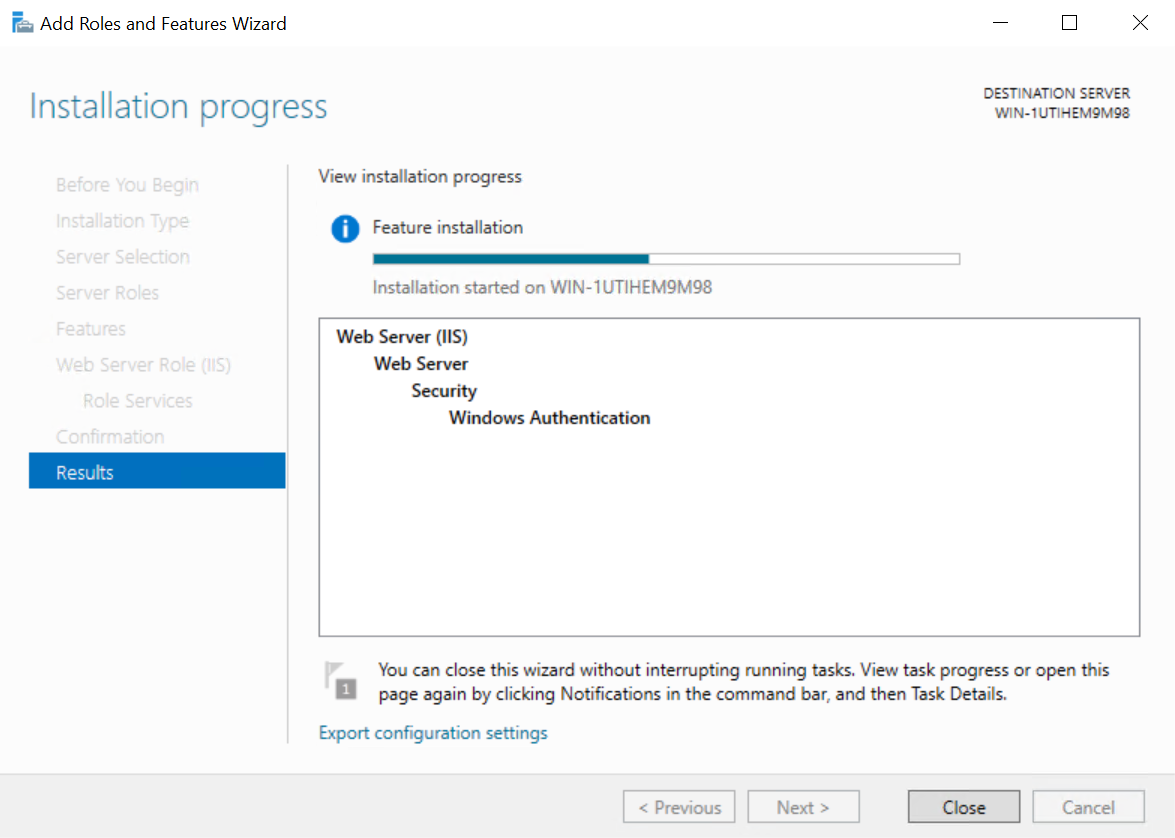
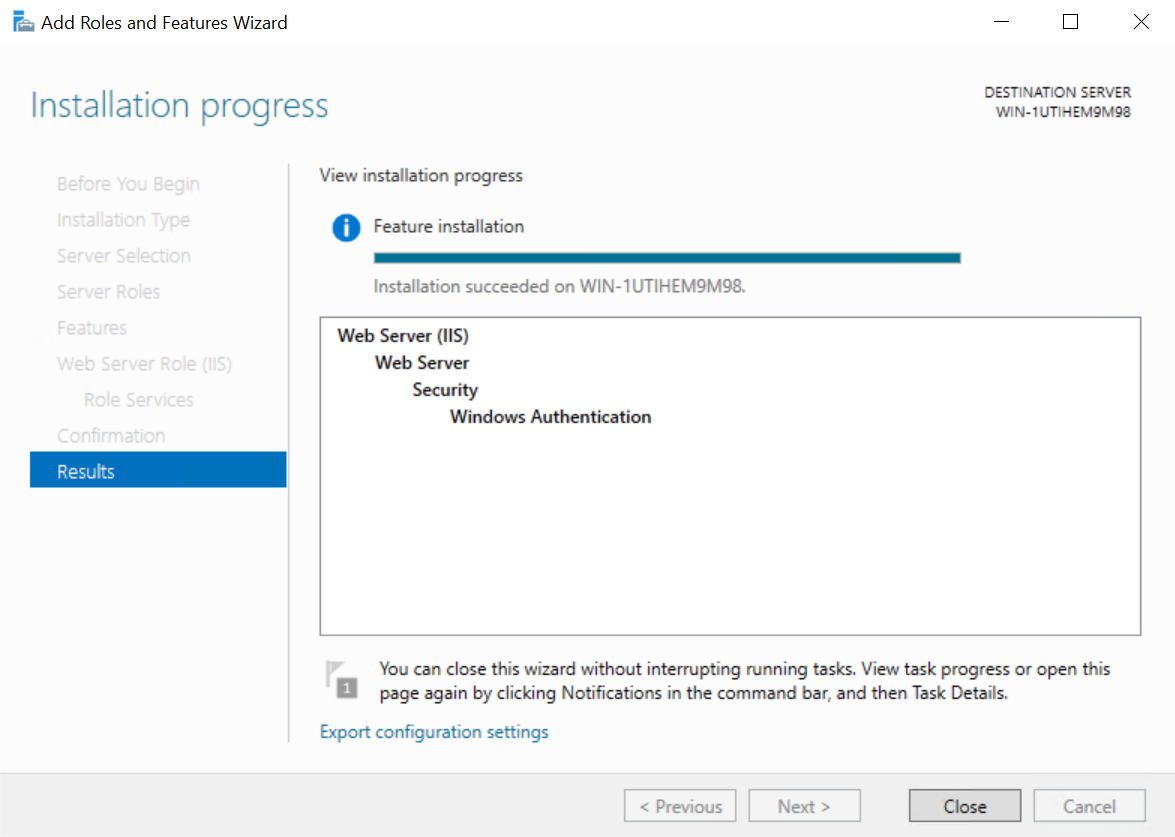
Wait for the installation to complete.
-
After the installation is complete, click the "Close" button. This procedure is complete.
Enable Windows authentication
-
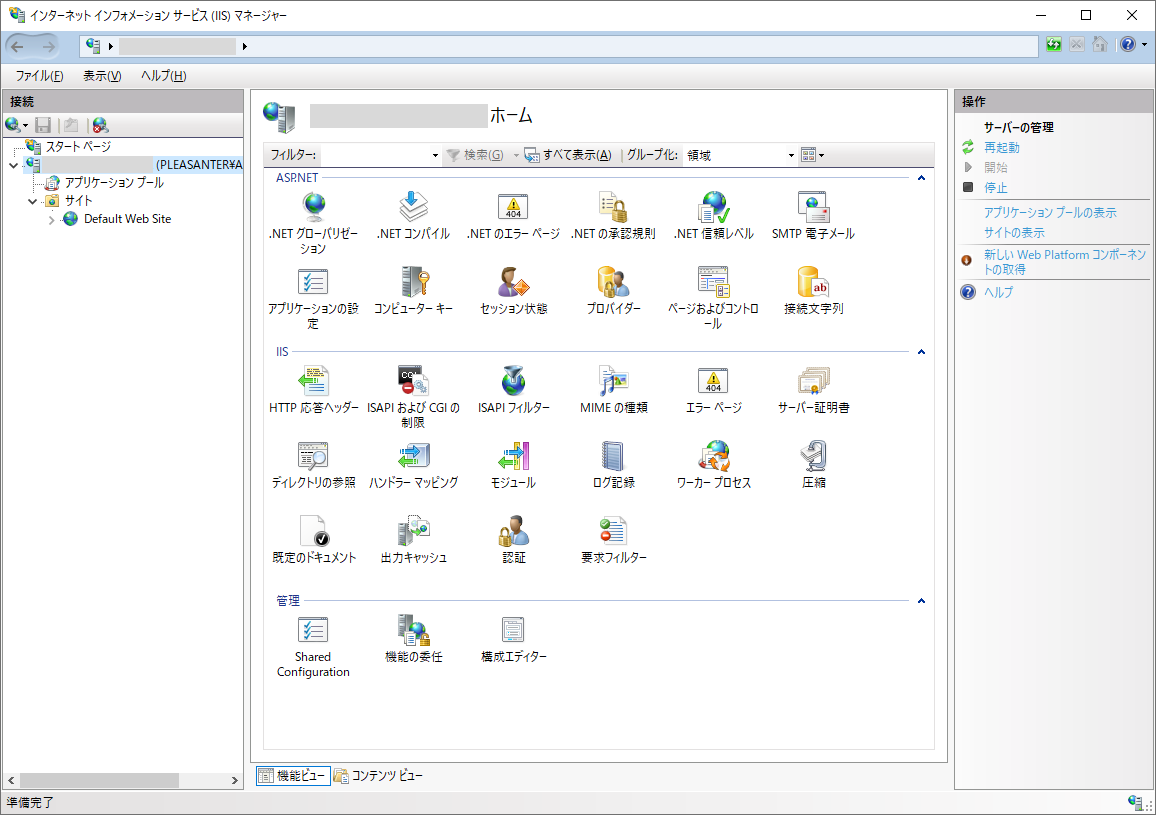
Launch "Internet Information Services (IIS) Manager".
-
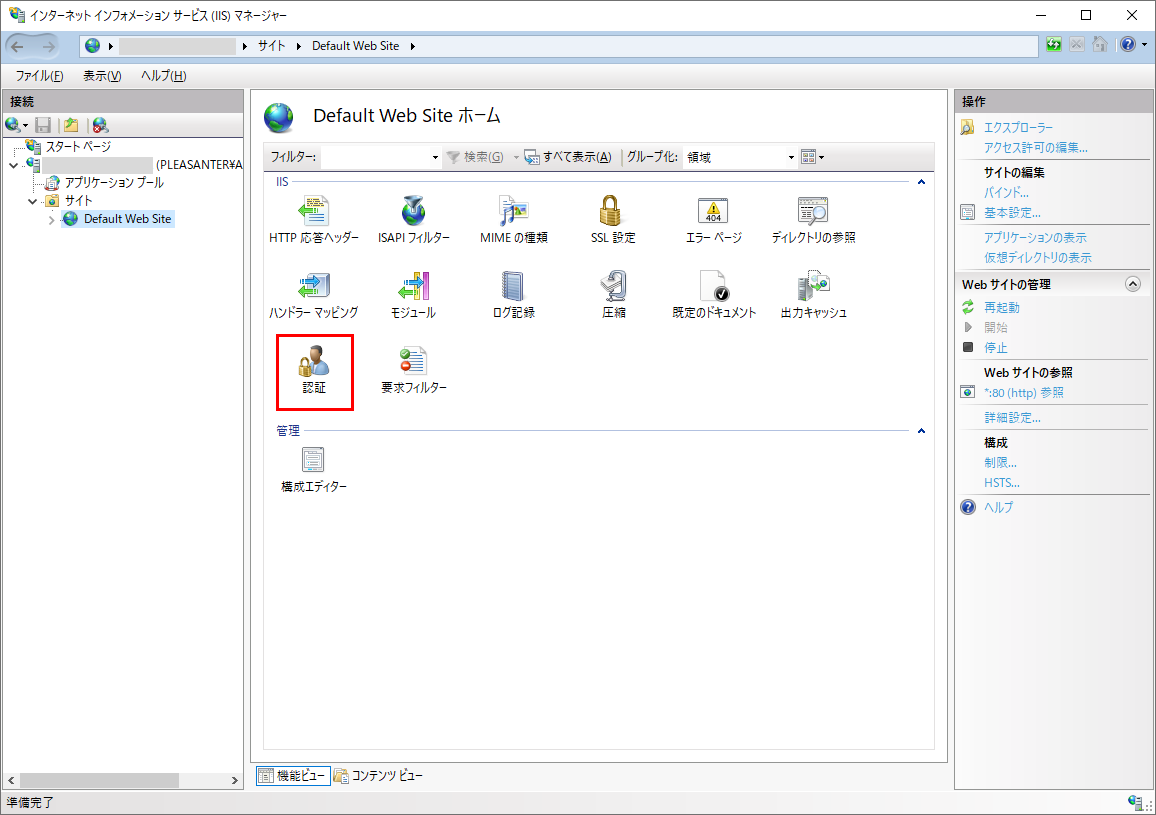
In the left pane, click [Site] - "Default Web Site". Then click Authentication in the center pane.
-
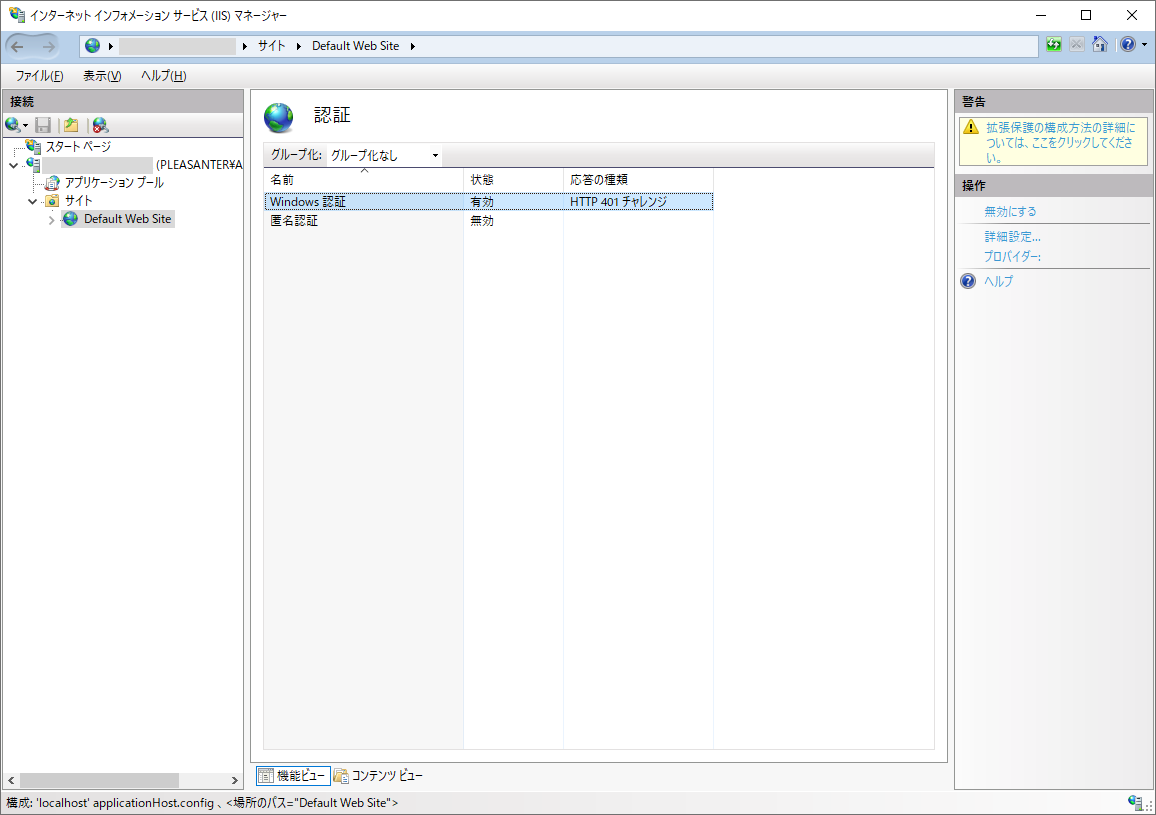
"Windows Authentication" is "enabled" and "disable" all other authentication methods.
Setup for batch processing of user synchronization and reminders
To run scripts that perform user synchronization and reminders via LDAP in an environment with integrated Windows authentication enabled, you have to add a maintenance application by following the steps below.
Create a maintenance application pool
Create a maintenance application pool to run with anonymous authentication.
-
Launch "Internet Information Services (IIS) Manager".
-
Select "Application Pools" in the left pane and click "Add Application Pool..." in "Operations" on the right.
-
Enter the following and click "OK".
Column name Setting value Name Set any name (e.g. MainteAppPool) .Net CLR version No managed code Managed pipeline mode Integrated Start application pool immediately On 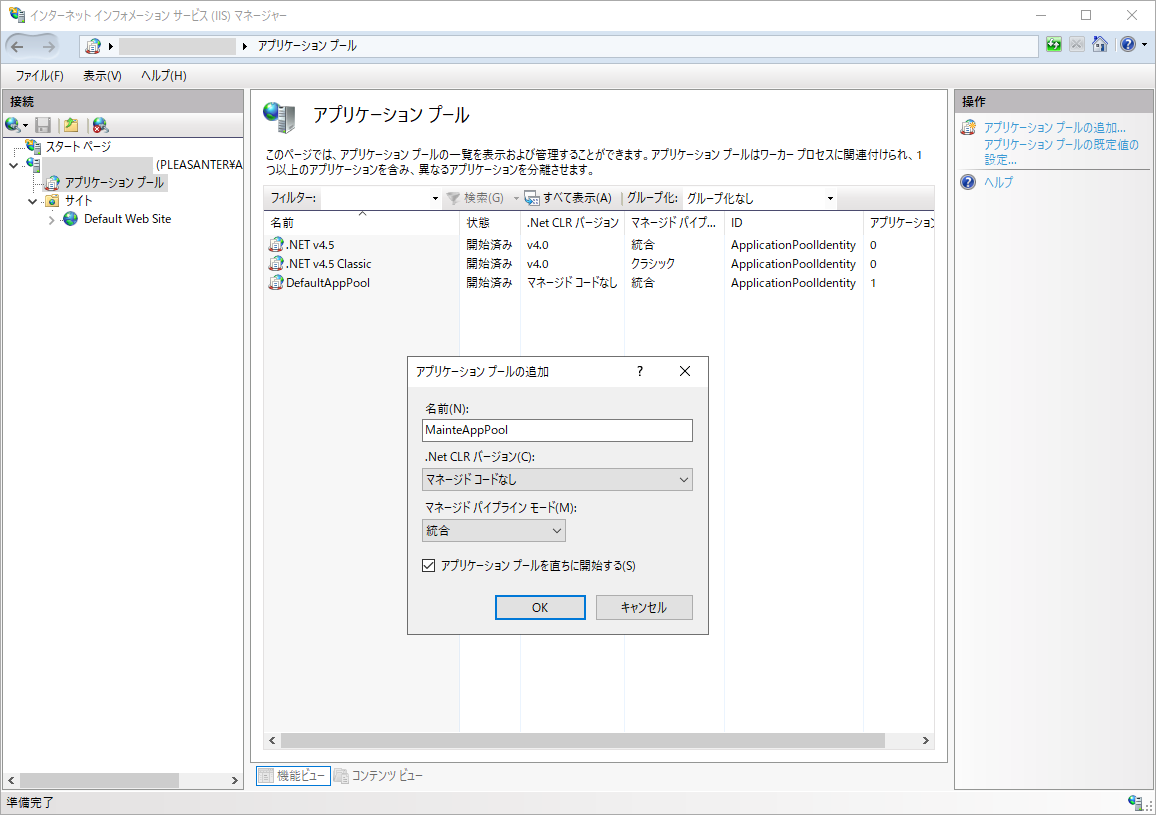
-
Right-click [Sites] and click "Add website".
-
Enter the following and click "OK.
Column name Setting value Site name Set any name (e.g. Mainte Site) Application pool Select the one created in the previous step (e.g. MainteAppPool) Content directory - Physical path C:\web\pleasanter\Implem.Pleasanter Binding - Type http Binding - IP address All unused IP addresses Binding - Port 8080 (any port) Binding - Host name (blank) Start the website immediately On 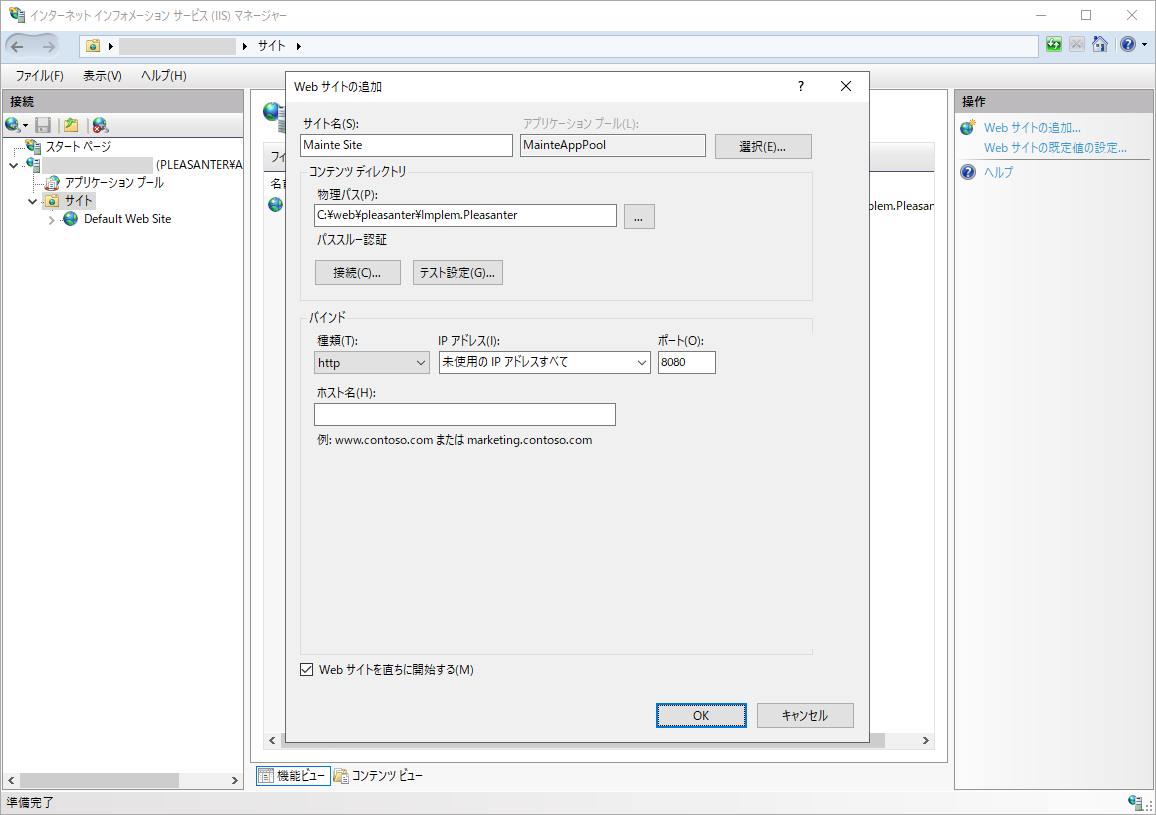
-
Click Mainte Site, double-click authentication, and set it as shown below.
Column name Setting value Anonymous authentication Enabled Other than the above All disabled 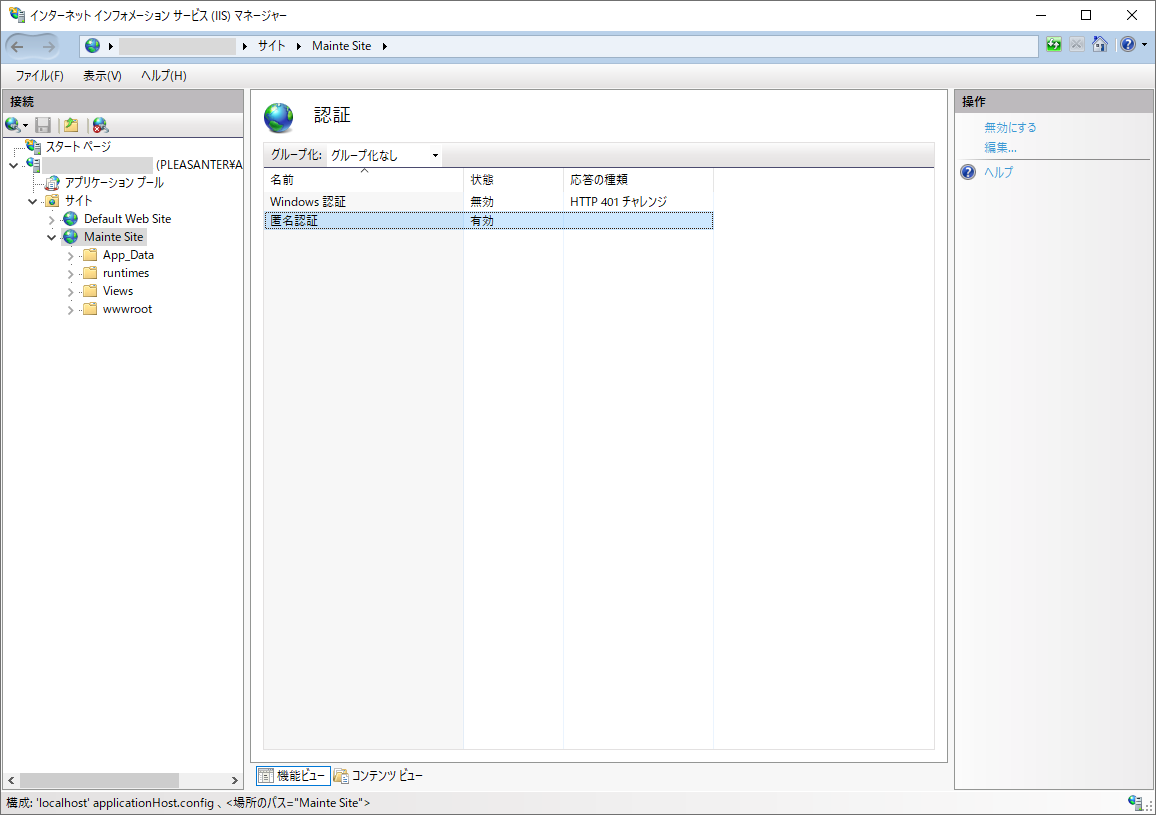
-
Click "Browse *.8080(http)" on the right side of the screen to confirm that Pleasanter login screen will launch.
Setup user synchronization/reminder/API execution via LDAP
Follow the steps below to set up.
In this case, set the "port" specified in step 2 above to be the URL when the process is executed.
(Example) If the port is set to "8080"
- Usersync URL: http://{ServerName}:8080/users/syncbyldap
- Reminder URL: http://{ServerName}:8080/reminderschedules/remind?NoLog=1
- API execution URL: http://{ServerName}:8080/api/items/{record ID}/get
Setup AbsoluteUri
If the above URL is used to execute reminders or to send notifications via API updates, set the normal Pleasanter URL to AbsoluteUri in Service.json to avoid the problem of the URL in the email being the above.
Parameter setting:Service.json
| Column name | Setting value |
|---|---|
| AbsoluteUri | http://{ServerName} |