Overview
To enable 2-step authentication by email, the following settings are required
Setup to Send Email
Set up to send emails from Pleasanter
Be sure to set "SupportFrom" in Mail.json.
Set the user's email address
Enabled by SecondaryAuthentication parameter in Security.json
Parameter setting:Security.json
"SecondaryAuthentication": {
    "Mode": "DefaultEnable",
    "NotificationType": "Mail",
    "AuthenticationCodeCharacterType": "Number",
    "AuthenticationCodeLength": 8,
    "AuthenticationCodeExpirationPeriod": 300
}
Limitations
In an environment where both passkey authentication and 2-step authentication are enabled, the behavior is as follows.
- When you log in with passkey authentication, the 2-step authentication screen is not displayed.
- When you log in with an ID and password, the 2-step authentication screen is displayed.
Try Log-in
After enabling 2-step authentication by email, when you log in, you will be redirected to the confirmation code input screen.
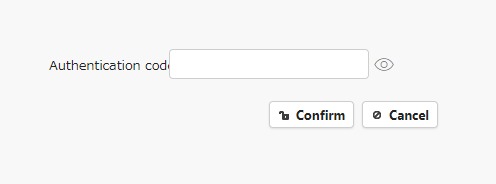
When you log in, the following email will be sent to the email address registered in your user information.
<Subject>
Pleasanter authentication code

<From>
"Pleasanter.org" <support@pleasanter.org>

<Main Message>
Use the following code as the Pleasanter authentication code.
Authentication code: 69231688
Thank you for using Pleasanter.
Enter the confirmation code within the validity period of the confirmation code and login.