Set Up to Send Notifications to InCircle
InCircle settings
*You must be a registered user of InCircle.
For more information about the login procedure, please click "Existing Customers" in the upper right corner of InCircle's top page below.
Go to the user support page and refer to the operation manual.
https://www.bluetec.co.jp/incircle/
Enable API function
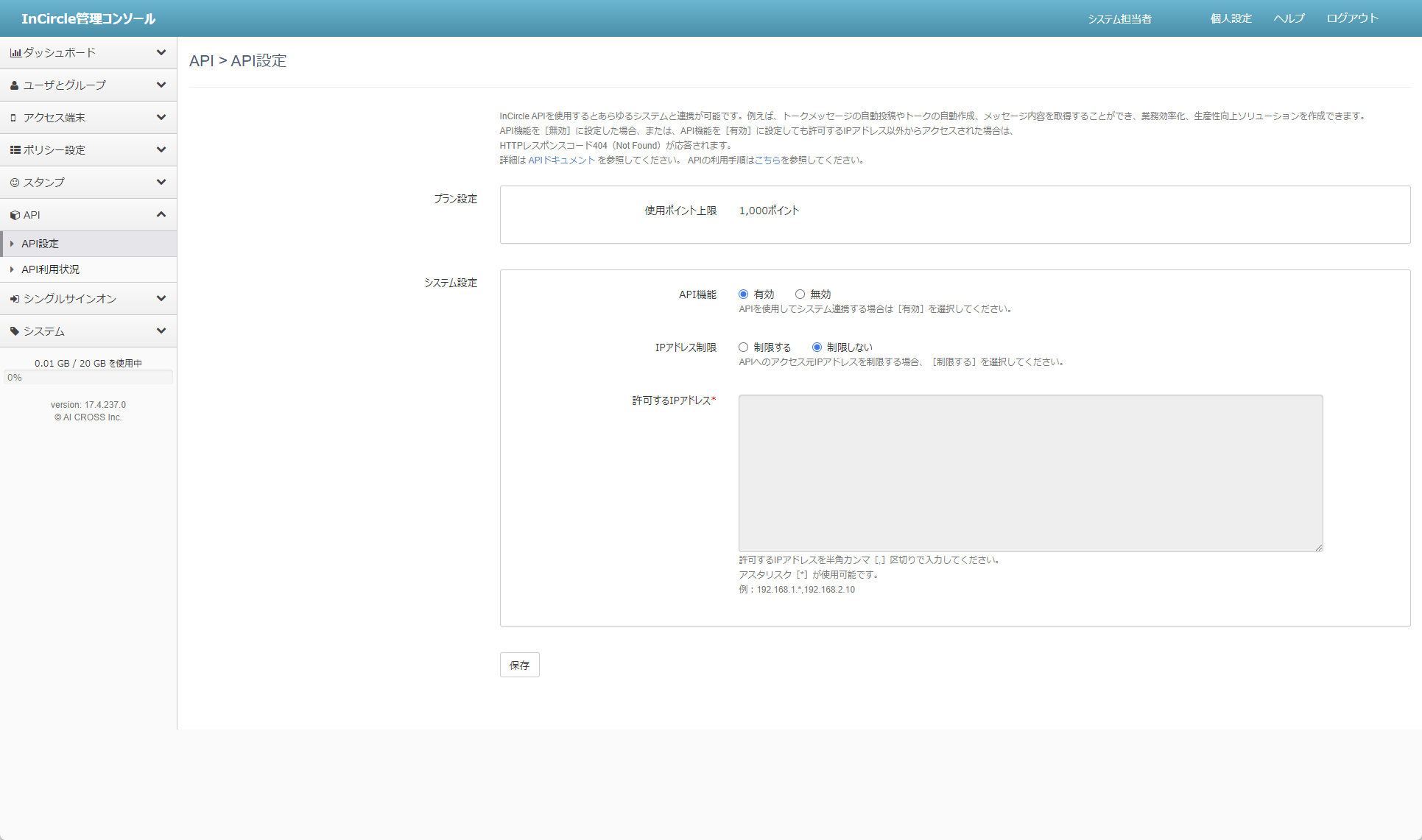
- In the Management Console, go to [API] → [API Settings] screen, set the API function to [Enable], and click the [Save] button.
Create API users
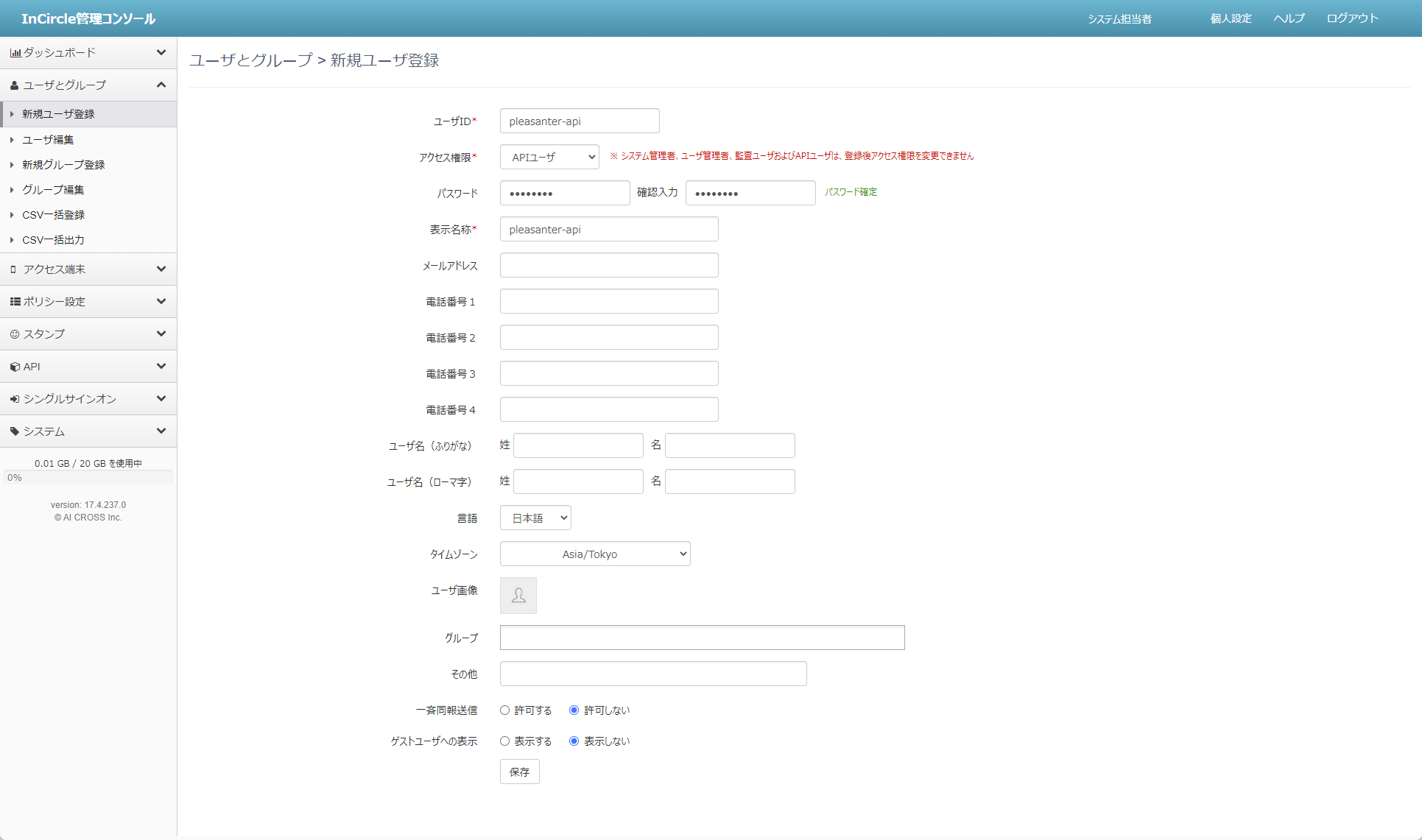
- Create an API user on the [Users & Groups] → [New User Registration] screen of the Management Console.
Get API token
-
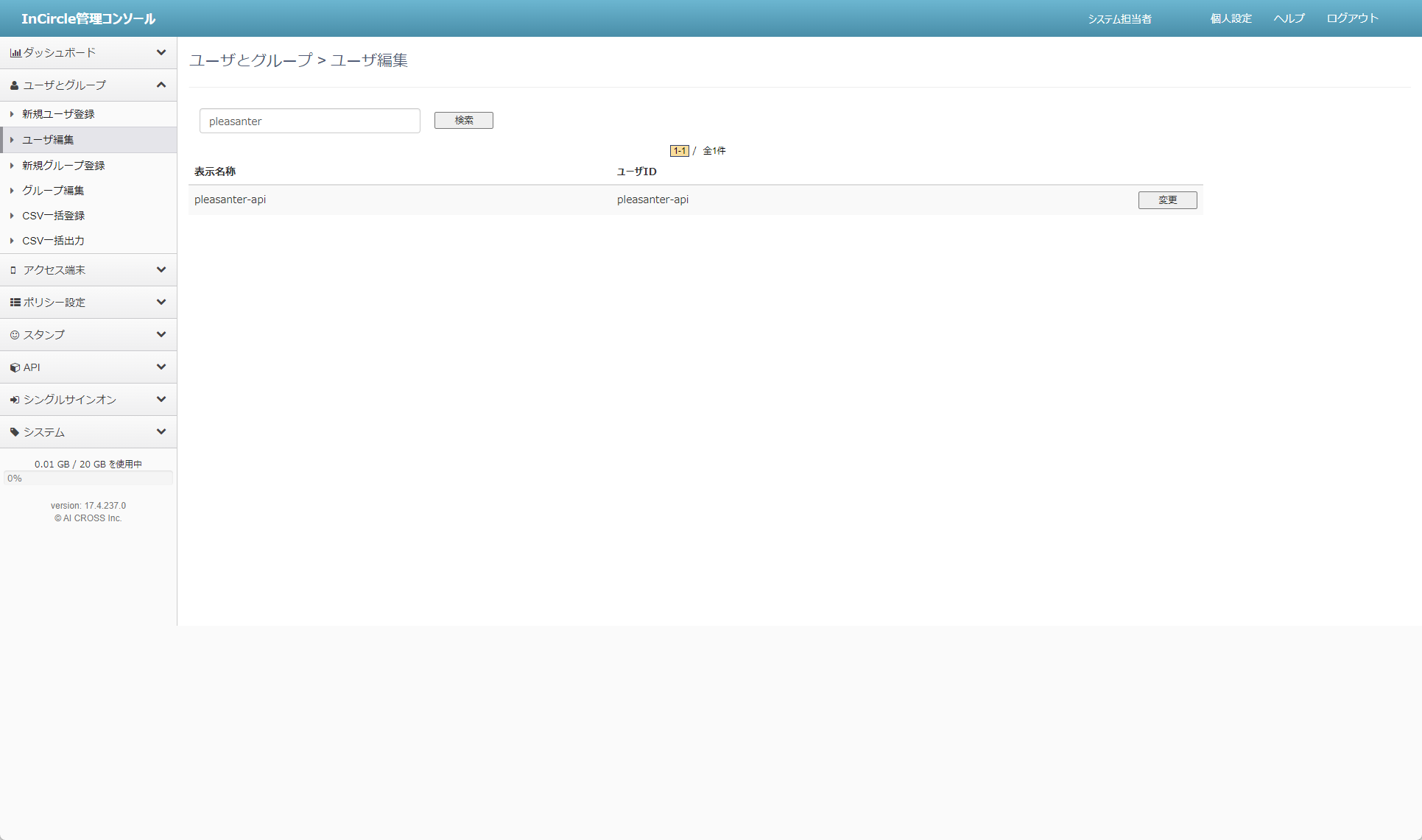
On the [Users and Groups] → [Edit User] screen, click the [Change] button for the API user created above.
-
Select [Access Token] tab. Click [Create Token ID] button.
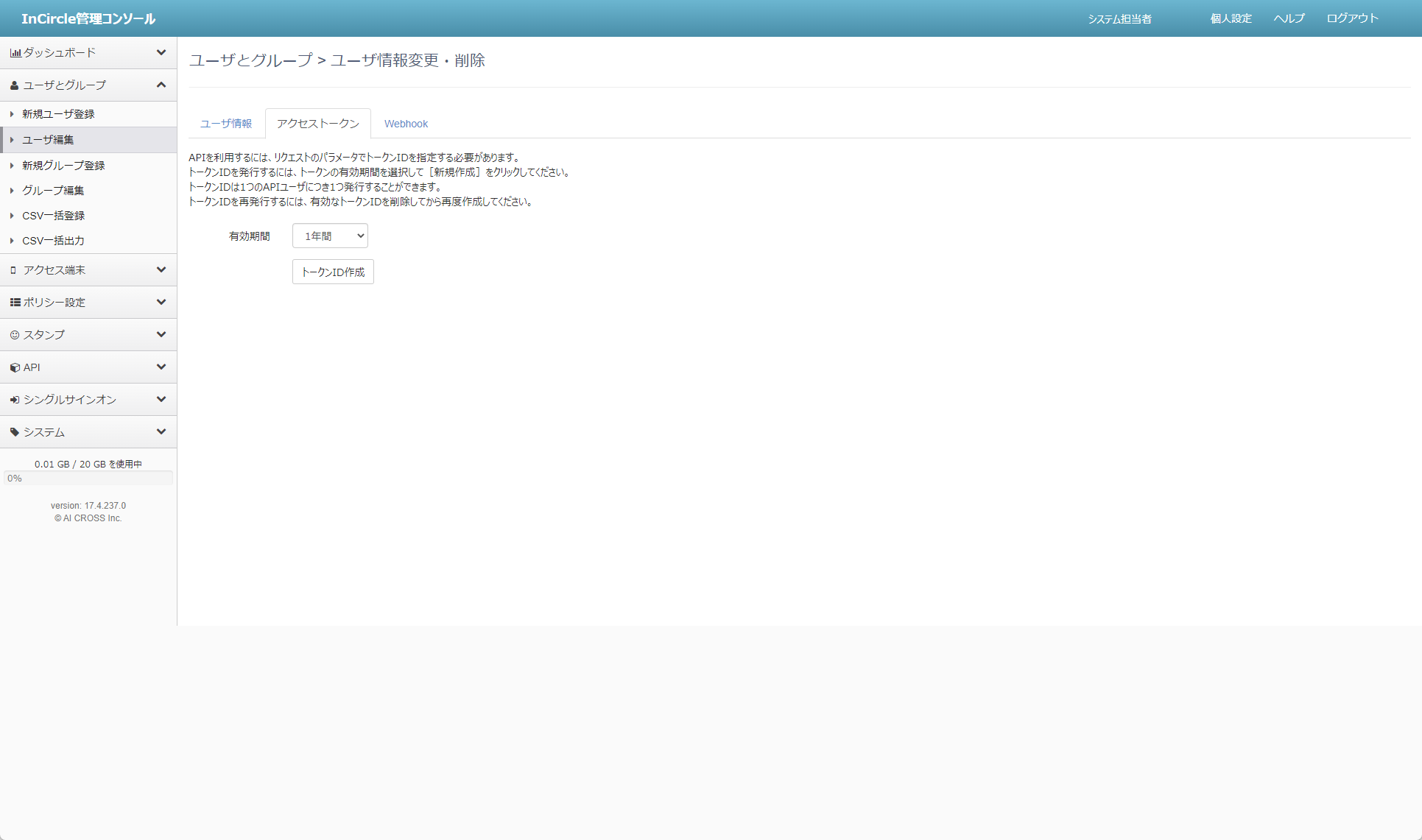
-
Copy the created [Token ID] anywhere.
Create a new token
- Log in InCircle as a standard user, select an API user, and create a new token.
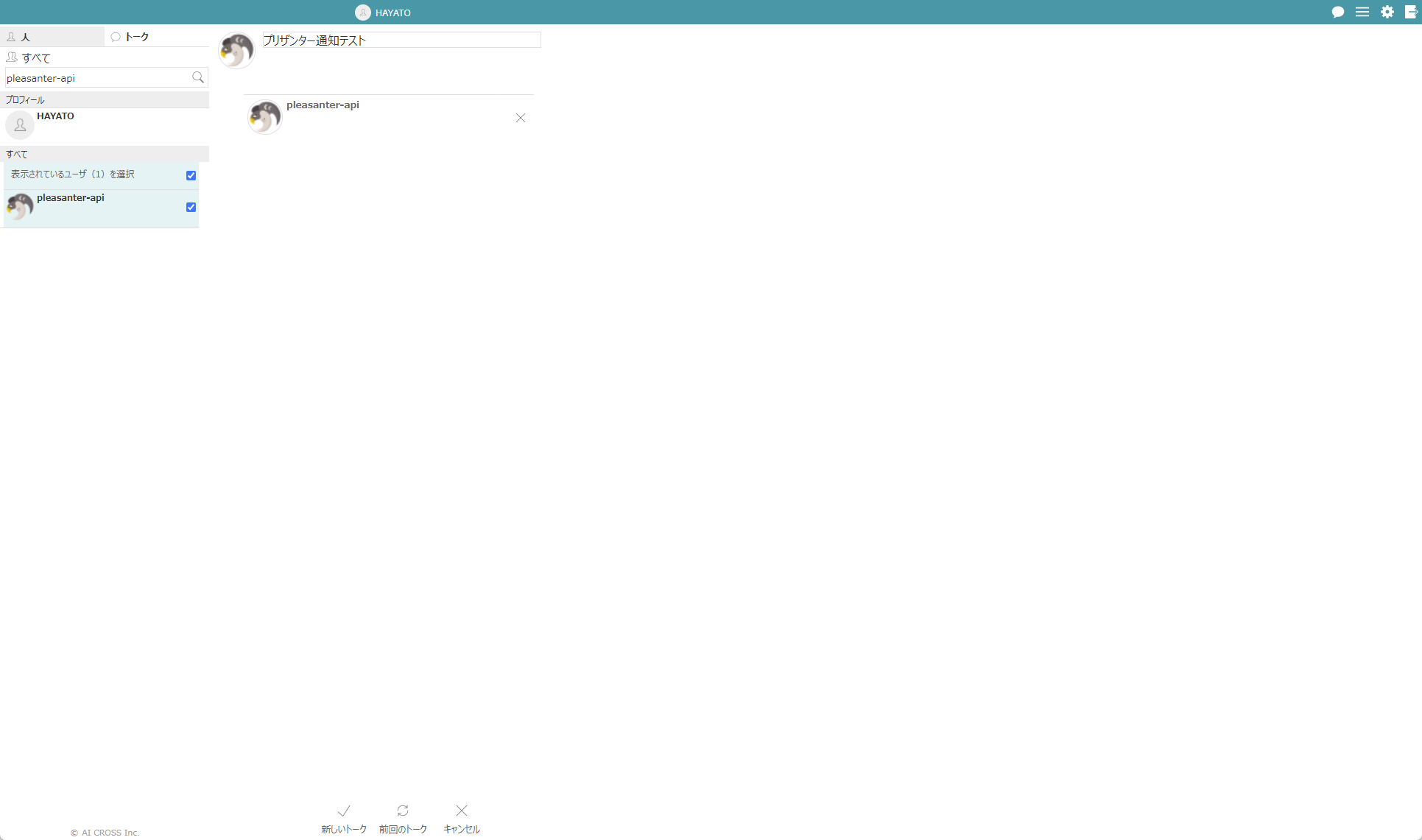
Get token number
-
Prepare a tool that can send POSTs. (Postman, etc.)
-
Enter the body as follows.
token_id:Set the [Token ID] created above.
action:1(fixed) -
Specify the following URL and send POST.
https://{host}.incircle.jp/{code}/api/v1/ticketL.do
-
Check the [ticketno] of the token to which you want to send a message from the response. This number is the token number.
Pleasanter settings
-
Select the table to set up notifications and open the "Manage Table" - "Notification" tab. Click the "Create New" button.

-
Select "InCircle" in the Notification Category. Enter the following in the Address and Token fields and click the "Add" button.
Address → https://{host}.incircle.jp/{code}/api/v1/messageC.do
Token → {token number}:{tokenID} (token number and token ID are separated by a colon ":")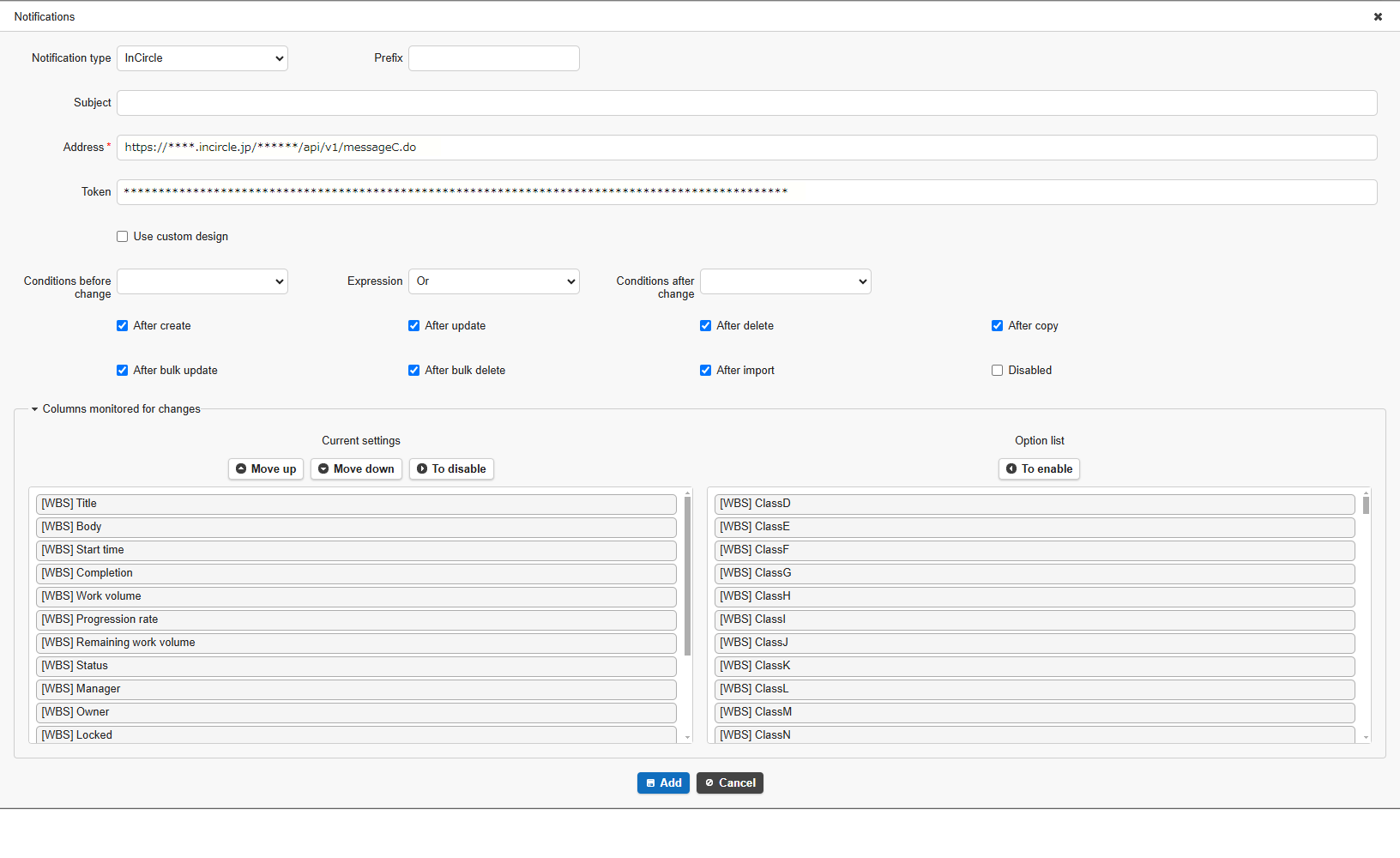
-
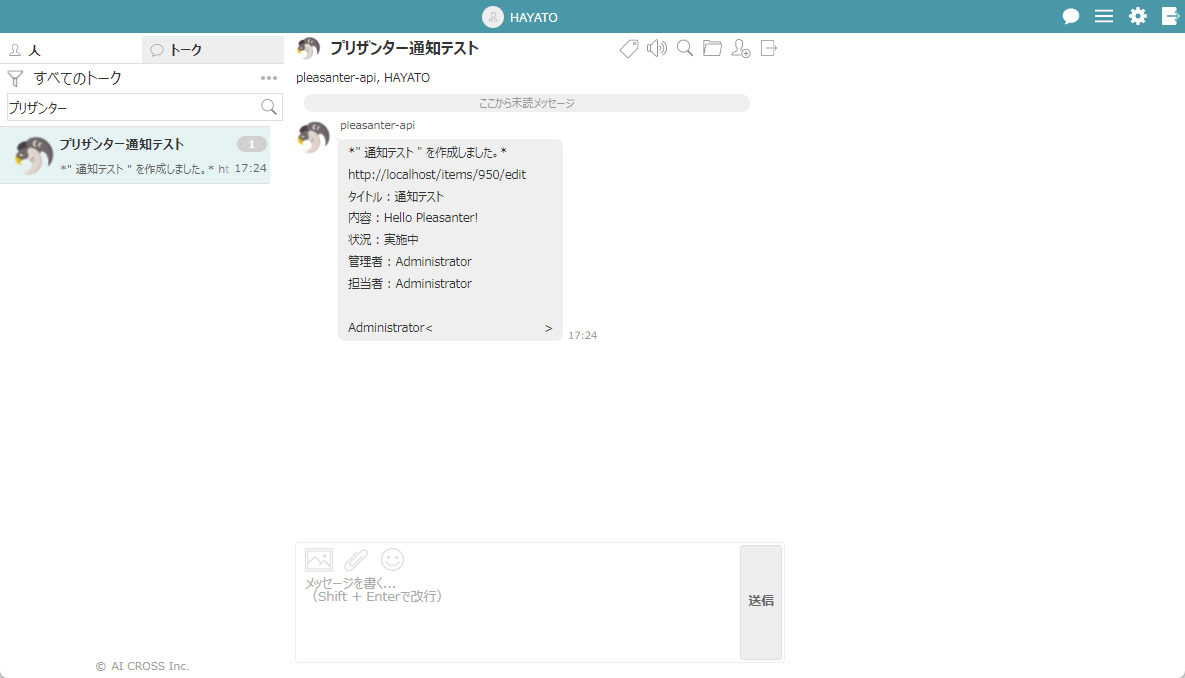
Click the "Change" button. After setting, notifications will be sent at the specified notification timing as follows.