Set Up to Send Notifications to Rocket.Chat
Overview
Setup procedure for notifications from Pleasanter to Rocket.Chat.
Prerequisites
- You need the "Site Administrator Permission".
- Setup Rocket.Chat and register as a user.
https://rocket.chat/ - Set "Rocket.Chat" in Notification.json to true.
Get Webhook URL
-
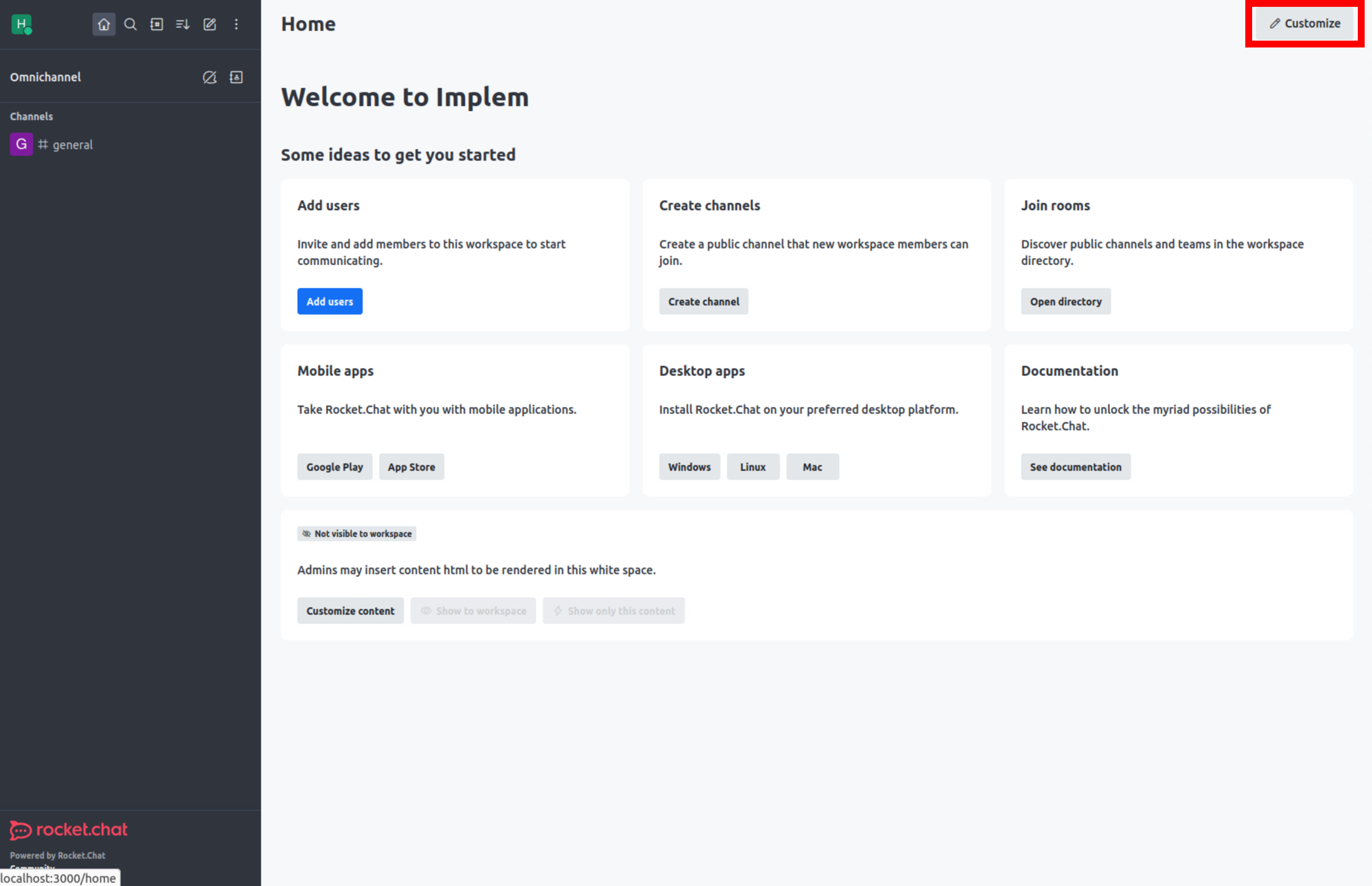
Log in to Rocket.Chat and click on "Manage" (red frame in the image below).
-
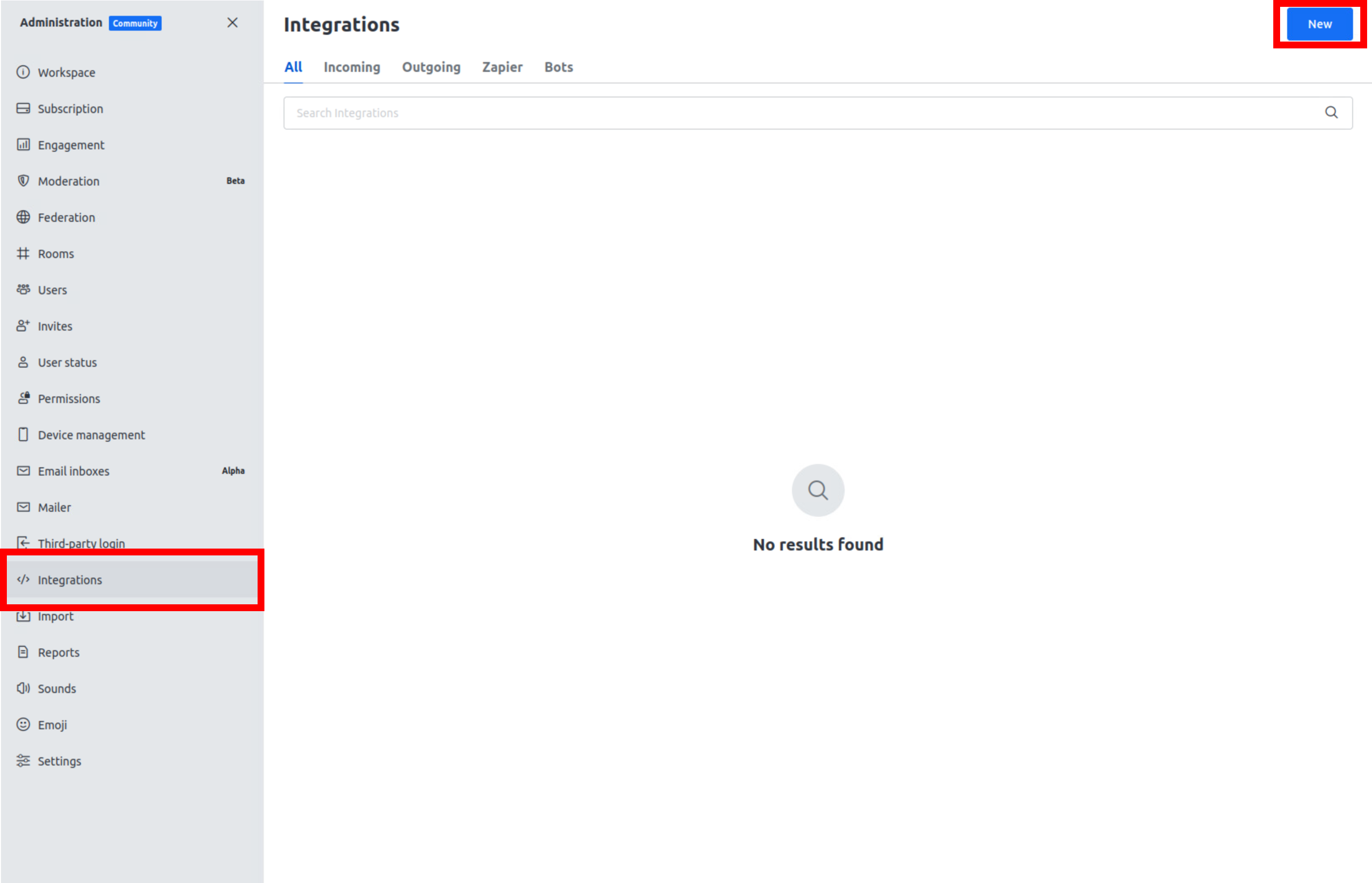
Click "Service Integration" on the left side of the screen, then click "New" in the upper right corner of the screen.
-
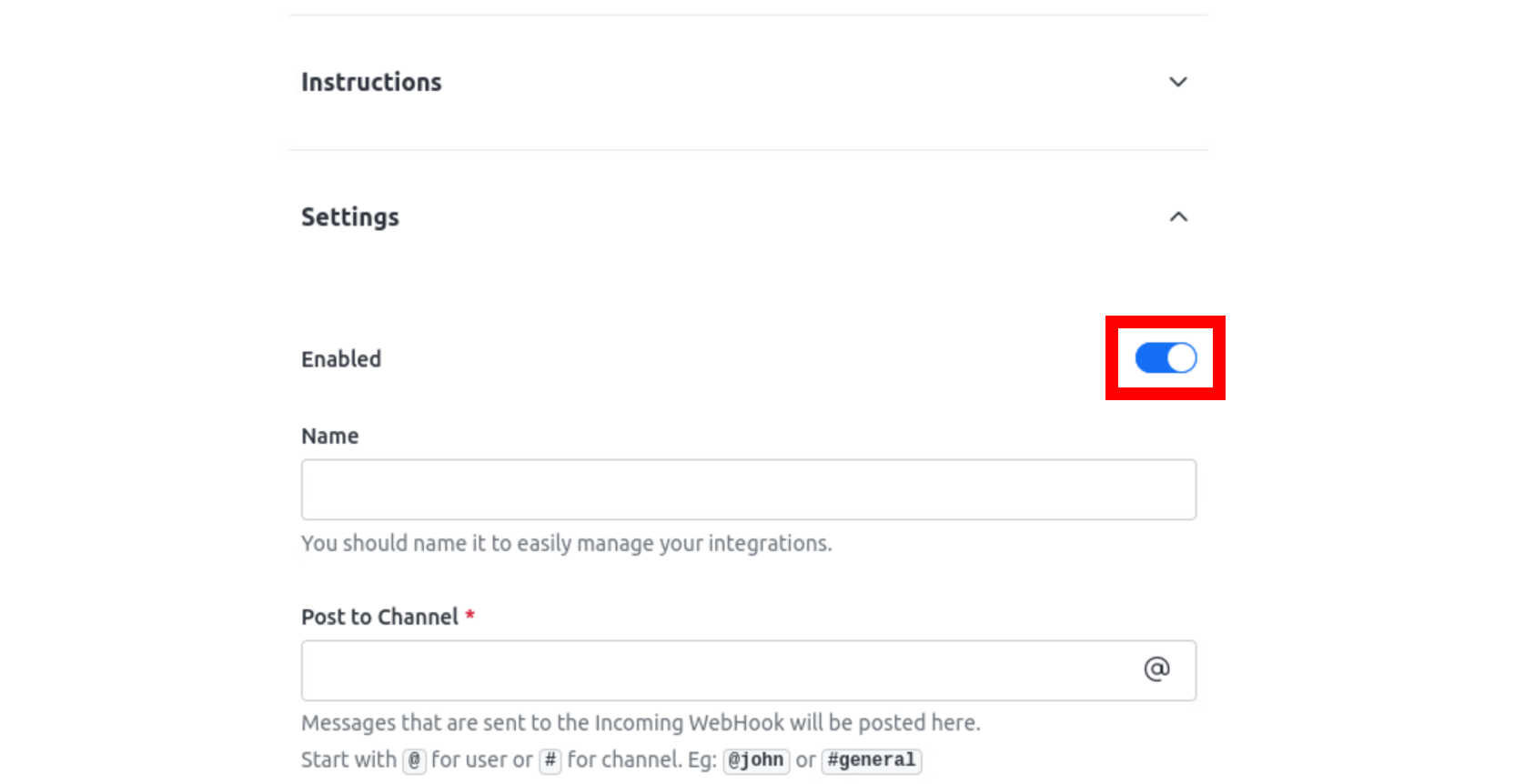
Use the button in the top right of the screen to enable service integration.
-
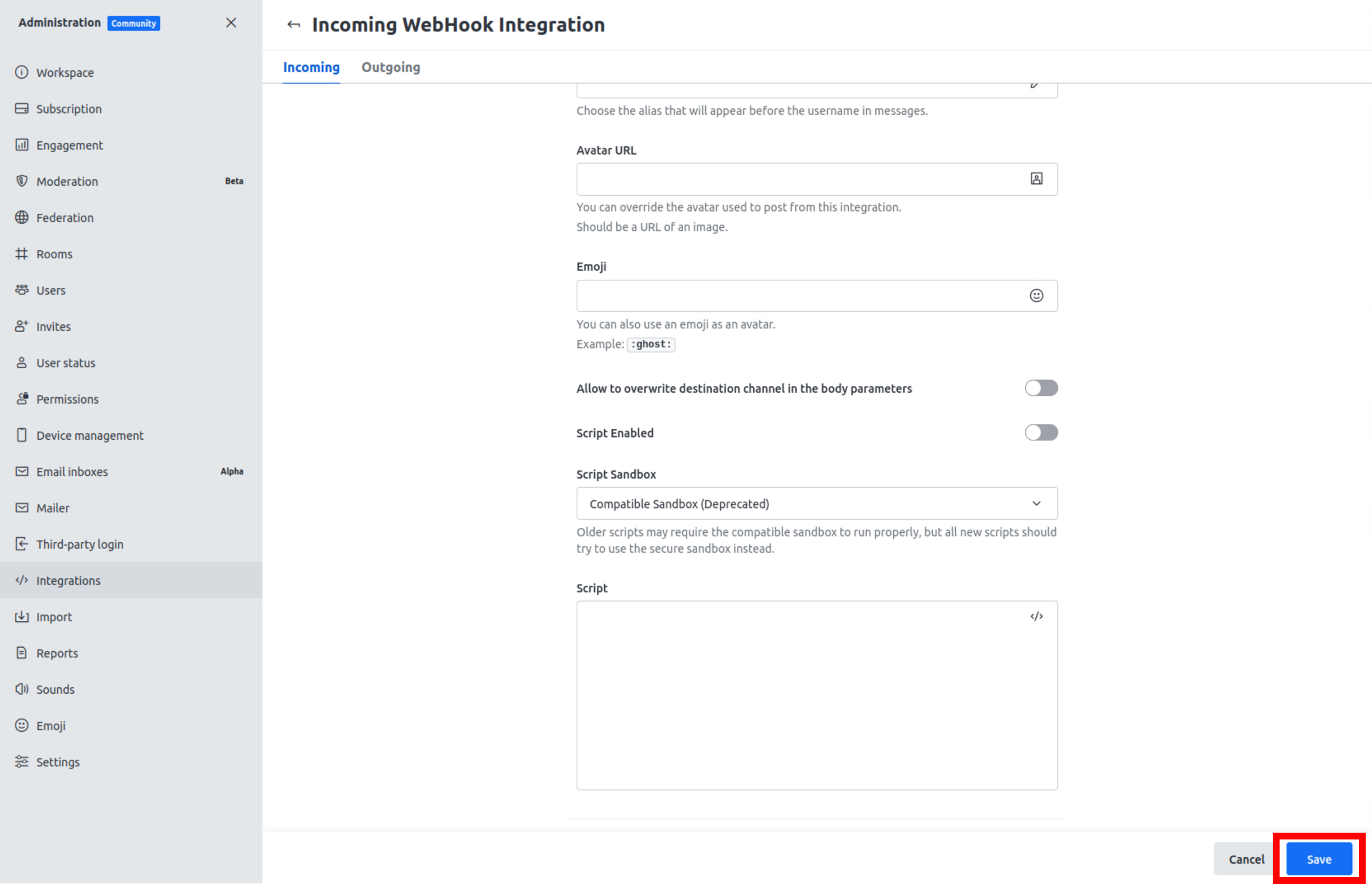
Set values for the target channel, posting user, and other necessary columns, then click "Save" at the bottom of the screen.
-
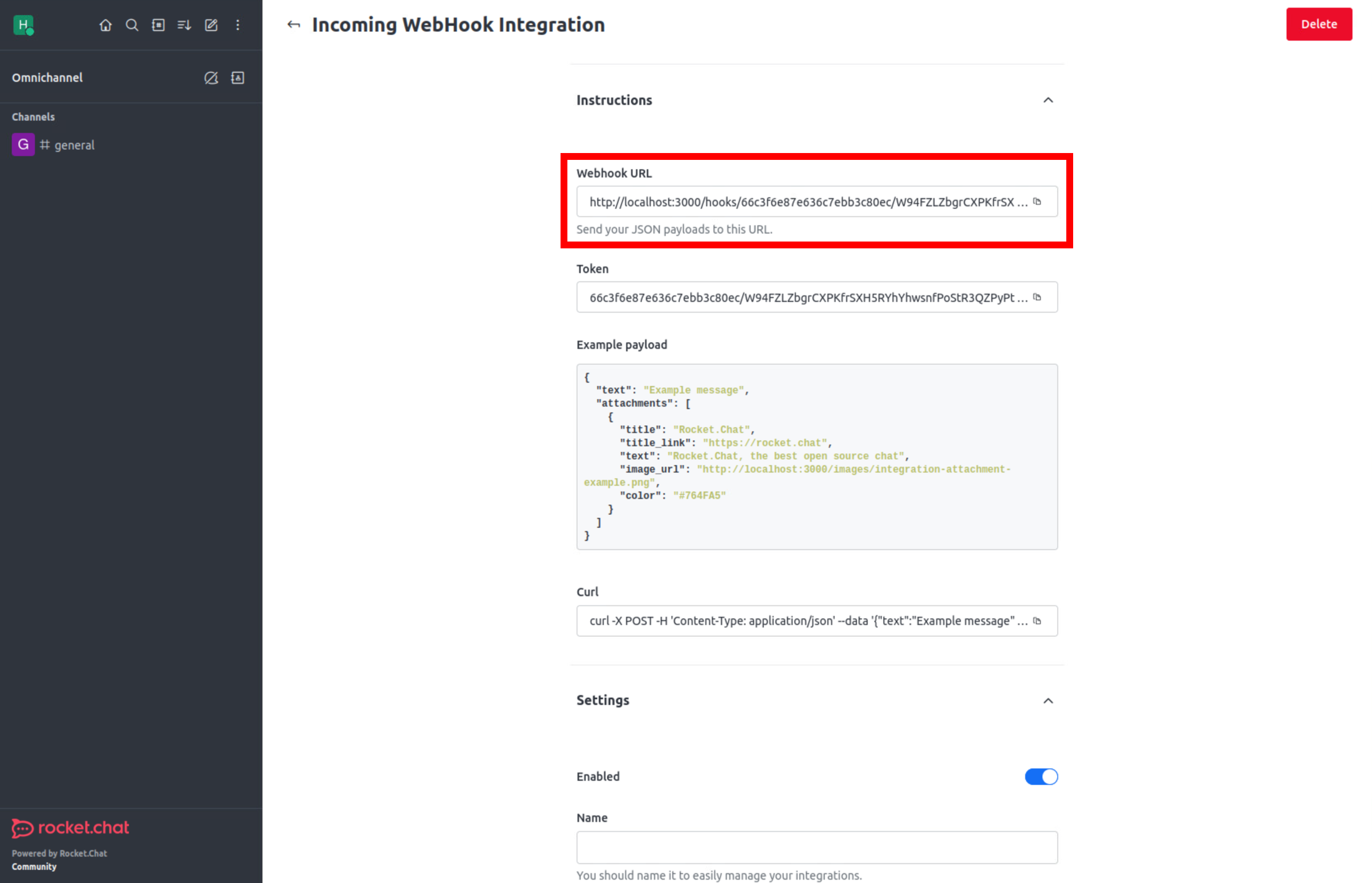
Copy the Webhook URL to register in Pleasanter.
Pleasanter Settings
-
Select the table to set notifications and open the "Manage Table" - "Notification" tab. Click the "Create New" button.

-
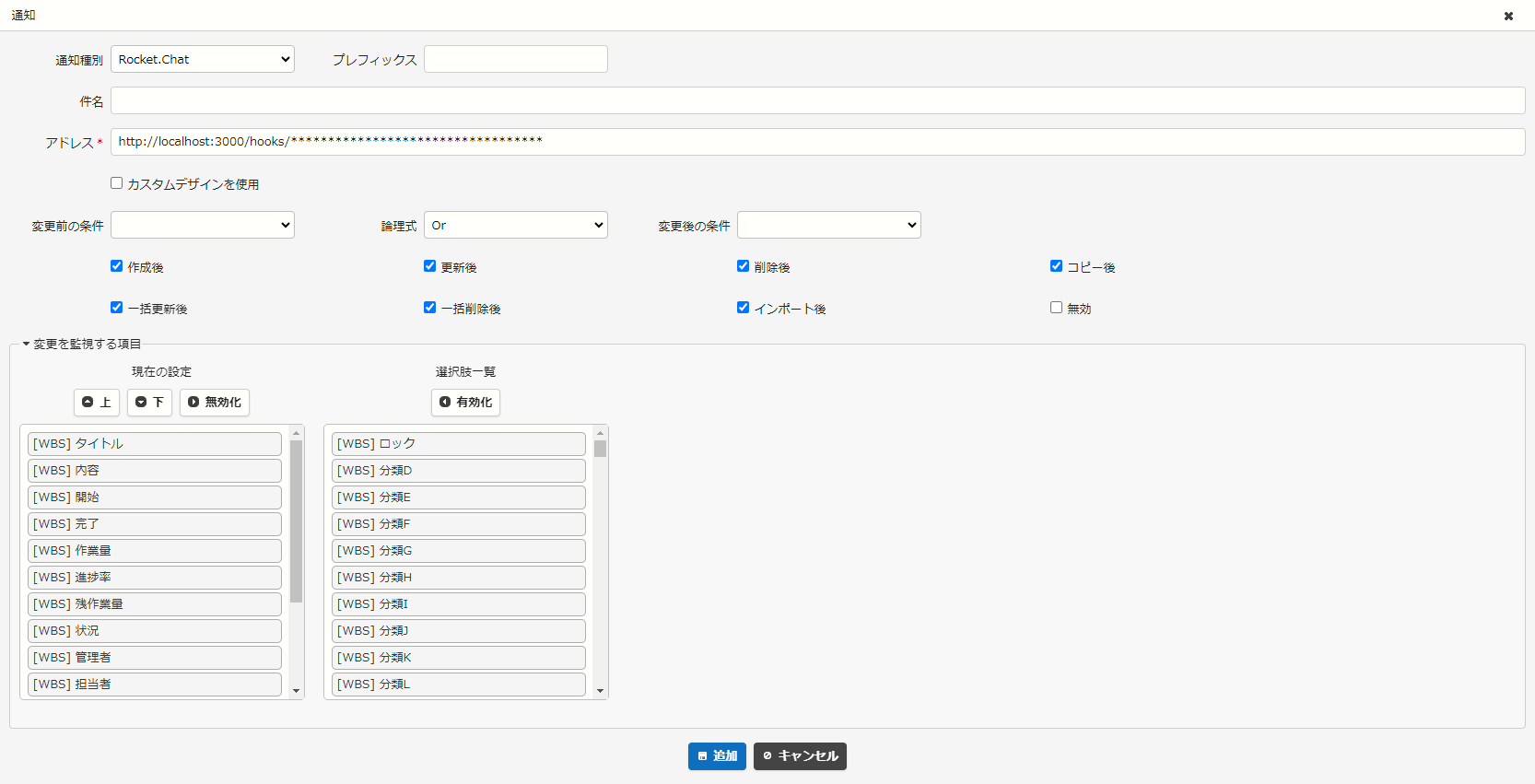
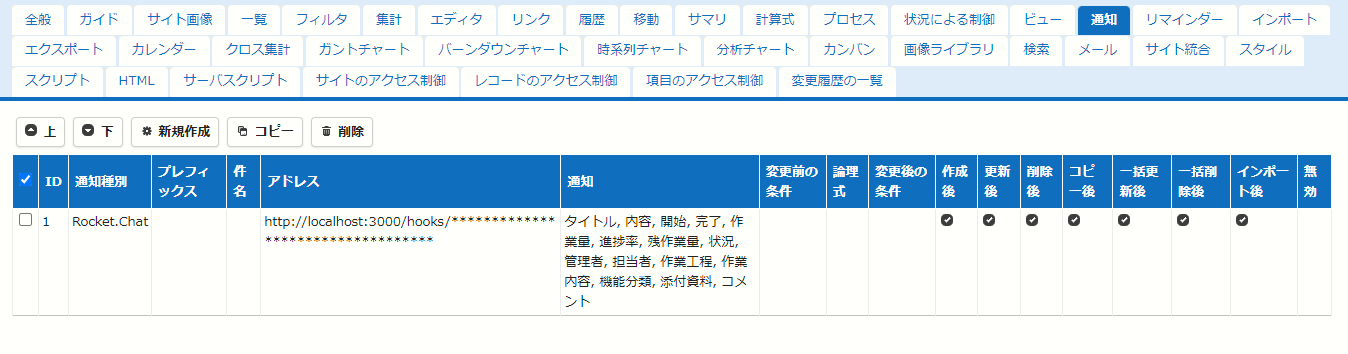
Enter "Rocket.Chat" as the notification type and "Webhook URL" as the address. Then click the "Add" button.
-
Click the "Update" button. This completes this procedure.
Supported Versions
- Pleasanter 1.1.20.0 or later
- Pleasanter .NET Framework version 0.50.240 or later