Set Up to Send Notifications to Slack
Prerequisites
Register as a user of Slack and create a team.
https://slack.com/
Get Webhook URL
-
Open the following URL
https://slack.com/services/new/incoming-webhook -
Select the channel you want to set as the notification destination and click the "Add Incoming WebHooks integration" button.

-
Copy the URL shown in the Webhook URL. Set this Webhook URL to Pleasanter.

Pleasanter Settings
-
Select the table to set up notifications and open the "Manage Table" - "Notification" tab. Click on the "Create New" button.

-
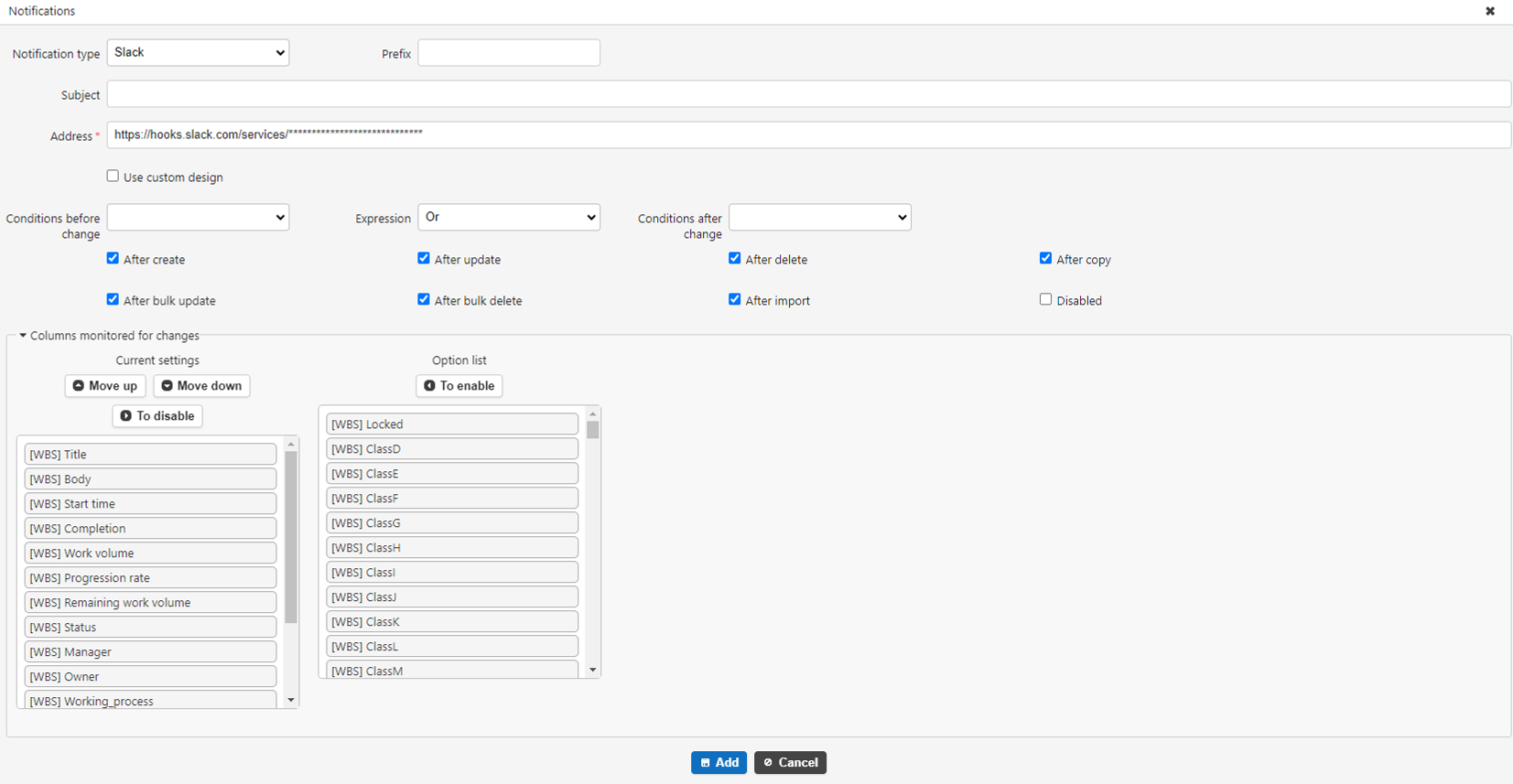
Enter "Slack" as the notification type and "Webhook URL" as the address. Then click the "Add" button.
-
Click the "Update" button. This completes the procedure.
