Set Up to Send Notifications to Microsoft Teams (Using Workflows)
Limitations
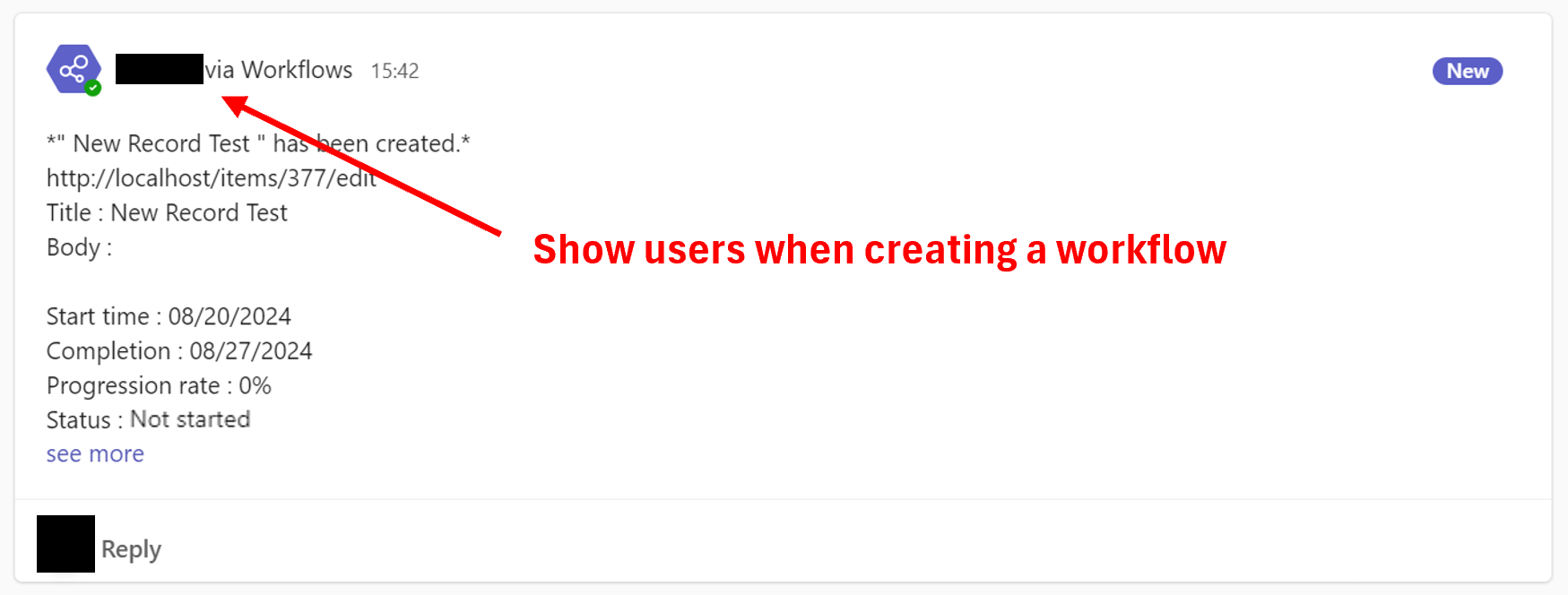
- If you set up notifications using this procedure, the notifier will be displayed as "●● via Workflows." This "●●" will be the name of the user who created the workflow. If you want to change the display content, consider introducing a chatbot.
1. Advance Preparation
Create a team and a channel for notifications in the Microsoft Teams app.
Create a Channel
2. Create a Workflow and Get The URL
Add a workflow to the notification channel.
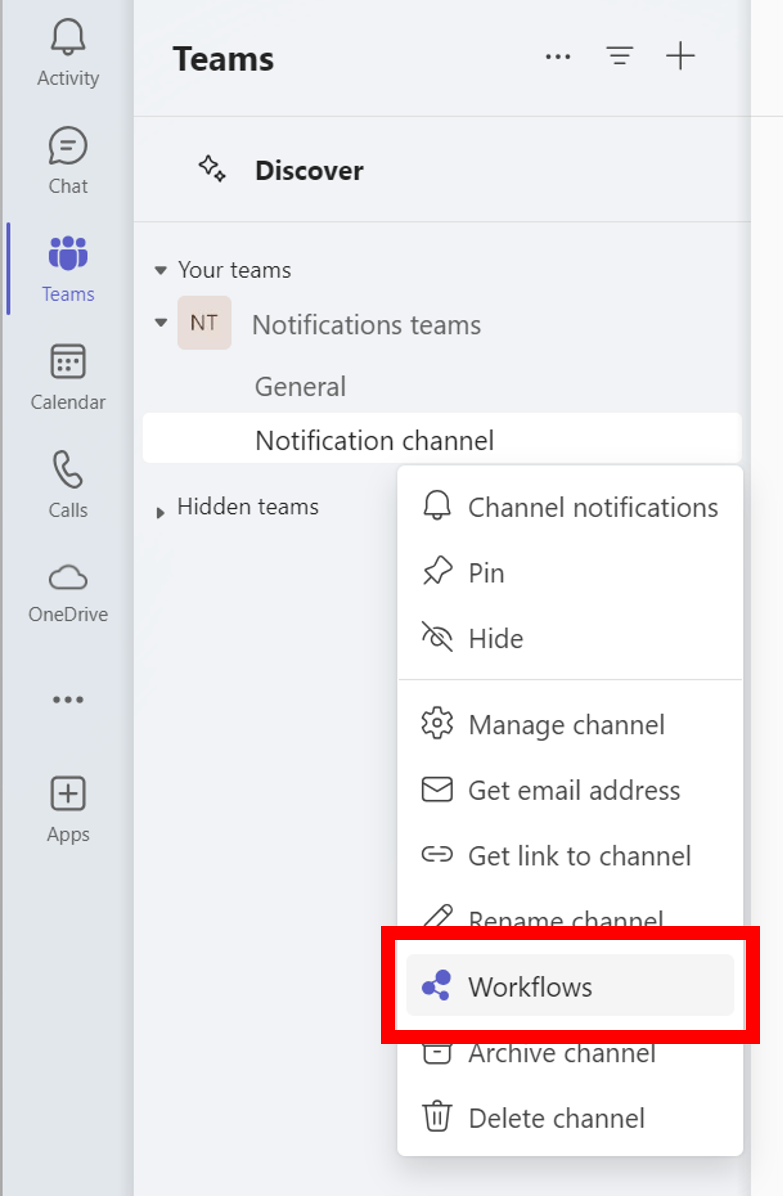
1. Click the "..." icon next to the channel and click "Workflows" from the menu.
-
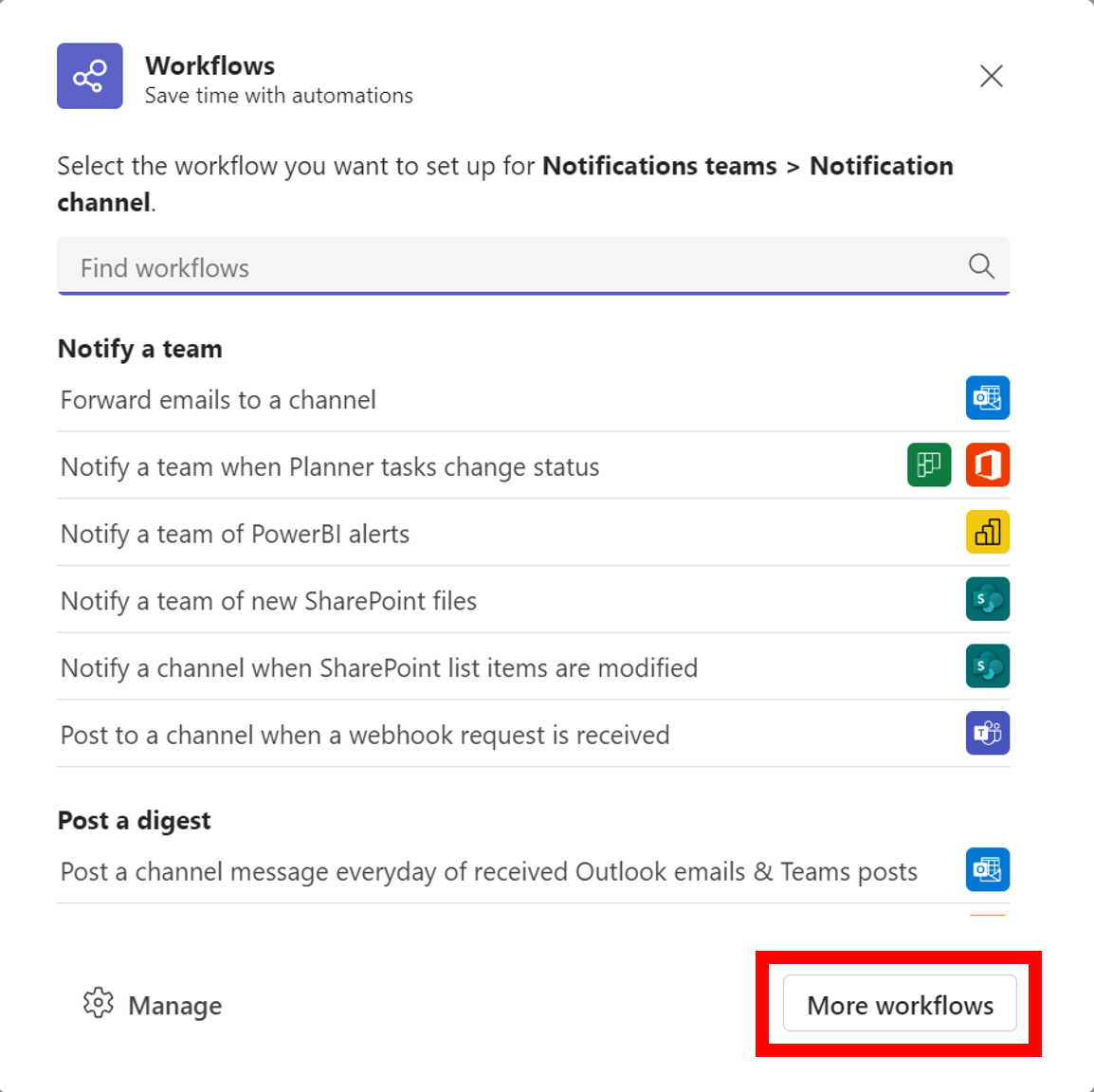
Click the "More workflows" button in the dialog.
-
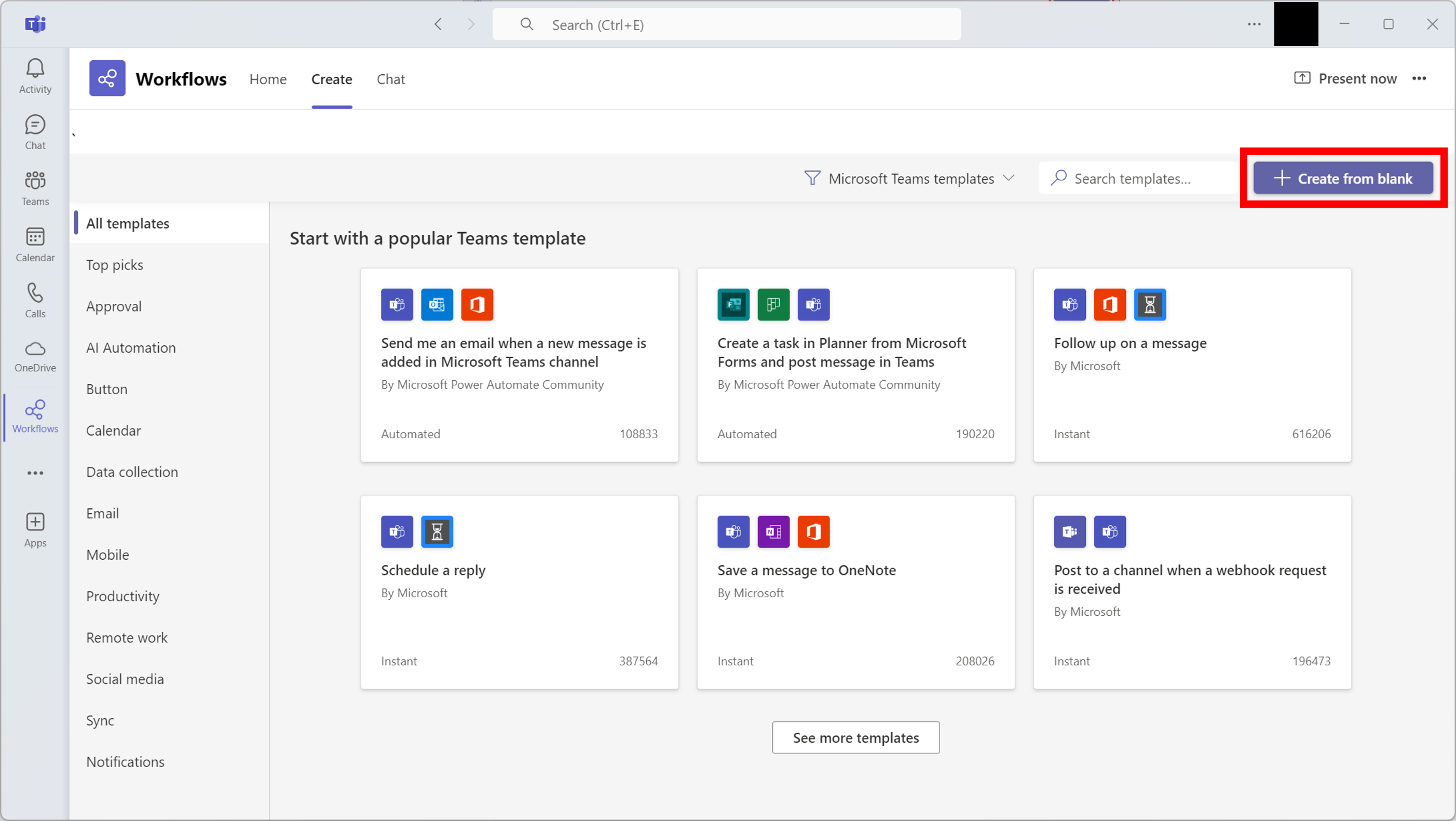
Click the "+ Create from blank" button.
-
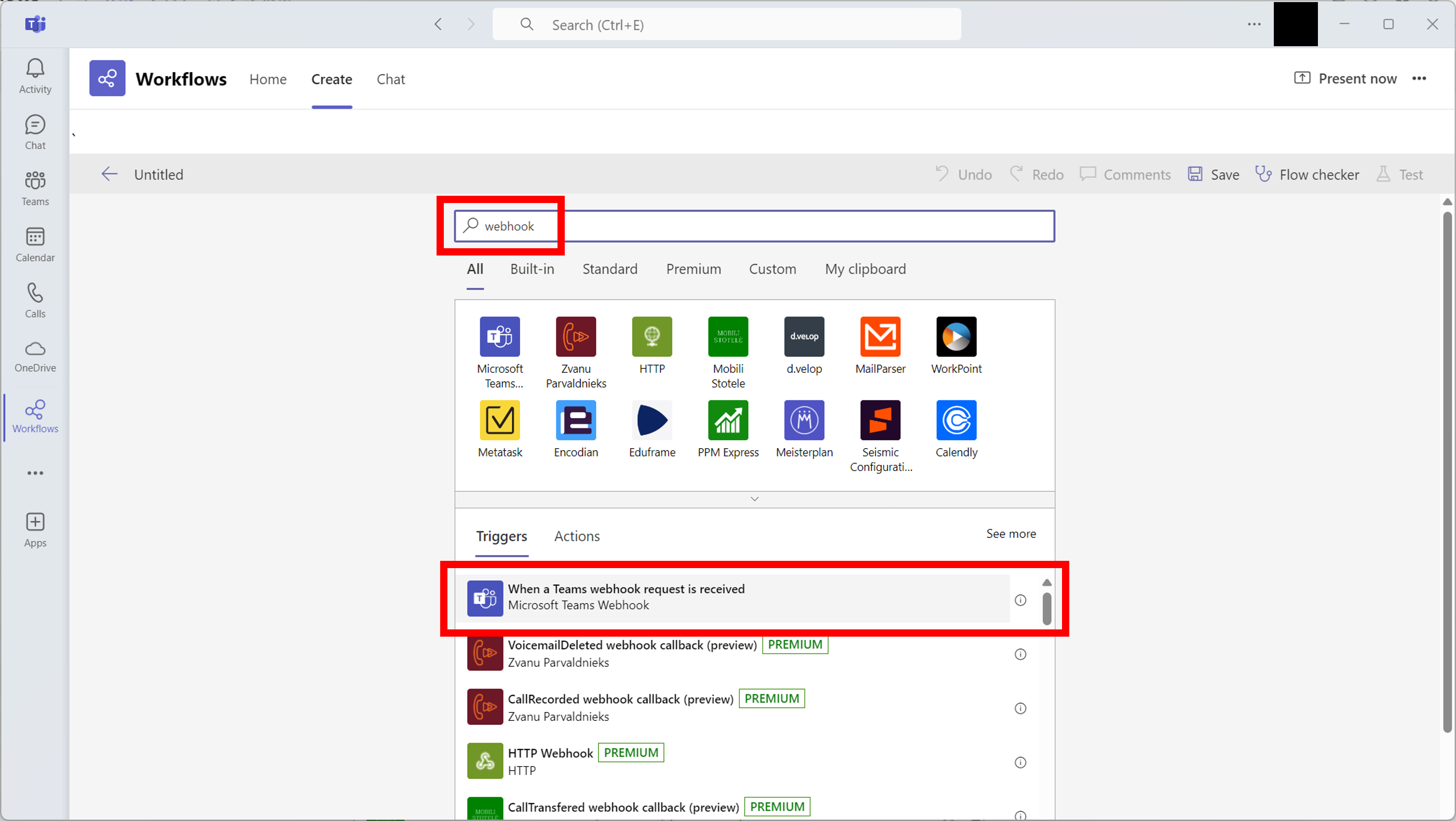
Enter "webhook" in the search field and click "When a Teams webhook request is received" from the search results at the bottom.
-
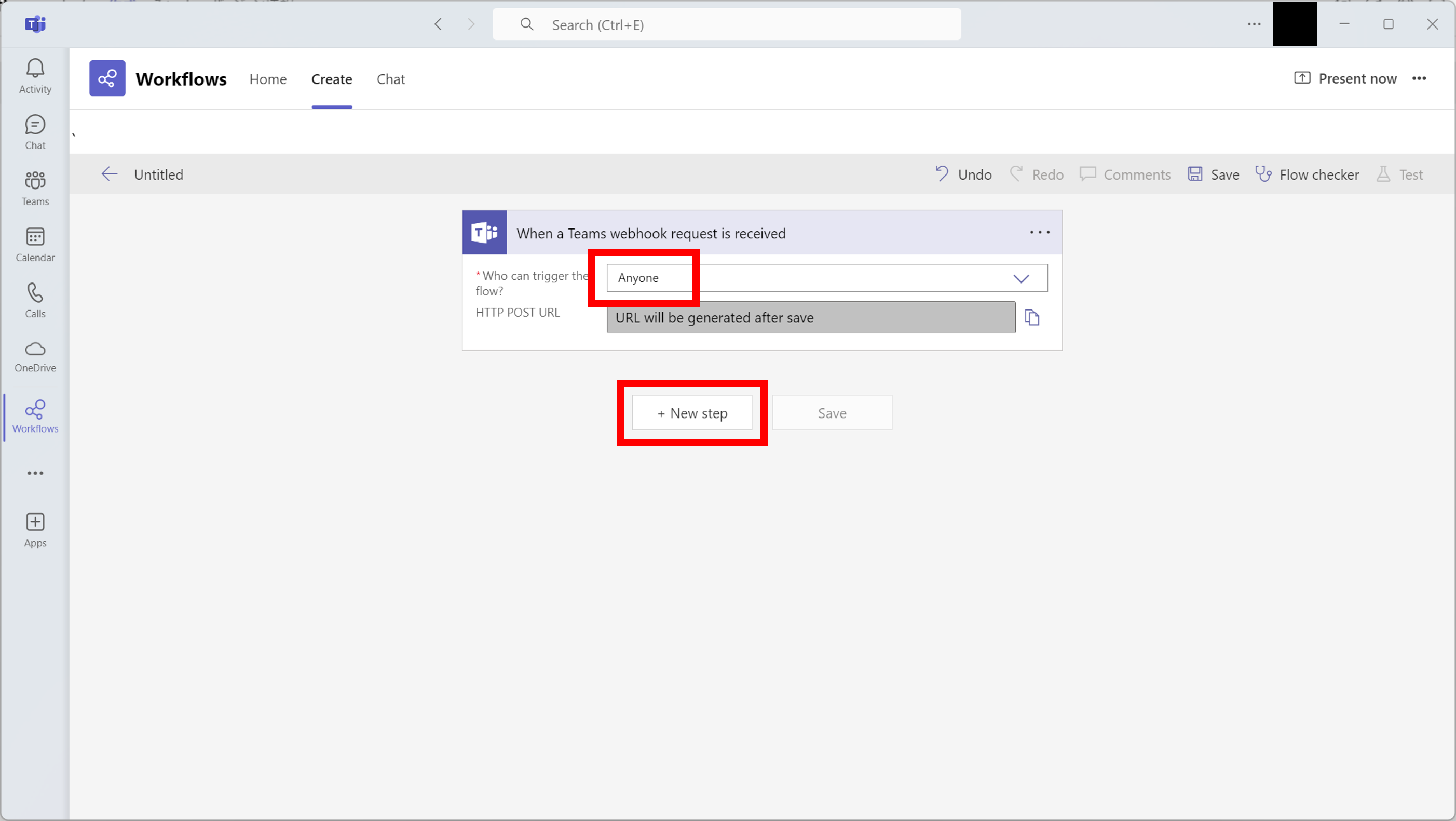
Select "Anyone" for "Who Can Trigger the flow?" and click the "New step" button.
-
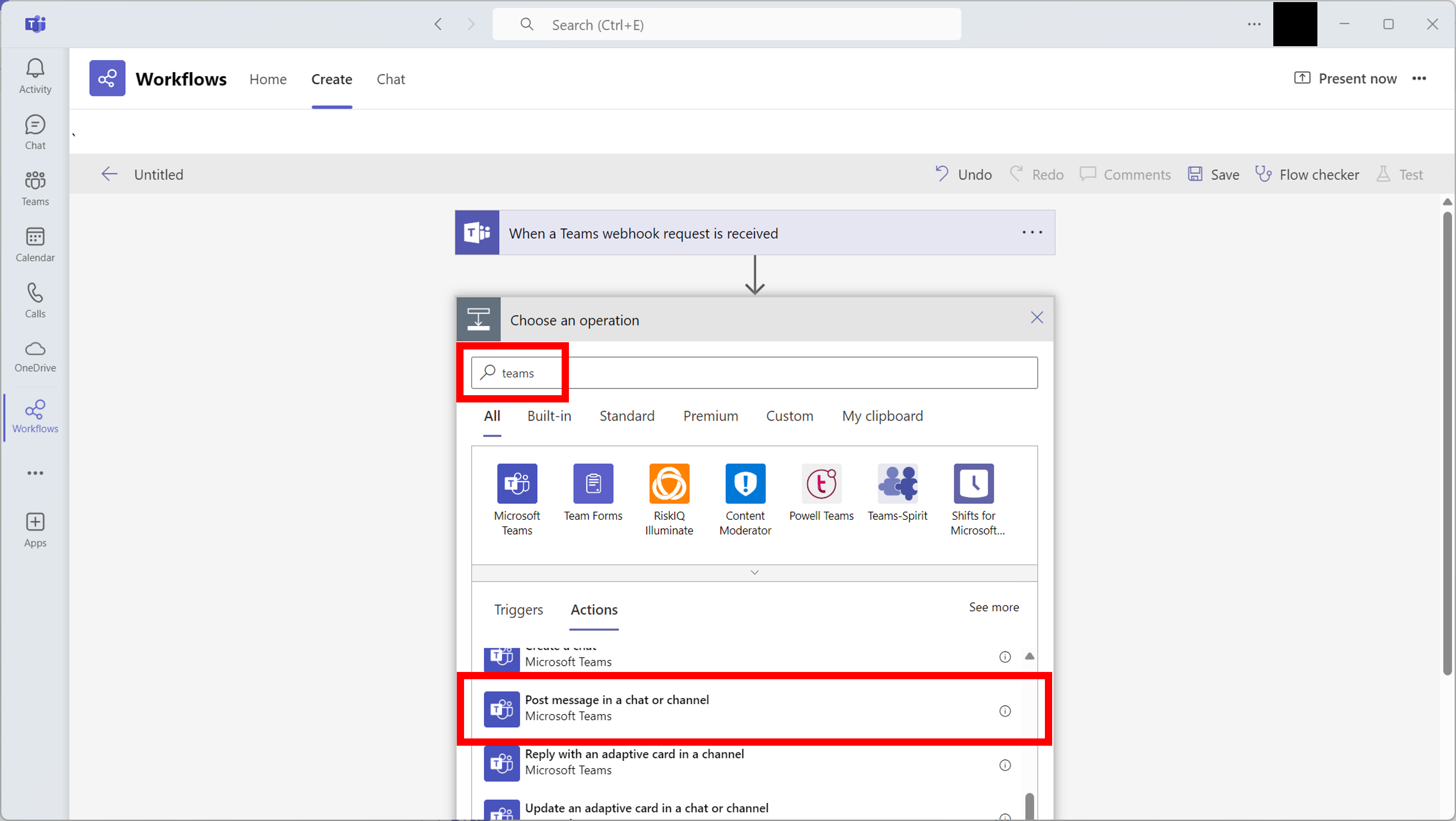
Enter "teams" in the search field and click "Post message in a chat or channel" from the search results at the bottom.
-
Enter each column and click "Save".
Input Column Body Post as Select "Flow bot" Post in Select "Channel" Team 1. Select the notification channel you created in advance preparation Channel 1. Select the notification channel you created in advance Message Copy and paste the following string
@{triggerBody()?['text']}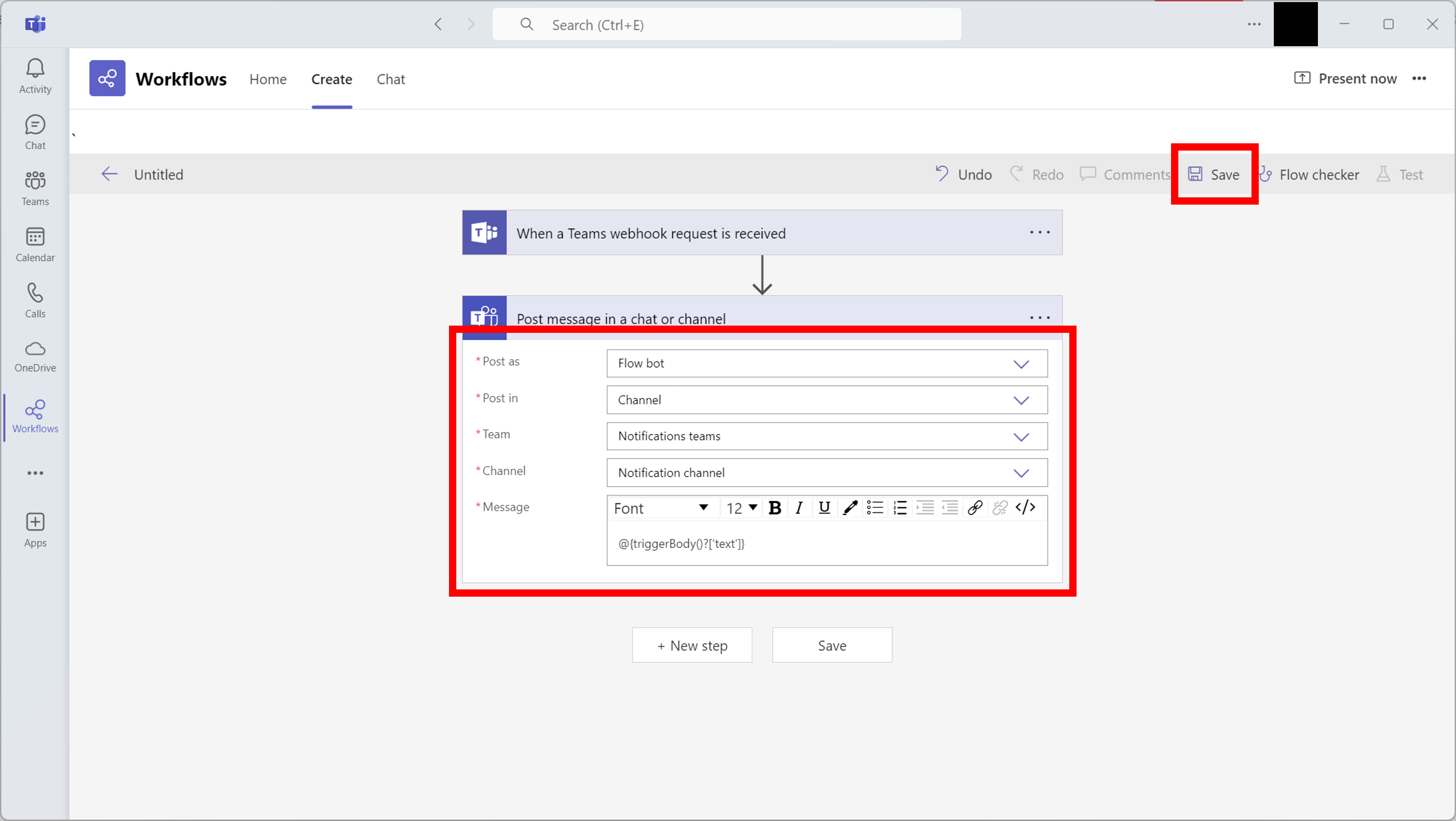
-
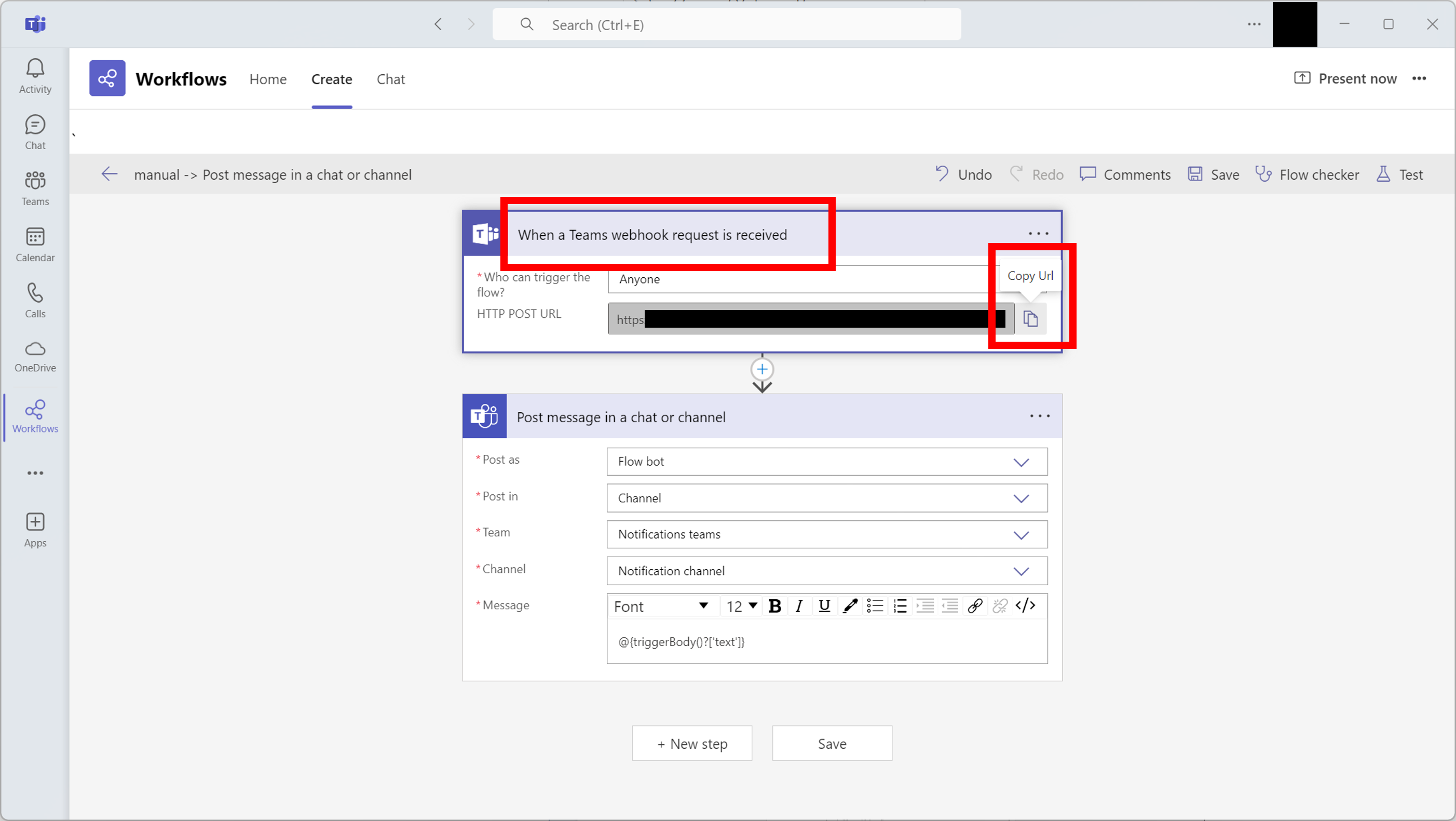
Click "When a Teams webhook request is received" and click the "Copy URL" button to the right of the "HTTP POST URL" field.
3. Pleasanter Settings
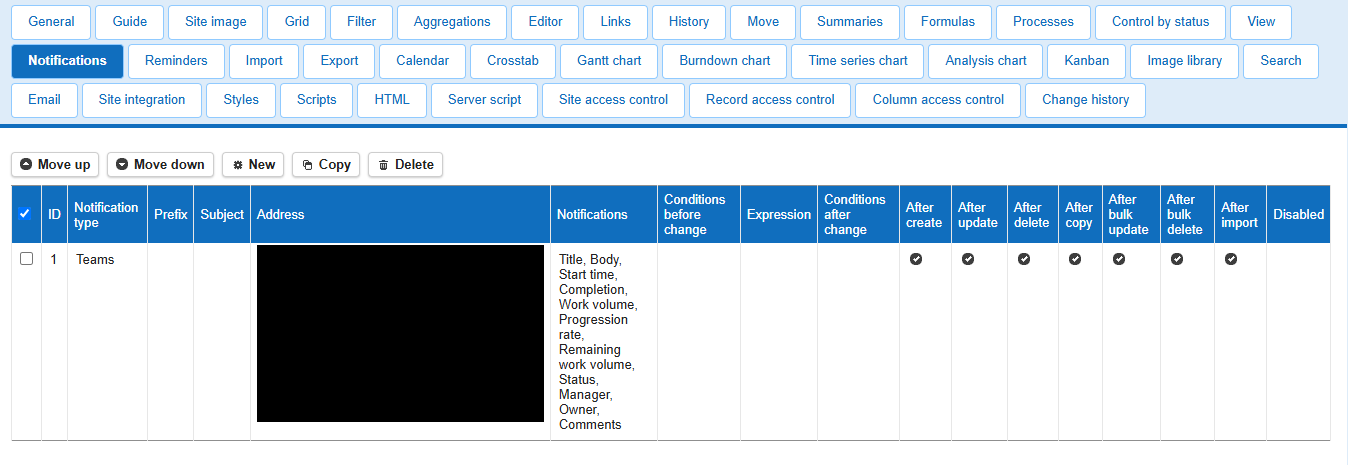
1.Select the table for which you want to set notifications, open the "Manage Table" - "Notifications" tab, and click the "Create New" button.

2.Select "Teams" as the notification type, paste the URL copied in 2.8. into the address field, and click the "Add" button.
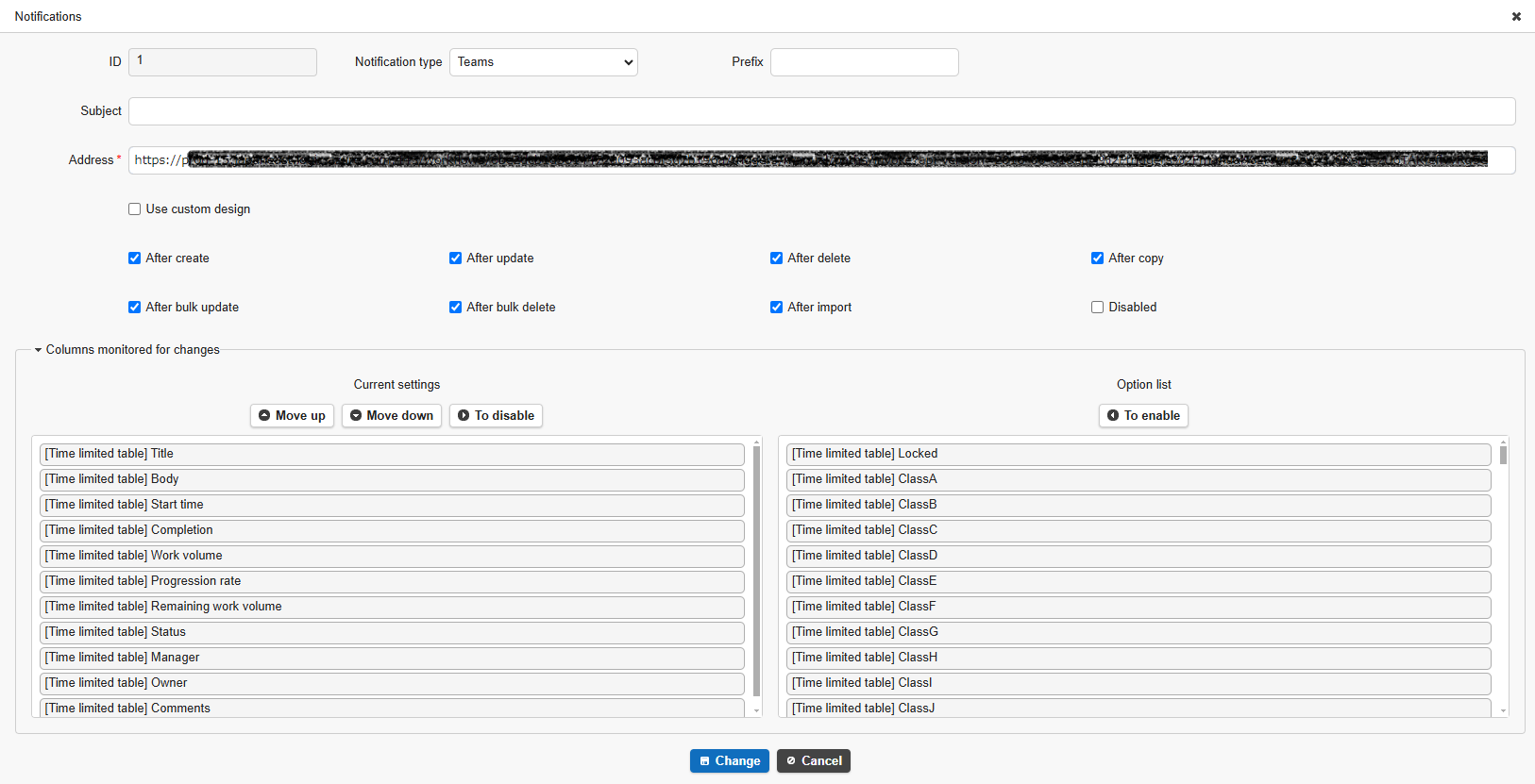
3.Click the "Update" button. This completes this procedure.