Queuing


(This feature can be tried with the Pleasanter Extensions Trial.)
Overview
This feature registers high-load processing as background jobs in a queue and runs them in order, instead of running them immediately during the request. Users can view a list of the jobs they ran themselves on the screen, but they cannot view the jobs run by other users.
Benefits of This Feature
Enabling this feature provides the following benefits.
- Prevents request timeouts of high-load processing
- Prevents user operations from being blocked while a large amount of data is processed
- Makes the progress of high-load processing visible
Basic Behavior of Queuing
- When a user performs an operation that supports queuing, it is not run immediately but registered in the queue as a job. Registration in the queue completes immediately, and the user can perform other operations.
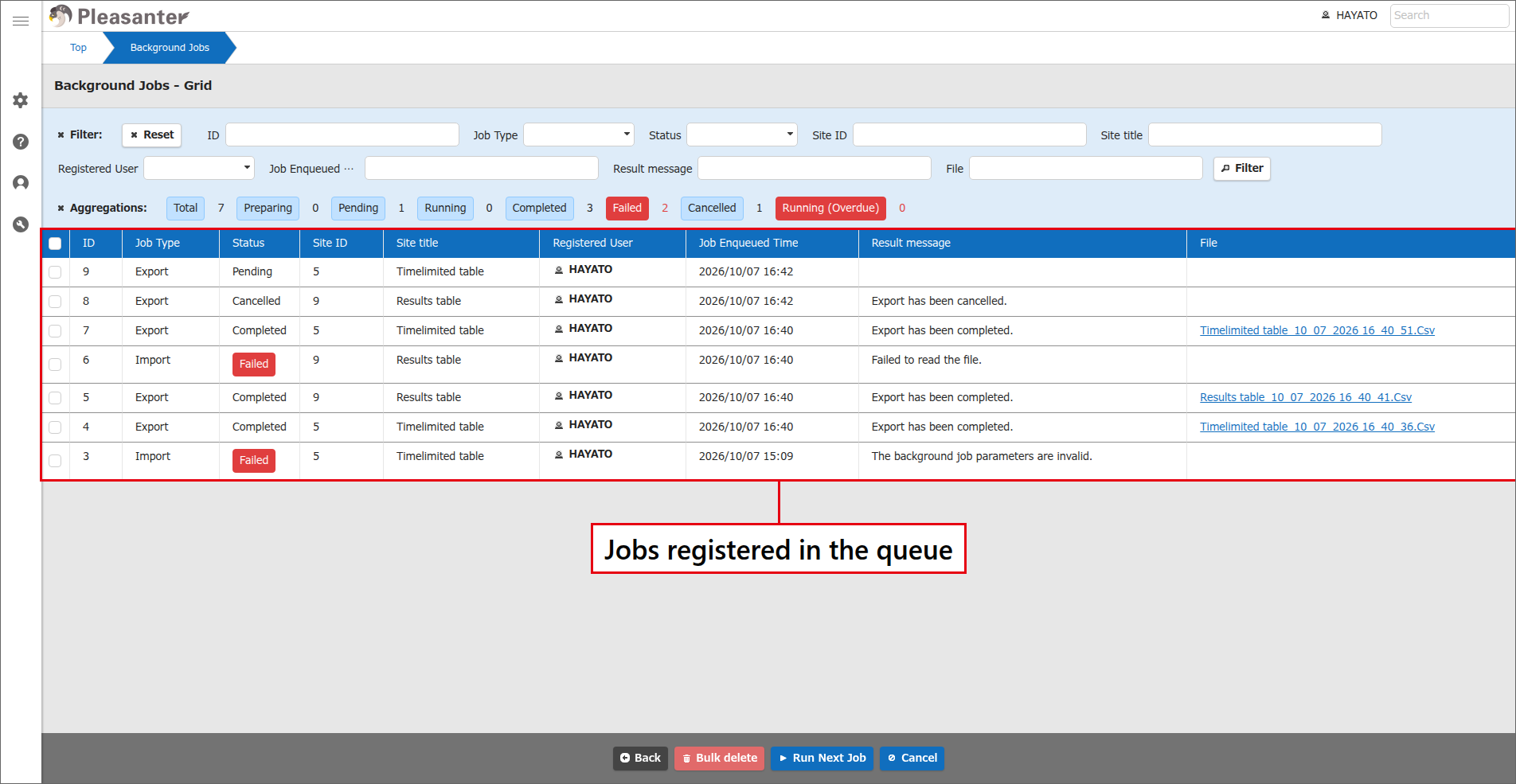
- Jobs registered in the queue can be checked on the job management screen.
- A job is first registered in the queue with the "Status" of "Pending", which means it is waiting to be run. Users can cancel a "Pending" job at any time.
- Jobs registered in the queue are taken out one at a time, starting with the job registered first, and run.
- When a job starts running, its "Status" changes from "Pending" to "Running". A "Running" job can be neither cancelled nor deleted.
- If Pleasanter restarts unexpectedly while a job is running, the "Running" job changes to "Failed" with the default settings. This behavior can be changed in the parameter settings.
- Pleasanter monitors how long each job runs. When a job runs longer than the threshold (time) set in the parameters, its "Status" changes from "Running" to "Running (Overdue)". A job whose "Status" is "Running (Overdue)" can be run in parallel with the next job by clicking a button.
- When a running job ends normally, its "Status" changes from "Running" to "Completed".
- When a running job ends abnormally, its "Status" changes from "Running" to "Failed".
- Jobs whose "Status" is "Cancelled", "Failed", or "Completed" can be deleted on the screen, and can also be set to be deleted automatically after a certain period.
Supported Job Types
| Supported versions | Supported job types |
|---|---|
| 1.5.6.0 and later | "Export" of records |
| 1.5.7.0 and later | "Import" of records |
| 1.5.8.0 and later | "AI Connect" of records |
| 1.5.9.0 and later | "Bulk delete" of records |
Cautions
- When enabling this feature, set appropriate values for the OutputFilePath and InputFilePath parameters in BackgroundJobs.json. If they are not set, processing fails and the queue feature cannot be used.
Limitations
- The queue runs one job at a time (a single serial line).
Prerequisites
- This feature is available only to subscribers of the following plans of the Annual Support Service.
| Entry | Basic | Basic Plus | Business | Business Plus | Unlimited |
|---|---|---|---|---|---|
| 〇 | 〇 | 〇 |
Enabling Queuing
To enable queuing, set BackgroundQueue in BackgroundJobs.json to true.
Job Management Screen
When you run a job that supports queuing, the job is registered in the queue, and you can check and operate it on the job management screen. For details, see Job Management Screen.
Job Status
- When you perform an operation that supports queuing, it is registered in the queue as a job, and its "Status" becomes "Pending".
- When a job whose "Status" is "Pending" is cancelled, it changes to "Cancelled".
- Jobs registered in the queue are run in the order in which they were registered, and their "Status" changes from "Pending" to "Running".
- A job whose "Status" is "Running" changes to "Completed" if it ends normally, and to "Failed" if it ends abnormally.
- If a job whose "Status" is "Running" becomes neither "Completed" nor "Failed" even after exceeding the threshold (time) set in the parameters, it changes to "Running (Overdue)".
- "Preparing" is a "Status" used only for processing that requires a file upload, such as import. Export does not change to this "Status". If a job remains "Preparing" beyond the time set in BackgroundJobTimeout of BackgroundJobs.json (time out), it changes to "Failed". Unlike export, it does not change to an overdue status. If the application recovers from a failure while there is a "Preparing" job, the job changes to "Failed" regardless of the RecoverAction setting in BackgroundJobs.json.
| Status | Description | Cancel | Delete |
|---|---|---|---|
| Pending | Registered in the queue and waiting to be run. | Yes | Yes |
| Preparing | The CSV file is being uploaded. | - | - |
| Running | Taken from the queue and being processed. | - | - |
| Completed | Ended normally. The output file can be downloaded. | - | Yes |
| Failed | Ended abnormally. The error details can be checked. | - | Yes |
| Cancelled | Cancelled while "Pending". | - | Yes |
| Running (Overdue) | Still running after exceeding the set time (threshold). | - | - |
Deleting Jobs
Completed jobs, failed jobs, and cancelled jobs remain in the queue until a user deletes them. Unnecessary jobs can be deleted with the following features.
- On the job management screen, you can delete unnecessary jobs in bulk.
- On the "details screen", you can delete unnecessary jobs one at a time.
- By setting the "DeleteBackgroundJobs" parameter in BackgroundService.json to true, you can enable automatic deletion of jobs whose "Status" is "Completed", "Failed", or "Cancelled" after a certain period.
- When a job is deleted, the "output file" saved when the job completed is also deleted.
Handling Long-Running Jobs
This section uses an example in which three jobs, Job A, Job B, and Job C, are registered in the queue in this order.
When Job A changes to "Running", the next job, Job B, must wait for Job A to complete. If Job A takes a long time, the subsequent Job B and Job C must wait for the preceding job to complete, even if they would finish quickly.
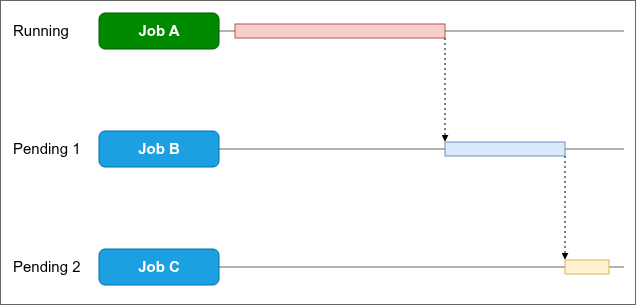
To address this, a threshold is set for the run time of jobs, and a job whose "Status" does not change to "Completed" or "Failed" even after exceeding the threshold can be run in parallel with the next job. The "Status" of a job that exceeds the threshold changes to "Running (Overdue)". While Job A is running, open the job management screen, select Job A, and click the "Run Next Job" button. The next pending job, Job B, runs in parallel with Job A. If Job B "Completed" before Job A, select Job A again and click the "Run Next Job" button. The next pending job, Job C, runs in parallel with Job A.
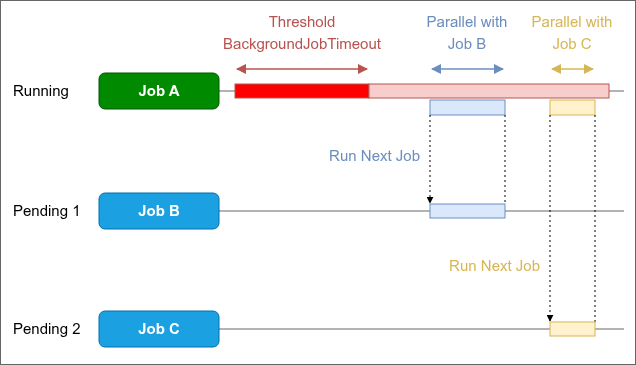
The threshold for the run time of jobs can be set with the BackgroundJobTimeout parameter in BackgroundJobs.json.
| Cautions about "Run Next Job" |
|---|
| Increasing parallel runs of jobs with "Run Next Job" consumes more resources and may weaken the benefit of queuing, which is to prevent request timeouts of high-load processing. |
Scope of Viewing and Operating Jobs
The range of jobs that a user can view and operate is controlled according to the user's permissions.
| Target users | Range of viewing and operating |
|---|---|
| Privileged users | All background jobs of all tenants |
| Tenant administrators | All background jobs of their own tenant |
| General users | Only their own background jobs in their own tenant |
Display When Jobs Are Reserved
1.5.9.0
With queuing, a job is run when its turn comes, not when it is registered. Therefore, if you bulk delete, bulk update, or import records in the same table while a job is waiting to be run, the operation may overlap with the processing of the reserved job. When you open a table that has jobs registered in the queue, a message notifying you that jobs are reserved is displayed at the top of the index screen and in some operation dialogs. You can check before an operation whether the table has unfinished processing.
| Where it is displayed | Message |
|---|---|
| Message at the top of the screen | Background Jobs have been reserved: |
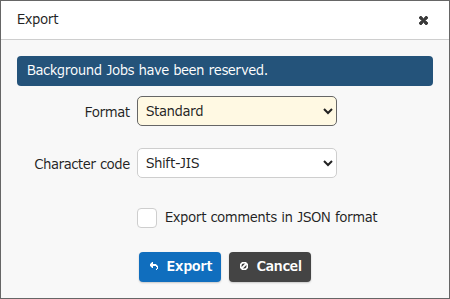
| "Export", "Import", and "Bulk update" dialogs | Background Jobs have been reserved. |
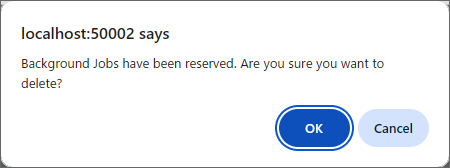
| Confirmation message of "Bulk delete" | Background Jobs have been reserved. Are you sure you want to delete? |
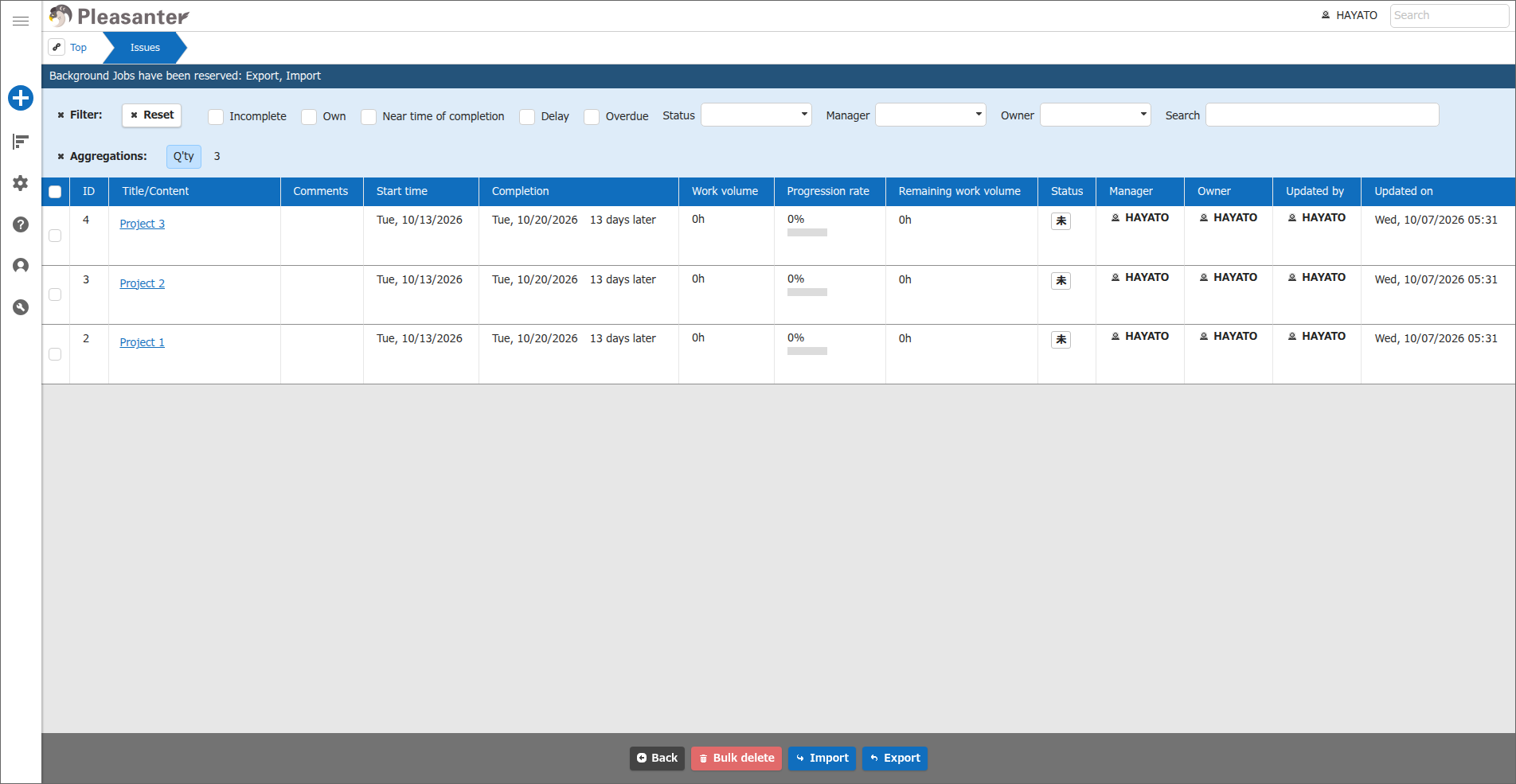
"{Job type}" is replaced with the display name of the job type, such as "Export". When jobs of more than one job type are reserved, they are separated by commas, such as "Export, Import".
Message at the Top of the Screen
The message at the top of the screen is displayed in the Index, Calendar, Crosstab, Gantt chart, Burndown chart, Time series chart, Analysis chart, Kanban, and Image library of issue tables and result tables.
The message shows the job types of the reserved jobs. Clicking "Background Jobs" in the message displays the job management screen.
Dialogs
In the "Export", "Import", and "Bulk update" dialogs, a message is displayed at the top. Bulk update does not support queuing, but when jobs are reserved for the table, the message is also displayed in the bulk update dialog.
Confirmation Message of Bulk Delete
When you click "Bulk delete" on the index screen, a sentence notifying you that jobs are reserved is added to the confirmation message.
Display Conditions
- The message is displayed when, at the time the screen is opened, the table being displayed has jobs whose "Status" is "Preparing", "Pending", "Running", or "Running (Overdue)". It is no longer displayed once the jobs become "Completed", "Failed", or "Cancelled".
- Jobs run by other users are also included. However, general users cannot view other users' jobs on the job management screen (see "Scope of Viewing and Operating Jobs").
- The target job types are "Export", "Import", and "Bulk delete". "AI Connect" jobs are not included.
- It is not displayed on pages published with the Information Disclosure Function.
Supported Versions
| Supported versions | Body |
|---|---|
| 1.5.6.0 and later | Added the feature |
| 1.5.7.0 and later | Added "Import" to the supported job types |
| 1.5.8.0 and later | Added "AI Connect" to the supported job types |
| 1.5.9.0 and later | Added "Bulk delete" to the supported job types, and added the display when jobs are reserved |