Pre-configuration for uploading files larger than 30MB in IIS
This page is part of the setup procedure for Pleasanter, a free, open-source no-code/low-code development tool.
About file size limitations by IIS
Pleasanter uses "Microsoft IIS" as the operating environment. The standard setting of "Microsoft IIS" is limited to not uploading files larger than 30MB. Please follow the procedure below when registering or importing a file larger than 30MB. When registering or importing a file larger than 100MB, please follow the procedure in Settings for registering large files (100MB or more).
Setup process
-
Open "Computer Management". Press Win Key + R to open the Run dialogue box, then type "compmgmt.msc".
-
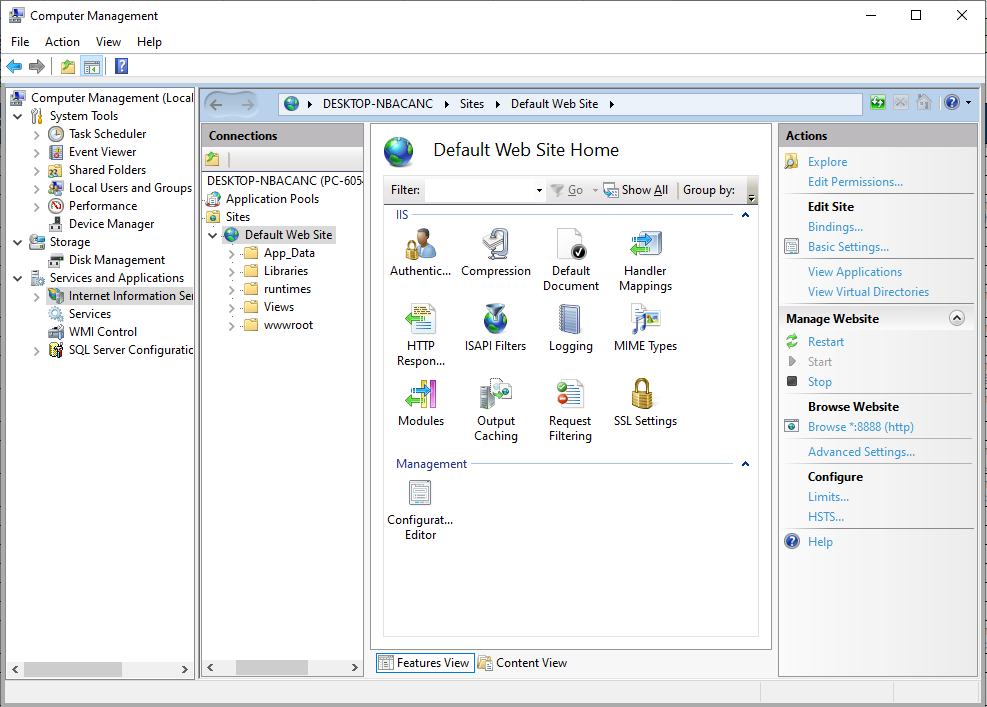
In the left pane, select "Computer Management (Local)" - "Services and Applications" - "Internet Information Services", and in the center pane, click "Sites" - "Default Web Site" - "pleasanter".
-
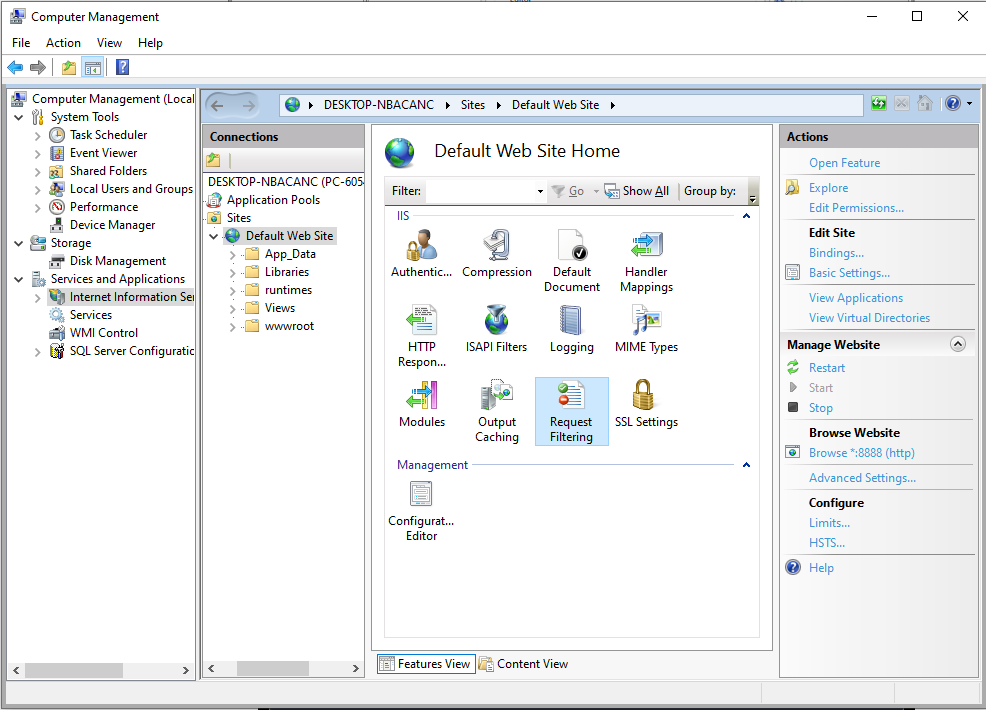
Click "Request Filters".
-
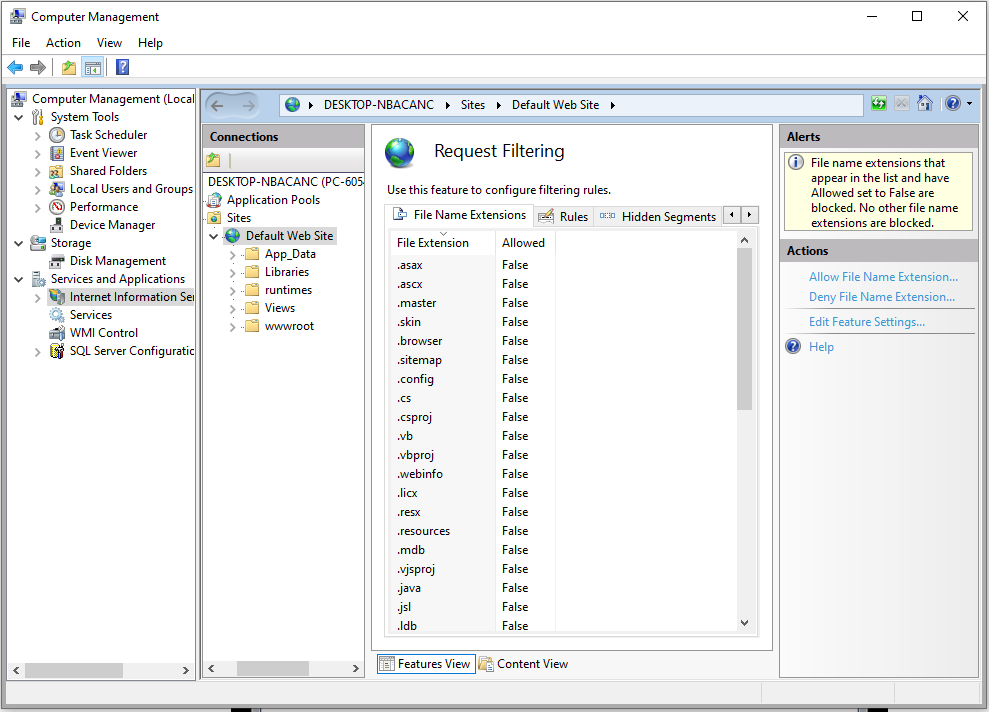
Click "Editing Feature Settings" in the right pane.
-
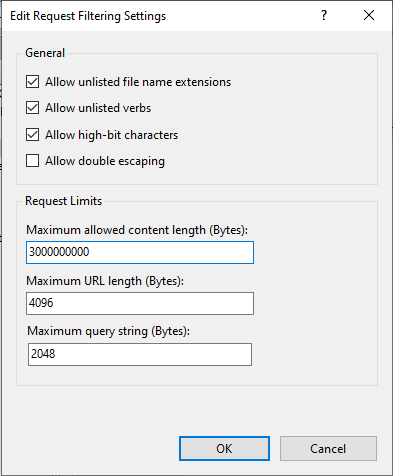
Enter the maximum size of the file to be imported in "Maximum allowed content length (bytes) (C)" field and click "OK" button.