Install SQL Server Management Studio
This page is part of the setup procedure for Pleasanter, a free, open-source no-code/low-code development tool.
You will need access to SQL Server when troubleshooting, etc., so please install it.
1. Download SQL Server Management Studio
1. Install SQL Server Management Studio
Download SQL Server Management Studio
- Access the following URL and click to download SSMS 2x. Scroll through the page to find the download link.
Download SQL Server Management Studio (SSMS)
https://learn.microsoft.com/ja-jp/ssms/install/install

Install SQL Server Management Studio
- Open the "Downloads" folder and double-click "vs_SSMS.exe".
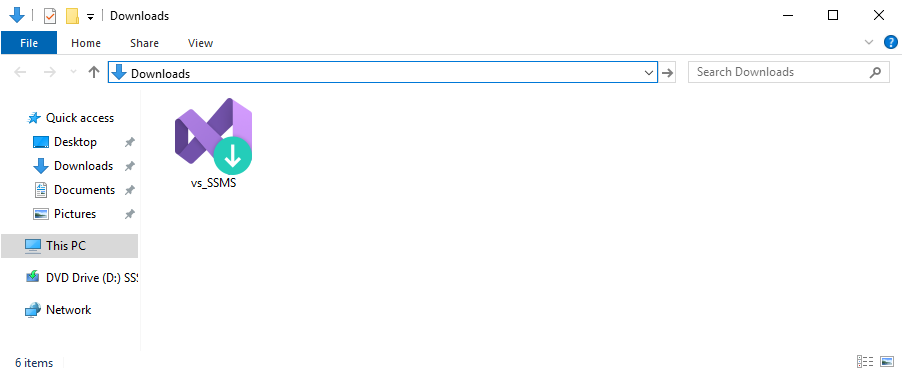
- If a User Account Control screen appears during the process, click the "Yes" button to allow it.
- The dialog shown below will appear, so click the "Continue" button.

- After waiting for a while, the dialog shown below will appear. Click the "Install" button without selecting anything (the English(US) language pack will be automatically selected and installed).

- When a dialog appears indicating that the installation is complete, please click "OK". If a dialog like the following appears, please click "Restart". If you restart, you do not need to perform the following step 6.

- Then, close Visual Studio Installer by clicking the X button in the upper right corner of the screen.
When you have finished, install Pleasanter. Next step: Install Pleasanter