Install and Configure SQL Server 2022 Express
This page is part of the setup procedure for Pleasanter, a free, open-source no-code/low-code development tool.
Limitations
SQL Server 2022 Express with Advanced Services is limited to a maximum database size of 10 GB. If you want to use more than 10GB, you need to migrate to a higher edition or Microsoft Azure SQL Database.
Download SQL Server 2022 Express with Advanced Services
- Access the following URL and click the "Download" button for the Express edition.
https://www.microsoft.com/en-us/download//details.aspx?id=104781 - When the file download is complete, click the "Run (R)" button.
- When the message "Do you want to allow the following program to make changes to this computer?" is displayed, click the "Yes (Y)" button.
- Click "Download Media (D)".

- Check "Express Advanced" and click the "Download (D)" button.

- Wait until the download is complete.

- When the message "Download succeeded" is displayed, click the "Open Folder" button.

Install SQL Server 2022 Express with Advanced Services
- Double-click "SQLEXPRADV_x64_JPN".

- The "Select Directory for Extracted Files" dialog will appear, so click the "OK" button.

- Wait until preparation for extraction is complete.

- Click "Run a new stand-alone installation of SQL Server or add features to an existing installation".

- Check "I accept the license terms (A)" and click the "Next (N)>" button.

- Click "Next (N)" on the "Installation Rules" screen.

- Uncheck "Azure Extension for SQL Server" and click the "Next (N)>" button.

- Check only "Database Engine Services" and "Full-text and Semantic Extractions for Search" and click the "Next (N)>" button.
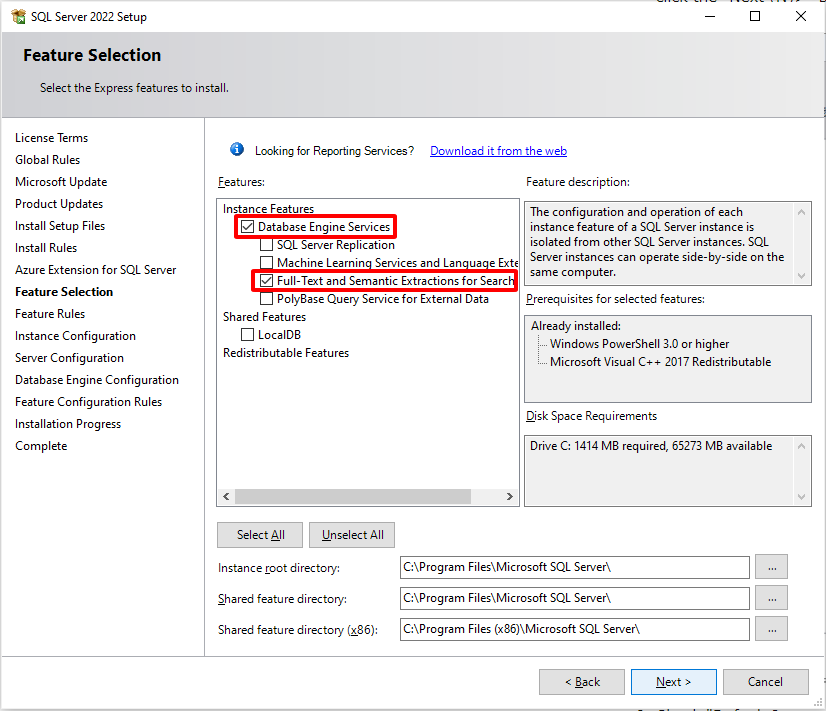
- Check "Default Instance (D)" and click the "Next (N)>" button.

- Click the "Next (N)>" button.

- Check "Mixed Mode (SQL Server Authentication and Windows Authentication) (M)" and set a password of your choice. Please note the password you set as it will be used in "Install Pleasanter". Then click the "Next (N)>" button.

- Wait until the installation is complete.

- Confirm that the installation has been completed and click the "Close" button.
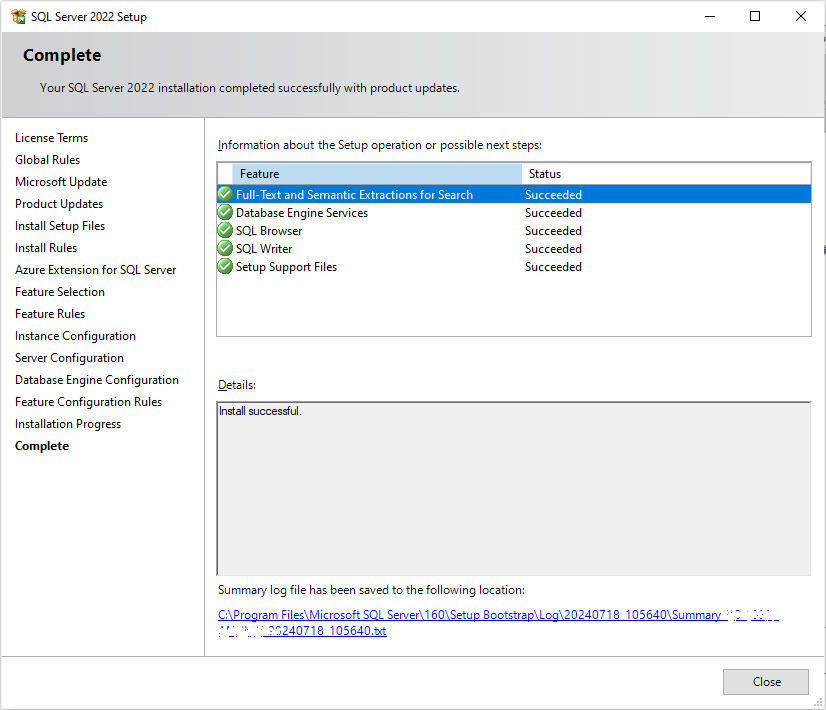
Set up SQL Server 2022 Express with Advanced Services
- Click the Start button, and launch "Microsoft SQL Server 2022" - "SQL Server 2022 Configuration Manager".
- In the left pane, select "SQL Server Network Configuration" - "MSSQLSERVER Protocols". Then, right-click "TCP/IP" in the right pane and click "Enable (E)".
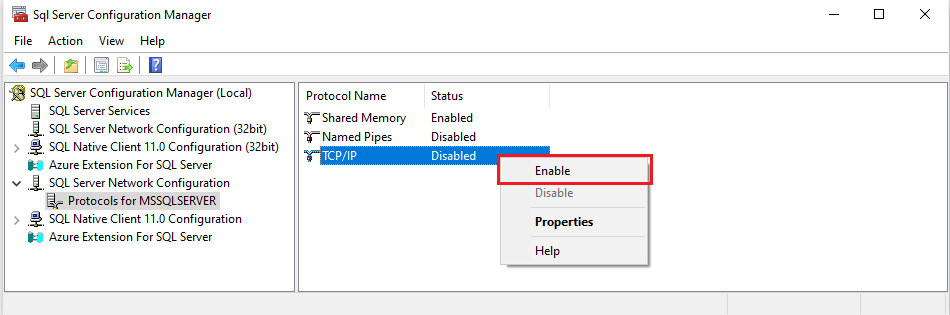
- In the left pane, select "SQL Server Services". Then, in the right pane, select "SQL Server (MSSQLSERVER)" and click "Restart (T)".

- When the restart is complete, this procedure is complete.
When you have finished, install Pleasanter. Next step: Install Pleasanter