Install and Configure SQL Server 2025 Express
This page is part of the setup procedure for Pleasanter, a free, open-source no-code/low-code development tool.
Limitations
SQL Server 2025 Express Edition is limited to a maximum database size of 50 GB. If you want to use more than 50GB, you need to migrate to a higher edition or Microsoft Azure SQL Database. For more information about SQL Server 2025 Express Edition limitations, please refer to the following page.
Teach me about the limitations of SQL Server Express.
Downloading SQL Server 2025 Express Edition
- Access the following URL and click the "Download Now" link for "SQL Server 2025 Express".
https://www.microsoft.com/en-us/sql-server/sql-server-downloads

- Double-click the downloaded file.

- If "User Account Control" appears, click the "Yes" button.
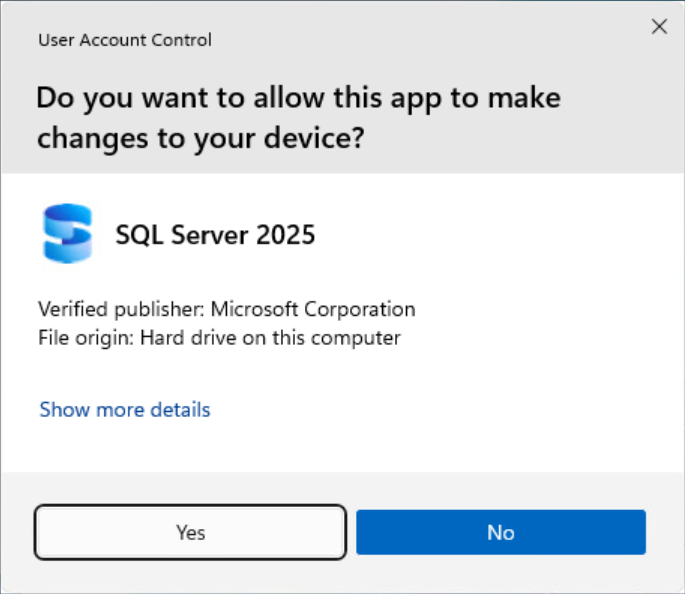
- Click "Download Media".

- Select "English", check "Express Core (714 MB)", and click the "Download" button.

- Wait until the download is complete.
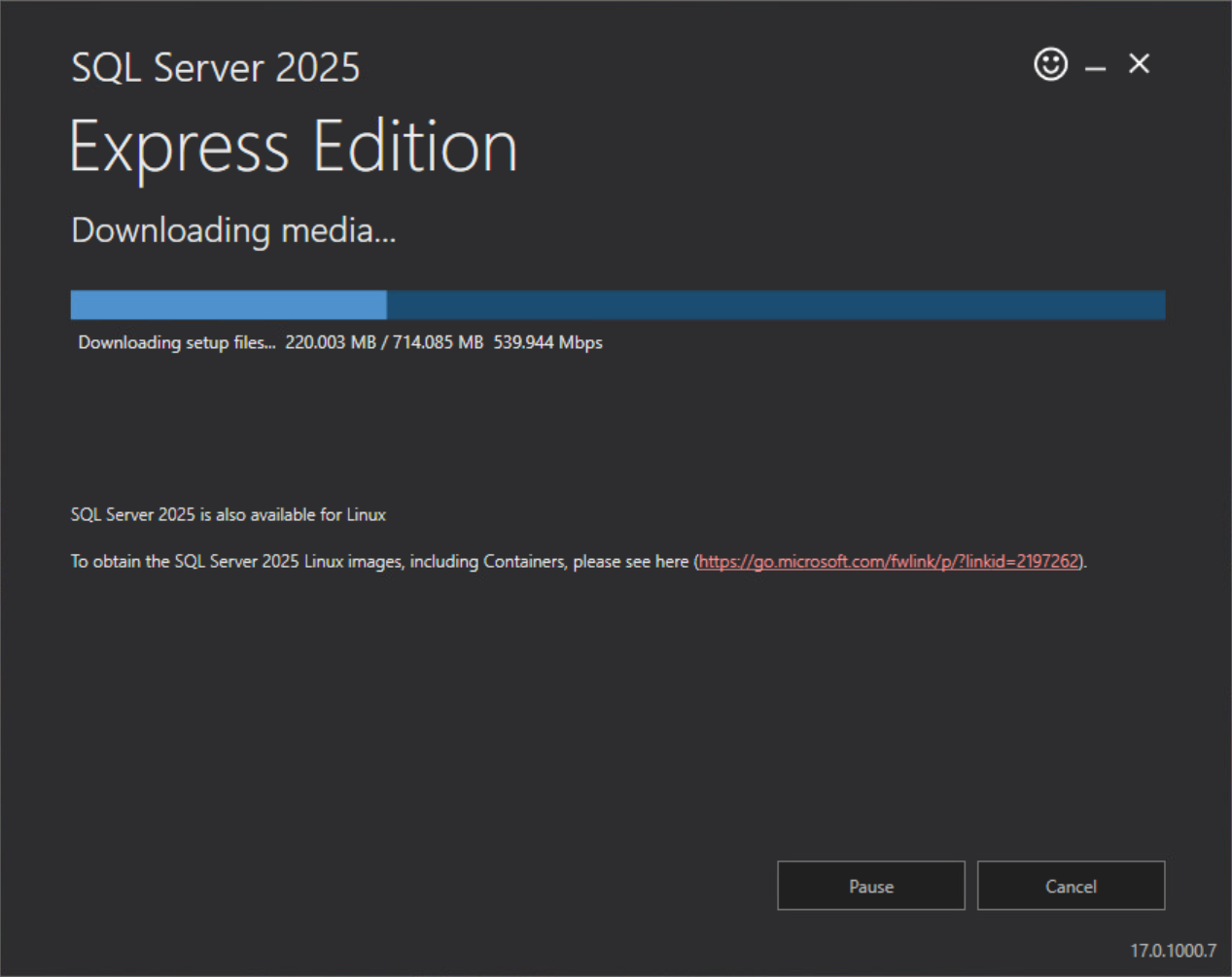
- When "Download successful!" is displayed, click the "Open folder" button.

Installing SQL Server 2025 Express Edition
- Double-click "SQLEXPR_x64_JPN".

- If "User Account Control" appears, click the "Yes" button.

- When the "Select directory for extracted files" dialog appears, click the "OK" button.

- Wait until the extraction preparation is complete.

- Click "New SQL Server standalone installation or add features to an existing installation".

- Check "I accept the license terms and Privacy Statement", then click the "Next" button.
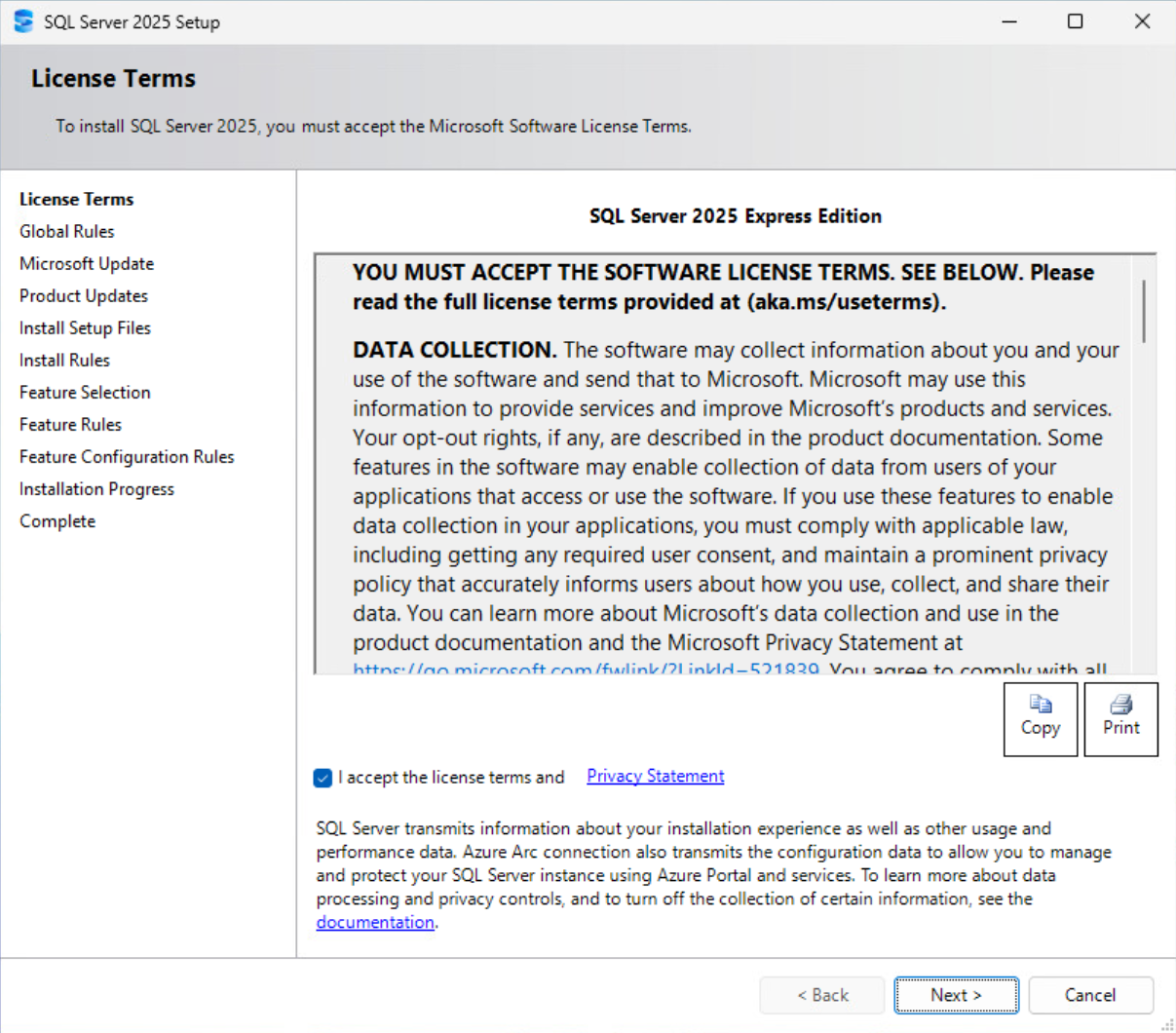
- The "Global Rules" screen will be skipped. If it is not skipped, follow the on-screen instructions.

- Check "Use Microsoft Update to check for updates (recommended)", then click the "Next" button.

- On the "Install Rules" screen, click "Next".

- Depending on your environment, the following screen may be displayed. If it appears, disable "Azure Extension for SQL Server" and click the "Next" button.

- Check only "Database Engine Services" and "Full-Text and Semantic Extractions for Search", then click the "Next" button.

- Check "Default instance" and click the "Next" button.

- Click the "Next" button.

- Check "Mixed Mode (SQL Server authentication and Windows authentication)" and set any password. Please note the password you set, as it will be used during Pleasanter installation. Then click the "Next" button. The installation will begin.

- Wait until the installation is complete.
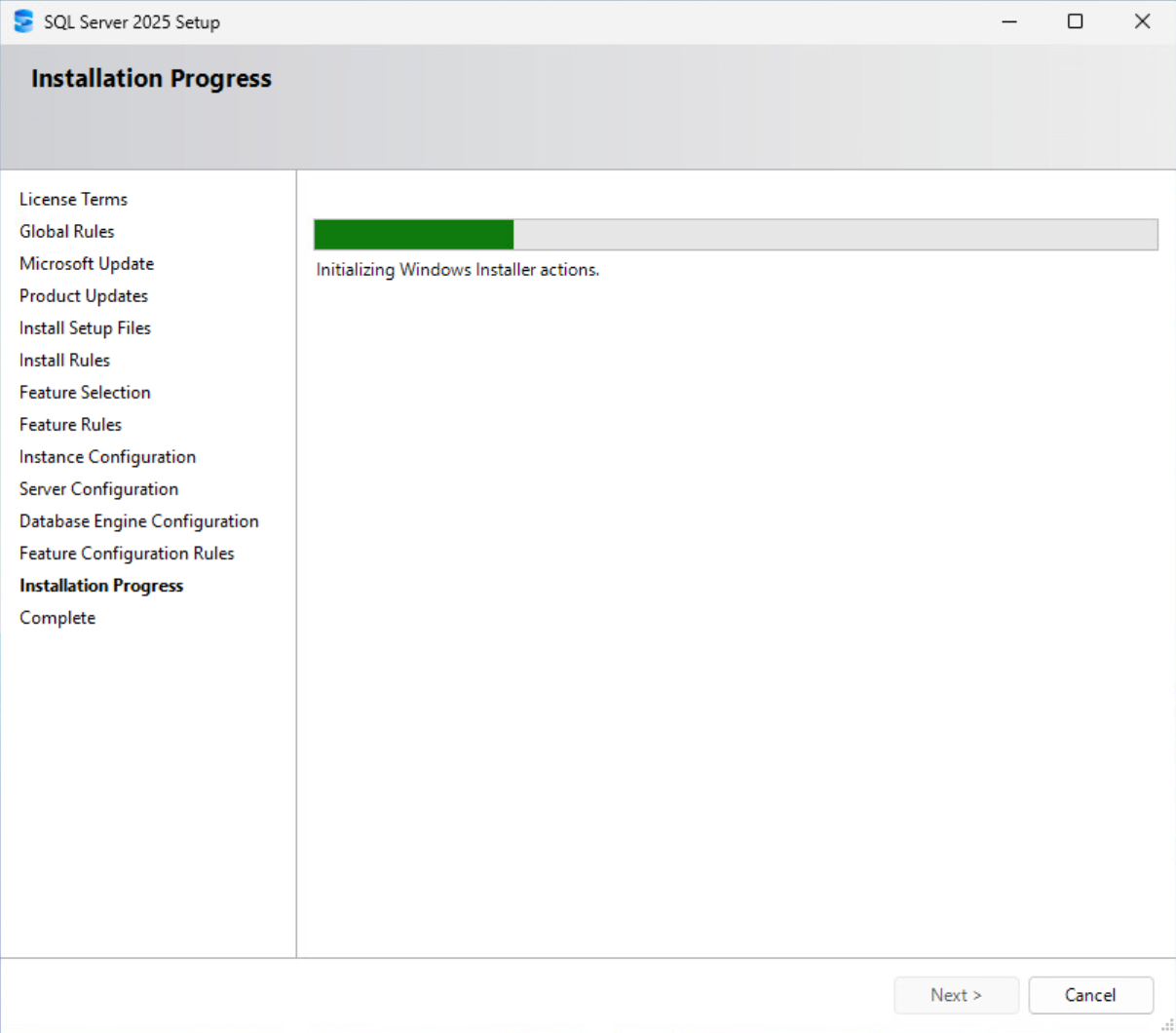
- Confirm that the installation was successful and click the "Close" button.

Configuring SQL Server 2025 Express Edition
- Click the "Start" button, then launch "All" - "Microsoft SQL Server 2025" - "SQL Server 2025 Configuration Manager".
- If "User Account Control" appears, click the "Yes" button.
- In the left pane, click "SQL Server Network Configuration" - "Protocols for MSSQLSERVER". Then, in the right pane, right-click "TCP/IP" and click "Enable".

- If a warning appears, click the "OK" button.

- In the left pane, click "SQL Server Services". Then, in the right pane, right-click "SQL Server (MSSQLSERVER)" and click "Restart".

- Once the restart is complete, this procedure is finished.
When you have finished, install Pleasanter. Next step: Install Pleasanter