Install Pleasanter on Red Hat Enterprise Linux 8
Overview
This manual shows the steps for establishing an operating environment for the Pleasanter in the following environment.
| Target | Content |
|---|---|
| OS | Red Hat Enterprise Linux 8 |
| DB | PostgreSQL 17 |
| Web server | nginx 1.24 |
| Platform | .NET 8.0 |
| Pleasanter | Pleasanter 1.4 |
Cautions
- When installing ver1.4.6 or later, if you run CodeDefiner without specifying arguments, it is set up with the language set to English and the time zone set to UTC. Specify the language and the time zone as necessary.
- When installing ver1.4.5 or earlier, the CodeDefiner command used for the first installation is different. Refer to the following page.
About the CodeDefiner procedure when installing for the first time from version 1.4.6 - MySQL can be used with ver1.4.9.0 and later. Pleasanter earlier than ver1.4.9.0 does not support MySQL.
- To use MySQL in a configuration where the web server and the DB server are separated, refer to "Configure MySQL to be used in a configuration where the web server and DB server are separated (Ver.1.4.18.0 and later)" or "Configure the Web Server and DB Server to Use MySQL Separately (Ver.1.4.17.1 and earlier)".
Prerequisites
- This manual does not describe how to set up the OS. The OS is assumed to have been set up in advance.
- For more information on the operating environment and specifications, please click here.
FAQ: I want to know the operating environment and recommended specifications - Decide on a user to launch the Pleasanter in advance. The user who launches the Pleasanter mentioned in the procedure refers to this user.
Procedure
The construction procedure is as follows.
1. Setup .NET
1. Set up the database:
Set up either PostgreSQL or MySQL as follows.
* The following may not match the order in which the settings are made.
1. Install the database
1. Set up the database administrator user
1. Set up the database log output
1. Register the database as a service and enable automatic startup
1. Setup for allowing external access to the database
1. Setup Pleasanter
1. Prepare application
1. Configure database
1. Run CodeDefiner
1. Check Pleasanter's launching status
1. Create scripts for Pleasanter service
1. Launch service and register as a service
1. Setup reverse proxy (nginx)
1. Change SELinux settings
1. Install nginx
1. Setup reverse proxy
1. Permit to access Http(80)
1. Check Pleasanter's operating status
1. Setup .NET
Run the following command to install .NET.
sudo wget https://dot.net/v1/dotnet-install.sh -O dotnet-install.sh
sudo chmod +x ./dotnet-install.sh
sudo ./dotnet-install.sh -c 8.0 -i /usr/local/bin
dotnet --version
For more details, please refer to script installation section of the following page.
https://learn.microsoft.com/en-us/dotnet/core/install/linux-scripted-manual#scripted-install
In some cases, errors related to specific files occur when dotnet commands are run. In that case, please refer to the following page.
https://learn.microsoft.com/en-us/dotnet/core/install/linux-package-mixup?pivots=os-linux-redhat
2. Set up the Database
Refer to either "Setting Up PostgreSQL" or "Setting Up MySQL" below and set up the database.
1. Setting Up PostgreSQL
The setup procedure for PostgreSQL is as follows.
1. Install PostgreSQL
Execute the following command to install PostgreSQL.
sudo dnf install -y https://download.postgresql.org/pub/repos/yum/reporpms/EL-8-x86_64/pgdg-redhat-repo-latest.noarch.rpm
sudo dnf install -y postgresql17-server postgresql17-contrib
2. Initialize the PostgreSQL database
Execute the following command to initialize the database. * -A: Specify authentication method, -W: Option to display password input prompt
After execution, a password input prompt will be displayed, so enter your password. The password set here will be used in step 3.2, so please make a note of it so you do not forget it.
3. Set PostgreSQL log output
Open /var/lib/pgsql/17/data/postgresql.conf and edit the following settings.
4. Restart the PostgreSQL service and enable it as a service
Execute the following commands to restart the PostgreSQL service and enable automatic service startup.
5. Setup for allowing external access to the database
-
Uncomment the following two lines in /var/lib/pgsql/17/data/postgresql.conf and set them as follows:
-
Add the following line to /var/lib/pgsql/17/data/pg_hba.conf. In the Address field, specify the range of IP addresses that are allowed access.
-
After the settings are complete, run the following command to restart the PostgreSQL service.
2. Setting Up MySQL
The setup procedure for MySQL is as follows.
1. Install MySQL
-
Execute the following commands to install the MySQL package and the MySQL server.
sudo dnf install -y https://dev.mysql.com/get/mysql84-community-release-el8-1.noarch.rpm
sudo dnf install mysql-server
The URL specified in the command is the same as the one specified in the official repository below.
https://dev.mysql.com/downloads/repo/yum/ -
Execute the command to display the status of the service.
-
Check that "Active: inactive (dead)" is displayed as follows and that the service is stopped.
2. Enable automatic startup of the MySQL service
-
Execute the following command to start the MySQL service.
-
Execute the following command to enable automatic startup of the MySQL service.
3. Set up the MySQL user
-
Add the following setting under [mysqld] in /etc/my.cnf.
The path of the configuration file may differ depending on the OS or the MySQL version.
-
Execute the following command to restart the MySQL service.
-
Execute the following command to log in to MySQL with the root account (without specifying a password).
-
Execute the following SQL to set the password of the MySQL root account.
-
Execute the following command to log out of the root account from MySQL.
-
Delete the description added under [mysqld] in /etc/my.cnf. Do not delete [mysqld] itself.
-
Execute the following command to restart the MySQL service.
-
Execute the following command and check that you can log in to MySQL with the root account.
-
Execute the following command to log out of the root account from MySQL.
4. Set MySQL log output
-
Check the path of the log file described in log-error under [mysqld] in /etc/my.cnf.
The path of the configuration file may differ depending on the OS or the MySQL version. -
To change the output destination of the error log, edit the my.cnf file and then execute the following command to restart the MySQL service.
5. Setup for allowing external access to the database
Follow the steps in the manuals below to add a MySQL user.
- Configure MySQL to be used in a configuration where the web server and DB server are separated (Ver.1.4.18.0 and later)
- Configure the Web Server and DB Server to Use MySQL Separately (Ver.1.4.17.1 and earlier)
This is not necessary if you do not separate the web server and the DB server.
3. Setup Pleasanter
1. Prepare application
-
Run the following command to create a "web" directory in the root directory ("/").
-
Download the latest version of Pleasanter from GitHub release notes.
-
Unzip the downloaded zip file and place each of the extracted "pleasanter" folders in the "/web" directory on the server using a file transfer application such as WinSCP.
-
Run the following command to change the owner of the pleasanter directory to the user who will launch Pleasanter.
2. Configure database
Set /web/pleasanter/Implem.Pleasanter/App_Data/Parameters/Rds.json as follows.
{
    "Dbms": "PostgreSQL",
    "Provider": "Local",
    "SaConnectionString": "Server=localhost;Port=5432;Database=postgres;UID=postgres;PWD=<2.2. Password set in>",
    "OwnerConnectionString": "Server=localhost;Port=5432;Database=#ServiceName#;UID=#ServiceName#_Owner;PWD=SetAdminsPWD",
    "UserConnectionString": "Server=localhost;Port=5432;Database=#ServiceName#;UID=#ServiceName#_User;PWD=SetUsersPWD",
    "SqlCommandTimeOut": 600,
    "MinimumTime": 3,
    "DeadlockRetryCount": 4,
    "DeadlockRetryInterval": 1000,
    "DisableIndexChangeDetection": true,
    "SysLogsSchemaVersion": 1
}
3. Run CodeDefiner
Run the following command to run CodeDefiner as the user who launches the pre-determined Pleasanter.
cd /web/pleasanter/Implem.CodeDefiner
sudo -u <user who launches Pleasanter> /usr/local/bin/dotnet Implem.CodeDefiner.dll _rds
4. Check Pleasanter's launching status
-
Run the following command to launch the Pleasanter as a predetermined user.
-
Confirm that the Pleasanter is running by executing the following commands in another terminal while it is running. Press "Ctrl+C" to exit.
-
Execution command
- Execution result
*   Trying ::1:5000...
* Connected to localhost (::1) port 5000 (#0)
> GET / HTTP/1.1
> Host: localhost:5000
> User-Agent: curl/7.76.1
> Accept: */*
>
* Mark bundle as not supporting multiuse
< HTTP/1.1 302 Found
< Content-Length: 0
< Date: Tue, 25 Jul 2023 02:42:19 GMT
< Server: Kestrel
< Location: http://localhost:5000/users/login?ReturnUrl=%2F
< X-Frame-Options: SAMEORIGIN
< X-XSS-Protection: 1; mode=block
< X-Content-Type-Options: nosniff
<
* Connection #0 to host localhost left intact
5. Create scripts for Pleasanter service
Create /etc/systemd/system/pleasanter.service with the following contents. Specify the user who will launch Pleasanter in the User field below.
[Unit]
Description = Pleasanter
Documentation =
Wants=network.target
After=network.target

[Service]
ExecStart = /usr/local/bin/dotnet Implem.Pleasanter.dll
WorkingDirectory = /web/pleasanter/Implem.Pleasanter
Restart = always
RestartSec = 10
KillSignal=SIGINT
SyslogIdentifier=dotnet-pleasanter
User = <user who launches Pleasanter>
Group = root
Environment=ASPNETCORE_ENVIRONMENT=Production
Environment=DOTNET_PRINT_TELEMETRY_MESSAGE=false

[Install]
WantedBy = multi-user.target
6. Launch service and register as a service
Run the following commands to enable service launching and service auto launching for Pleasanter.
4. Setup Reverse Proxy (nginx)
Setup the reverse proxy to allow access via Port 80, the same port as the normal web server.
1. Change SELinux Settings
Execute the following command.
a. If "Command 'getenforce' not found," "Permissive," or "Disabled" is displayed
Proceed to "2. Install nginx."
b. If "Enforcing" is displayed
Execute the following command.
*Change the above Boolean value of SELinux will allow all network connections by scripts and modules on the server in question.
2. Install nginx
Run the following command to install nginx.
3. Setup reverse proxy
-
Create /etc/nginx/conf.d/pleasanter.conf with the following contents. The server_name line specifies the hostname or IP address of the server to be actually accessed.
server { listen 80; server_name 192.168.1.100; client_max_body_size 100M; location / { proxy_pass http://localhost:5000; proxy_http_version 1.1; proxy_set_header Upgrade $http_upgrade; proxy_set_header Connection keep-alive; proxy_set_header Host $host; proxy_cache_bypass $http_upgrade; proxy_set_header X-Forwarded-For $proxy_add_x_forwarded_for; proxy_set_header X-Forwarded-Proto $scheme; } } -
After creating the file, run the following command to restart the service.
4. Permission To Access Http(80)
Execute the following command to set permission to access Http (port:80) to allow clients to access the web service.
5. Check Pleasanter's Operating Status
-
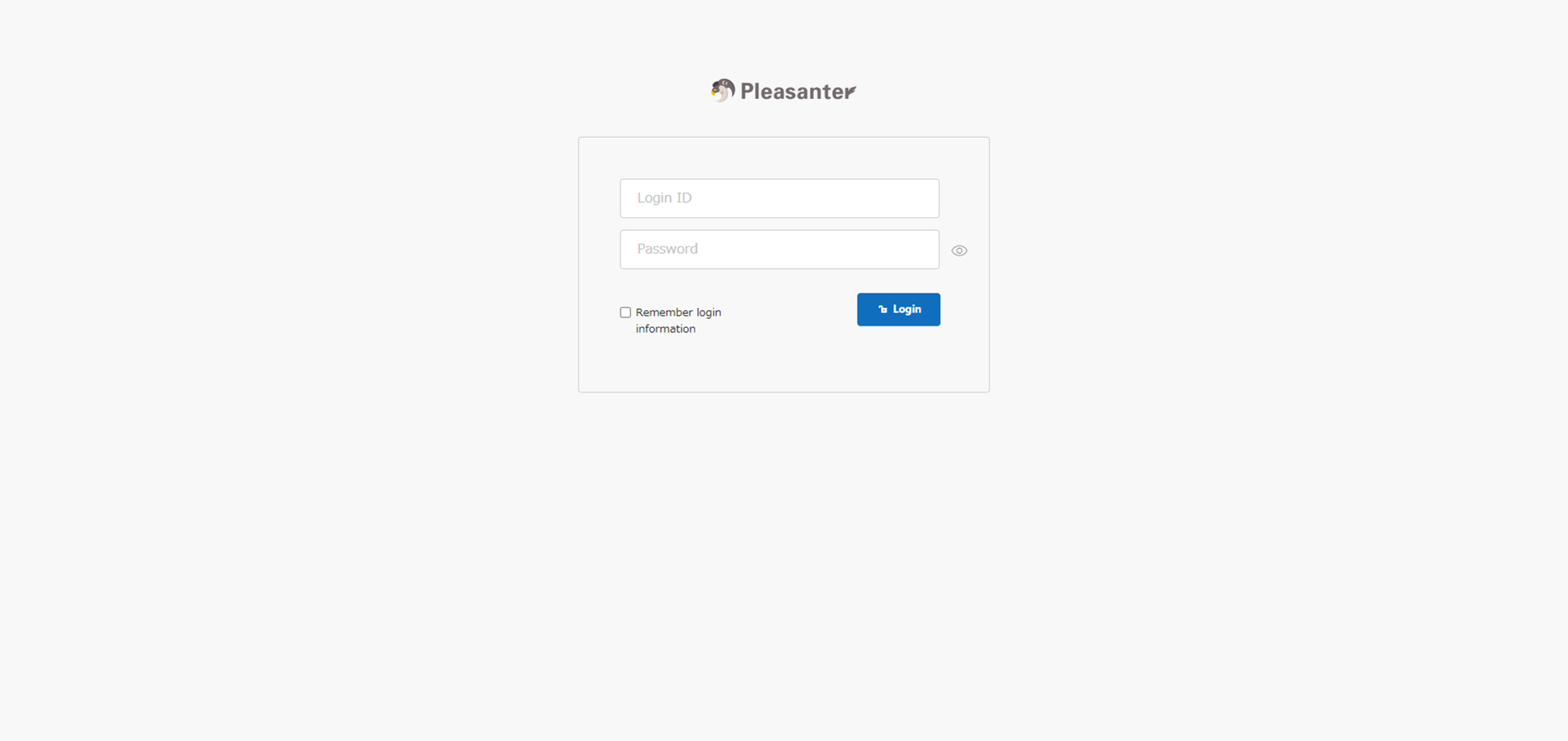
After starting Pleasanter, enter "Login ID: Administrator" and "Initial Password: pleasanter" on the Pleasanter login screen, and click the "Login" button.
-
After logging in, you will be asked to change the "Administrator" user password. Enter your password and click the "Change" button.

If the redirection is not correct
Please make sure that the nginx configuration is correct. Minor differences such as the presence or absence of "/" in the description may change the result.
If the Pleasanter screen does not open
If you have completed the above steps without any errors, but when you access the site with your browser, you see a page that says "Welcome to nginx!" (not an error message), the security settings of the browser may be preventing you from proceeding to the Pleasanter login screen.
Please check the security settings of your browser.
Supported Versions
| Supported versions | Body |
|---|---|
| 1.4.9.0 and later | Supports MySQL |
| 1.4.10.0 and later | Fixed an issue where Owner and User connections could be rejected by MySQL's access control function *Also added a link to "Configure the Web Server and DB Server to Use MySQL Separately (Ver.1.4.17.1 and earlier)" in the notes |
| 1.4.18.0 and later | Added the ability to specify a host other than localhost (the same server as the DB) as the source host for connecting to the MySQL DB |
Related Information
FAQ: I want to install Pleasanter 1.3.43.0 or earlier in a Linux environment