Install Pleasanter on Ubuntu Using the Installer
Overview
This procedure is for building a Pleasanter operating environment using the Installer. You can also install it using the previous procedure of manually placing modules and setting parameters. Please refer to the following for manual installation procedures.
Install Pleasanter on Ubuntu
| Target | Content |
|---|---|
| OS | Ubuntu 24.04 |
| DB | PostgreSQL 18 / MySQL 8.4 |
| Web server | nginx 1.24.0 |
| Platform | .NET 10.0.100 |
| Pleasanter | Pleasanter 1.5.0.0 or later |
Cautions
- MySQL can be used from version 1.4.9.0 onwards. Pleasanter versions earlier than version 1.4.9.0 do not support MySQL.
- If you want to separate the web server and DB server in MySQL, please refer to "Configure MySQL to be used in a configuration where the web server and DB server are separated (Ver.1.4.18.0 and later)" or "Configure the Web Server and DB Server to Use MySQL Separately (Ver.1.4.17.1 and earlier)".
Limitations
Installation using the Installer is for version 1.5.0.0 and later. If you are installing version 1.4.23.3 or earlier, please refer to the manual installation procedure.
Install Pleasanter on Ubuntu
Prerequisites
- We will not describe how to set up the OS. We assume that the OS has already been set up.
- For details on the operating environment and specifications, please check here.
FAQ: I want to know the operating environment and recommended specifications - Please decide in advance which user will start Pleasanter. The <User who will execute Pleasanter> described in the procedure refers to this user.
- This procedure explains the case where .NET is installed in /usr/local/bin. If you install .NET in a different directory because you need multiple versions of .NET in the same environment, change the directory specified in ExecStart when running CodeDefiner or creating a script for the Pleasanter service to match the installation destination.
Procedure
The construction procedure is as follows.
1. Set up .NET
1. Set up Database:
Perform the following setup for either PostgreSQL or MySQL.
※The following may not match the order of configuration.
1. Install DB
1. Set up DB administrator user
1. DB log output settings
1. Enable DB service and automatic startup
1. Settings for allowing external access to DB
1. Install the installer
1. Set up Pleasanter
1. Run the installer
1. Check that Pleasanter is running
1. Create a script for the Pleasanter service
1. Register as a service and start the service
1. Set up reverse proxy (nginx)
1. Change SELinux settings
1. Install nginx
1. Set up reverse proxy
1. Allow access to Http(80)
1. Check that Pleasanter is running
1. Set up .NET
Run the following command to install .NET.
sudo wget https://dot.net/v1/dotnet-install.sh -O dotnet-install.sh
sudo chmod +x ./dotnet-install.sh
sudo ./dotnet-install.sh -c 10.0 -i /usr/local/bin
dotnet --version
For details, please refer to Scripted install on the official page below.
https://learn.microsoft.com/en-us/dotnet/core/install/linux-scripted-manual#scripted-install
Also, there are cases where an error occurs regarding a specific file when executing the dotnet command. In that case, please refer to the following page.
https://learn.microsoft.com/en-us/dotnet/core/install/linux-package-mixup?pivots=os-linux-ubuntu
2. Set up Database
Refer to either "Set up PostgreSQL" or "Set up MySQL" below to set up the database.
1. Set up PostgreSQL
The procedure for setting up PostgreSQL is as follows.
1. Install PostgreSQL
Execute the following command to install PostgreSQL.
sudo apt install curl ca-certificates
sudo install -d /usr/share/postgresql-common/pgdg
sudo curl -o /usr/share/postgresql-common/pgdg/apt.postgresql.org.asc --fail https://www.postgresql.org/media/keys/ACCC4CF8.asc
sudo sh -c 'echo "deb [signed-by=/usr/share/postgresql-common/pgdg/apt.postgresql.org.asc] https://apt.postgresql.org/pub/repos/apt $(lsb_release -cs)-pgdg main" > /etc/apt/sources.list.d/pgdg.list'
sudo apt update
sudo apt -y install postgresql-18
2. Set the PostgreSQL user
-
Execute the following command to set a password for the PostgreSQL administration user "postgres" (OS user).
After executing the command, a password input prompt will be displayed, so enter the password. -
Execute the following command to log in to PostgreSQL.
-
Execute the following command to set the password for the PostgreSQL administrative user "postgres". The password you set here will be used in step 3.2, so be sure to write it down so you don't forget it.
3. PostgreSQL log output settings
Open /etc/postgresql/18/main/postgresql.conf and edit the following settings.
4. Restart the PostgreSQL service and make it a service
Execute the following command to restart the PostgreSQL service and enable automatic service startup.
5. Settings to allow external access to the database
-
Uncomment the following two lines in /etc/postgresql/18/main/postgresql.conf and set them as follows.
-
Add the following lines to /etc/postgresql/18/main/pg_hba.conf. In the Address field, specify the range of IP addresses to allow access.
-
After the settings are complete, run the following command to restart the PostgreSQL service.
2. Set up MySQL
The procedure for setting up MySQL is as follows.
1. Install MySQL
-
Run the following command to download and install the MySQL DEB package.
sudo wget https://dev.mysql.com/get/mysql-apt-config_0.8.36-1_all.deb
sudo dpkg -i mysql-apt-config_0.8.36-1_all.deb
The URL specified in the command is the same as the URL specified in the official repository below.
https://dev.mysql.com/downloads/repo/apt/ -
The "Package Settings" screen will be displayed on the CUI screen. Please make sure that "MySQL Server & Cluster (Currently selected: mysql-8.4-lts)" is displayed as shown below.

-
Use the keyboard to select "Ok" and press the Enter key.
-
Execute the following command to install the MySQL server.
-
You will be asked to set a password for the MySQL root account on the CUI screen. After entering a password string of your choice, use the keyboard to select "OK" and press the Enter key. The password you set here will be used in step 3.2, so be sure to write it down so you don't forget it.

-
You will be asked to re-enter your password. After entering the same password string, use the keyboard to select "OK" and press the Enter key.

-
Execute the command to display the status of the service.
-
Confirm that the service is running and that the text "Active: active (running)" is displayed as shown below.
2. Enable automatic startup of MySQL service
-
Execute the following command to enable automatic startup of MySQL service.
3. Configure MySQL user
If you do not change the password of MySQL root account, the following procedure is not necessary.
For MySQL root account, use the password set during the above "Install MySQL" operation. Depending on the OS or MySQL version, you may not be asked to set the root password during installation. In that case, or if you want to change the root password, see the following procedure.
-
Add the following setting under [mysqld] in /etc/mysql/mysql.conf.d/mysqld.cnf.
The path of the configuration file may differ depending on the OS or MySQL version.
-
Execute the following command to restart the MySQL service.
-
Execute the following command to log in to MySQL with the root account (without password).
-
Execute the following SQL to set the password for the MySQL root account.
-
Execute the following command to log out of the root account from MySQL.
-
Delete the description added under [mysqld] in /etc/mysql/mysql.conf.d/mysqld.cnf. Do not delete [mysqld].
-
Execute the following command to restart the MySQL service.
-
Execute the following command to confirm that you can log in to MySQL with the root account.
-
Execute the following command to log out of the root account from MySQL.
4. MySQL log output settings
Error log output is enabled by default in MySQL. If you do not want to change the default output destination, the following steps are not necessary.
-
Check the path of the log file listed in log-error under [mysqld] in /etc/mysql/mysql.conf.d/mysqld.cnf.
The path of the configuration file may differ depending on the OS or MySQL version. -
If you want to change the output destination of the error log, edit the mysqld.cnf file and then run the following command to restart the MySQL service.
5. Settings to allow external access to the database
Follow the procedures in the following manuals to add MySQL users.
- Configure MySQL to be used in a configuration where the web server and DB server are separated (Ver.1.4.18.0 and later)
- Configure the Web Server and DB Server to Use MySQL Separately (Ver.1.4.17.1 and earlier)
This is not necessary if you do not separate the web server and DB server.
3. Install the Installer
Run the following command to install the installer. To install Pleasanter version 1.5.0.0 or later, please use the latest installer.
(If you are installing Pleasanter version 1.4.23.0 or earlier, please refer to here.)
dotnet tool install -g Implem.PleasanterSetup
echo 'export PATH="$PATH:~/.dotnet/tools"' >> ~/.bashrc
echo 'export DOTNET_ROOT=/usr/local/bin' >> ~/.bashrc
echo 'export PATH=$PATH:$DOTNET_ROOT' >> ~/.bashrc
source ~/.bashrc
If you are not connected to a network environment, install using the following procedure.
(Click here to open/close the details)
- Execute the following command to create a folder of your choice to place the .nupkg file.
※This procedure explains the case where /dotnet-tools is created.
- Open the Nuget Gallery for Implem.PleasanterSetup from here and download the .nupkg file from "Download package" ((1) in the image).

- Place the .nupkg file downloaded in step 2 in /dotnet-tools.
- Copy the command shown at (2) in the image.
-
Execute the following command.
Example: When the version of Implem.PleasanterSetup is 1.0.1
4. Set up Pleasanter
1. Run the installer
By using the installer, the latest version resources are automatically downloaded and the values of Service.json and Rds.json are automatically set based on the values entered.
Procedure When Using PostgreSQL
-
Run the following command to run the installer.
If you are not connected to a network environment, follow the steps below
(Click here to open/close the details)
-
Download the latest version of Pleasanter from the Download Center and place it in "/web/".
-
Run the following command.
Make sure that the structure under the /web/ directory is as follows.
-
-
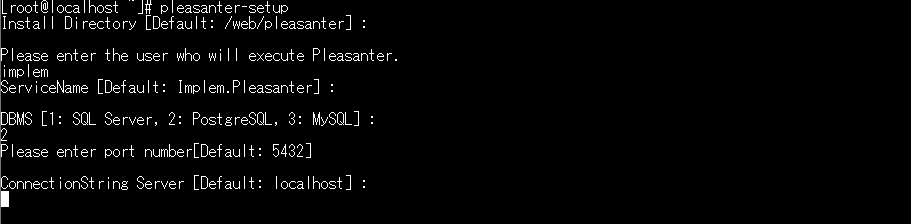
Enter the directory where you want to install Pleasanter.
If you want to install it in "/web/pleasanter", leave it blank and press Enter.

-
Enter <User who will execute Pleasanter>.

-
Enter the service name.
If you use "Implem.Pleasanter", leave it blank and press Enter.

-
Enter the number corresponding to the DBMS you are using.
Enter "2" here and press Enter.

-
Enter the port number you are using.
If you are using the default port number for the DBMS, leave it blank and press Enter.

-
Enter the value you want to set for Server in the connection string.
If you are using "localhost", leave it blank and press Enter.
-
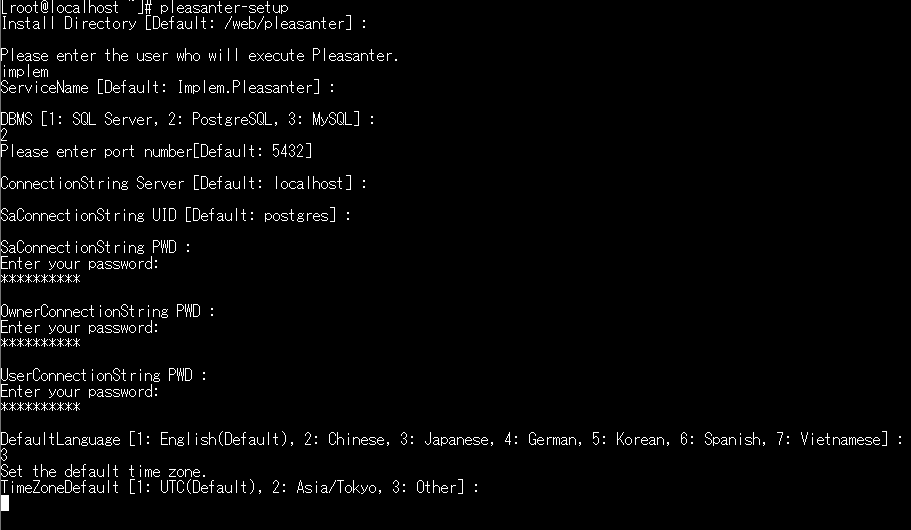
Enter the value to be set for UID in SaConnectionString.
If you are using "postgres", leave it blank and press the Enter key.

-
Enter the value to be set for PWD in SaConnectionString.
※The password will be displayed in a masked state.

-
Enter the value to be set for PWD in OwnerConnectionString.
※The password will be displayed in a masked state.

-
Enter the value to be set for PWD in UserConnectionString.
※The password will be displayed in a masked state.

-
Enter the "Default language".
Enter the number of the corresponding language.

-
Enter the time zone for "Default time zone".
Enter the number of the corresponding time zone.
※If you enter "3", enter a time zone that can be used by the OS you are using.
-
The summary screen will be displayed.
If the entered values are correct, enter y after "Shall I install Pleasanter with this content? Please enter ‘y(yes)' or 'n(no)'. :" and press Enter to execute.
※The password is masked.

-
When "Type "y" (yes) if the license is correct, otherwise type "n" (no)." is displayed, enter y and execute.
When the following log is displayed, the setup is complete.
-
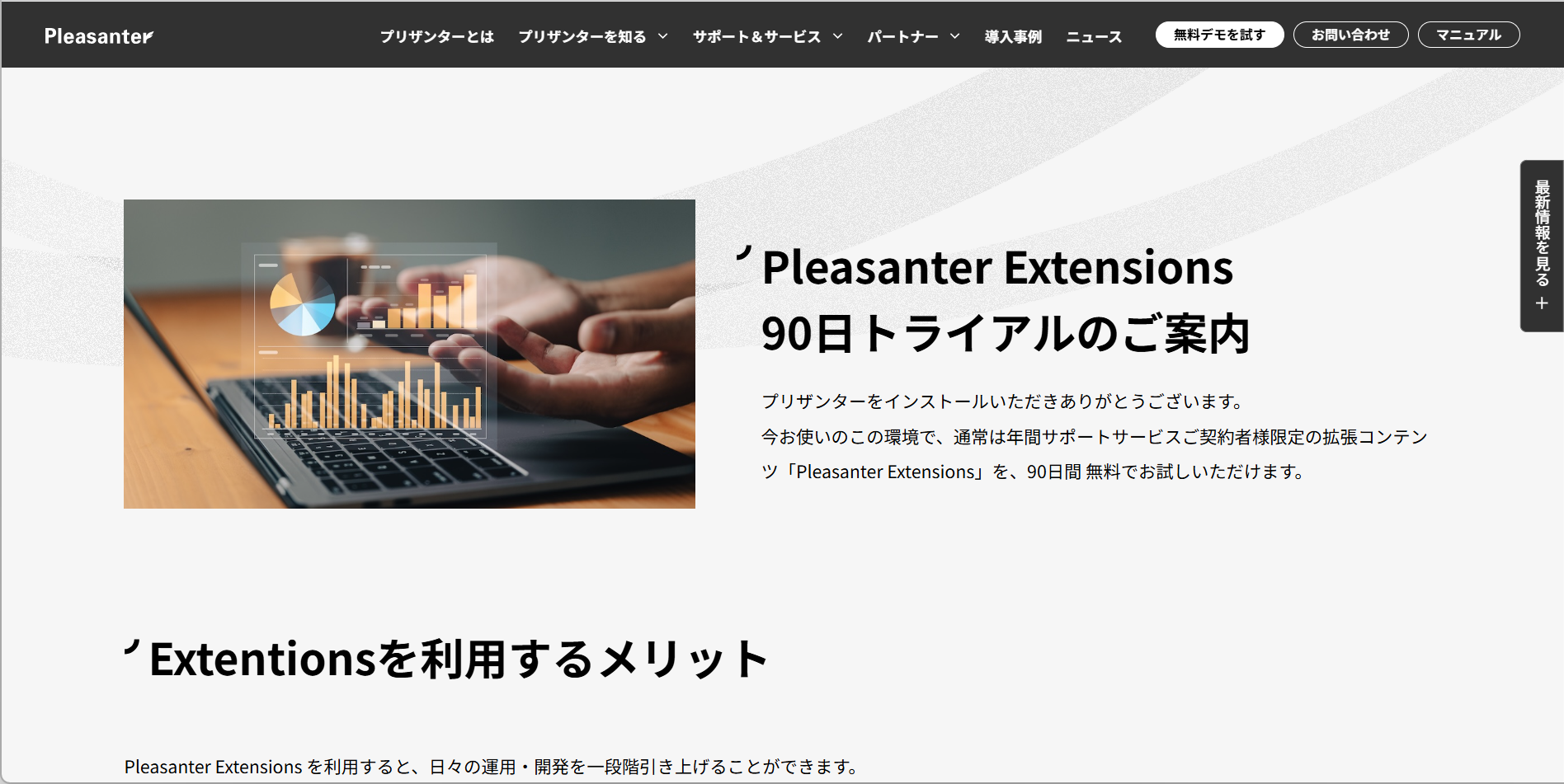
When setup is complete, a web browser will launch and display the Enterprise Edition trial information page.
Procedure When Using MySQL
-
Run the following command to run the installer.
If you are not connected to a network environment, follow the steps below
(Click here to open/close the details)
-
Download the latest version of Pleasanter from the Download Center and place it in "/web/".
-
Run the following command.
Make sure that the structure under the /web/ directory is as follows.
-
-
Enter the directory where you want to install Pleasanter.
If you want to install it in "/web/pleasanter", leave it blank and press Enter.
-
Enter <User who will execute Pleasanter>.
-
Enter the service name.
If you use "Implem.Pleasanter", leave it blank and press Enter.
-
Enter the number corresponding to the DBMS you want to use.
Here, enter "3" and press Enter.
-
Enter the port number to be used.
If you are using the default port number for the DBMS, leave it blank and press the Enter key.
-
Enter the value to be set in Server in the connection string.
If you are using "localhost", leave it blank and press the Enter key.
-
Enter the value to be set in UID of SaConnectionString.
If you are using "root", leave it blank and press the Enter key.
-
Enter the value to be set for PWD in SaConnectionString.
※The password will be displayed in a masked state.
-
Enter the value to be set for PWD in OwnerConnectionString.
※The password will be displayed in a masked state.
-
Enter the value to be set for PWD in UserConnectionString.
※The password will be displayed in a masked state.
-
Enter the value to be set for MySqlConnectingHost. If there are no particular requirements, enter "%". If you want to restrict access to MySQL, refer to Rds.json and set it as appropriate.
If you use "%", leave it blank and press the Enter key.
When installing Ver.1.4.17.1 or earlier, leave it blank and press the Enter key.
-
Enter the "Default language".
Enter the number of the corresponding language.
-
Enter the "Default time zone".
Enter the number of the corresponding time zone.
※If you enter "3", enter a time zone that can be used by the OS you are using.
-
The summary screen will be displayed.
If the entered values are correct, enter y after "Shall I install Pleasanter with this content? Please enter ‘y(yes)' or 'n(no)'. : " and press Enter to execute.
※The password is masked.
――― Summary ――― Install Directory : /web/pleasanter DBMS : MySQL SaConnectionString PWD : *** OwnerConnectionString PWD : *** UserConnectionString PWD : *** Port : 3306 Server : localhost Service Name : Implem.Pleasanter MySqlConnectingHost : % DefaultLanguage : ja DefaultTimeZone : Asia/Tokyo [Issues] Class : Num : Date : Description : Check : Attachments : [Results] Class : Num : Date : Description : Check : Attachments : ――――――――― Shall I install Pleasanter with this content? Please enter ‘y(yes)' or 'n(no)’.: -
When "Type "y" (yes) if the license is correct, otherwise type "n" (no)." is displayed, enter y and execute.
When the following log is displayed, the setup is complete.
-
When setup is complete, a web browser will launch and display the Enterprise Edition trial information page.

2. Check that Pleasanter is running
-
Run the following command to start Pleasanter with a predefined user.
-
While Pleasanter is running, run the following command in another terminal to check that Pleasanter is running. Exit with "Ctrl+C".
- Command to execute
- Execution result
*   Trying 127.0.0.1:5000...
* TCP_NODELAY set
* Connected to localhost (127.0.0.1) port 5000 (#0)
> GET / HTTP/1.1
> Host: localhost:5000
> User-Agent: curl/7.68.0
> Accept: */*
>
* Mark bundle as not supporting multiuse
< HTTP/1.1 302 Found
< Date: Tue, 23 Feb 2021 09:04:33 GMT
< Server: Kestrel
< Content-Length: 0
< Location: http://localhost:5000/users/login?ReturnUrl=%2F
< X-Frame-Options: SAMEORIGIN
< X-Xss-Protection: 1; mode=block
< X-Content-Type-Options: nosniff
<
* Connection #0 to host localhost left intact
3. Create a script for the Pleasanter service
Create /etc/systemd/system/pleasanter.service with the following content. For User below, specify the user who will execute Pleasanter, decided in advance.
[Unit]
Description = Pleasanter
Documentation =
Wants=network.target
After=network.target

[Service]
ExecStart = /usr/local/bin/dotnet Implem.Pleasanter.dll
WorkingDirectory = /web/pleasanter/Implem.Pleasanter
Restart = always
RestartSec = 10
KillSignal=SIGINT
SyslogIdentifier=dotnet-pleasanter
User = <User who will execute Pleasanter>
Group = root
Environment=ASPNETCORE_ENVIRONMENT=Production
Environment=DOTNET_PRINT_TELEMETRY_MESSAGE=false

[Install]
WantedBy = multi-user.target
4. Register as a service and start the service
Execute the following command to start the Pleasanter service and enable automatic service startup.
5. Set Up a Reverse Proxy (nginx)
Set up the reverse proxy so that it can be accessed through Port 80, the same as a normal web server.
1. Change SELinux settings
Execute the following command.
a. If "Command 'getenforce' not found," "Permissive," or "Disabled" is displayed
Proceed to "2. Install nginx".
b. If "Enforcing" is displayed
Execute the following command.
※Changing the above boolean value of SELinux will allow all network connections by scripts and modules on the server in question.
2. Install nginx
Execute the following command to install nginx.
3. Reverse proxy settings
-
Create /etc/nginx/conf.d/pleasanter.conf with the following contents. In the server_name line, specify the hostname or IP address of the server you will actually access.
server {
    listen  80;
    server_name   192.168.1.100;
    client_max_body_size 100M;
    location / {
       proxy_pass         http://localhost:5000;
       proxy_http_version 1.1;
       proxy_set_header   Upgrade $http_upgrade;
       proxy_set_header   Connection keep-alive;
       proxy_set_header   Host $host;
       proxy_cache_bypass $http_upgrade;
       proxy_set_header   X-Forwarded-For $proxy_add_x_forwarded_for;
       proxy_set_header   X-Forwarded-Proto $scheme;
    }
}
2. After creating the file, run the following command to restart the service.
4. Permission to access Http(80)
Execute the following command to set permission to access Http (port:80) to allow clients to access the web service.
6. Check the Operation of Pleasanter
-
After starting Pleasanter, enter "Login ID: Administrator" and "Initial password: pleasanter" on the Pleasanter login screen and click the "Login" button.

-
After logging in, you will be asked to change the password for the "Administrator" user, so enter a password of your choice and click the "Change" button.

If redirection is not correct
Check that your nginx settings are correct. Small differences, such as whether a "/" is included in the settings, may change the behavior.
If the Pleasanter screen does not open
If the above steps were completed without any errors, but a page such as "Welcome to nginx!" (not an error message) is displayed when you access the page in a browser, the security settings of the browser may be preventing you from transitioning to the Pleasanter login screen.
Please check the security settings of your browser.
Supported Versions
| Supported versions | Content |
|---|---|
| 1.4.9.0 and later | Supports MySQL |
| 1.4.10.0 and later | Fixed the issue where Owner and User connections were rejected due to MySQL's access control function ※Also added a link to "Configure the Web Server and DB Server to Use MySQL Separately (Ver.1.4.17.1 and earlier)" in Cautions |
| 1.4.18.0 and later | Added a feature to specify a host other than localhost (the same server as the DB) as the connection source host for the MySQL DB |
| 1.5.0.0 and later | Compatible with PostgreSQL 18 |
Related Information
FAQ: I want to install Pleasanter 1.3.43.0 or earlier in a Linux environment