Install Pleasanter on Windows Using the Installer
Overview
This procedure is for building the operating environment of Pleasanter using the "Installer". You can also install it using the previous procedure of manually placing modules and setting parameters. Please refer to the following for manual installation procedures.
Install Pleasanter on Windows
| Target | Environment/Version |
|---|---|
| OS | Windows Server |
| DB | SQL Server, PostgreSQL, or MySQL |
| Web Server | IIS |
| Platform | .NET 10 |
| Pleasanter | 1.4.0.0 or later |
Cautions
- When installing with version 1.4.6 or later, if you run CodeDefiner without specifying arguments, it will be set up with the language: English and the time zone: UTC, so please specify the language and time zone as necessary.
- MySQL can be used with version 1.4.9.0 or later. Pleasanter versions earlier than 1.4.9.0 do not support MySQL.
- If you want to configure a separate web server and DB server in MySQL, please refer to "Configure the Web Server and DB Server to Use MySQL Separately".
Limitations
Installation using the "Installer" applies to versions 1.4.0.0 and later. If you are installing versions 1.3.50.2 or earlier, please refer to the manual installation procedure.
Install Pleasanter on Windows
Procedure
The construction procedure is as follows.
1. Advance preparation
1. Install the installer
1. Set up Pleasanter
1. Set up IIS
1. Check that Pleasanter starts
1. Advance Preparation
- Make advance preparations according to the environment in which Pleasanter will be installed.
Install Pleasanter on Windows Server 2022
Install Pleasanter on Windows Server 2019
Install Pleasanter on Windows Server 2016
Install Pleasanter on Windows 11
2. Install the Installer
Execute the following command to install the installer.
If you are not connected to a network environment, install using the following procedure.
(Click here to open/close the details)
- Open the Nuget Gallery for Implem.PleasanterSetup from here and download the .nupkg file from "Download package".

- Execute the following command to create a folder of your choice to place the .nupkg file.
※This procedure explains how to create C:\dotnet-tools.
- Place the .nupkg file downloaded in 2.1 in C:\dotnet-tools.
- Execute the following command to install.
3. Set up Pleasanter
By using the installer, the latest version resources are automatically downloaded and the values of Service.json and Rds.json are automatically set based on the values entered.
The procedure when using SQL Server is as follows.
(Click here to open/close the details)
-
Run the following command to run the installer.
If you are not connected to a network environment, follow the steps below
(Click here to open/close details)
-
Download the latest version of Pleasanter from the Download Center and place it in
C:\web\. -
Run the following command.
Please confirm that the configuration under theC:\web\directory is as follows.
-
-
Enter the directory where you want to install Pleasanter.
If you want to install it in "C:\web\pleasanter", leave it blank and press the Enter key.

-
Enter the service name.
If you want to install it in "Implem.Pleasanter", leave it blank and press the Enter key.

-
Enter the number corresponding to the DBMS you want to use.
Enter "1" and press the Enter key.

-
Enter the port number you want to use.
If you are using the default port number for the DBMS, leave it blank and press the Enter key.
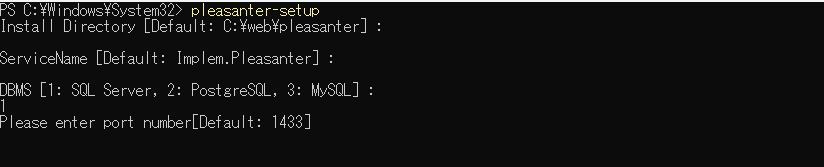
-
Enter the value to be set for Server in the connection string.
If you are using "localhost", leave it blank and press the Enter key.
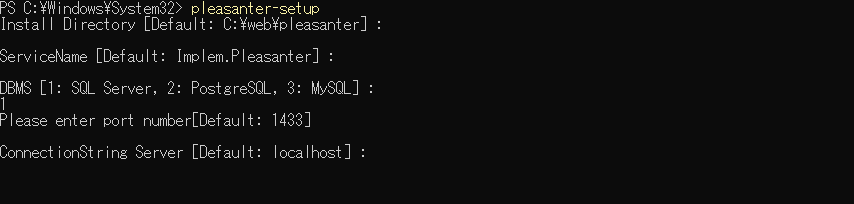
-
Enter the value to be set for UID in SaConnectionString.
If you are using "sa", leave it blank and press the Enter key.
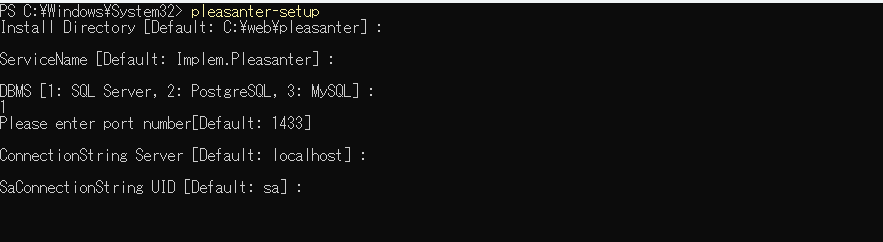
-
Enter the value to be set for PWD in SaConnectionString.
※The password will be displayed in a masked state.
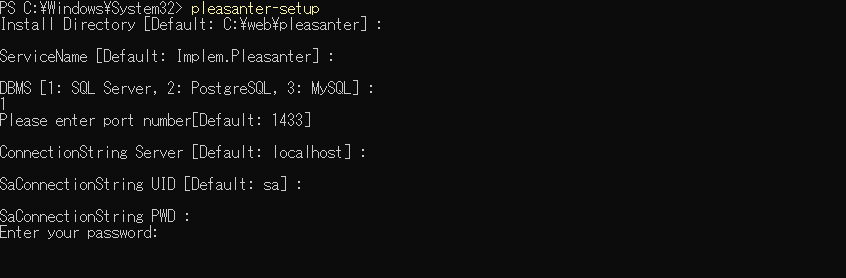
-
Enter the value to be set in PWD of OwnerConnectionString.
※The password is displayed in a masked state.
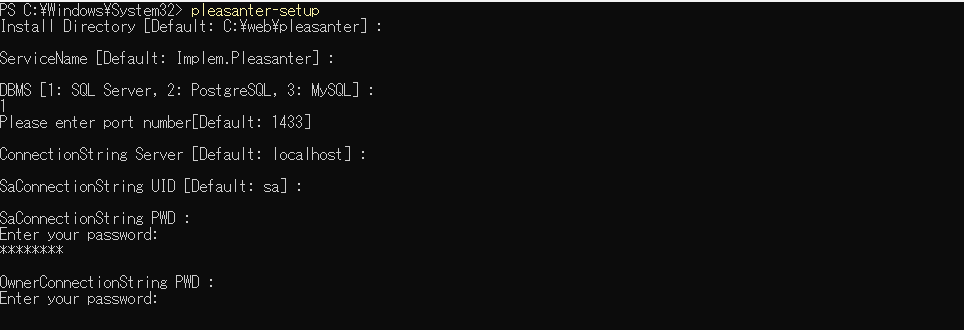
-
Enter the value to be set in PWD of UserConnectionString.
※The password is displayed in a masked state.
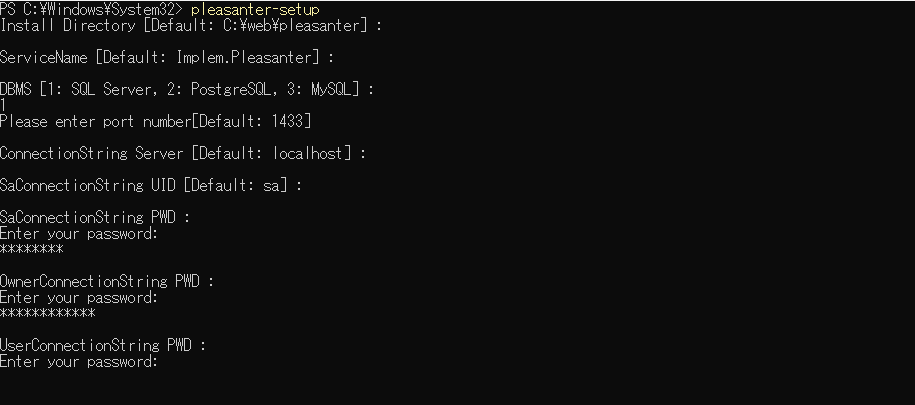
-
Enter "Default language".
Enter the number of the corresponding language.
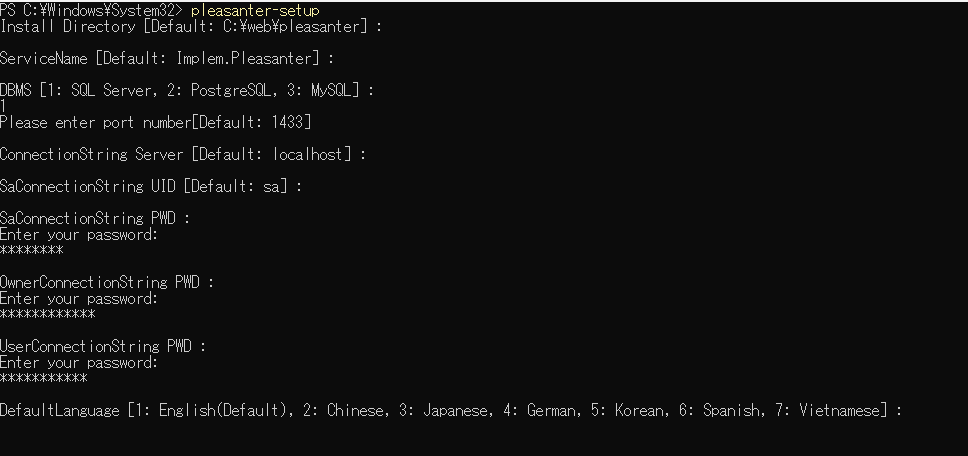
-
Enter the "Default time zone".
Enter the number of the corresponding time zone.
※If you entered "3", enter a time zone that can be used with the OS you are using.
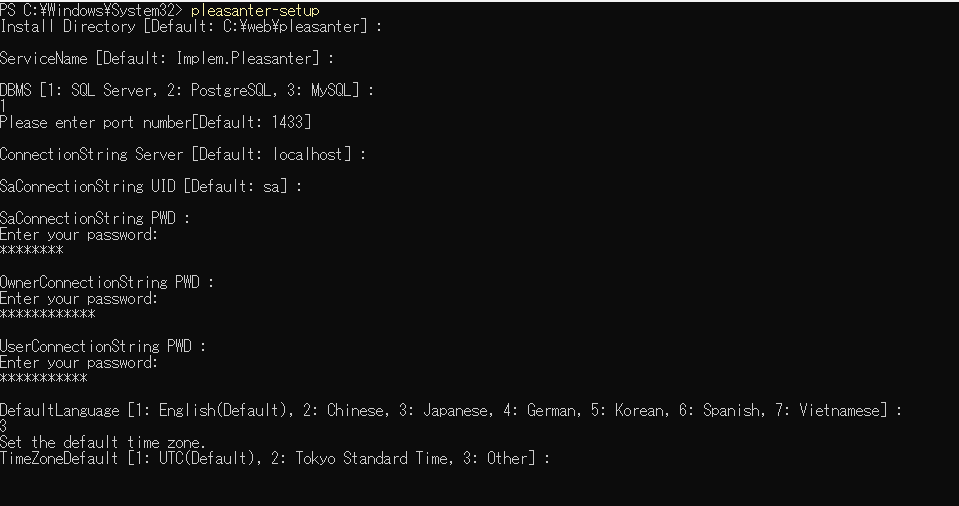
-
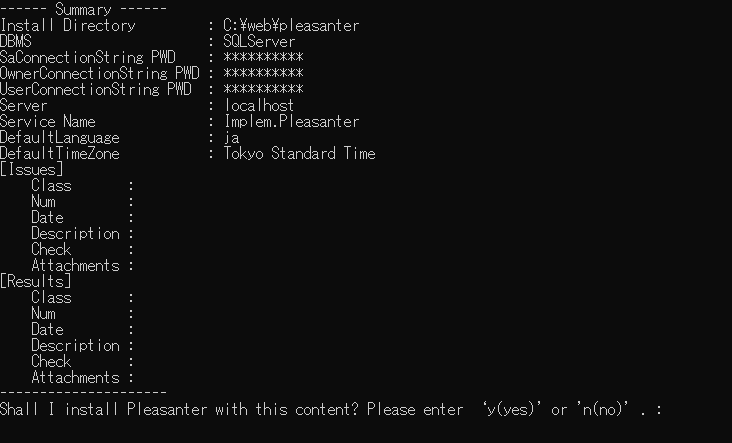
The summary screen will be displayed.
If the entered values are correct, enter y after "Shall I install Pleasanter with this content? Please enter 'y(yes)' or 'n(no)'. :" and press Enter.
*The password is masked.
-
When the message "Type "y" (yes) if the license is correct, otherwise type "n" (no)" appears, enter y and execute.
When the following log appears, the setup is complete.
-
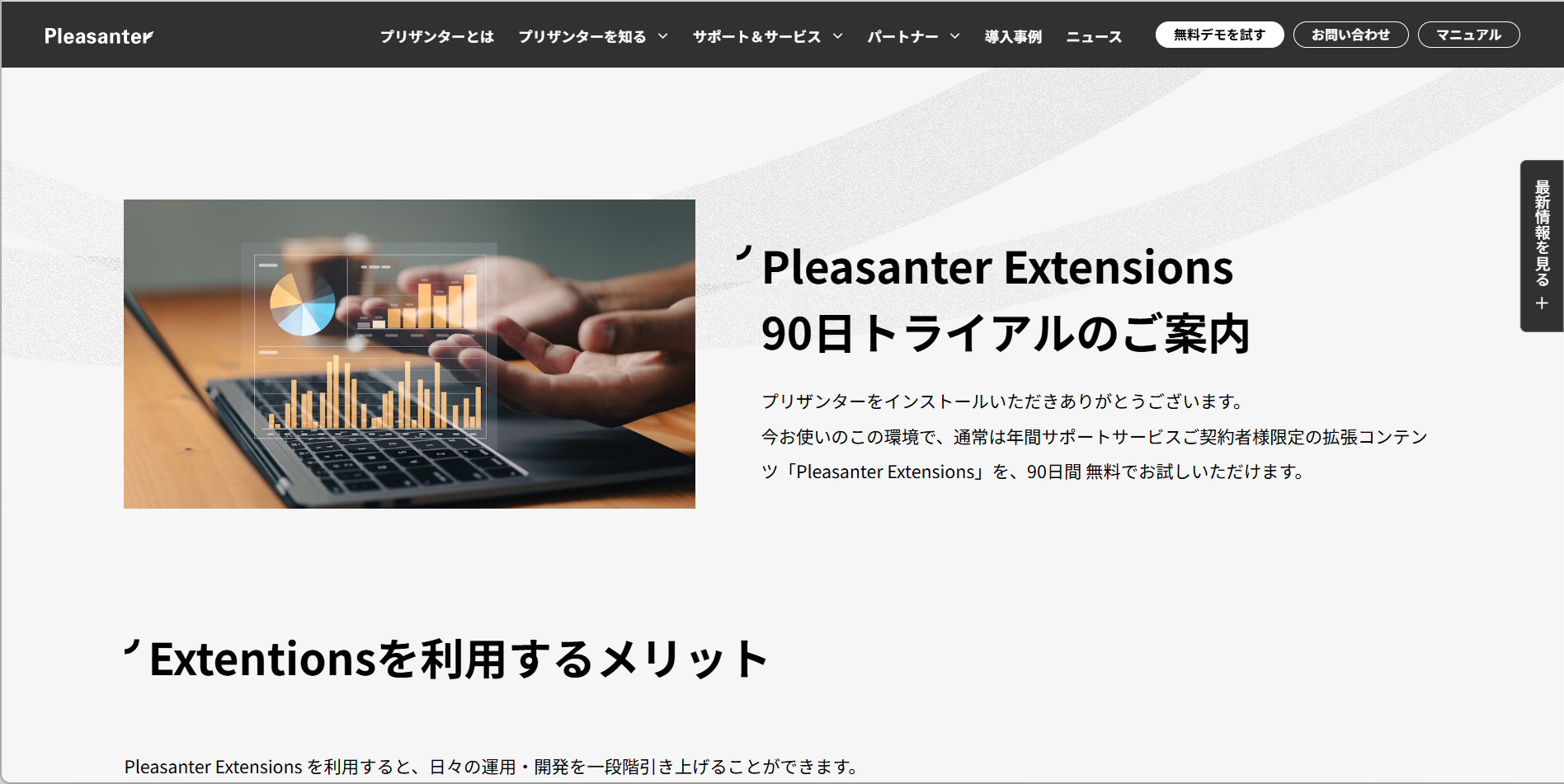
When setup is complete, a web browser will launch and display the Enterprise Edition trial information page.
The procedure for using PostgreSQL is as follows.
(Click here to open/close the details)
-
Run the following command to run the installer.
If you are not connected to a network environment, follow the steps below
(Click here to open/close the details)
-
Download the latest version of Pleasanter from the Download Center and place it in
C:\web\. -
Run the following command.
Please make sure that the configuration under the
C:\web\directory is as follows.
-
-
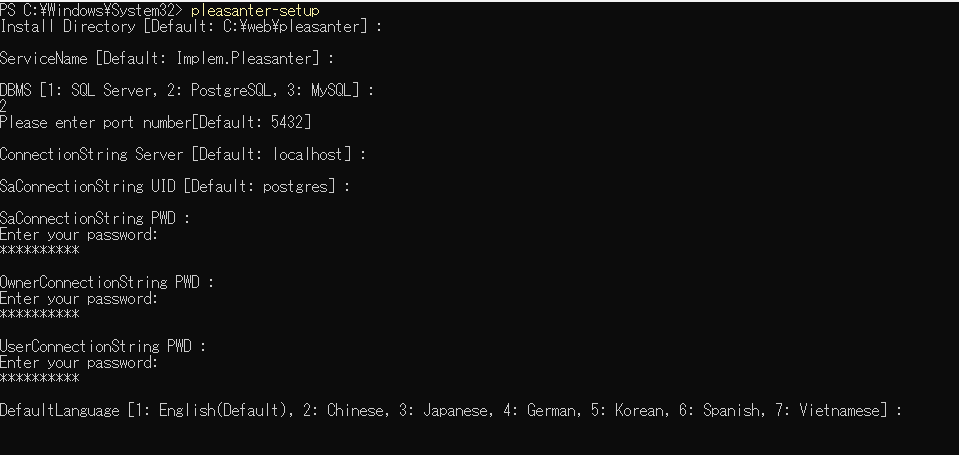
Enter the directory where you want to install Pleasanter.
If you want to install it in "C:\web\pleasanter", leave it blank and press the Enter key.
-
Enter the service name.
If you want to install it in "Implem.Pleasanter", leave it blank and press the Enter key.
-
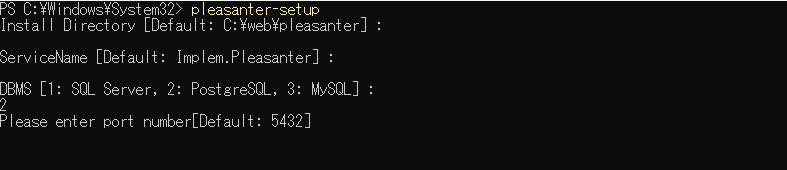
Enter the number corresponding to the DBMS you want to use.
Here, enter "2" and press the Enter key.

-
Enter the port number to be used.
If it is the default port number for the DBMS, leave it blank and press the Enter key.
-
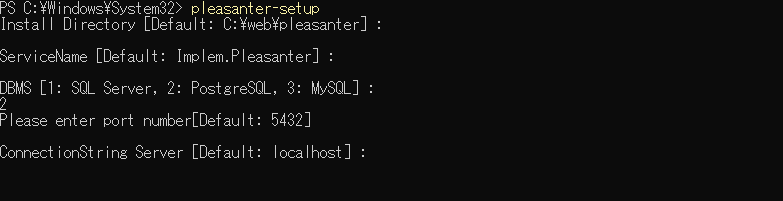
Enter the value to be set in Server in the connection string.
If it is "localhost", leave it blank and press the Enter key.
-
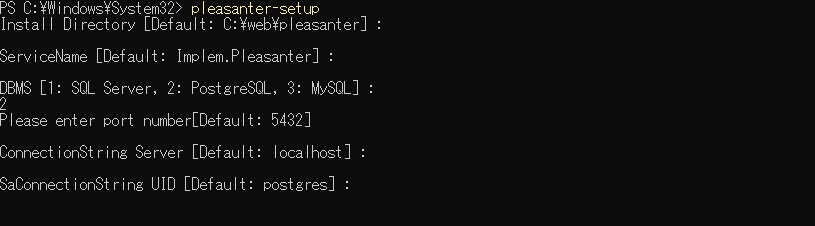
Enter the value to be set in UID of SaConnectionString.
If it is "postgres", leave it blank and press the Enter key.
-
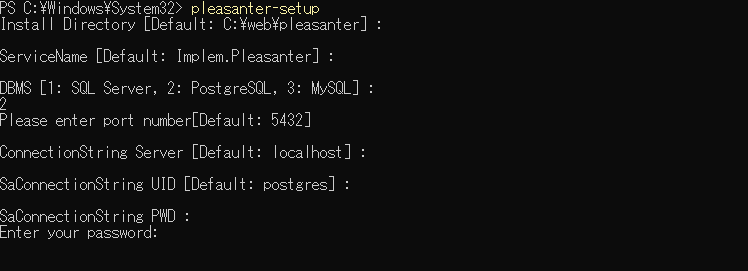
Enter the value to be set for PWD in SaConnectionString.
※The password will be displayed in a masked state.
-
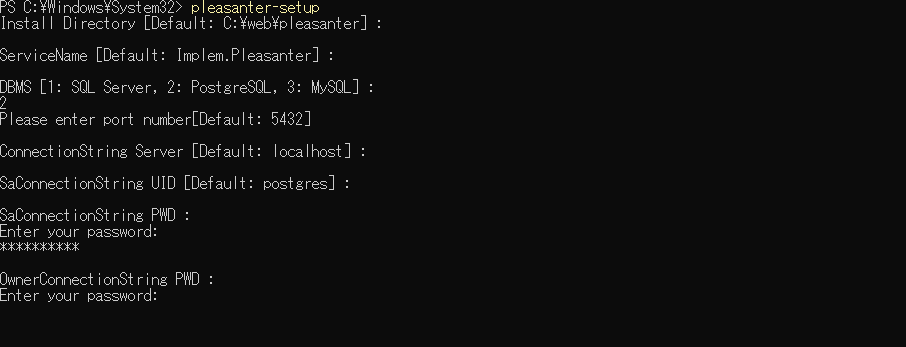
Enter the value to be set for PWD in OwnerConnectionString.
※The password will be displayed in a masked state.
-
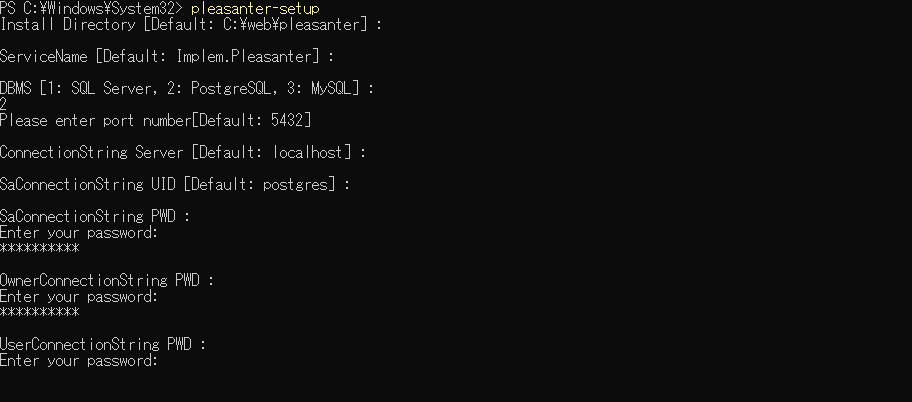
Enter the value to be set for PWD in UserConnectionString.
※The password will be displayed in a masked state.
-
Enter the default language.
Enter the number of the corresponding language.
-
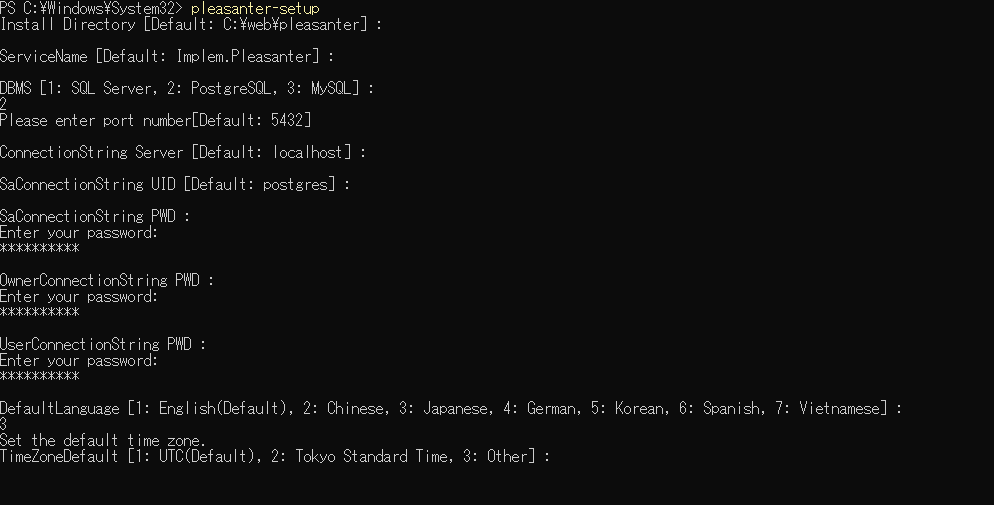
Enter the default time zone.
Enter the number of the corresponding time zone.
※If you entered "3", enter the time zone available on the OS you are using.
-
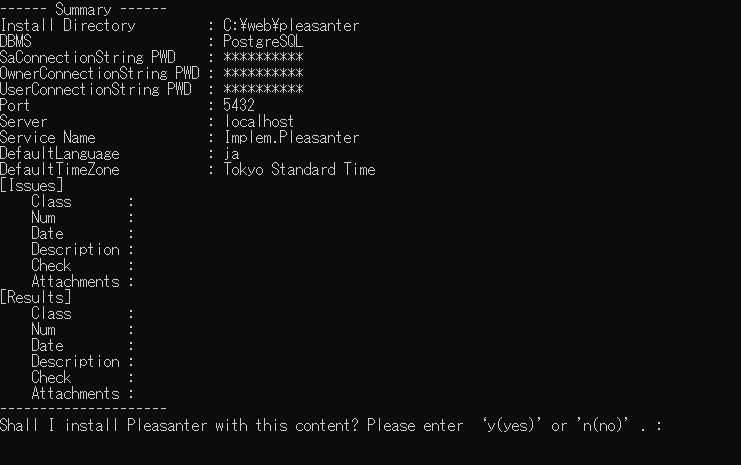
The summary screen will be displayed.
If the entered values are correct, enter y after "Shall I install Pleasanter with this content? Please enter ‘y(yes)' or 'n(no)'. :" and press Enter to execute.
*The password is masked.
-
When "Type "y" (yes) if the license is correct, otherwise type "n" (no)" is displayed, enter y and execute.
When the following log is displayed, the setup is complete.
-
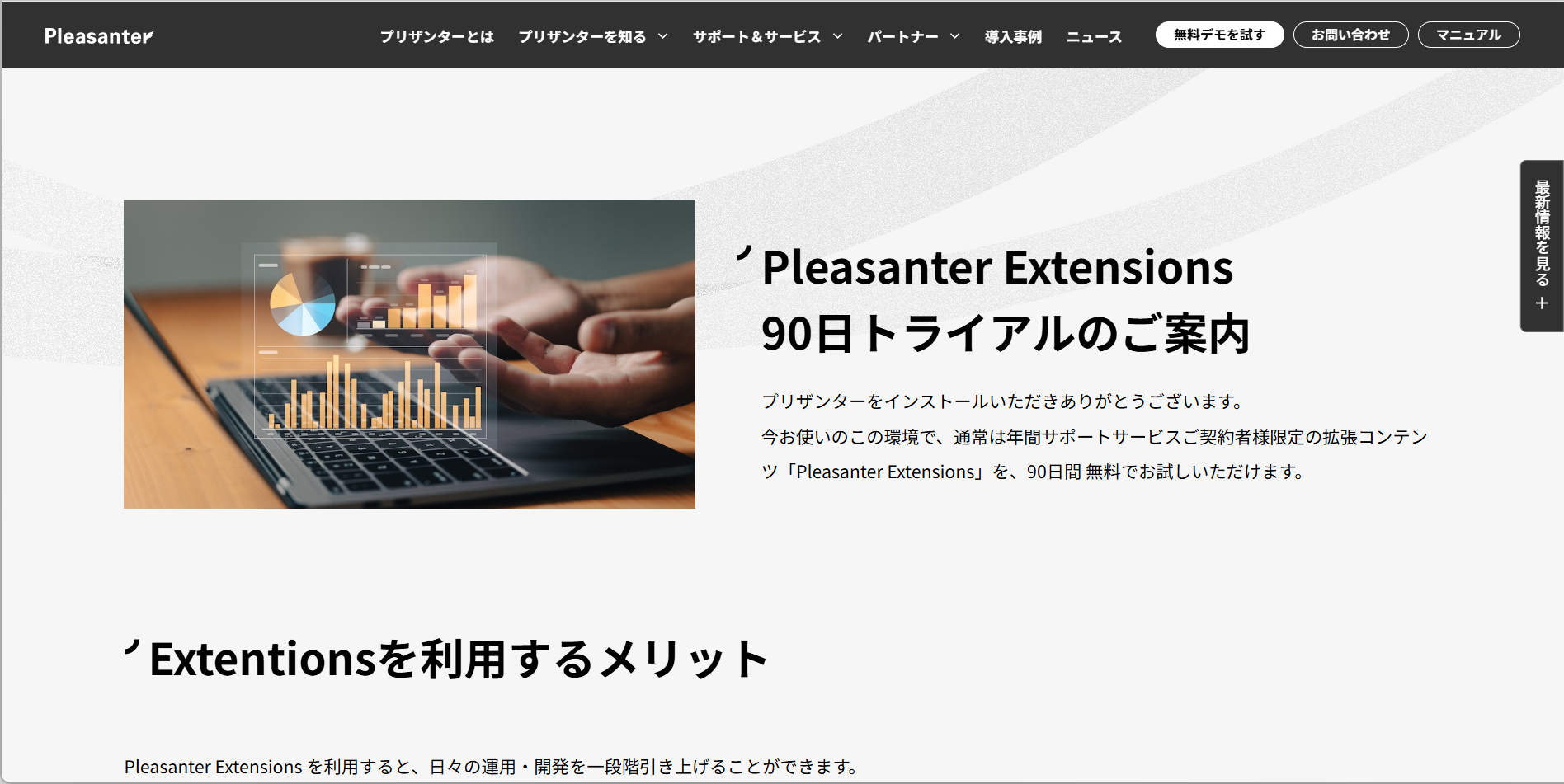
When setup is complete, a web browser will launch and display the Enterprise Edition trial information page.
The procedure for using MySQL is as follows.
(Click here to open/close the details)
-
Run the following command to run the installer.
If you are not connected to a network environment, follow the steps below
(Click here to open/close the details)
-
Download the latest version of Pleasanter from the Download Center and place it in
C:\web\. -
Run the following command.
Please make sure that the configuration under theC:\web\directory is as follows.
-
-
Enter the directory where you want to install Pleasanter.
If you want to install it in "C:\web\pleasanter", leave it blank and press the Enter key.
-
Enter the service name.
If you want to install it in "Implem.Pleasanter", leave it blank and press the Enter key.
-
Enter the number corresponding to the DBMS you want to use.
Here, enter "3" and press the Enter key.
-
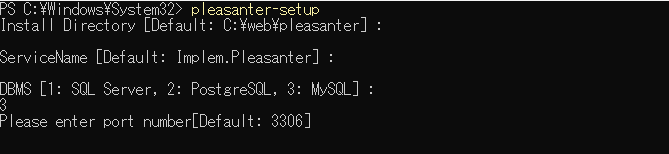
Enter the port number to be used.
If it is the default port number of the DBMS, leave it blank and press the Enter key.
-
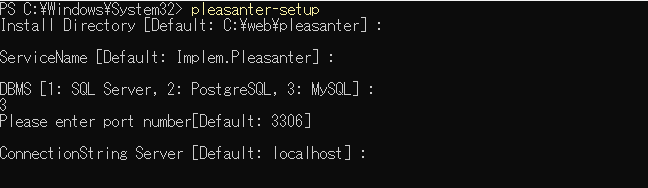
Enter the value to be set in Server of the connection string.
If it is "localhost", leave it blank and press the Enter key.
-
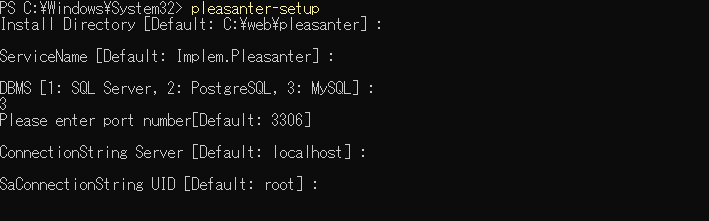
Enter the value to be set in UID of SaConnectionString.
If it is "root", leave it blank and press the Enter key.
-
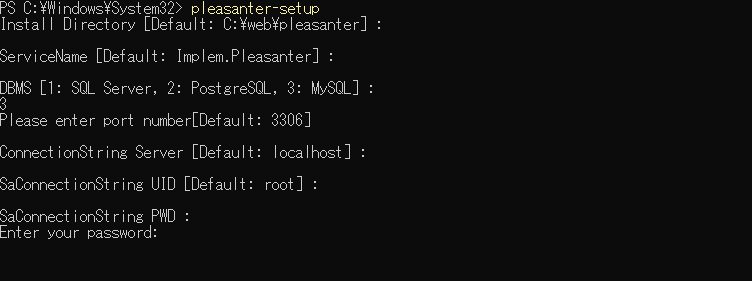
Enter the value to be set for PWD in SaConnectionString.
※The password will be displayed in a masked state.
-
Enter the value to be set for PWD in OwnerConnectionString.
※The password will be displayed in a masked state.
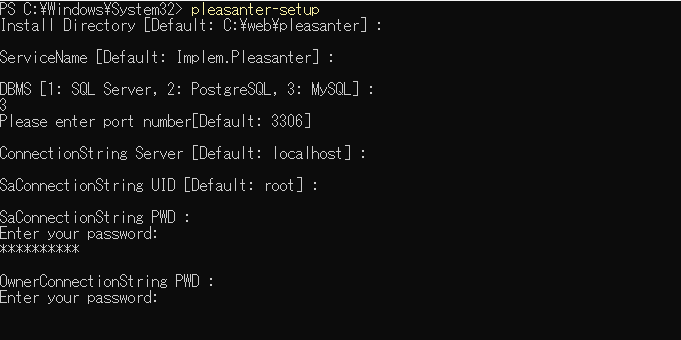
-
Enter the value to be set for PWD in UserConnectionString.
※The password will be displayed in a masked state.
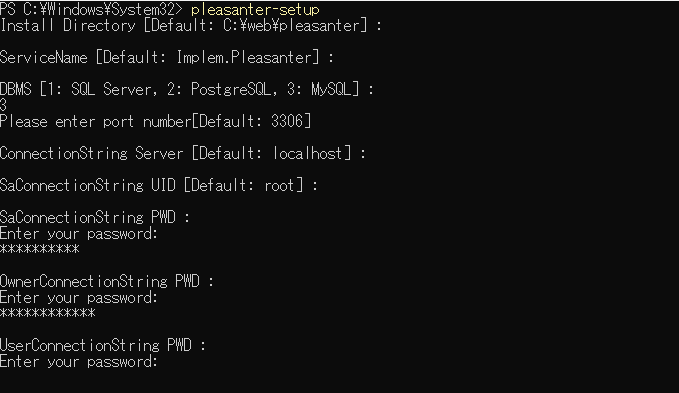
-
Enter the default language.
Enter the number of the corresponding language.
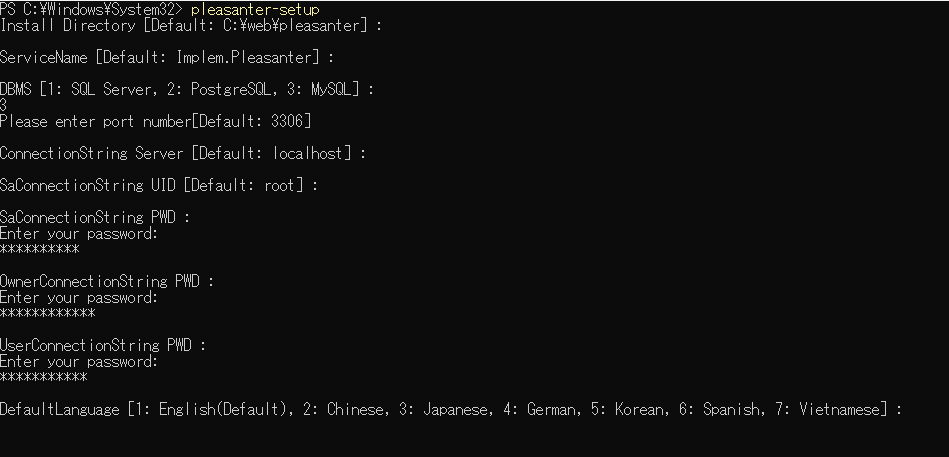
-
Enter the default time zone.
Enter the number of the corresponding time zone.
※If you entered "3", enter the time zone available on the OS you are using.
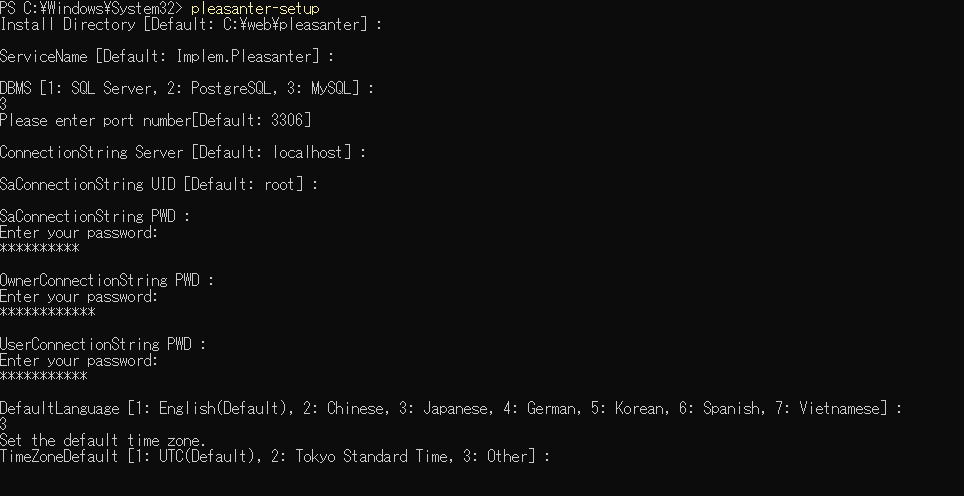
-
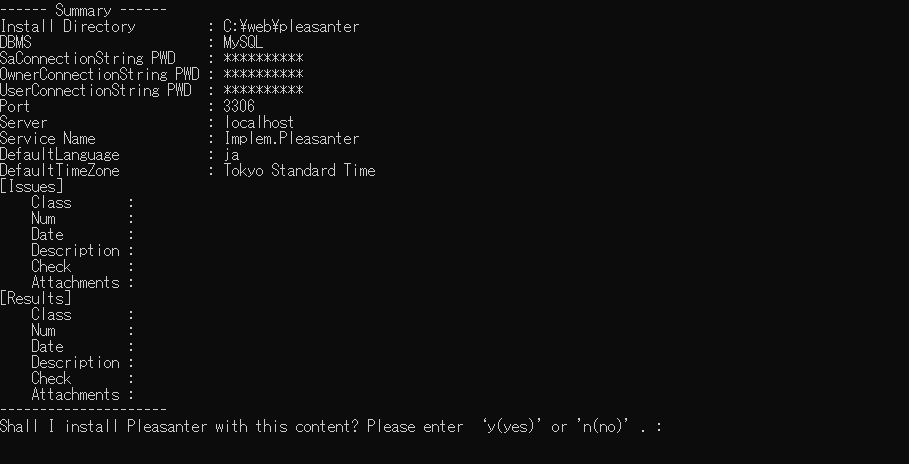
The summary screen will be displayed.
If the entered values are correct, enter y after "Shall I install Pleasanter with this content? Please enter ‘y(yes)' or 'n(no)'. :" and press Enter to execute.
※The password is masked.
-
When "Type "y" (yes) if the license is correct, otherwise type "n" (no)" is displayed, enter y and execute.
When the following log is displayed, the setup is complete.
-
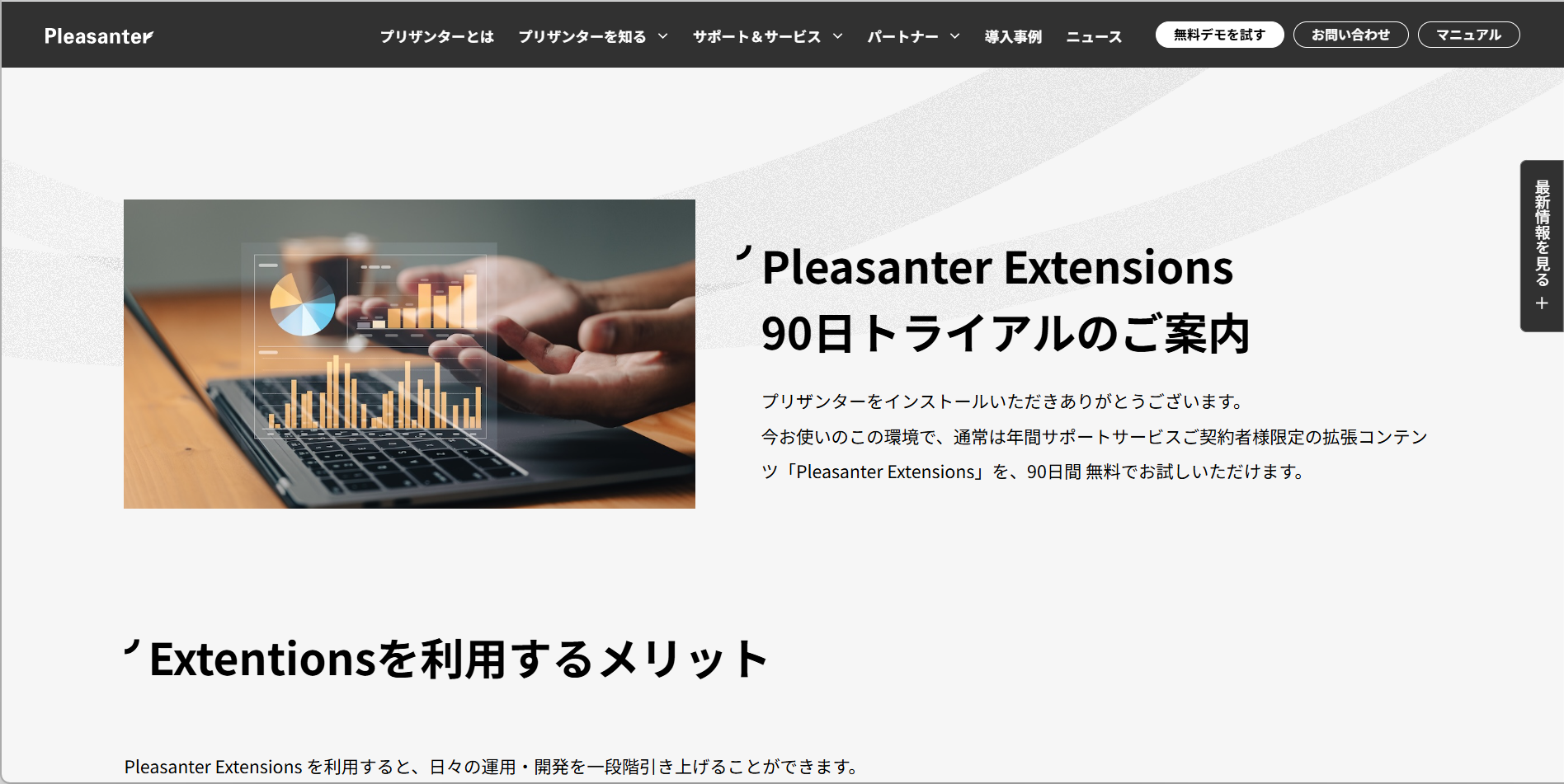
When setup is complete, a web browser will launch and display the Enterprise Edition trial information page.
4. Set Up IIS
-
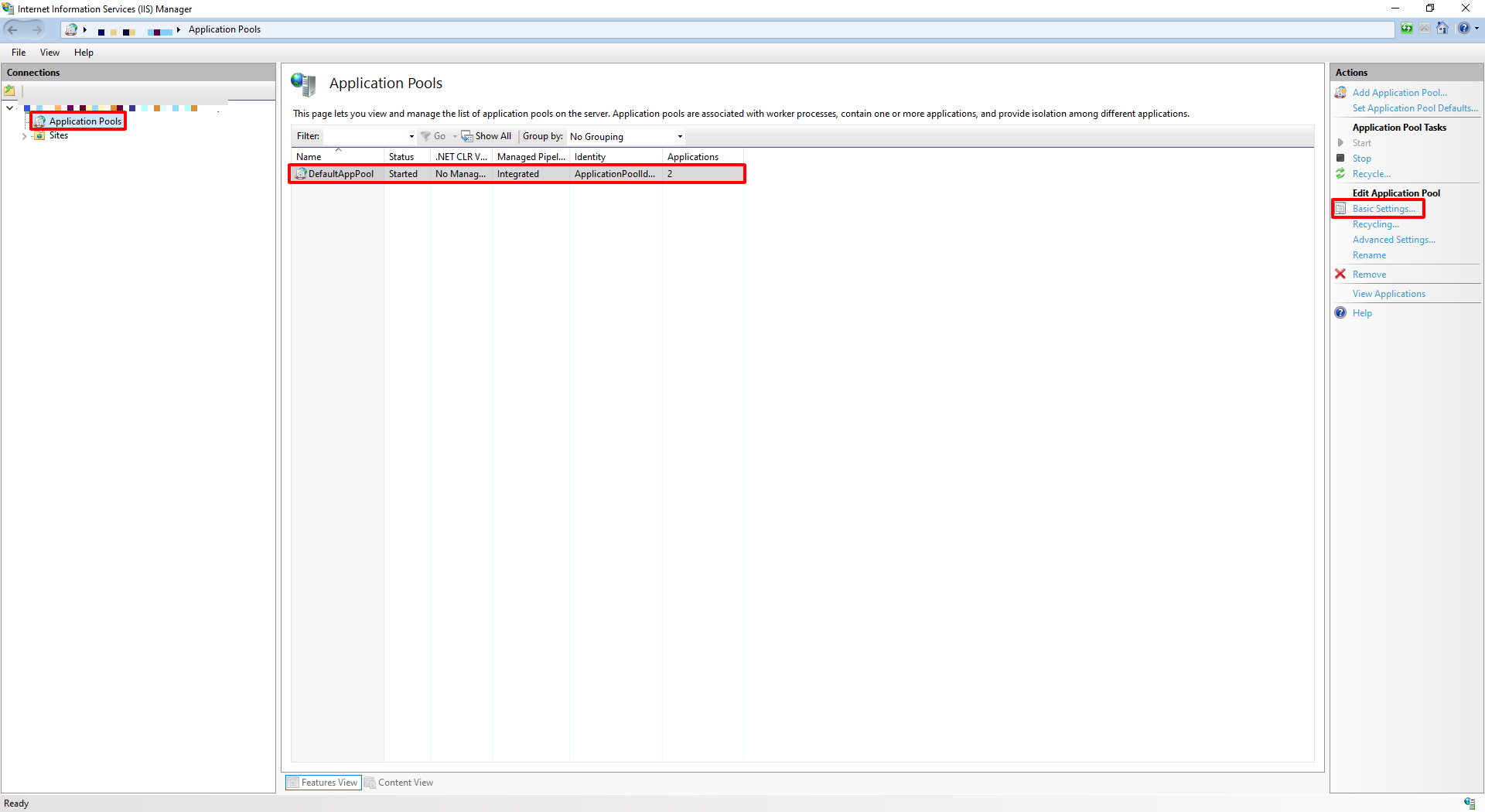
Open the "Tools" menu in "Server Manager" and launch "Internet Information Services (IIS) Manager".
-
Select "DefaultAppPool" in "Application Pools" and click "Basic Settings".
-
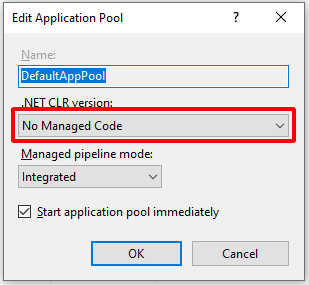
Change the Net CLR version to "No Managed Code".
-
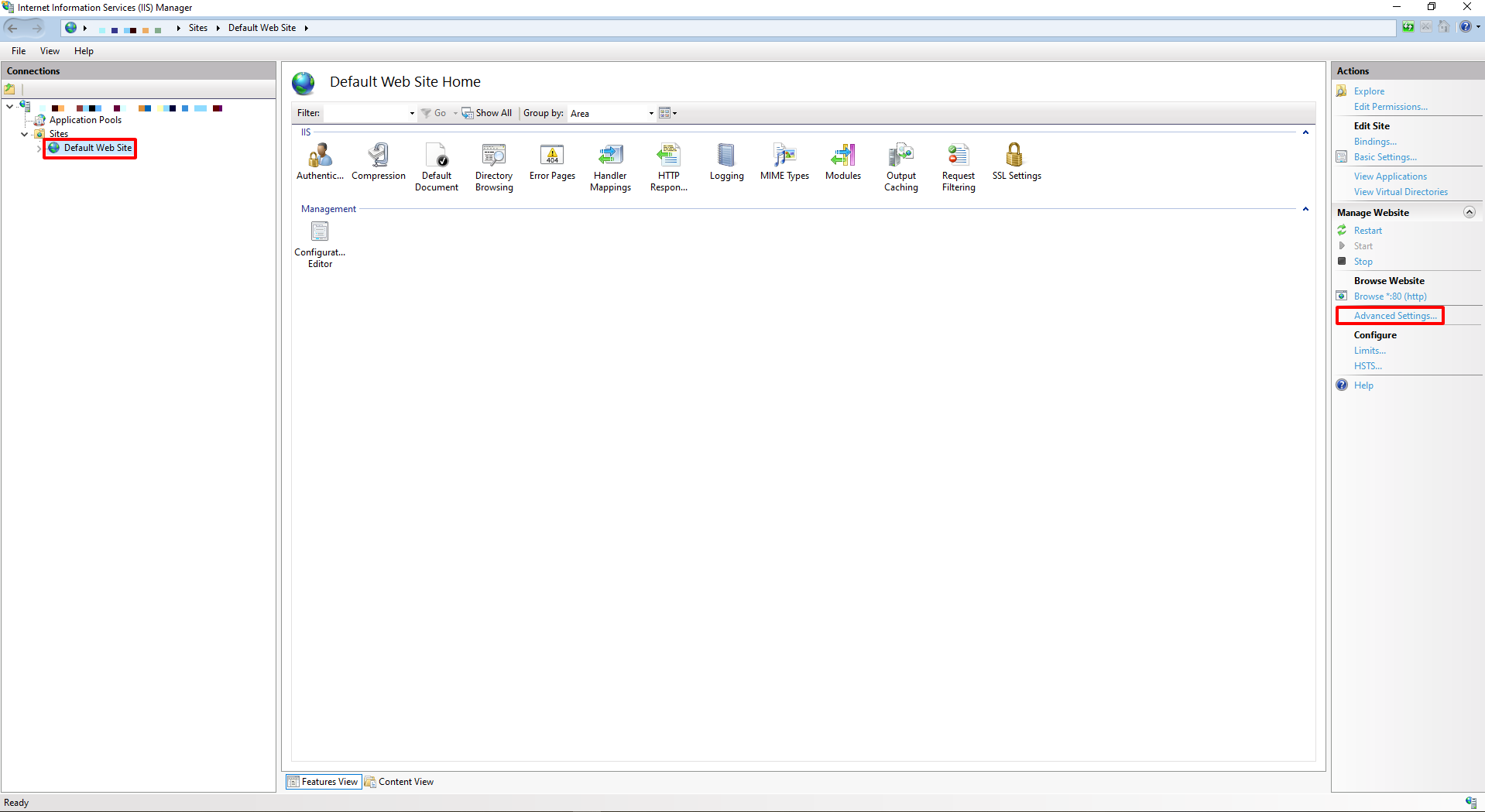
Select "Site" - "Default Web Site" from the left pane and click Advanced Settings on the right pane.
-
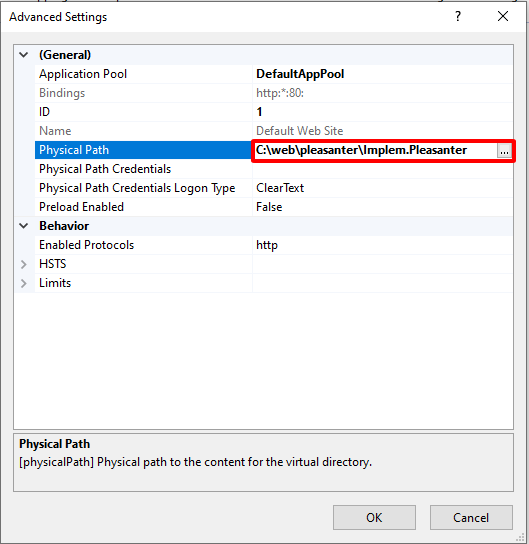
Enter the physical path as "C:\web\pleasanter\Implem.Pleasanter".
-
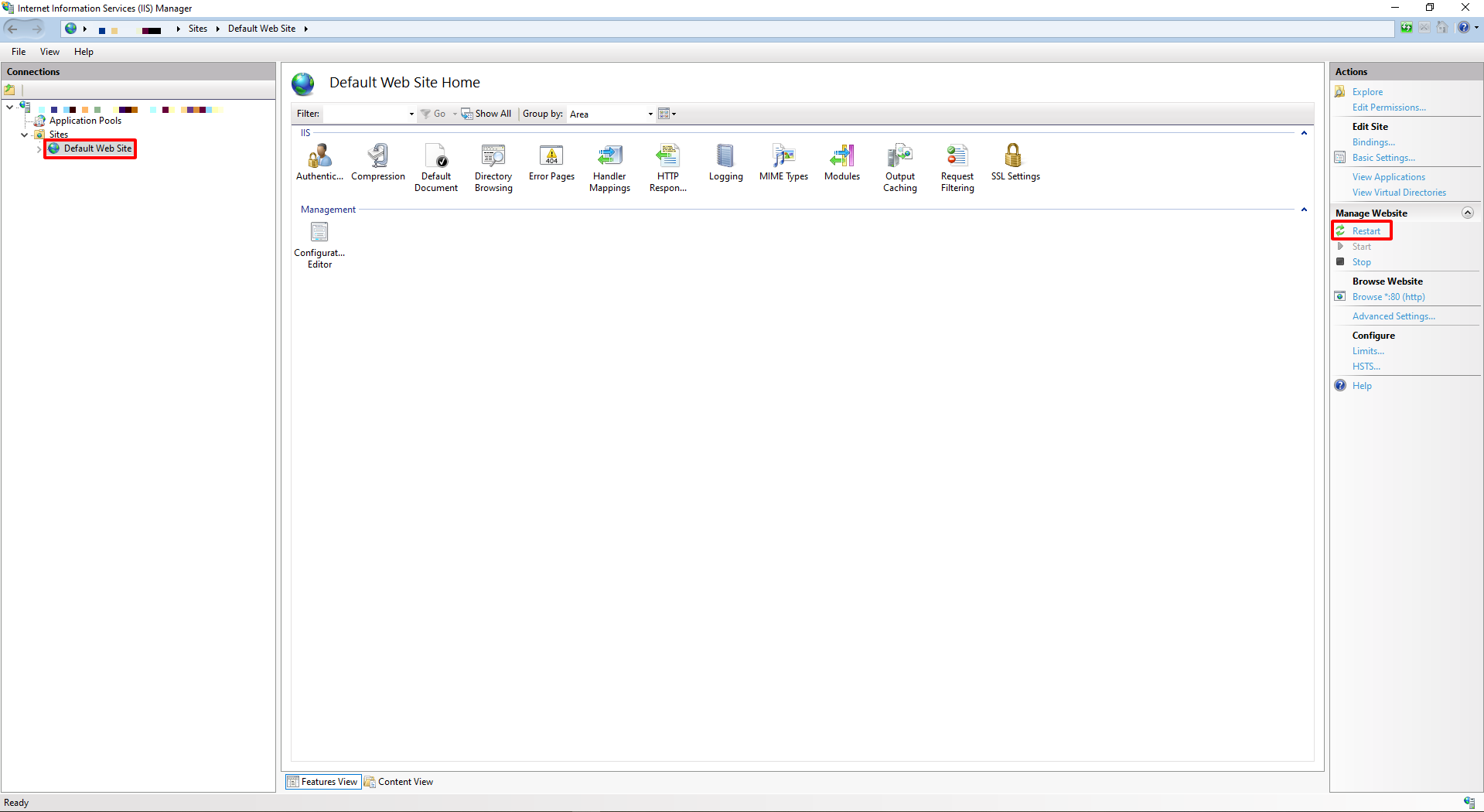
From the left pane, select "Site" - "Default Web Site", and click "Restart" in the right pane to restart IIS.
-
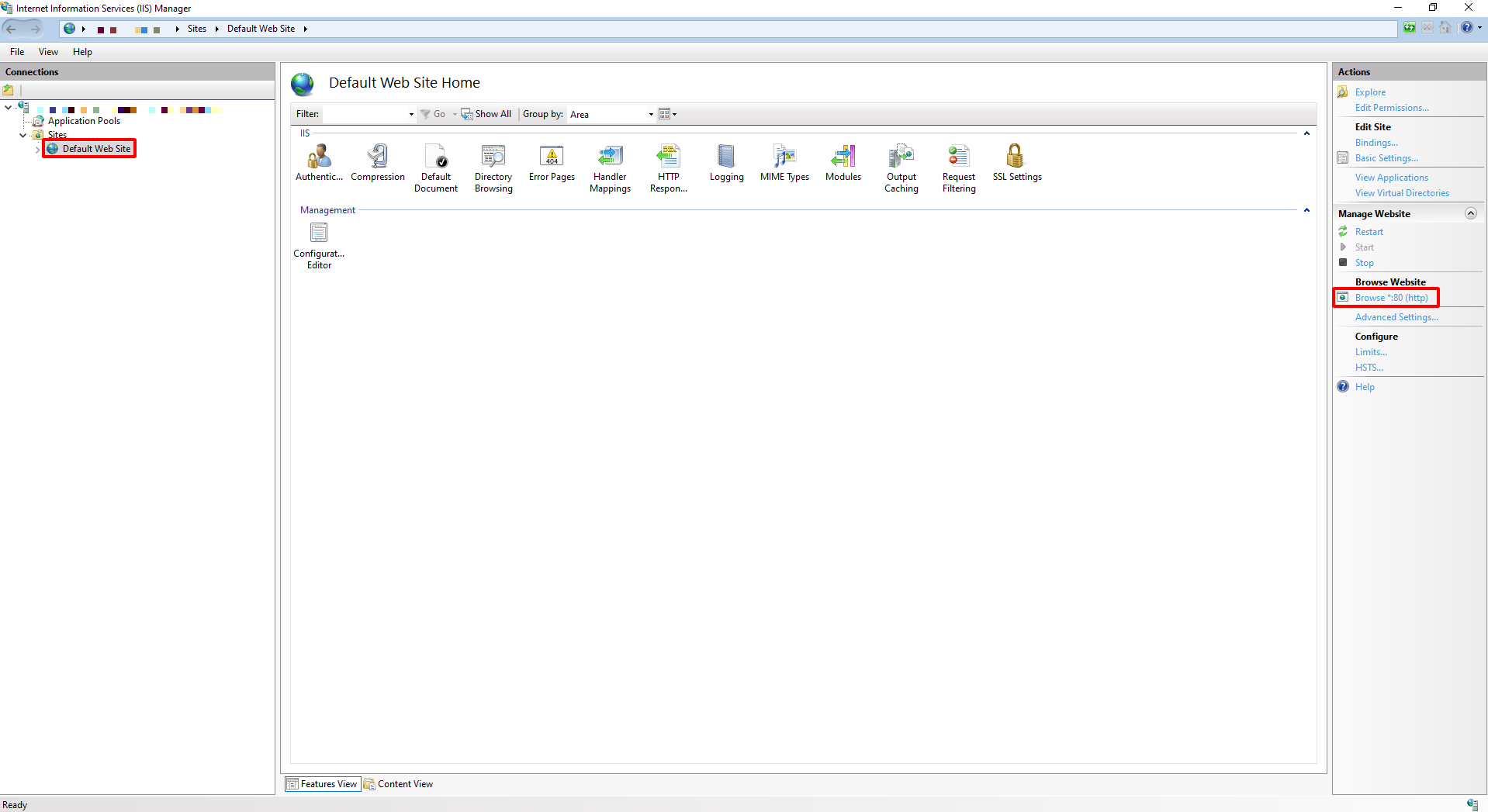
After restarting, click "Browse *.80(http)" in the right pane to start Pleasanter.
5. Checking the operation of Pleasanter
-
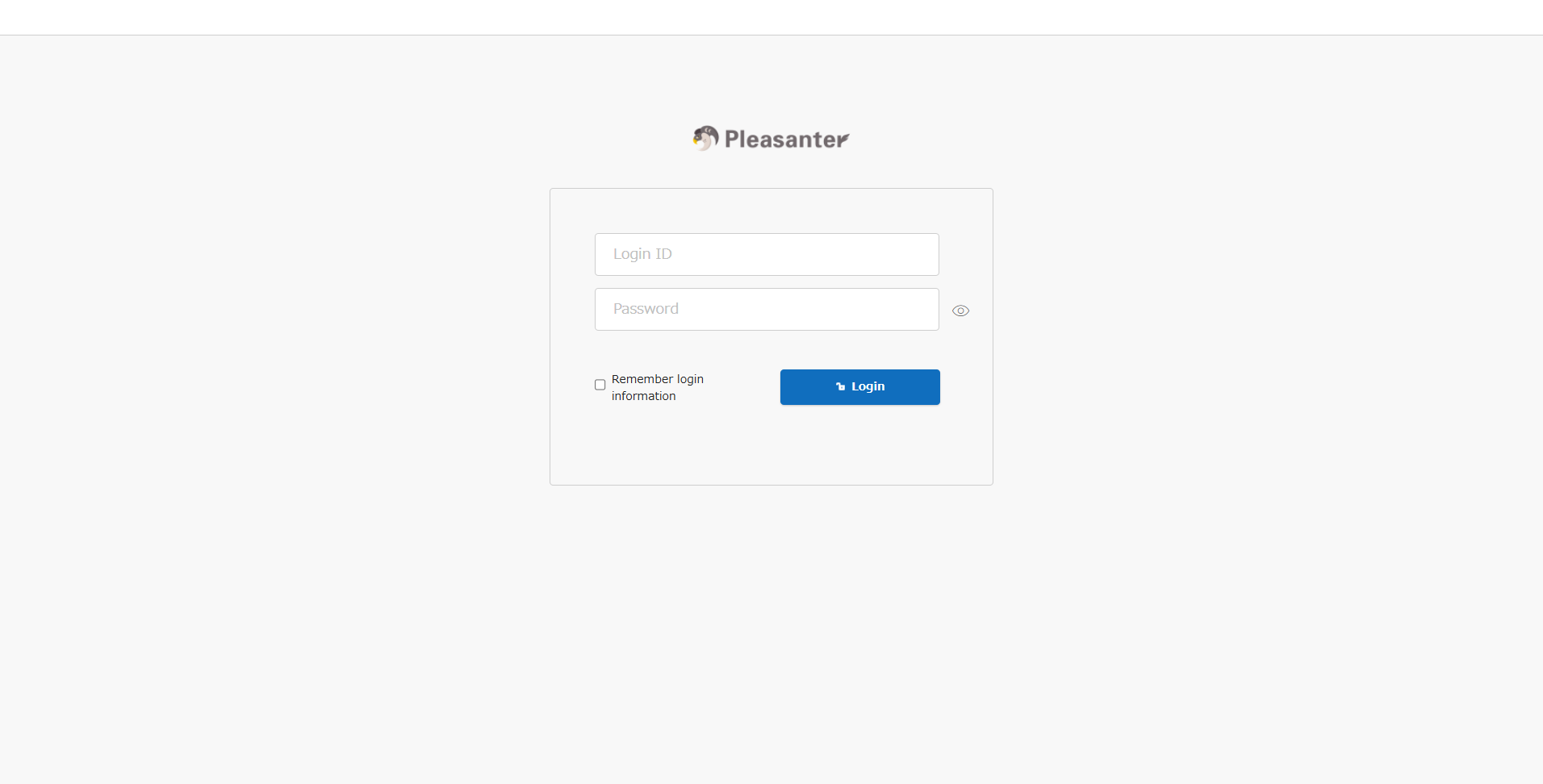
On the Pleasanter login screen, enter "Login ID: Administrator" and "Initial password: pleasanter" and click the "Login" button.
-
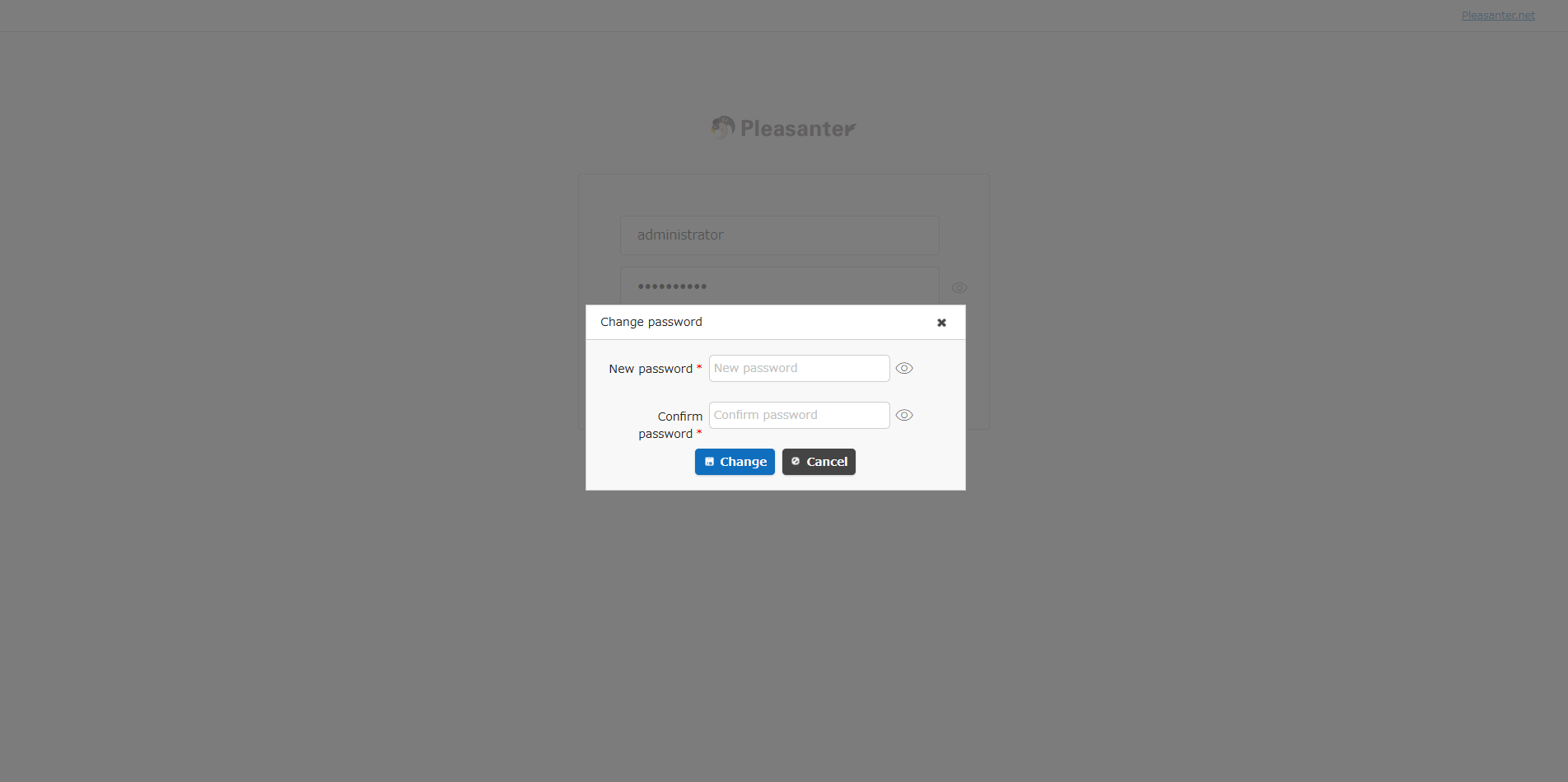
After logging in, you will be asked to change the "Administrator" user password, so enter a password of your choice and click the "Change" button.
Supported Versions
| Supported versions | Body |
|---|---|
| 1.4.9.0 and later | Supports MySQL |
| 1.4.10.0 and later | Fixed the issue where Owner and User connections were rejected due to MySQL's access control function *Added a link to "Configure the Web Server and DB Server to Use MySQL Separately" in the notes |