Enable Windows Function (Windows 11)
This page is part of the setup procedure for Pleasanter, a free, open-source no-code/low-code development tool.
Overview
In this procedure, you will enable IIS and ASP.NET, which are required for Pleasanter to operate.
Enable Windows Features
-
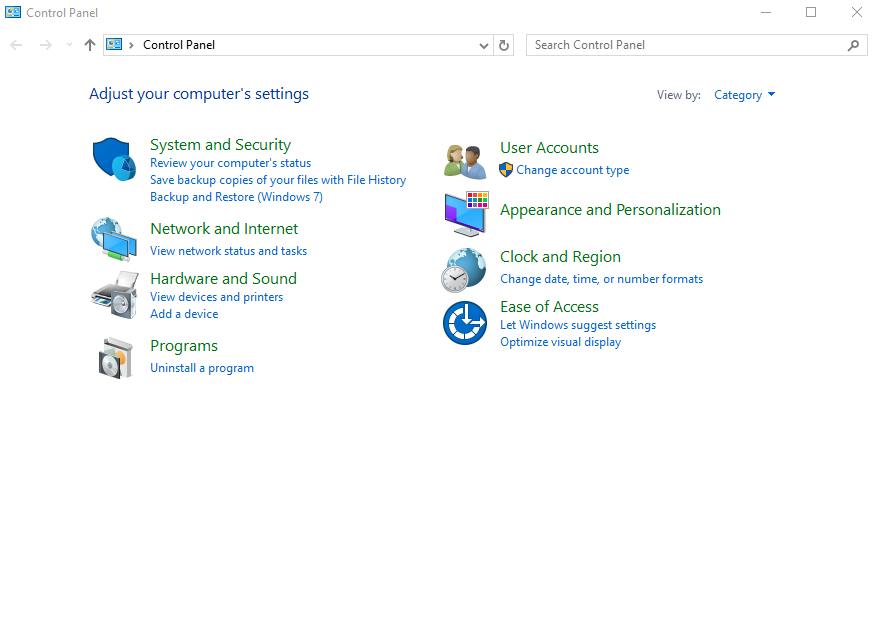
Launch "Control Panel" from the Start menu.
-
Click "Programs".
-
Click "Turn Windows Features on or off".

-
Check "IIS Management Console", "Static Content", and "ASP.NET 4.7" (or "ASP.NET 4.6" or "ASP.NET 4.8" depending on your environment) under "Internet Information Services" (you can leave the columns that are automatically added when you check them), confirm that it looks like the image below, and click the "OK" button.

-
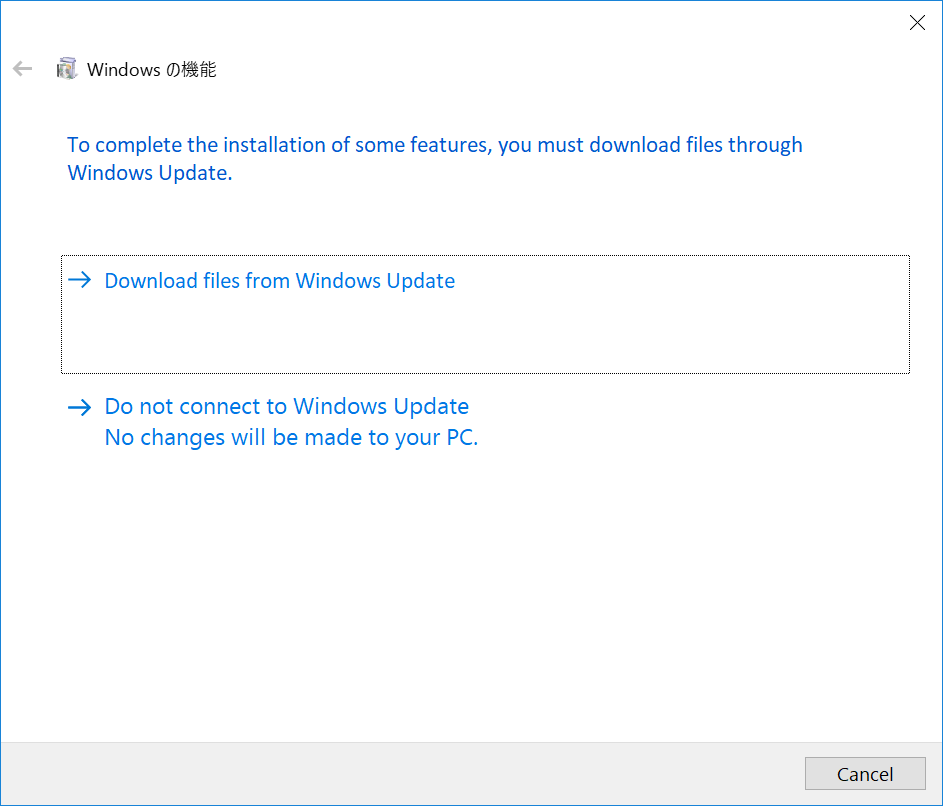
Click "Download files from Windows Update".
(If the selected features are already installed, this screen will not be displayed. Proceed to the next step.)
-
Click the "Close" button.

Change IIS Settings
-
Launch "Internet Information Services (IIS) Manager" from the Start menu.
-
Select "DefaultAppPool" under "Application pools" and click "Set Application Pool Defaults".
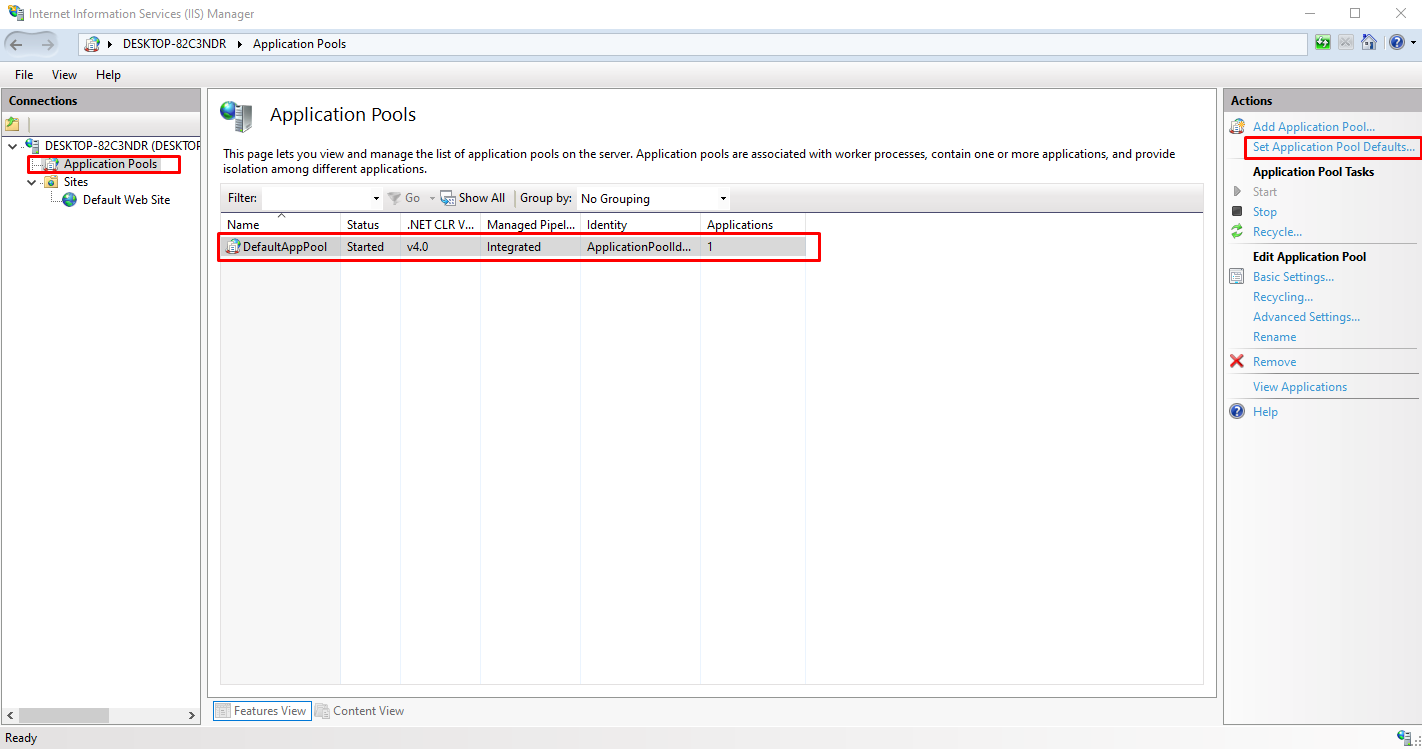
- Change "Idle Time-out Operation" under "Process Model" from "Terminate" to "Suspend" and click "OK".

When you have finished, install Pleasanter. Next step: Install Pleasanter