Upgrade Procedure for Version 1.4.8.0 or Later (Linux)
Overview
This is the procedure for upgrading Pleasanter version 1.4.8.0 or later that is used on Linux-based OS.
Notes
- Do not overwrite the currently used parameter file to the latest version. Parameters newly added in the latest version may be lost, and Pleasanter may not start.
- If you have upgraded to Enterprise Edition and performed column expansion, please upgrade according to the "Procedure for upgrading Pleasanter upgraded to Enterprise Edition" in "Content provided for support contract holders".
- Do not set the /l or /z parameters when running CodeDefiner.
Limitations
- CodeDefiner's merge function is available from 1.4.8.0 onwards.
- CodeDefiner's merge function applies parameters added and deleted in the new version.
- The version to be upgraded must be 1.4.0.0 or later.
Prerequisites
- The user who will launch Pleasanter must be registered. The
mentioned in the procedure refers to this user. - This procedure explains the case where .NET is installed in /usr/local/bin. If you need to install .NET in a different directory for reasons such as requiring multiple versions of .NET in the same environment, please change the directory specified in ExecStart when running CodeDefiner or creating the Pleasanter service script to match the installation destination.
Procedure
The procedure for upgrading is as follows.
1. Stop Pleasanter
1. Back up the database
1. Back up Pleasanter
1. Prepare Pleasanter
1. Prepare the application
1. Download the patch file
1. Reconfigure parameters
1. Run CodeDefiner
1. Check that Pleasanter is running
1. Stop Pleasanter
Execute the following command to stop Pleasanter.
2. Back Up The Database
Back up the database. If you have upgraded to Enterprise Edition and expanded the columns, please make sure to back up your data
Pleasanter User Manual - FAQ: Backup, Restore
3. Back up Pleasanter
Rename the existing /web/pleasanter/ to /web/pleasanter_bk/ and back it up.
4. Prepare Pleasanter
1. Prepare the application
- Download the latest version of Pleasanter from the GitHub release notes.
- Unzip the downloaded zip file and unzip it under /web/.
Please make sure that the configuration under the /web/ directory is as follows.
/web/pleasanter
/web/pleasanter_bk - Run the following command to change the owner of the pleasanter directory to the user who launches Pleasanter.
2. Download the patch file
- Download the same version of ParametersPatch.zip as the version you placed from GitHub release notes.
- Place ParametersPatch.zip under the /web/pleasanter/ directory.
/web/pleasanter/ParametersPatch.zip
*Please place ParametersPatch.zip without unzipping it.
3. Reconfigure parameters
Move to the /web/pleasanter/Implem.CodeDefiner directory and execute the parameter merge process in CodeDefiner.
> cd /web/pleasanter/Implem.CodeDefiner
> sudo -u <user who starts Pleasanter> /usr/local/bin/dotnet Implem.CodeDefiner.dll merge /b /web/pleasanter_bk /i /web/pleasanter
Parameter files set in the extension under /web/pleasanter_bk/Implem.Pleasanter/App_Data/Parameters/ will also be applied to the new resource.
*If you want to reset parameters manually
See FAQ: How to reset parameters manually**
5. Run CodeDefiner
Execute the following command to run CodeDefiner as the user who launches Pleasanter. There is no need to set the arguments /l and /z.
cd /web/pleasanter/Implem.CodeDefiner
sudo -u <user who starts pleasanter> /usr/local/bin/dotnet Implem.CodeDefiner.dll _rds
You will be asked to confirm the execution, so enter "y" and press Enter to execute. If you want to cancel the execution, enter "n" and press Enter.
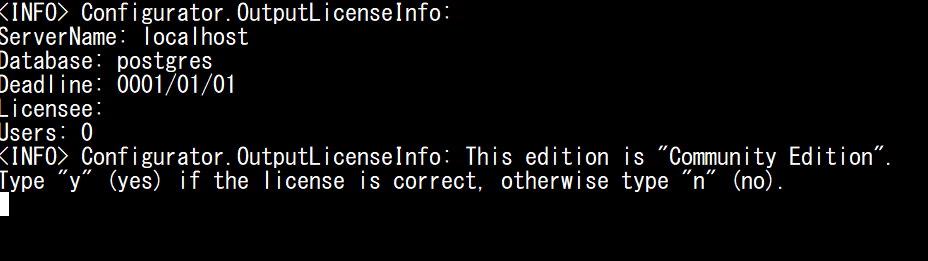
*The display of Licensee may be garbled depending on the environment.
6. Check That Pleasanter Is Running
- Run the following command to start Pleasanter.
-
Open the Pleasanter login screen in your browser, and after logging in, click "Help" - "Version" in the navigation menu to confirm that the version is correct.

-
If you do not need the /web/pleasanter_bk that you backed up in step 3, delete it. If you want to keep it, move it to a different folder.
Supported Versions
| Supported versions | Body |
|---|---|
| 1.4.8.0 and later | Added parameter merging procedure |
Related Information
FAQ: CodeDefiner stops working when automating setup
List of CodeDefiner Commands