Pleasanter Version Upgrade Procedure (Linux)
Support for .NET 8 ends on November 10, 2026
Microsoft support for .NET 8, on which Pleasanter 1.4 runs, ends on November 10, 2026 (.NET and .NET Core official support policy). Pleasanter 1.5 runs on .NET 10. For the steps to migrate from Pleasanter 1.4 to 1.5, see the following pages.
- Migration Procedure from Pleasanter 1.4 Installed on Windows/Windows Server to Pleasanter 1.5
- Procedure for Migrating Pleasanter 1.4 Installed on Ubuntu to Pleasanter 1.5
You can also leave the migration work to the developer's engineers. See Pleasanter Version Upgrade and Environment Migration (Japanese) on the product site.
Overview
The procedure for upgrading Pleasanter operated on a Linux-based OS is as follows.
Cautions
- Do not overwrite the currently operational parameter file with the latest version. Newly added parameters in the latest version may be lost, causing Pleasanter to fail to start.
- If you are using the Enterprise Edition and have extended columns, follow the "Enterprise Edition Upgraded Pleasanter Upgrade Procedure" provided in the "Support Contract Subscriber Content" for the upgrade.
- Do not set the /l or /z parameters when running CodeDefiner.
Prerequisites
- Ensure that the user who will launch Pleasanter is registered. The <user who launches Pleasanter> mentioned in the procedures refers to this user.
- If you are upgrading from Pleasanter 1.3 or earlier to Pleasanter 1.4 or later, you need to install .NET8 installation.
- This procedure explains the case where .NET is installed in /usr/local/bin. If you need to install .NET in a different directory for reasons such as requiring multiple versions of .NET in the same environment, please change the directory specified in ExecStart when running CodeDefiner or creating the Pleasanter service script to match the installation destination.
Procedure
The upgrade procedure is as follows:
1. Backup Database
1. Backup Parameter File
1. Prepare Pleasanter
1. Prepare Application
1. Reconfigure Parameters
1. Reconfigure Extensions
1. Place Pleasanter
1. Stop Pleasanter
1. Deploy Application
1. Run CodeDefiner
1. Confirm the Start of Pleasanter
1. Backup Database
Backup the database. If you have upgraded to Enterprise Edition and extended columns, make sure to back them up.
Pleasanter User Manual - FAQ: Backup, Restore
2. Backup Parameter File
- Backup the parameter file. This backup will be used in step 3.2. If you set up the Parameter file according to the manual, it will be a json file under /web/pleasanter/Implem.Pleasanter/App_Data/Parameters/.
-
This step is not required if you are not using extensions. Back up the parameter file set by the extension. This backup will be used in step 3.3. If you set up the file according to the manual, the file will be in the following subfolder under /web/pleasanter/Implem.Pleasanter/App_Data/Parameters/.
Subfolder name Extension name Notes CustomDefinitions "Extended Column" Folder created when adding column to dept, group, or user ExtendedFields "Extended Field" ExtendedHtmls "Extended HTML" ExtendedNavigationMenus "Extended Navigation Menu" ExtendedScripts "Extended Script" ExtendedServerScripts "Extended Server Script" ExtendedSqls "Extended SQL" ExtendedStyles "Extended Style"
3. Prepare Pleasanter
1. Prepare Application
- Download the latest version of Pleasanter from the GitHub release notes.
- Unzip the downloaded zip file.
2. Reconfigure Parameters
Reflect the currently configured contents in the parameter file of the latest version module prepared in step 3.1. Use a file comparison/merge tool such as WinMerge to compare the parameter file of the latest version module with the parameter file of the backup file obtained in step 2, and modify the parameter file of the latest version module.
Please check that the TimeZoneDefault in Service.json is the correct value. Please set the TimeZoneDefault to a valid timezone for the OS of the server where Pleasanter is installed. (For example, "Tokyo Standard Time" for Windows, or "Asia/Tokyo" for Linux).
FAQ: I want to know the parameter settings for languages and timezones supported by Pleasanter
3. Reconfigure Extensions
This step is not required if you are not using extensions. Apply the current settings to the extension parameter files of the latest version modules prepared in step 3.1. Use a file comparison/merging tool such as WinMerge to compare the extension Parameter file of the latest version module with the extension Parameter file of the backup file obtained in step 2, and modify the extension Parameter file of the latest version module.
4. Place Pleasanter
1. Stop Pleasanter
Execute the following command to stop Pleasanter.
2. Deploy Application
-
Place the "pleasanter" folder of the latest version module whose parameters were reconfigured in step 3.2 in the "/web" directory on the server using a file transfer application such as WinSCP.
*Just to be on the safe side, we recommend that you rename the existing /web/pleasanter/ to /web/pleasanter_bk/ or similar to back it up before placing the new version. -
Execute the following command to change the ownership of the pleasanter directory to the predetermined user who will launch Pleasanter.
5. Run CodeDefiner
Execute the following command to run CodeDefiner with the predetermined user who will launch Pleasanter.
cd /web/pleasanter/Implem.CodeDefiner
sudo -u <user who will launch Pleasanter> /usr/local/bin/dotnet Implem.CodeDefiner.dll _rds
6. Confirm the Start of Pleasanter
-
Execute the following command to start Pleasanter.
-
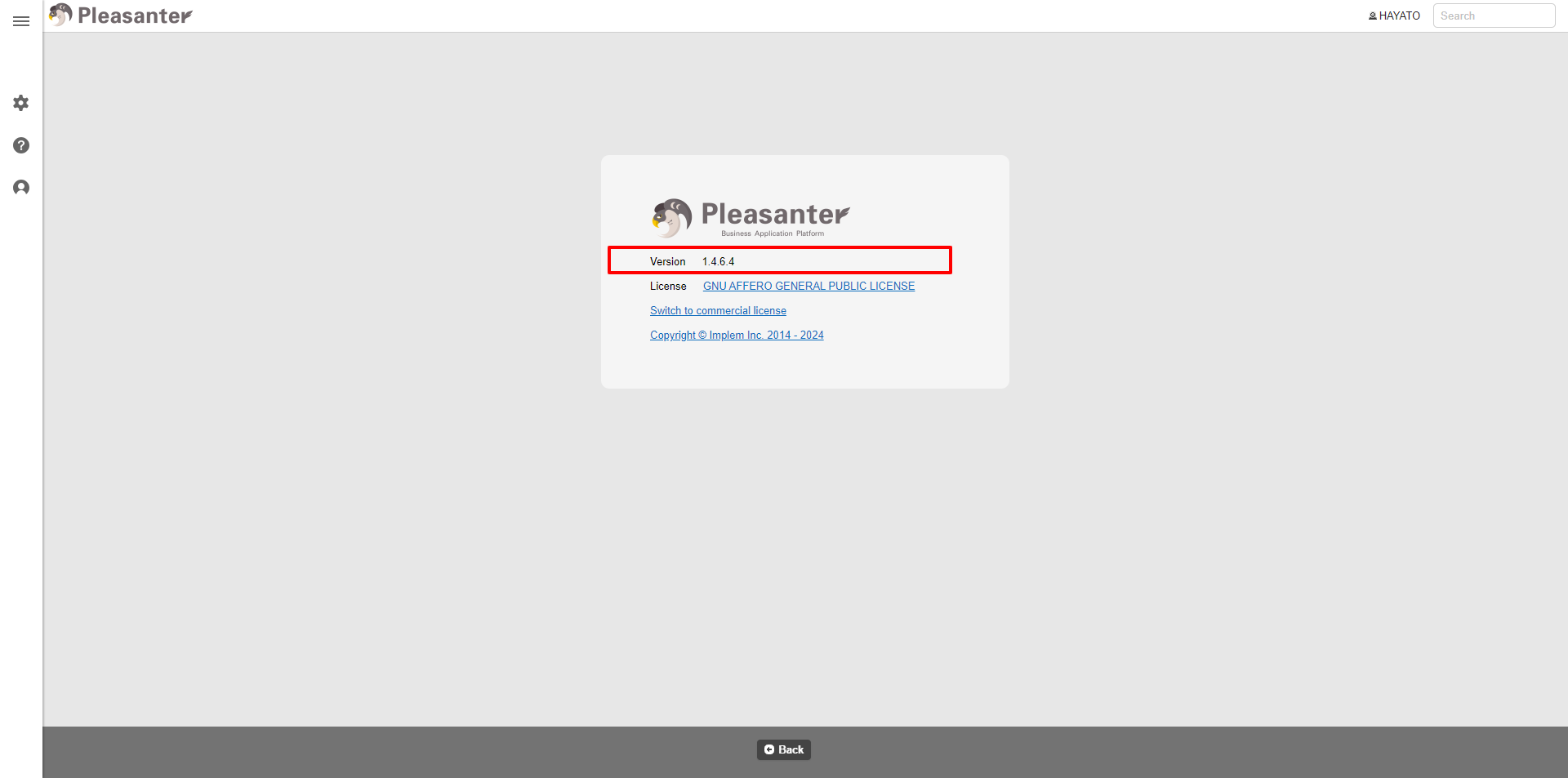
Open Pleasanter login screen in your browser, log in, and click "Help" - "Version" in the navigation menu to confirm that the version is correct.