Table Function: Record Access Control
Overview
You can set "Access rights" for "Records" in Table. There is no limit on the number of access permissions that can be granted to a record. "Access Rights" can be granted only to specific records even to "Users" who have not been assigned "Access rights" in "Site Access Control". If "Site Access Control" and "Record Access Control" are set at the same time, both "Access Rights" will be enabled. For example, if "Read Permission" is granted in "Site Access Control" and "Update Permission" is granted in "Record Access Control," both "Read Permission" and "Update Permission" will be enabled.
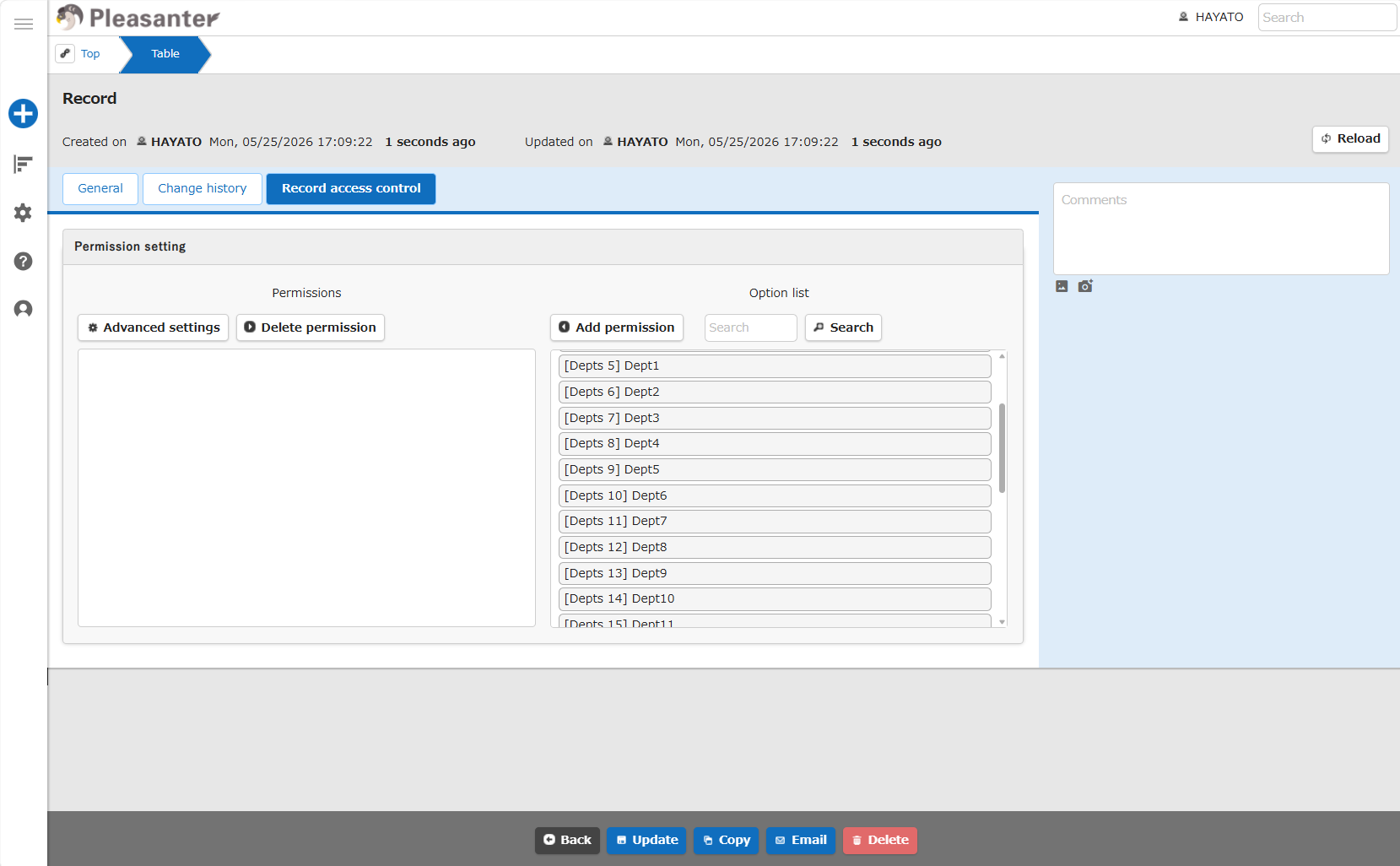
The number of records retrieved by the "Option list" in a single load is determined by "PageSize" in "Permissions.json".
Limitations
- In "Record Access Control", you need to set permissions for each "Record". If you want to narrow down the records displayed in the list screen based on specific conditions, use the "view. Filters object" in "Server Script" or "OnSelectingWhere" in Extended SQL.
- You can check "Create Permission" in "Record Access Control", but the create permission is not granted. Please set it in "Site Access Control".
- You can check "Export permission" in "Record access control", but the export permission is not granted. Please set it in "Site Access Control".
- You can check "Import permission" in "Record access control", but the import permission is not granted. Please set it in "Site Access Control".
- You can check "Site Administrator Permission" in "Record Access Control", but the site administrator permission is not granted. Please set it in "Site Access Control".
- When "Record Access Control" is configured at the site level, it cannot be configured in the "Record access control" tab of the record editor screen.
Prerequisites
- "Read Permission", "Update Permission", and the "Manage permission" permission for "Record" are required.
Operation Procedure
- Go to the target table.
- Search for the target record from the "List Screen".
- Click on the target record.
- The "Editor" will be displayed, so open the "Record Access Control" tab.
- Select the target "Depts", "Group" or "User" from the Option list and click the "Add Permissions" button.
- Click the "Advanced Settings" button, check the required permissions and click the "Change" button.
- If there are any unnecessary settings in the "List Of Permission Settings", click them and click the "Delete Permissions" button.
- Click the "Update" button.
- The process is complete when ""xxxx" has been updated." is displayed. The title of the record will be displayed in place of xxxx.
More Information
- You can automatically set "Record Access Control" when creating a "Record". For instructions on how to set it, see "Manage Table: Record Access Control".
Related Information
- Table Function
- User Management Function
- Manage Table: Server Script
- FAQ: How can I sort the records displayed by department?
- Developer's Guide: Extensions: Extended SQL
- Table Function: Record Screen Index
- Manage Table: Editor
- Department Management Function
- Group Management Function
- Manage Table: Editor: Column Advanced Settings: Option List: User
- Manage Table: Record Access Control