Common Function: Edit Profile
Overview
Updates the user information and password of the logged-in user.
Limitations
- "ShowProfiles" in "Service.json" must be set to true.
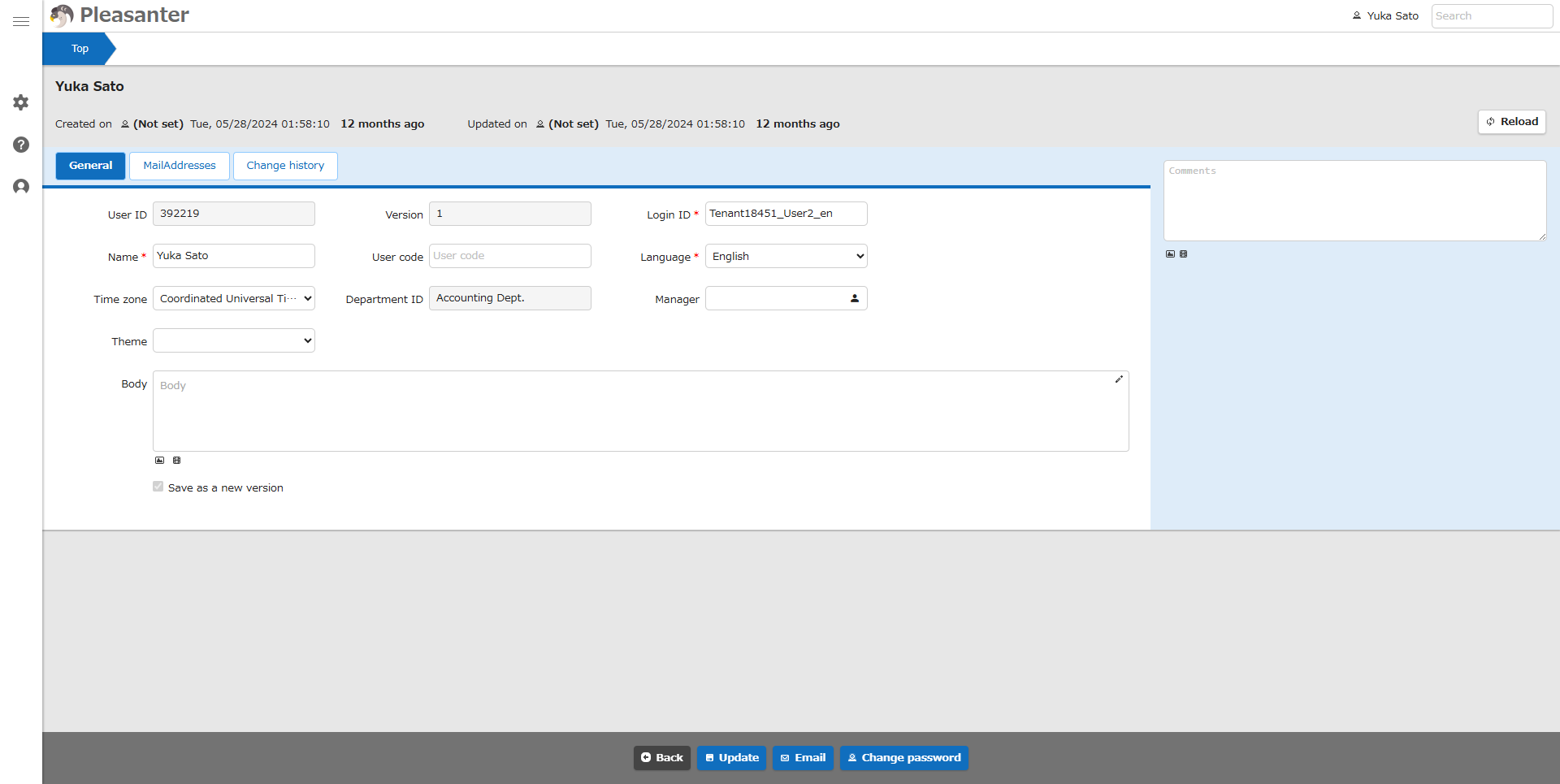
Profile Edit Screen
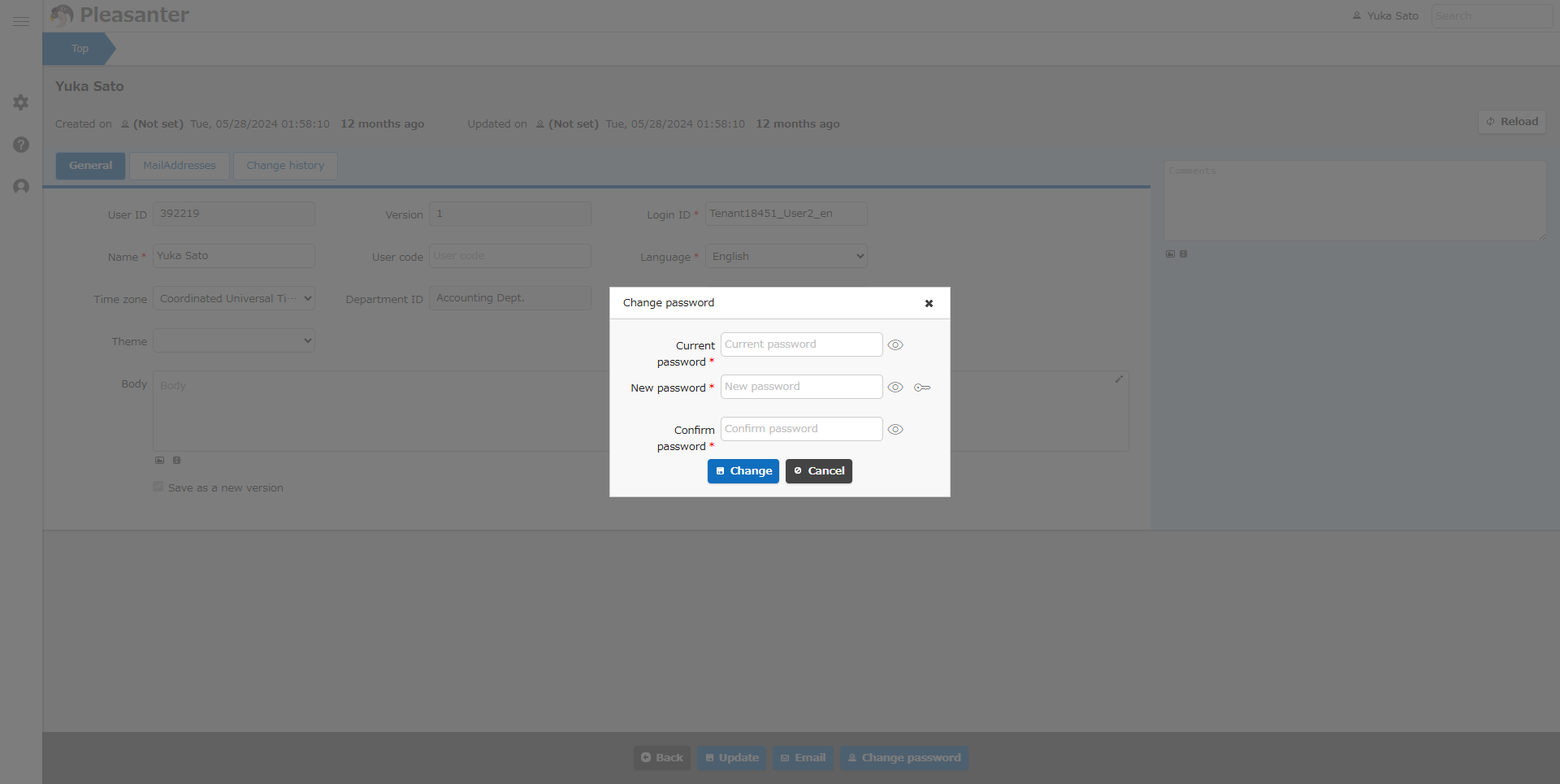
Password Change Dialog
Operation
- From the "Navigation Menu", click "Account Menu" → "Edit Profile".
- Enter the required information in the table below and click the update button.
- To change your password, click the "Change Password" button, enter your current password, changed password, and re-enter the password in the dialog that appears, and click the change button.
Set Column
| Column name | Description | Settings |
|---|---|---|
| User ID | ID of the target user | Unique number is automatically assigned |
| Version | Number of revision history | Counts up automatically when updating |
| Login ID | ID for logging into the system | Set any ID |
| Name | Name of the user | Set any user name |
| User code | User code of the target user | Set any user code |
| Language | Language used by the logged-in user | Set any language |
| Time zone | Time zone used to calculate system time | Set any time zone |
| Department ID | Department to which the user belongs | Cannot be edited |
| Manager | Users related to the target user, such as superiors and approvers | Set any user. Multiple selections not allowed |
| Theme | User interface of the screen | Set any theme |
| Body | Explanation for the target user | Enter any content |
About the Icons in the Password Entry Field
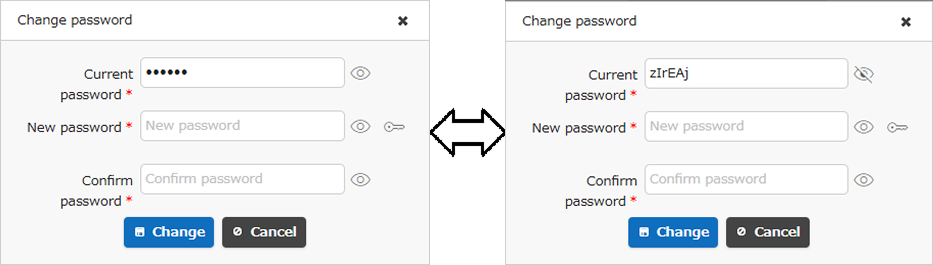
Confirm password
Click the "eye" icon to the right of the "Current password", "Changed password", and "Confirm password" fields to confirm the password you are entering. Clicking again will return it to the masked state.
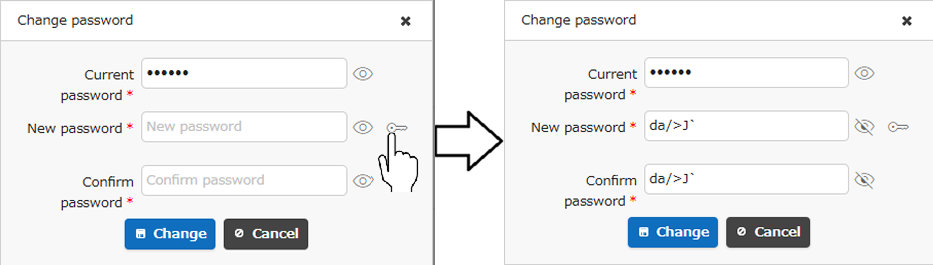
Automatic password generation
Clicking the "lock" icon to the right of the "Changed password" field will enter a randomly generated password in the "Changed password" field and the "Confirm password" field. A new password will be generated each time you click. Passwords are generated according to the policy specified in "PasswordPolicies" in "Security.json". The "lock" icon will be displayed if "PasswordGenerator" in "Security.json" is true.
Change Password
If you want to display the password change dialog directly without going through the profile editing screen, please refer to the following FAQ.
FAQ: I want to display the "Change Password" menu in the navigation menu