Common Function: Rich text editor: Details
This document provides detailed explanations about the tool of Common Function: Rich text editor.
About the Term "Table" on This Page
The term "table" in this page refers to tables that can be created with the Rich text editor. Please do not confuse this with Pleasanter tables.
Font
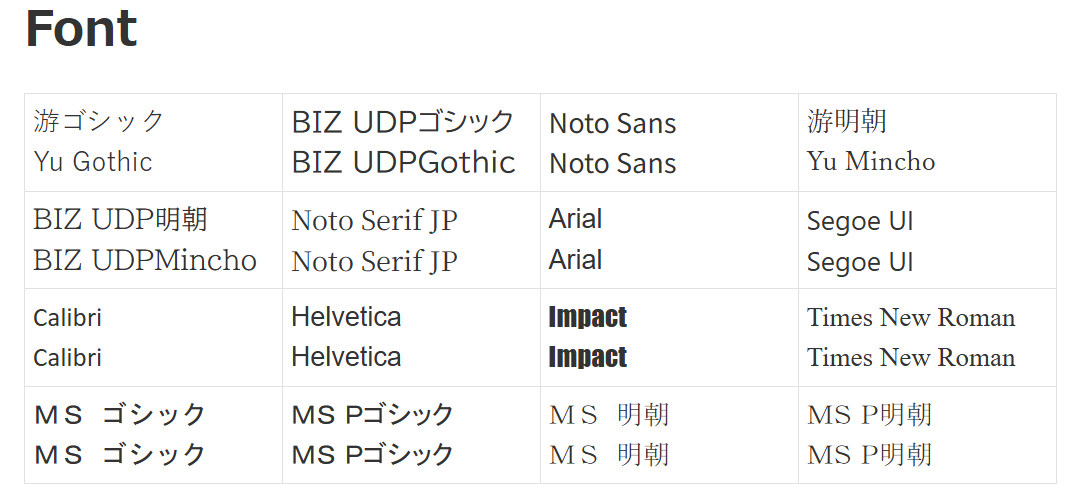
By default, you can select the font for the selected text from 16 different font options. Note that this requires these fonts to be available on the user's operating system. To learn how to modify the selectable fonts, see "Changing Font and Size Settings" below.
View sample
Size
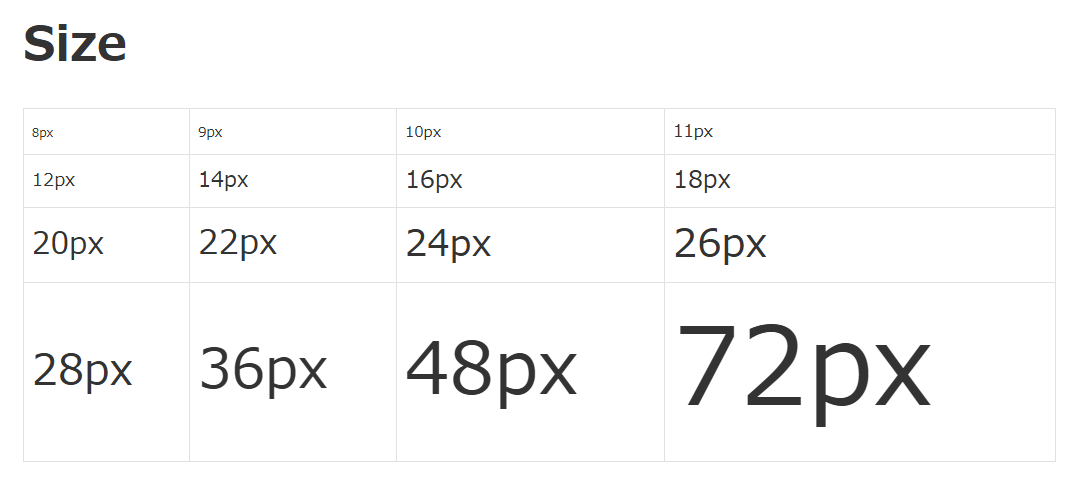
You can select the font size for the selected text from 16 predefined sizes.
View sample
Changing Font and Size Settings
You can change fonts and sizes by modifying the parameter file TextEditorUI.json. This feature is available exclusively in on-premises environments.
TextEditorUI.json (default values)
Includes some Japanese font names.
{
    "RichTextEditor": {
        "DefaultFont": [
            "Meiryo",
            "Hiragino Kaku Gothic Pro",
            "Yu Gothic",
            "Helvetica Neue",
            "Helvetica",
            "Arial",
            "sans-serif"
        ],
        "FontList": [
            "游ゴシック",
            "BIZ UDPゴシック",
            "Noto Sans",
            "游明朝",
            "BIZ UDP明朝",
            "Noto Serif JP",
            "Arial",
            "Segoe UI",
            "Calibri",
            "Helvetica",
            "Impact",
            "Times New Roman",
            "MS ゴシック",
            "MS Pゴシック",
            "MS 明朝",
            "MS P明朝"
        ],
        "FontSize": [ 8, 9, 10, 11, 12, 14, 16, 18, 20, 22, 24, 26, 28, 36, 48, 72 ]
    }
}
Please refer to "TextEditorUI.json" for the meaning of each parameter and configuration examples. Please also ensure you check the "Confirmation When Changing Parameters" prior to changing any settings.
Formats
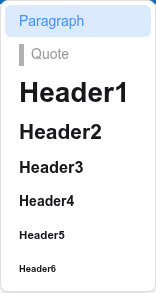
Sets 8 types of paragraph formats (formatting) for the paragraph where the cursor is placed.
View sample
Text Decoration and Text Styles
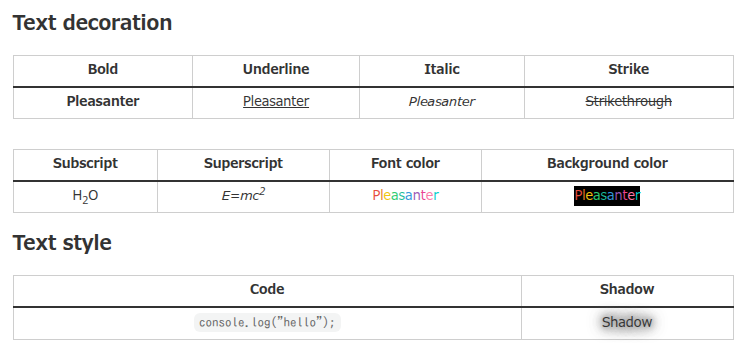
You can apply various decorations to selected text.
| Bold | Underline | Italic | Strike | Subscript | Superscript | Font color | Background color | Text style |
|---|---|---|---|---|---|---|---|---|
 |  |  |  |  |  |  |  |  |
Please view the sample for the results of applying Bold, Underline, Italic, Strike, Subscript, Superscript, Font color, Background color, and the two types of text styles.
View sample
Font Color, Background Color
The default values for font color and background color are as follows:
| Target | Default value |
|---|---|
| Font color | #333333 |
| Background color | #ffffff |
Color Palette
Clicking the Font color button or the Background color button displays the color palette. The setting is applied to text entered after the cursor position. The color palette is also displayed when you click the Font color button or the Background color button after selecting text, and the setting is applied to the font color or background color of the selection.
| Font color | Background color |
|---|---|
 |  |
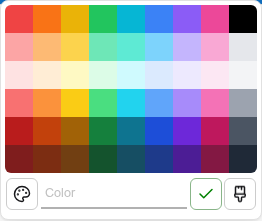
You can specify the font color or background color by selecting a color from the palette, selecting a color from the color picker, or entering a hexadecimal color code. After specifying, click the Submit button to apply the specification. When entering a hexadecimal color code, also enter the leading "#". Click the Remove button to return to the default value.
| Color picker | Submit | Remove |
|---|---|---|
 |  |  |
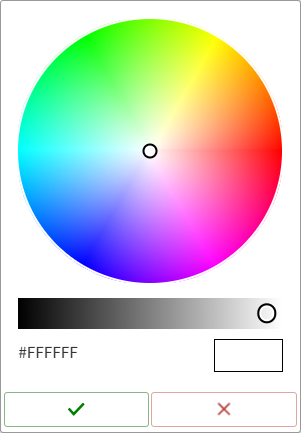
Color Picker
| Submit | Close |
|---|---|
 |  |
You can specify a color with the color picker. After specifying, click the Submit button to apply the specification. Clicking the Close button discards the color specified with the color picker.
Remove Format
Removes text decoration and text styles.
| Remove Format |
|---|
 |
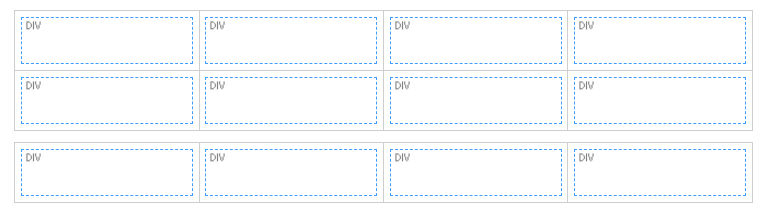
Show blocks
Visualizes the block structure for easier understanding.
| Show blocks |
|---|
 |
View sample
Indent
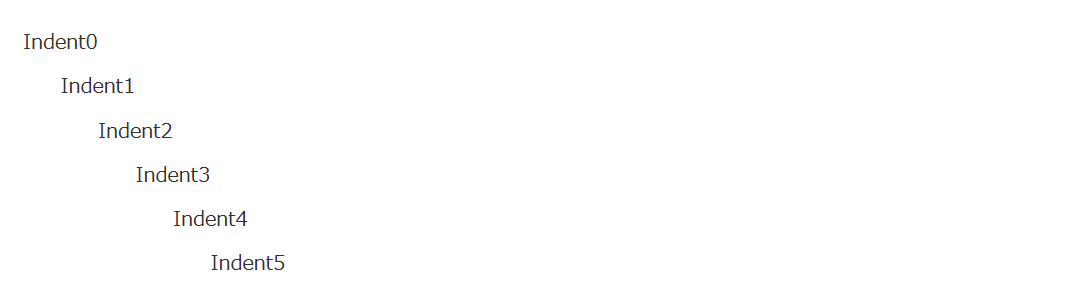
You can increase or decrease indentation.
| Indent | Outdent |
|---|---|
 |  |
View sample
Align
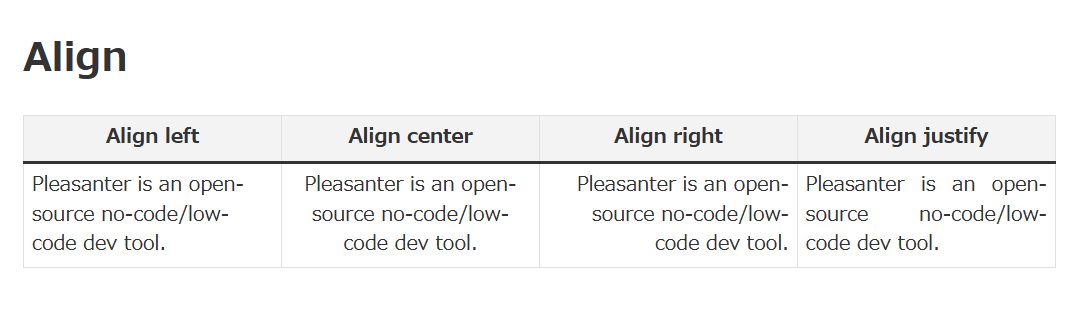
Tools for changing the alignment of the paragraph where the cursor is positioned will be displayed.
| Align |
|---|
 |
Aligns the paragraph where the cursor is placed to Align left, Align center, Align right, or Align justify. Align justify automatically adjusts the space width between words.
| Align left | Align center | Align right | Align justify |
|---|---|---|---|
 |  |  |  |
View sample
Horizontal line
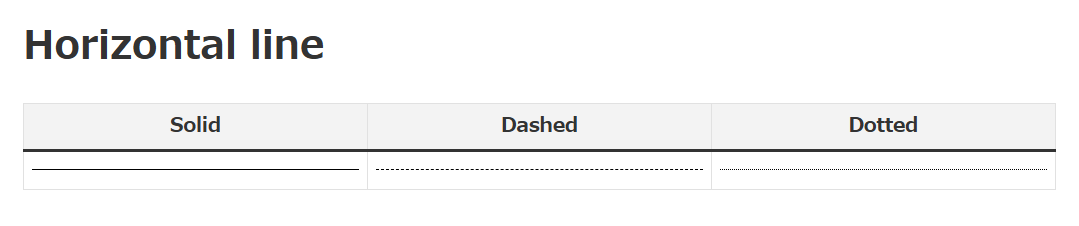
Draws a horizontal line to the full width of the parent block. Three types of horizontal lines are available: Solid, Dashed, and Dotted. The difference between Dashed and Dotted is the length and spacing of the dashes. Dotted has shorter and narrower dashes.
| Horizontal line |
|---|
 |
View sample
List
Tools for changing the selected line to a list will be displayed.
| List |
|---|
 |
You can choose from two types: Numbered list (ordered list) and Bulleted list (unordered list).
| Numbered list | Bulleted list |
|---|---|
 |  |
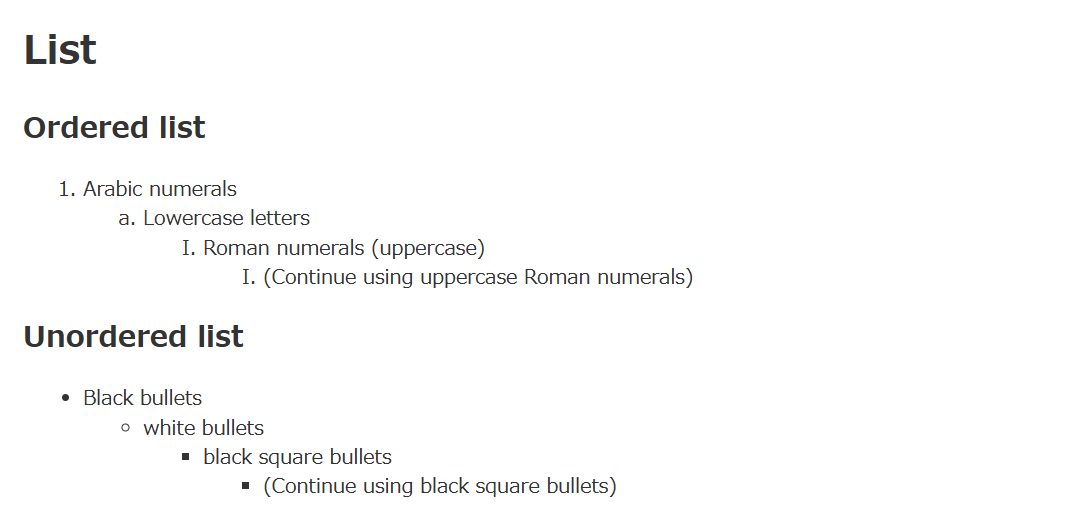
When you set indentation for a list, the numbers or symbols at the beginning of lines change up to the 3rd level. From the 4th level onwards, the numbers or symbols from the 3rd level are used. After lowercase letter z comes aa, and after zz comes aaa.
View sample
Line height
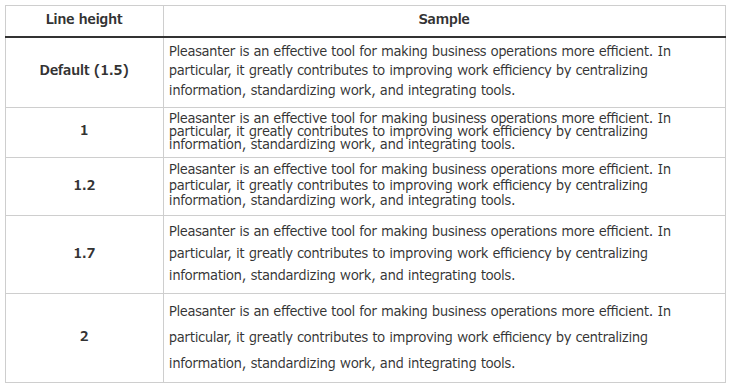
You can change the line height from the default of 1.5 to 1, 1.2, 1.7, or 2.
| Line height |
|---|
 |
View sample
Creating Tables
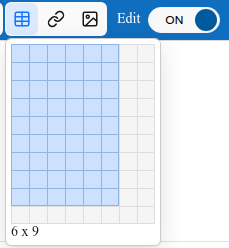
Clicking the Table button displays a menu that allows you to easily create tables up to 10 columns × 10 rows. For example, to create a 6 column × 9 row table, click in the following state:
If you want to create a table with 11 or more columns or 11 or more rows, please refer to the following to split rows or columns.
Selecting Cells / Selecting Multiple Cells
You can select any cell in a table by clicking on it. Selected cells have blue borders.
You can select multiple cells by clicking and dragging within a table. You can also select multiple cells in a rectangular selection by clicking on two separate cells while holding the Shift key.
Editing Existing Tables
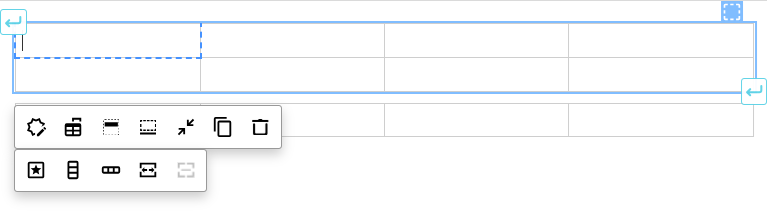
When you select a cell in a created table, icons and floating toolbars appear.
| Icon | Overview |
|---|---|
 | Click and drag to move the table. |
 | Adds a paragraph (empty line) immediately before or after the table. |
The floating toolbars consist of a bar for settings that affect the entire table and a bar for settings of columns, rows, and cells.
Table-wide Settings
The menu below allows you to edit settings that affect the entire table.

| Name | Overview |
|---|---|
| Table properties | Displays the Table properties window. |
| Fixed column width | When Fixed column width is turned ON, it fixes the column width at the current settings. It is off by default; clicking it turns it on, and clicking it again while on turns it off. After fixing the column width, even if you perform cell splitting or merging as described later, the once-fixed column width will not change. |
| Table header | Adds a header (heading row) above the first row of the table. Note that the header is treated separately from regular rows. The border between the header row and regular rows is displayed thicker than normal borders. It is off by default; clicking it turns it on, and clicking it again while on turns it off. |
| Insert description | Adds a description (caption) to the table. It is off by default; clicking it turns it on, and clicking it again while on turns it off. |
| Min size / Max size | Tables are initially created at maximum size (display area width). Clicking Min size fits the table width to the content size within cells. |
| Copy | Copies the table to the clipboard. |
| Remove | Deletes the entire table. If you accidentally delete it, select Undo from the toolbar. |
Table Properties
You can set the border, color, font, and alignment of the table.
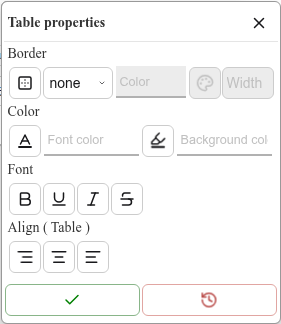
| Name | Overview |
|---|---|
| Border - Border (line position) | Specifies the position of the lines that draw the outer frame. You can select from "Border outside", "Border left", "Border top", "Border right", "Border bottom", and "Border none". |
| Border - Border (line style) | Specifies the style of the outer frame (dotted line, double line, etc.). For the available styles, see "Line Style Samples" below. |
| Border - Color | Specifies the color of the outer frame. |
| Border - Color picker | A color picker that can be used to specify the color of the outer frame. |
| Border - Width | Specifies the thickness of the outer frame in pixels. |
| Color - Font color | Specifies the font color of the entire table. |
| Color - Background color | Specifies the background color of the entire table. |
| Font | You can specify "Bold", "Underline", "Italic", and "Strike". It is applied to the entire table. |
| Align (Table) - | You can specify "Align justify", "Align right", "Align center", or "Align left". |
| Submit | Applies the changes made in the Table properties. |
| Revert | This function does not currently work. |
Line Style Samples
View sample
| Name | Border |
|---|---|
| none | 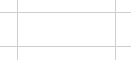 |
| solid | 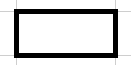 |
| dotted | 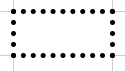 |
| dashed | 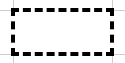 |
| double | 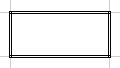 |
| Name | Border |
|---|---|
| groove/outset | 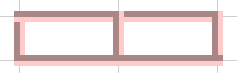 |
| inset/ridge | 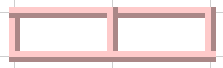 |
There is no difference between groove and outset, or between inset and ridge.
Editing Columns, Rows, and Cells
The icons and menus below allow you to edit settings related to columns, rows, and cells.
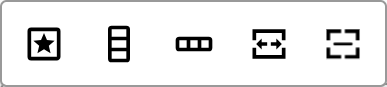
*The above screen is a composite image with all buttons active for explanation purposes.
| Name | Overview |
|---|---|
| Cell properties | Displays the Cell properties window. |
| Insert column before | Inserts a column to the left of the selected cell. |
| Insert column after | Inserts a column to the right of the selected cell. |
| Delete column | Deletes the column containing the selected cell. |
| Insert row above | Inserts a row above the selected cell. |
| Insert row below | Inserts a row below the selected cell. |
| Delete row | Deletes the row containing the selected cell. If the cursor is placed in the header row, the header row is deleted. |
| Vertical split | Vertically splits the selected cell (becomes 2 columns). Cannot split multiple cells. |
| Horizontal split | Horizontally splits the selected cell (becomes 2 rows). Cannot split multiple cells. |
| Merge cells | Displayed when multiple cells are selected. Clicking it merges the selected cells. |
| Unmerge cells | Clicking it with a merged cell selected unmerges the cell and restores the original cells. |
Cell Properties
You can set the border, color, font, and alignment of the cells.
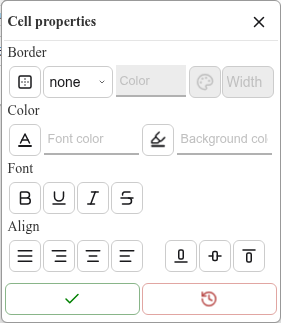
| Name | Overview |
|---|---|
| Border - Border (line position) | Specifies the position where borders are drawn. You can select from "Border all", "Border inside", "Border horizontal", "Border vertical", "Border outside", "Border left", "Border top", "Border right", "Border bottom", and "Border none". |
| Border - Border (line style) | Specifies the style of the outer frame (dotted line, double line, etc.). For the available styles, see "Line Style Samples" above. |
| Border - Color | Specifies the color of the borders. |
| Border - Color picker | A color picker that can be used to specify the color of the borders. |
| Border - Width | Specifies the size of the borders in pixels. |
| Color - Font color | Specifies the font color of the selection. |
| Color - Background color | Specifies the background color of the selection. |
| Font | You can specify "Bold", "Underline", "Italic", and "Strike". |
| Align (Horizontal) - | You can specify "Align justify", "Align right", "Align center", or "Align left". |
| Align (Vertical) - | You can specify "Align top", "Align middle", or "Align bottom". |
| Submit | Applies the changes made in the properties. |
| Revert | If you click Submit after specifying Revert, all cell properties return to their default values. |
Insert Link Dialog
Clicking the Link button opens the Insert Link dialog.
| Link |
|---|
 |
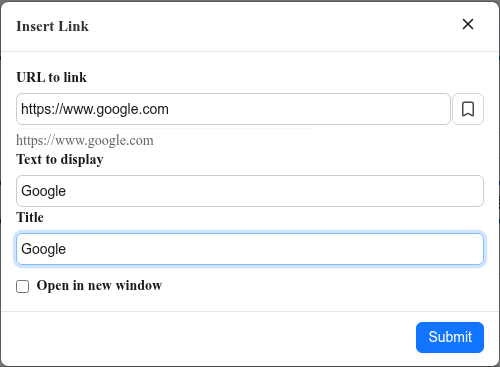
| Name | Overview |
|---|---|
| URL to link | Enter the URL of the link destination. |
| Bookmark | Bookmarks elements within the item or calls links to existing bookmarks. Paragraphs with Titles applied are automatically bookmarked. |
| Text to display | Enter the text to be displayed on the Pleasanter screen. |
| Title | Enter the text displayed when the mouse pointer is placed over the link. |
| Open in new window | In list view, opens in the same tab regardless of the ON/OFF state of the "Edit mode toggle" switch. In edit view, opens in a new tab when the "Edit mode toggle" switch is OFF. |
| Submit | Completes the link insertion. To cancel the link insertion, click the "×" in the upper right corner of the screen. When checking the behavior of inserted links, don't forget to turn OFF the "Edit mode toggle" switch. |
Editing Existing Links
When you place the cursor on an existing link, a floating toolbar appears.
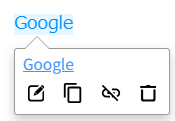
| Name | Overview |
|---|---|
| Edit | Displays the Insert Link dialog. |
| Copy | Copies the link to the clipboard. |
| Unlink | Removes the configured link. |
| Remove | Deletes both the link and the text with the link. If you accidentally delete it, select Undo from the toolbar. |
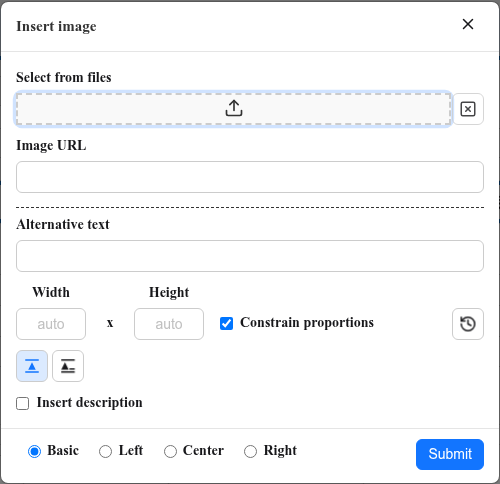
Insert Image Dialog
Clicking the Image button opens the Insert Image dialog.
| Image |
|---|
 |
| Name | Overview |
|---|---|
| Select from files | Clicking displays a dialog box for selecting the image to insert. |
| × | Clicking the "×" button (to the right of "Select from files") allows you to deselect. |
| Image URL | Specifies the image address (URL). Cannot be used when selecting an image file with "Select from files". |
| Alternative text | Allows you to specify alternative text for when the image cannot be displayed. |
| Width | Allows you to specify the width for displaying the image. If not specified, the original image width is automatically set (auto). |
| Height | Allows you to specify the height for displaying the image. If not specified, the original image height is automatically set (auto). |
| Constrain proportions | When turned on, if you specify either Width or Height and set the other to auto, the image will be enlarged or reduced while maintaining the original aspect ratio. |
| Revert | Cancels the most recent changes to Width and Height. |
| Block style | A style that treats the image as a block element. |
| Inline style | A style that treats the image like a single character of text. |
Options displayed only for block-style images
| Name | Overview |
|---|---|
| Insert description | When turned on, you can add a description to the image. This description is different from the alternative text and is a caption displayed directly below the image. |
| Basic | Inserts the image as a standard block element (left-aligned). No text wrapping occurs on the right side of the image. |
| Left | Left-aligns the image within the line. Subsequent elements of the image are displayed wrapping to the right side of the image (float effect). |
| Center | Inserts the image as a standard block element (center-aligned). No text wrapping occurs on either side of the image. |
| Right | Right-aligns the image within the line. Subsequent elements of the image are displayed wrapping to the left side of the image (float effect). |
| Submit | Completes the image insertion. To cancel the image insertion, click the "×" button in the upper right corner of the screen. |
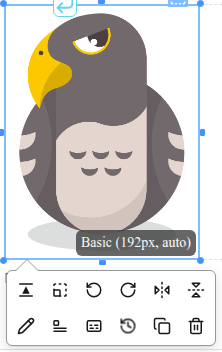
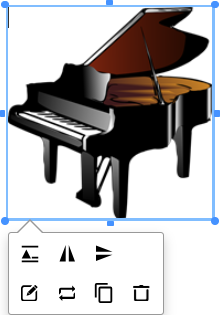
When you select an inserted image, a floating toolbar appears.
The settings available on the toolbar differ between block style and inline style.
For block style
| Image | Overview |
|---|---|
 | Click and drag to move the image. |
 | Click and drag to resize the image. |
 | When block-style images are stacked vertically, clicking it lets you enter text between them. |
| Name | Overview |
|---|---|
| Block style - As a block | Keeps the block style. |
| Block style - As a inline | Changes to the inline style. |
| Resize - Auto size | Sets the width of the selected image to auto. |
| Resize - Zoom 100% | Sets the width of the selected image to 100% (full display area width). |
| Resize - Zoom 75% | Sets the width of the selected image to 75% (of display area width). |
| Resize - Zoom 50% | Sets the width of the selected image to 50% (of display area width). |
| Rotate left | Rotates the selected image 90 degrees counterclockwise. |
| Rotate right | Rotates the selected image 90 degrees clockwise. |
| Mirror, Horizontal | Flips the selected image horizontally. |
| Mirror, Vertical | Flips the selected image vertically. |
| Edit | Displays the Insert image dialog. |
| Align - Basic | Inserts the image as a standard block element (left-aligned). No text wrapping occurs on the right side of the image. |
| Align - Left | Left-aligns the image within the line. Subsequent elements of the image are displayed wrapping to the right side of the image (float effect). |
| Align - Center | Inserts the image as a standard block element (center-aligned). No text wrapping occurs on either side of the image. |
| Align - Right | Right-aligns the image within the line. Subsequent elements of the image are displayed wrapping to the left side of the image (float effect). |
| Insert description | This description is different from the alternative text and is a caption displayed directly below the image. |
| Revert | Cancels the most recent changes to Width and Height. |
| Copy | Copies the selected image to the clipboard. |
| Remove | Deletes the selected image. If you accidentally delete it, select Undo from the toolbar. |
For inline style
| Image | Overview |
|---|---|
 | Click and drag to resize the image. |
| Name | Overview |
|---|---|
| Block style - As a block | Changes to the block style. |
| Block style - As a inline | Keeps the inline style. |
| Mirror, Horizontal | Flips the selected image horizontally. |
| Mirror, Vertical | Flips the selected image vertically. |
| Edit | Displays the Insert image dialog. |
| Revert | Cancels the most recent changes to Width and Height. |
| Copy | Copies the selected image to the clipboard. |
| Remove | Deletes the selected image. If you accidentally delete it, select Undo from the toolbar. |
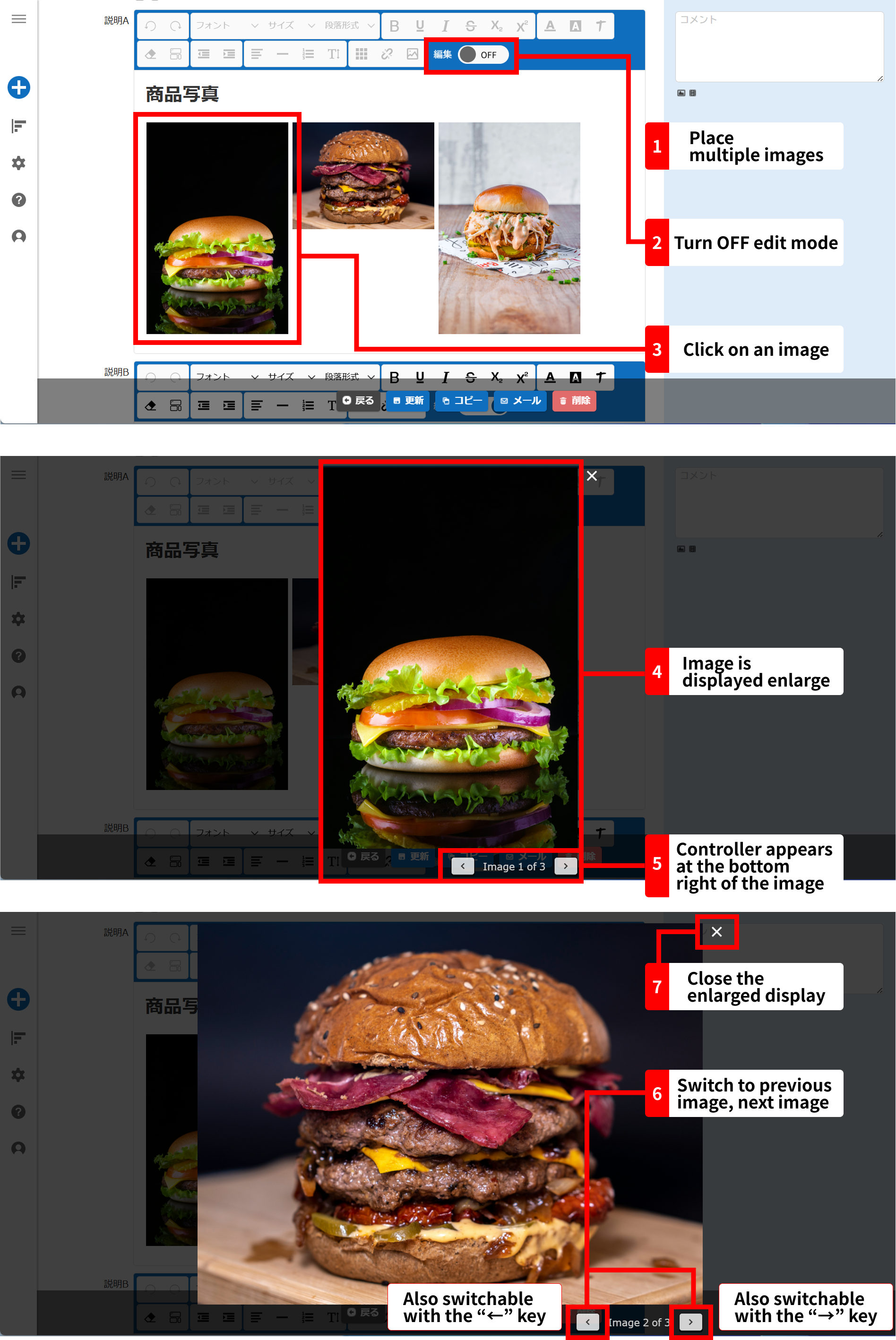
Image Preview
When you click on an image in Rich text in either of the following states, the image will pop up and be displayed in an enlarged view.
- Record Screen Index
- Record editor screen with Edit mode turned OFF
When multiple images are inserted in a single item, controls for viewing previous and next images are displayed at the bottom right of the popped-up image. Please note that the display position of the controls changes depending on the size of the image. To close the enlarged image display, click the "X" button at the top right of the image.
Operation details
Supported Versions
| Supported versions | Body |
|---|---|
| 1.4.20.0 and later | Added function |
| 1.5.7.0 and later | Changed the toolbar icons and layout, removed Code from Formats, added the color picker as a way to select colors, removed Skeleton from Text style, changed the Line height options, and added Table properties and Cell properties to tables |