Custom App Function: Register Custom App
Overview
By registering the site package (JSON file) exported from the site package export feature on the site creation page, you can easily use the site package. This section explains how to register a custom app.
Limitations
- Attachments and images cannot be imported.
- If a script is embedded with site IDs or record IDs, the IDs will change and may not work correctly. The IDs specified in the script need to be manually updated.
- When importing a site package exported from a different Pleasanter, dept, group, and user information in the records will not be converted to the destination's IDs.
- Conditions such as "Include data", "Include site access control", "Include record access control", "Include column access control", "Include notifications", and "Include reminders" will apply the "Include" condition. If you do not wish to import them, specify this condition during export.
- Images cannot be attached in description column.
Prerequisites
- "Tenant Management Permissions" is required.
- Configuration is required to enable custom apps. Please refer to the manual for configuration.
CustomApps.json
Operation Procedure
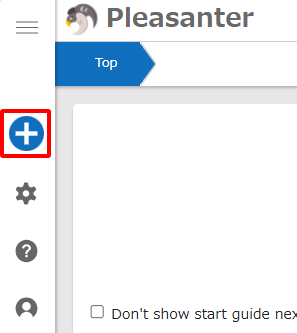
- Navigate to the top or any folder and click "Create New" from the navigation menu.
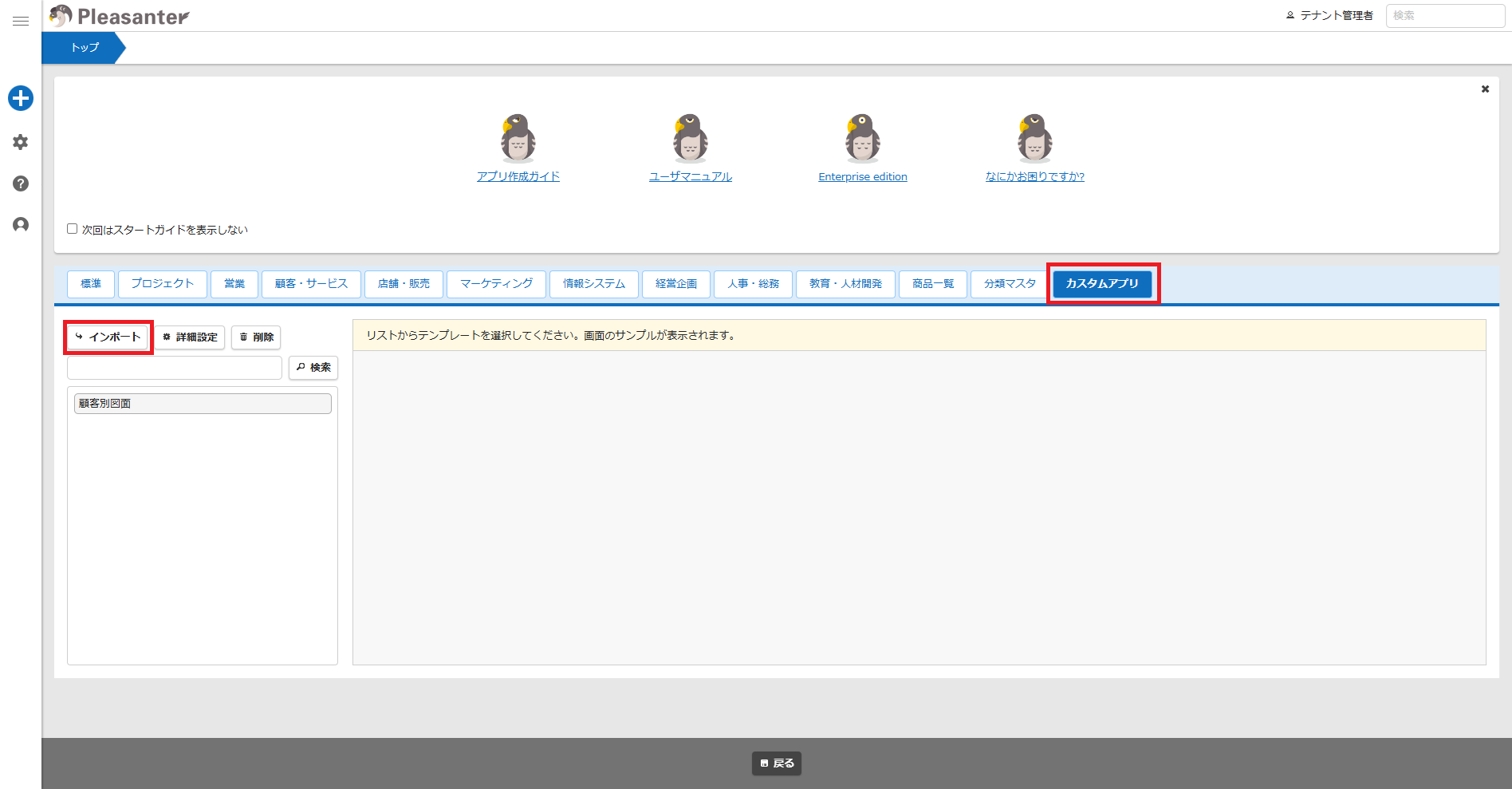
- Select the "Custom App" tab.
- Click the "Import" button.
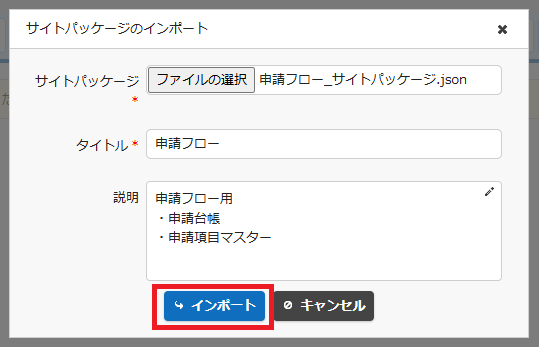
- A dialog will appear where you select the site package (JSON file).
- Modify the title and description as needed.
- Click the "Import" button.
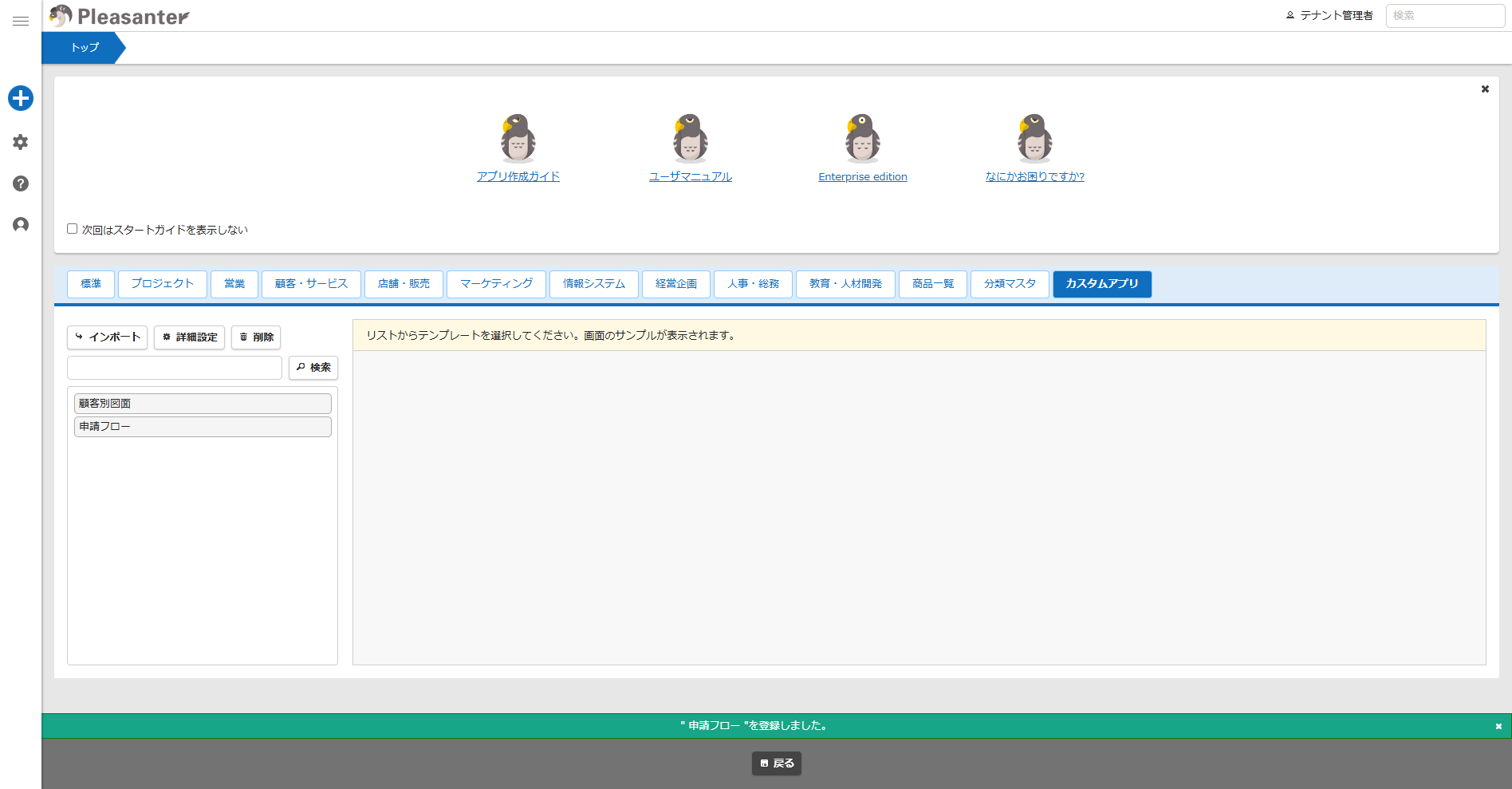
- When the message "Registered X" appears at the bottom of the screen, the process is complete.