Dashboard Function
Overview
This function displays all the necessary information in a list, such as the latest news, announcements, message boards, links to apps you have created, and other sites.
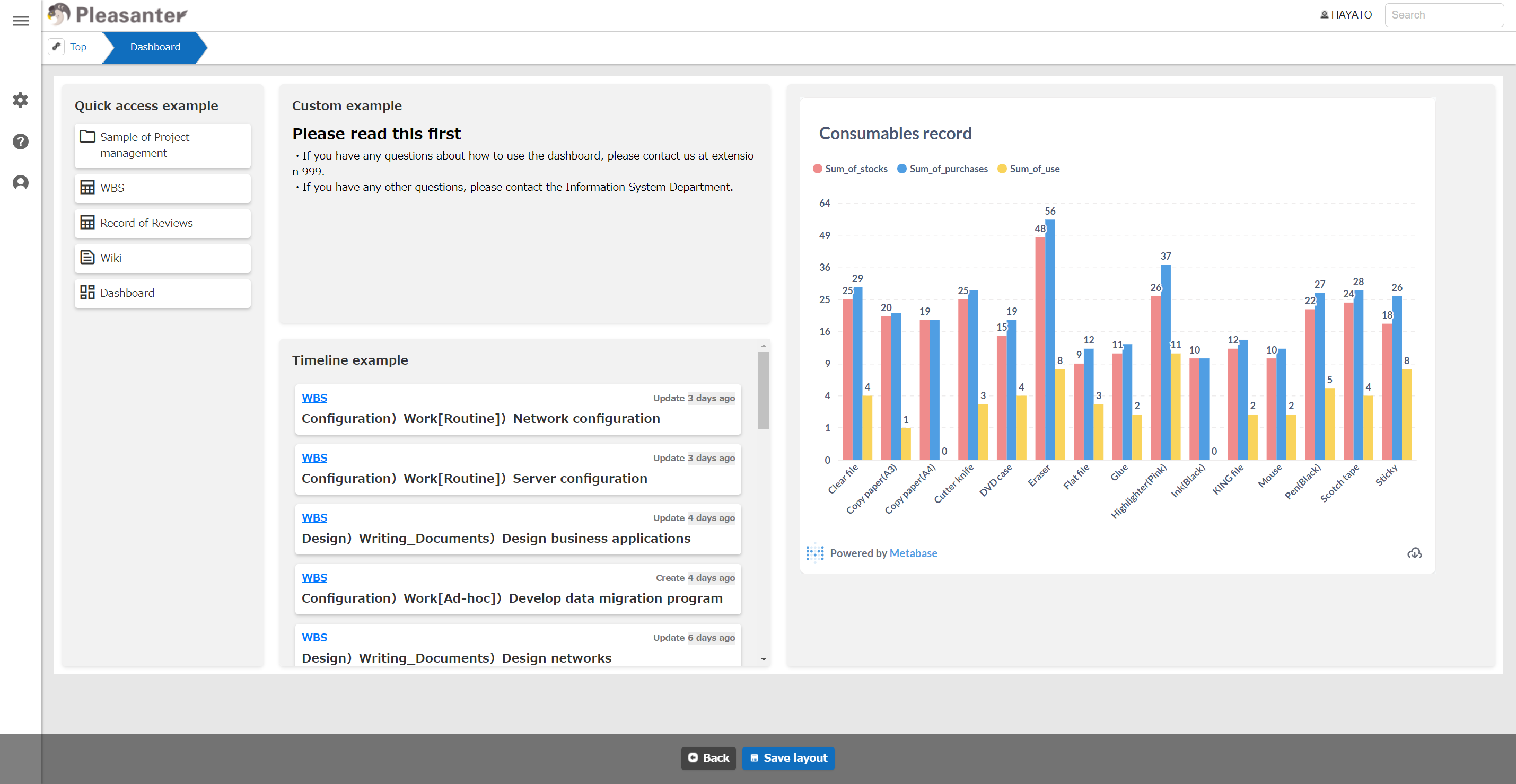
Usage
The steps to use the dashboard are as follows:
1. Create a "Dashboard"
1. Add parts to a dashboard
1. Set the dashboard as the home screen if necessary
Create a Dashboard
The dashboard can be operated in the same way as the "Site Function". There is no limit to the number of dashboards you can create.
Please refer to the following for details.
Dashboard Creation | Pleasanter
Add Parts
Add parts in "Dashboard Management".
The parts that can be added are as follows:
| Parts | Function | Main Uses |
|---|---|---|
| Quick Access | Display links to folders and tables. | Shortcut menu for each site and table |
| Timeline | Display records in a specified table. You can filter the records to be displayed and specify the display order. | Display new assignment tasks and bulletin board posts |
| Custom | Display the specified text. You can enter text using "Markdown" and paste "Image". | Display usage and help text, etc. |
| Custom HTML | Display the HTML content you specify. By combining it with "Script" and "Style", it can be expanded for various purposes. | Embed graph charts, videos, maps, and calendars |
| Calendar | Display a calendar. It is possible to display schedules from multiple tables at once. | Check schedules on the dashboard |
| Kanban | Display a Kanban. It is possible to move items on the dashboard by dragging and dropping. | Update the owner, status, etc. on the dashboard |
| List | Display a list of records. It is possible to display records from multiple tables at once. | Check records on the dashboard |
Please refer to the following for details.
- Dashboard Function
- Dashboard Function: Add Parts: Index
- Dashboard Function: Add Parts: Kanban
- Dashboard Function: Add Parts: Timeline
- Dashboard Function: Add Parts: Custom
- Dashboard Function: Add Parts: Custom HTML
Set on Top Screen
You can set the dashboard created in "Tenant Management" as the top screen.
If you have created multiple dashboards, configure one of them.

Please refer to the following for details.
Tenant Management Function