Dashboard Function: Add Parts: Index
Overview
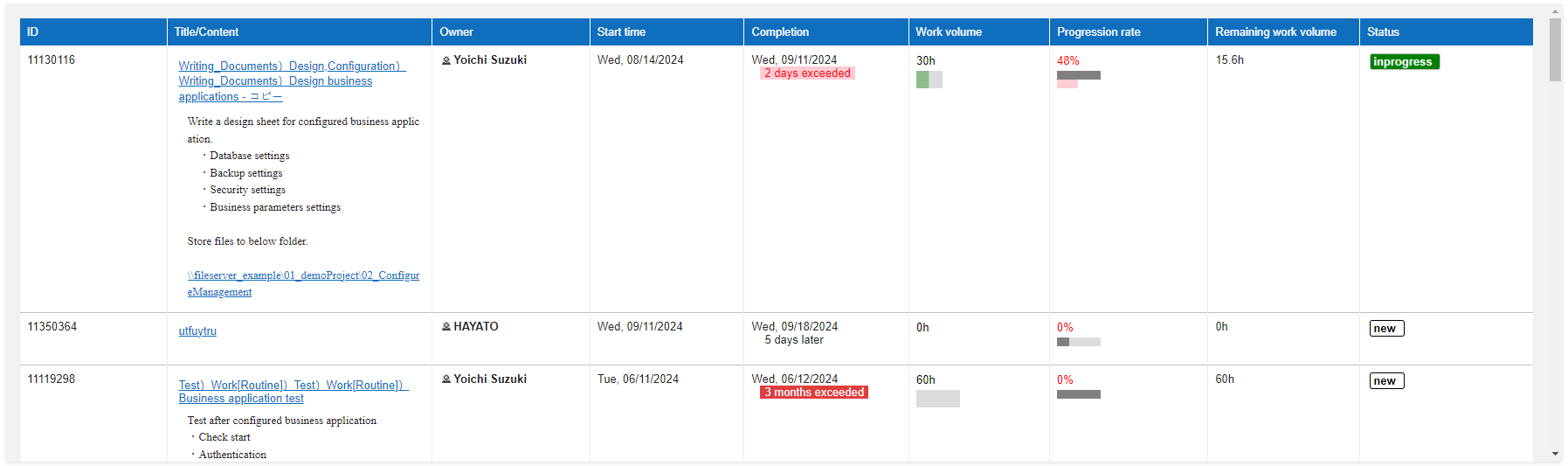
Add "Index" to "Dashboard". Display the list screen of time-limited tables or recorded tables.
Setting Procedure
General Tab
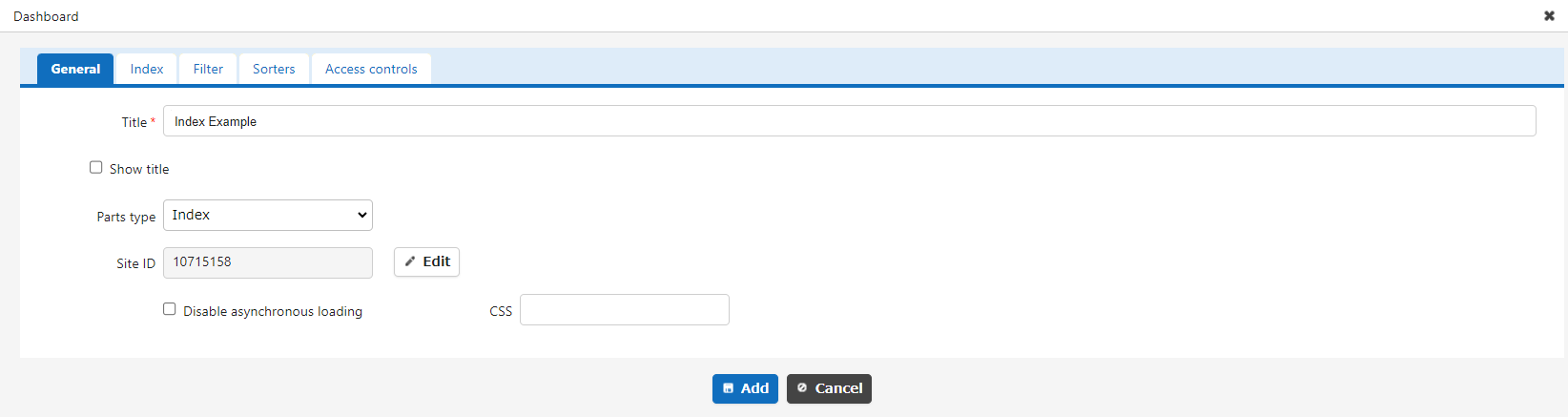
| Column name | Description |
|---|---|
| Title | The name of the part. |
| Display Title | Check this box to display the title. |
| Site ID | Enter the site ID, site name, or site group name you want to display, separated by commas. Only time-limited tables or recorded tables can be specified. If multiple sites are specified, the first site will become the "Base Site" and used as a selection column for the filter tab, sorter tab, and list tab. |
| Do Not Load Asynchronously | If this checkbox is checked, asynchronous loading will not be performed regardless of the asynchronous loading setting. For information on setting asynchronous loading, refer to "Dashboard Function: Add Parts". |
| CSS | Use this to apply CSS to timeline elements. By specifying a CSS class name, you can assign any class name to each column and apply a "Style". |
Index Tab
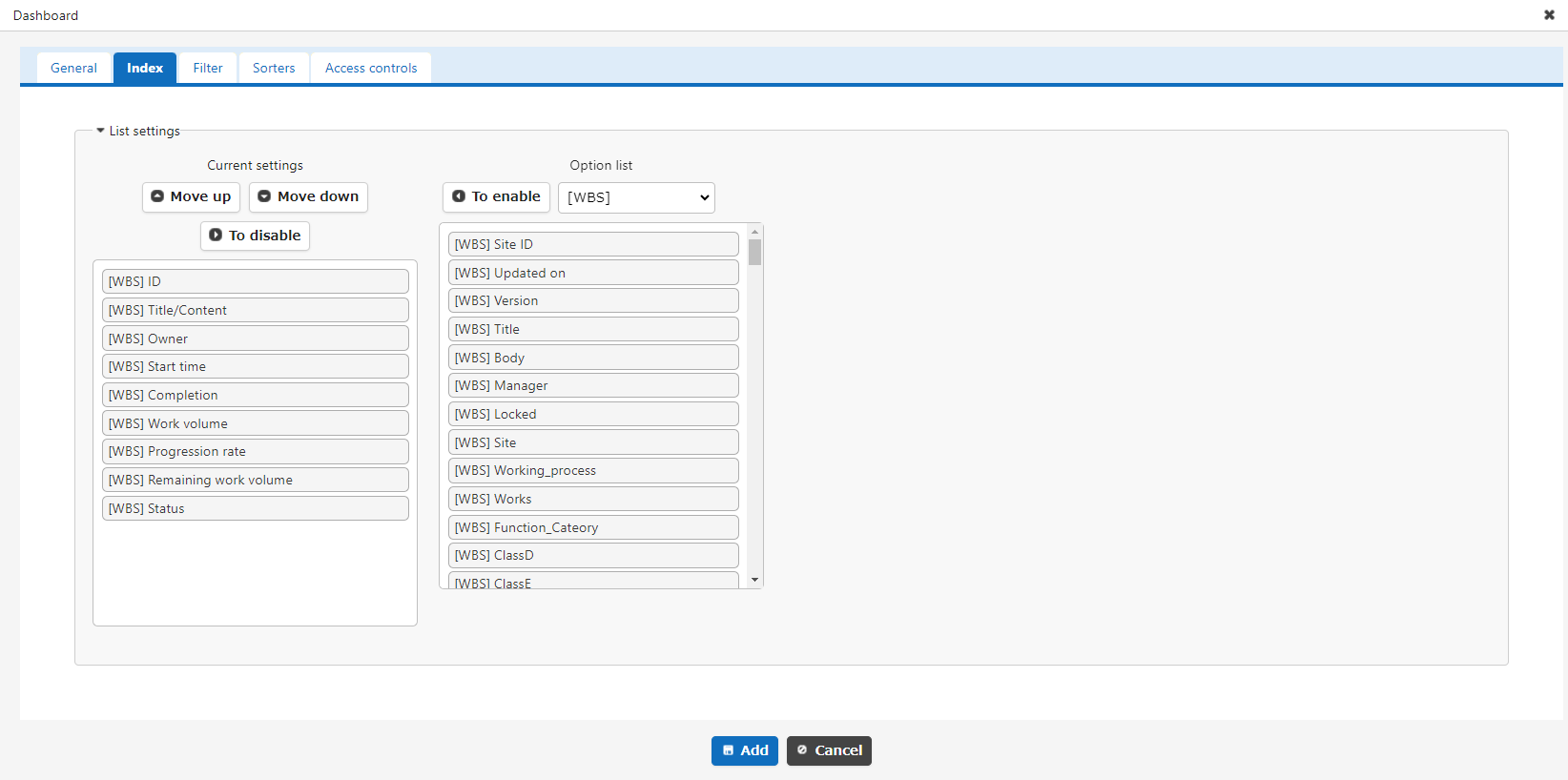
Select the column you want to display in the list. For details on how to do this, refer to "Manage Table: Screen Index: Screen Index Column Settings". The options are the "Name Displayed" of the Base Site, and the values set for the selected column (ClassA, ValueB, etc.) will be displayed in the records of all tables set by the site ID.
Filter Tab
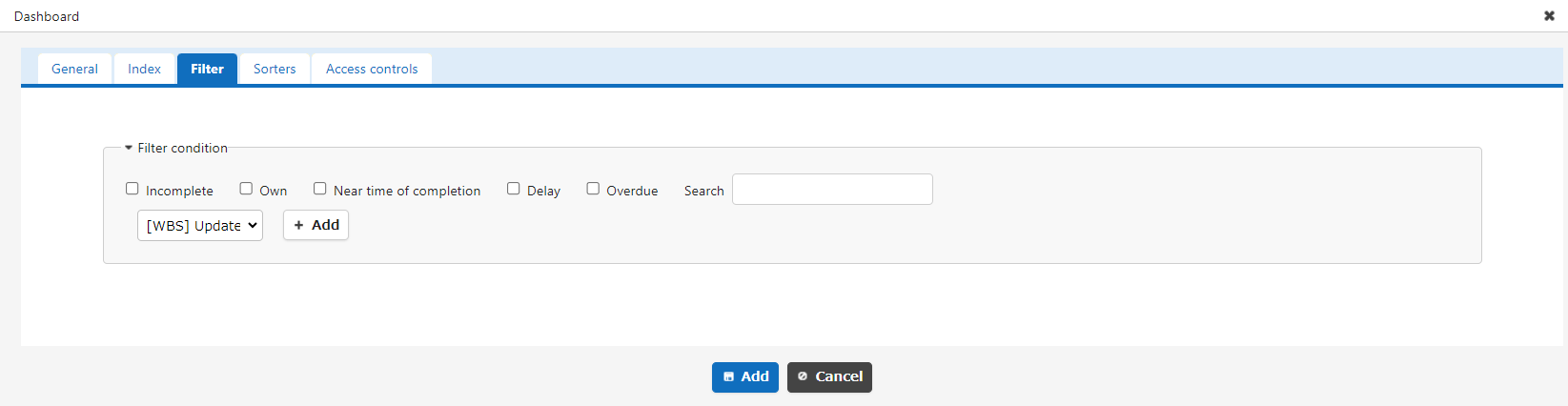
Set the filter conditions for the records you want to output to the timeline. The choice is the "Name Displayed" of the Base Site, but the selected column (ClassA, NumB, etc.) will filter the records of all tables set by the site ID.
Sorter Tab
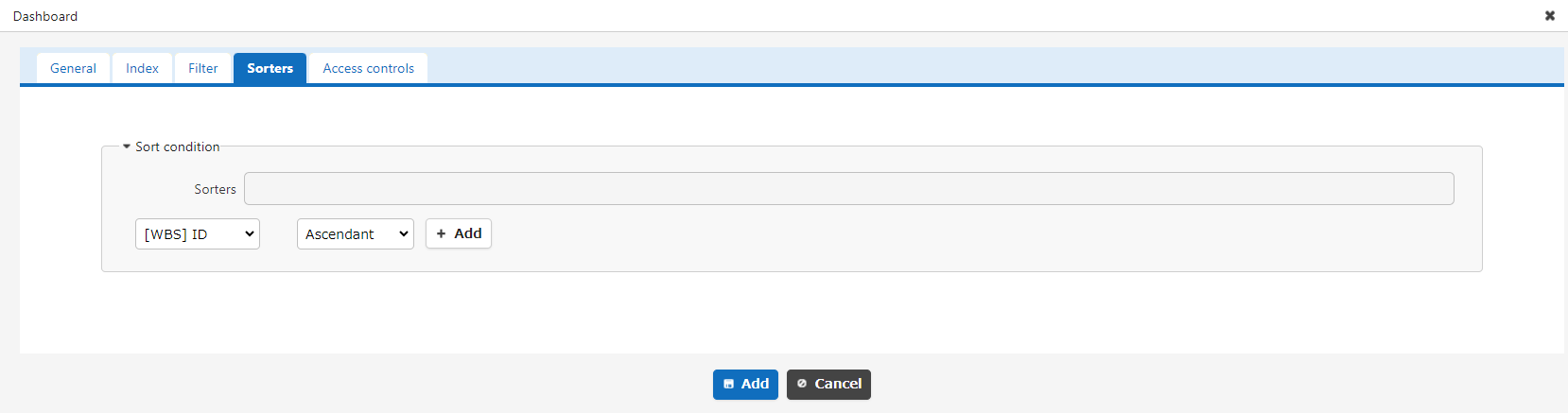
Set the sort order of the records you want to output to the timeline. The choice is the "Name Displayed" of the Base Site, but the records of all tables set by the site ID will be sorted by the selected column (ClassA, NumB, etc.). If not set, the records of all tables set by the site ID will be sorted in descending order of update datetime.
Access Control Tab
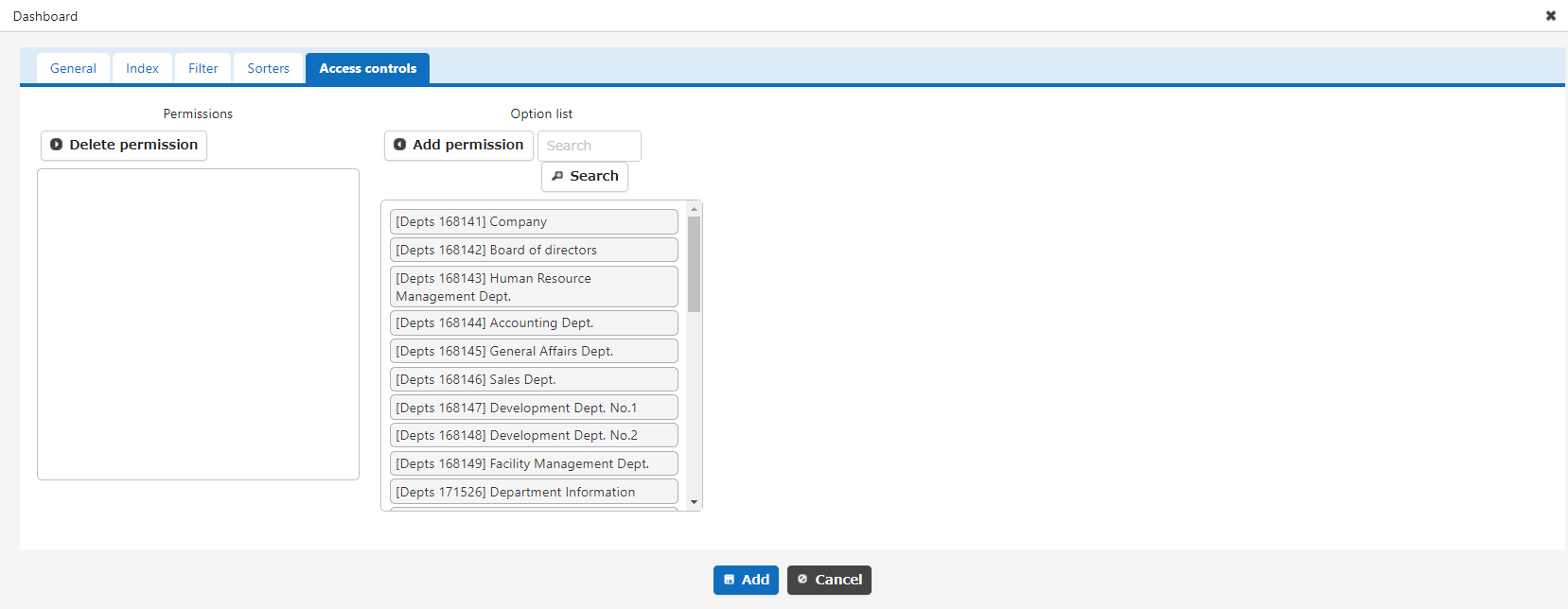
Set the reference permissions for quick access. This part will be hidden if a user without reference permissions opens the dashboard.