Dashboard Function: Add Parts: Kanban
Overview
Add "Kanban" to the "Dashboard". Display the records of the selected site in a Kanban format.
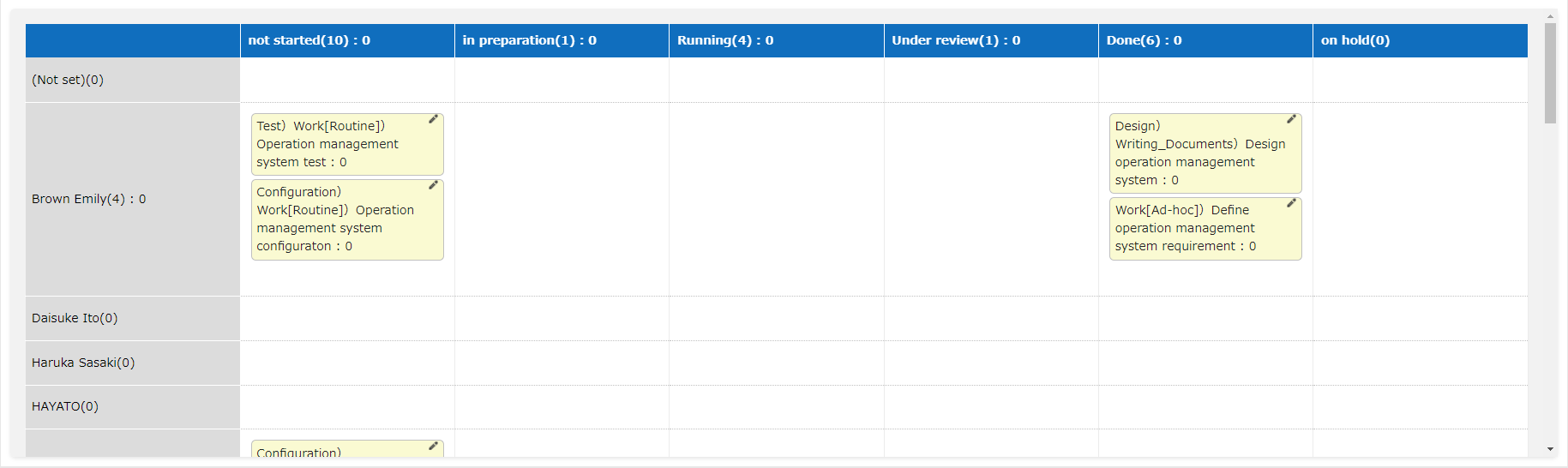
Setting Procedure
General Tab
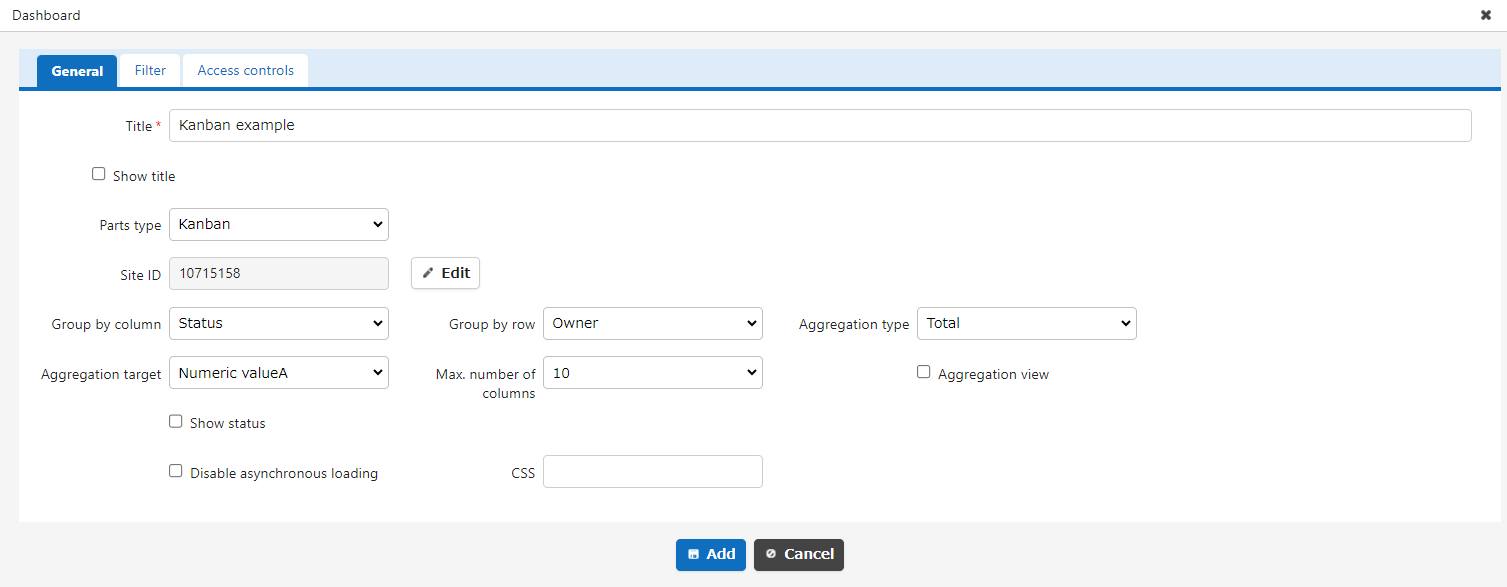
| Column name | Description |
|---|---|
| Title | The name of the part. |
| Display Title | Check this if you want to display the title. |
| Site ID | Enter the site ID, site name, and site group name you want to display, separated by commas. Only time-limited tables or recorded tables can be specified. If multiple sites are specified, the first site will be the "reference site" and will be used as a selection column in the filter tab. |
| Column Classification | Specify the "Column Classification" of the Kanban. For details on "Column Classification", refer to "Table Function: Kanban Display Of Records". |
| Row Classification | Specify the "Row Classification" of the Kanban. For details on "Row Classification", refer to "Table Function: Kanban Display Of Records". |
| Aggregation Type | Specify the "Aggregation Type" of the Kanban. For details on "Aggregation Type", refer to "Table Function: Kanban Display Of Records". |
| Aggregation Target | (Only valid when "Aggregation Type" is other than "Count") Specify the "aggregation target" of the Kanban. For details on "Aggregation Target", refer to "Table Function: Kanban Display Of Records". |
| Maximum Number of Columns | Specify the "Maximum Number of Columns" of the Kanban. If the "Maximum Number of Columns" is exceeded, the Kanban will be divided and displayed in multiple rows. |
| Display Aggregation | Turn "Display Aggregation" on/off. For more information on "Display Aggregation", refer to "Table Function: Kanban Display Of Records". |
| Display Status | Turn "Display Status" on/off. If the checkbox is checked, an icon indicating the status of each record will be displayed. |
| Do Not Load Asynchronously | If this checkbox is checked, asynchronous loading will not be performed regardless of the asynchronous loading setting. For more information on asynchronous loading settings, refer to "Dashboard Function: Add Parts". |
| CSS | Use this to apply CSS to timeline elements. By specifying a CSS class name, you can assign any class name to each column and apply a "Style". |
Filter Tab
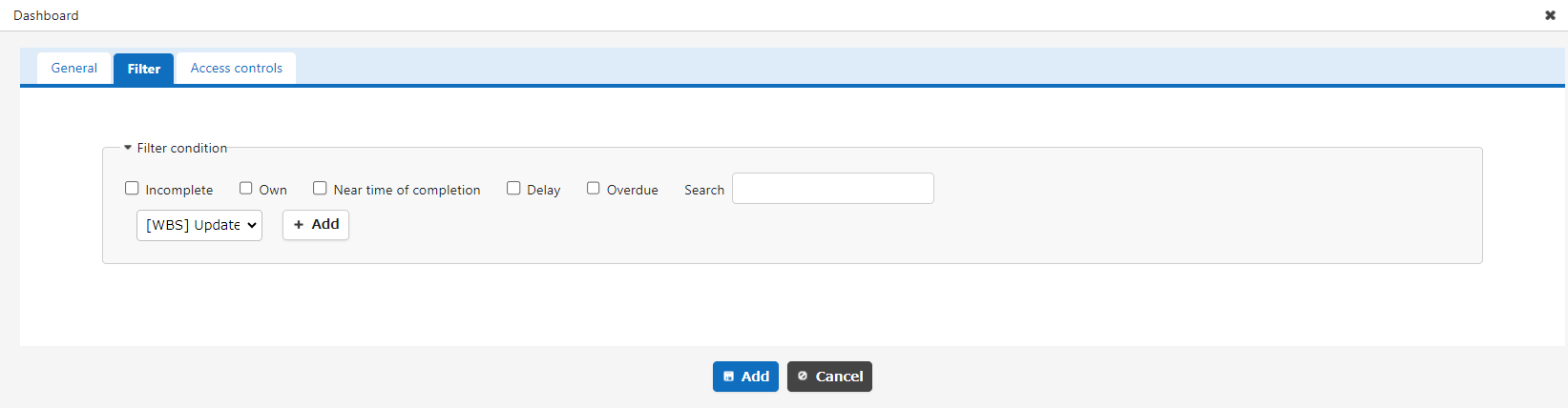
Set the filter conditions for the records you want to output to the Kanban. The choice is the "Name Displayed" of the Base Site, but the selected column (ClassA, NumB, etc.) will filter the records of all tables set by the site ID.
Access Control Tab
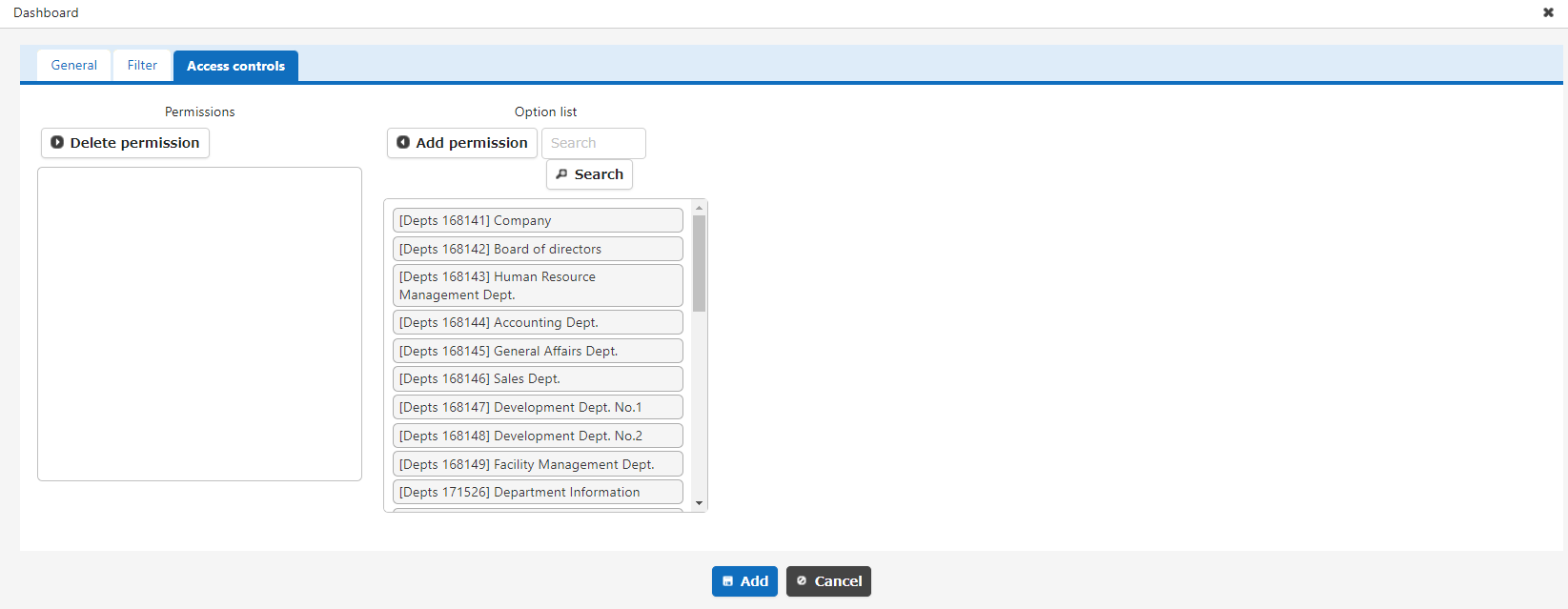
Set the reference permissions for quick access. This part will be hidden if a user without reference permissions opens the dashboard.
Limitations
If you specify multiple sites in the site ID and display records from multiple sites at the same time, you cannot move records by dragging them.