Dashboard Function: Add Parts: Quick Access
Overview
Add quick access to the "Dashboard". Links to the configured sites ("Folder", "Table", "Wiki", "Dashboard") are listed.
Setting Procedure
General Tab
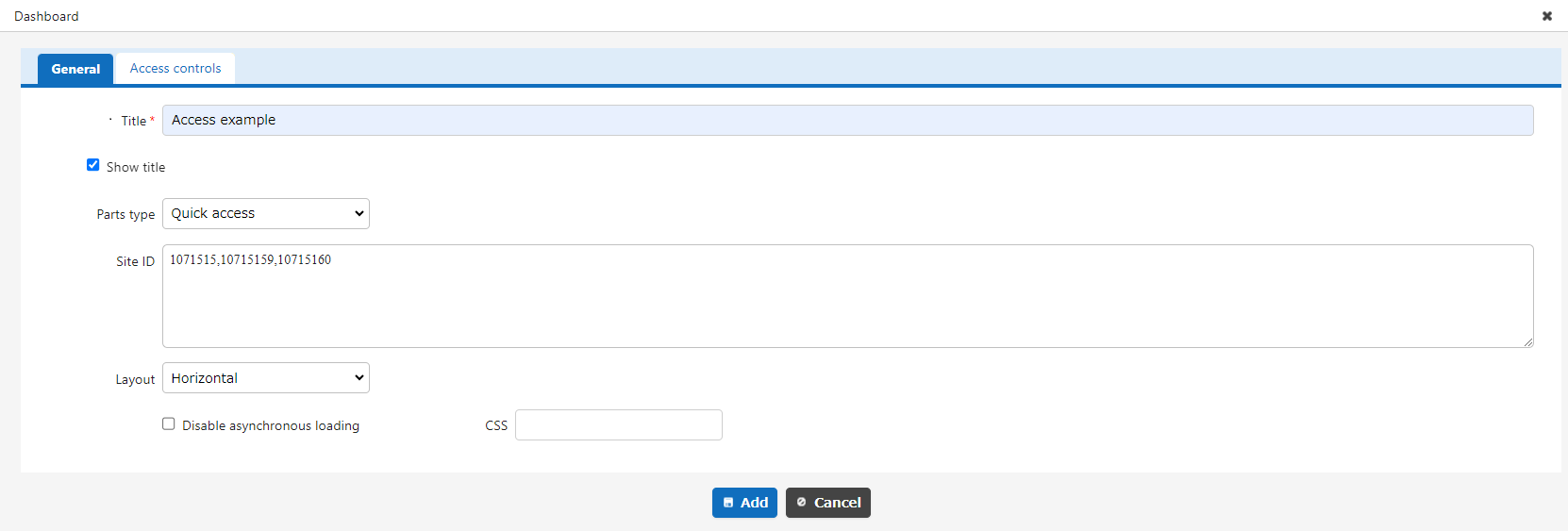
| Column name | Description |
|---|---|
| Title | The name of the part. |
| Display Title | Check this if you want to display the title. |
| Site ID | Enter the site ID, site name, and site group name you want to display, separated by commas. They will be displayed in the order you enter them. Enter 0 to specify the top page. You can also enter in JSON format. |
| Layout | Select the layout of the quick access parts. |
| Do not Load Asynchronously | If this checkbox is checked, asynchronous loading will not be performed regardless of the asynchronous loading setting. For information on setting asynchronous loading, refer to "Dashboard Function: Add Parts". |
| CSS | Use this to apply CSS to elements in the quick access panel. By specifying a CSS class name, you can assign any class name to each column and apply a "Style". |
Access Control Tab
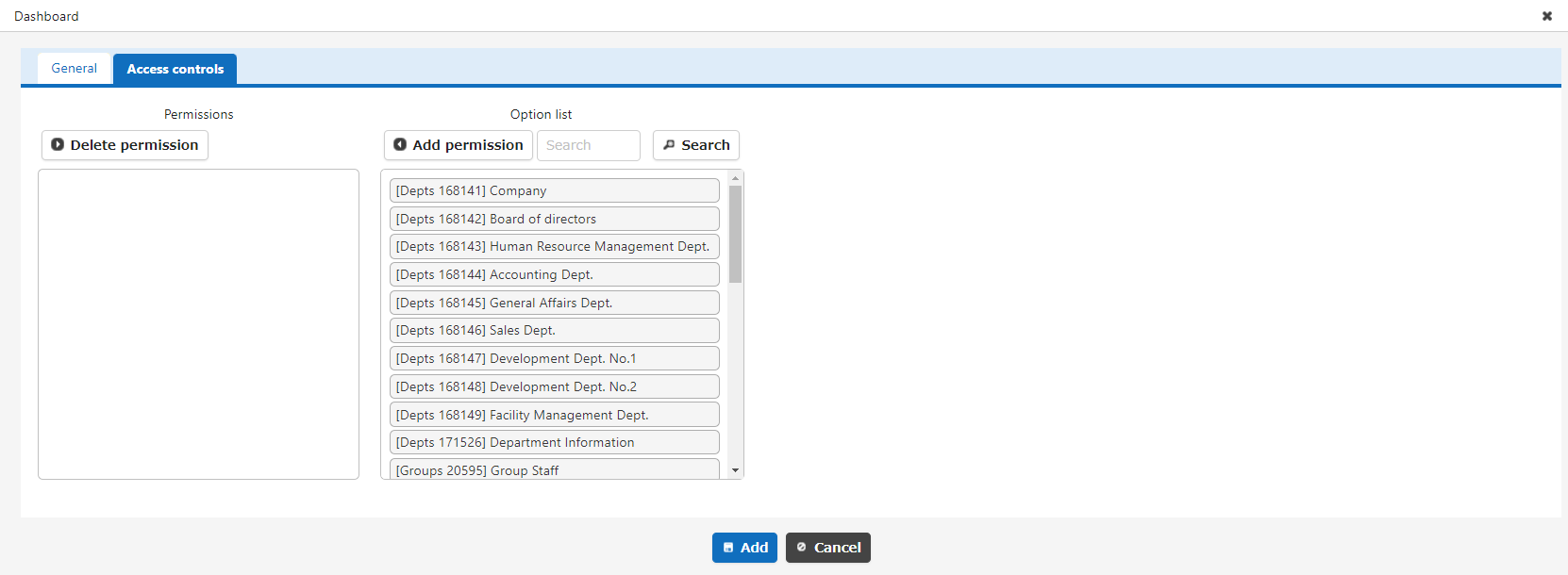
Set the reference permissions for quick access. This part will be hidden if a user without reference permissions opens the dashboard.
Display Content
Site Icon
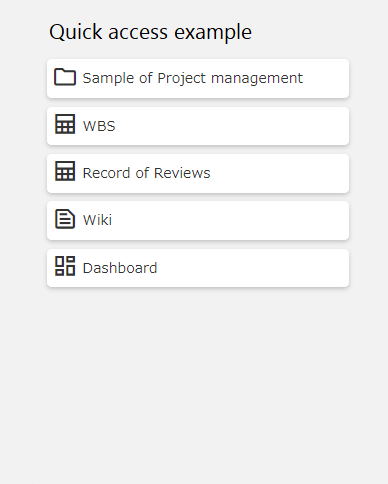
An icon will automatically be displayed before the site name according to the type of site specified by the site ID. You can change the icon by Specifying the site ID in JSON format, which will be described later.
| Site type | Icon |
|---|---|
| Folder |  |
| Time-limited Table |  |
| Recorded Table |  |
| Wiki |  |
| Dashboard |  |
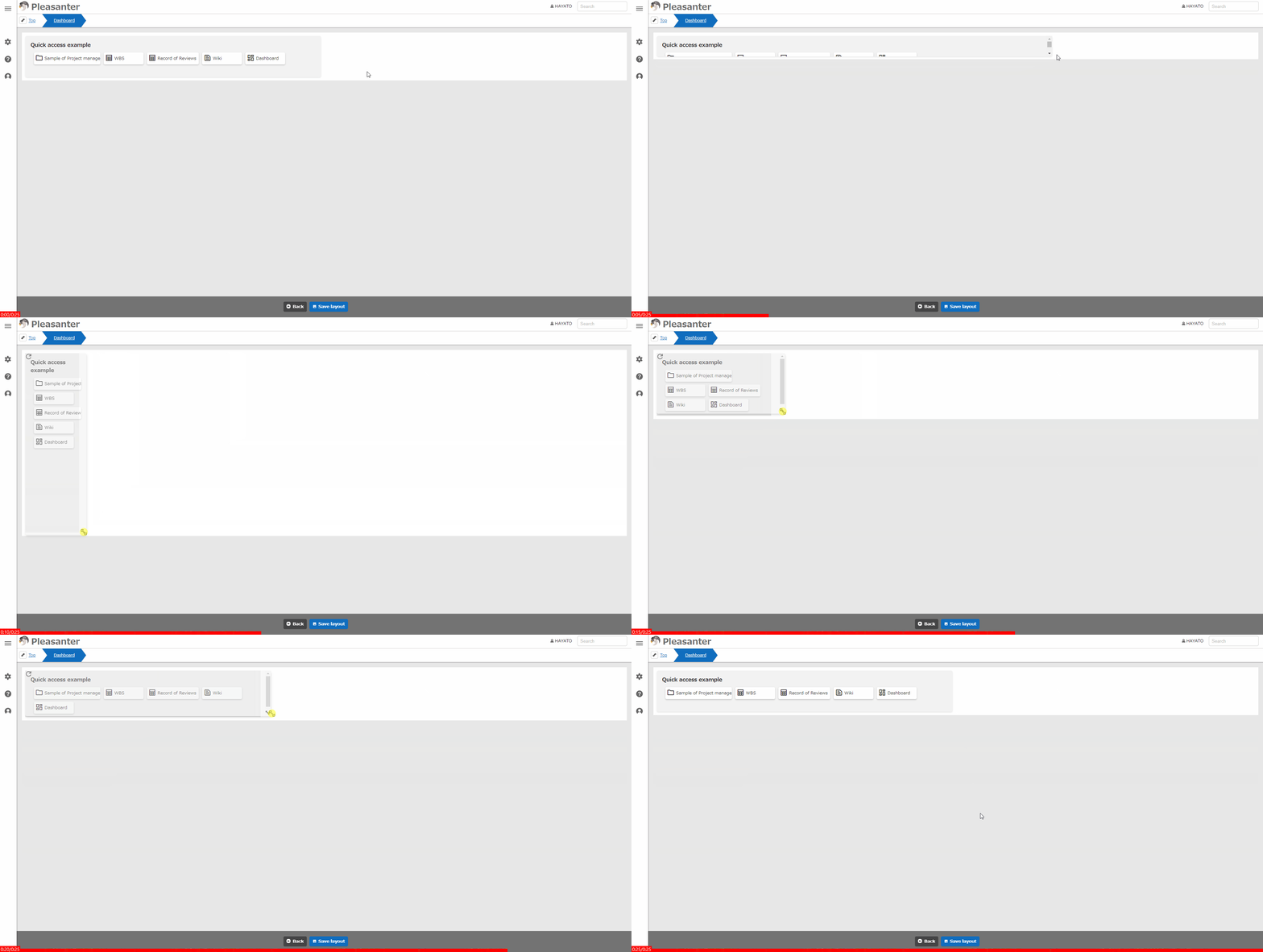
Layout
Choose either vertical or horizontal layout.
| Layout | Content |
|---|---|
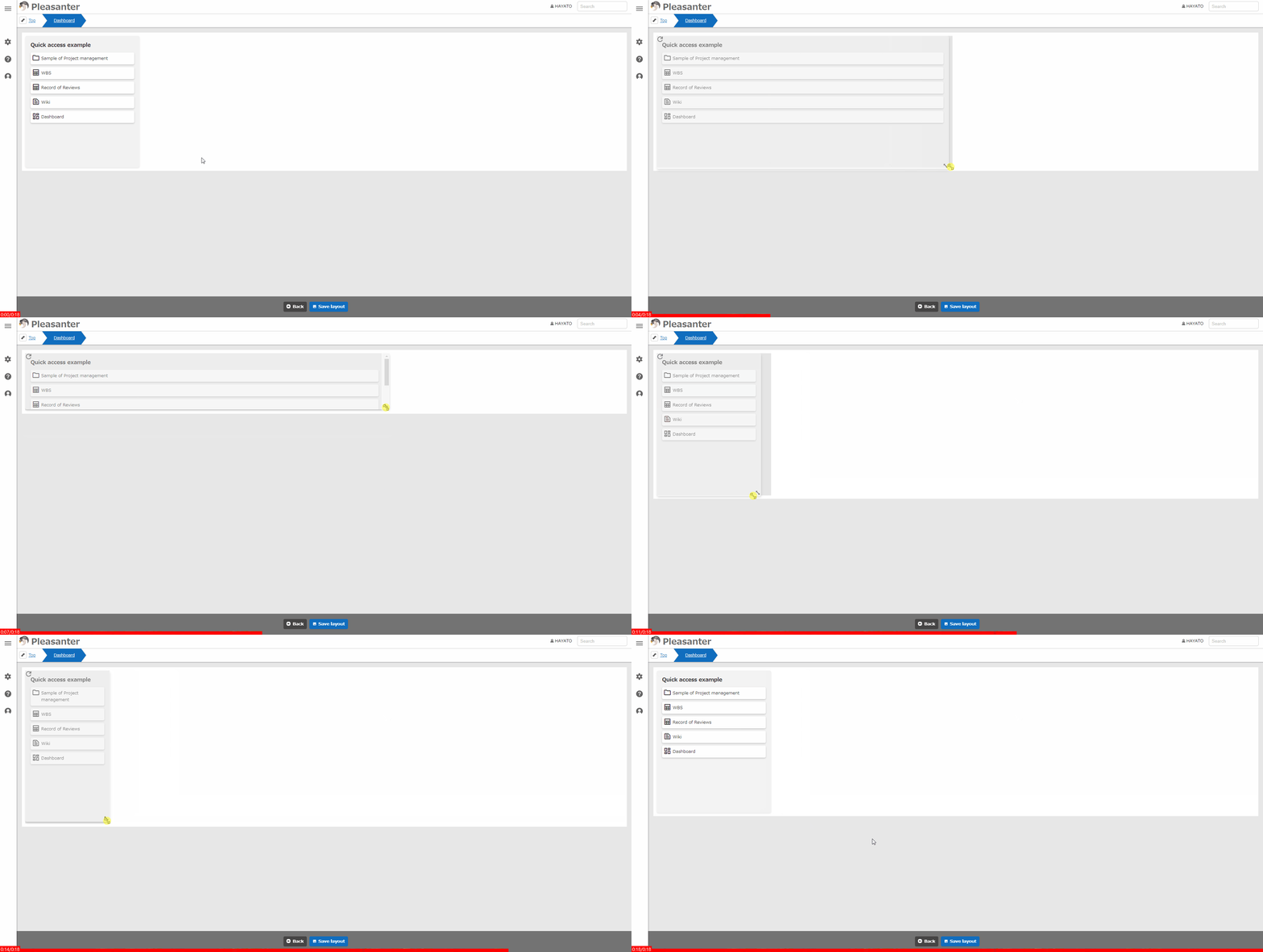
| Vertical | Display sites arranged vertically. A vertical scroll bar appears if the height of the part is reduced. |
| Horizontal | Display sites arranged horizontally. If the width of the part is reduced, the content will wrap. |
Specifying Site IDs in JSON Format
By specifying the site ID in JSON format, you can change icons and assign CSS styles to each displayed site.
| Column name | Description |
|---|---|
| Id | Specify the site ID. Required when Url is not set. Ignored when Url is set. |
| Url | Specify any link destination as a URL. Required when Id is not set. |
| Icon | Set the icon to be displayed before the site name. For the characters to specify, see Material Symbols (*1). Icon is optional. If omitted, the content of Site Icon is displayed. |
| Css | Sets the css class name. Set the style for the class specified in advance on the "Style" tab or in "Extended CSS". Css is optional. |
| Title | Set the string to be displayed as the caption of the button. Title is optional. If omitted, the site name is displayed when Id is specified, and the Url is displayed when Url is specified. |
| ViewMode | Specify the ViewMode of the site to be displayed. ViewMode is optional. For details, see the ViewMode section below. |
| OpenInNewTab | Set true to open the link destination in a new tab. OpenInNewTab is optional. If omitted, it is false. |
ViewMode
The values that can be specified for ViewMode are as follows.
| Display | ViewMode |
|---|---|
| Index | Index |
| Calendar | Calendar |
| Crosstab | Crosstab |
| Gantt Chart | Gantt |
| Burndown Chart | Burndown |
| Time Series Chart | Timeseries |
| Analysis Chart | Analy |
| Kanban | Kamban |
| Image Library | Imagelib |
Setting Example
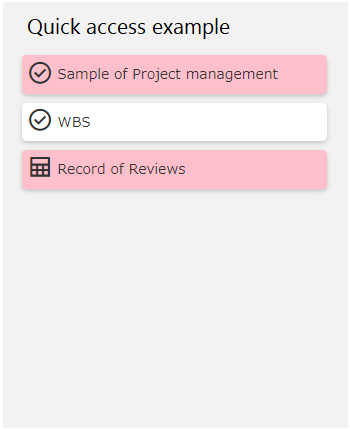
This is an example of adding a button that opens a single site in "Kanban" and a button that opens it in "Calendar". Both are also set to "open in a new tab".
The display result when the site ID and CSS are set as follows is shown below.
Display Result
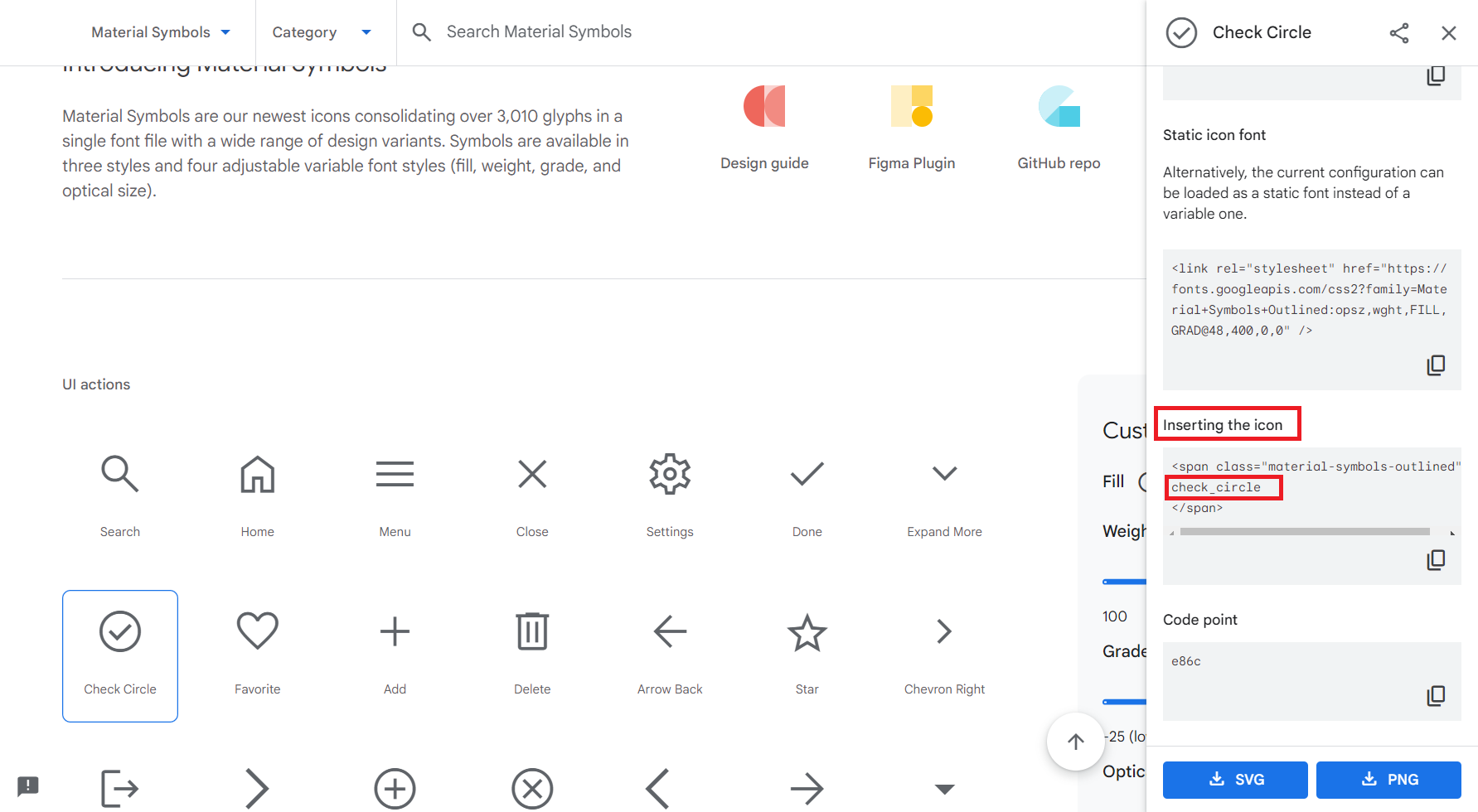
*1 How to Search for Specified Characters from Material Symbols
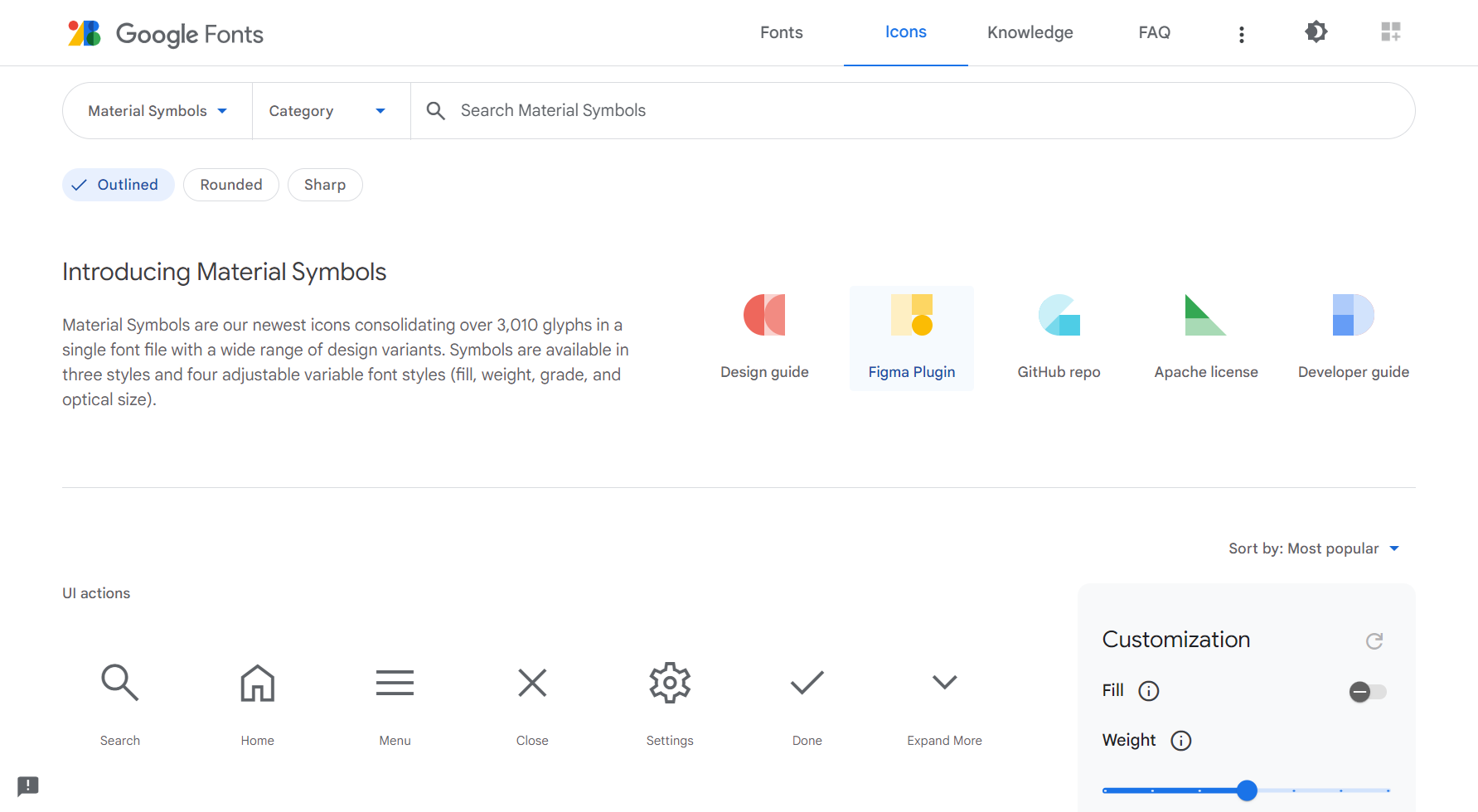
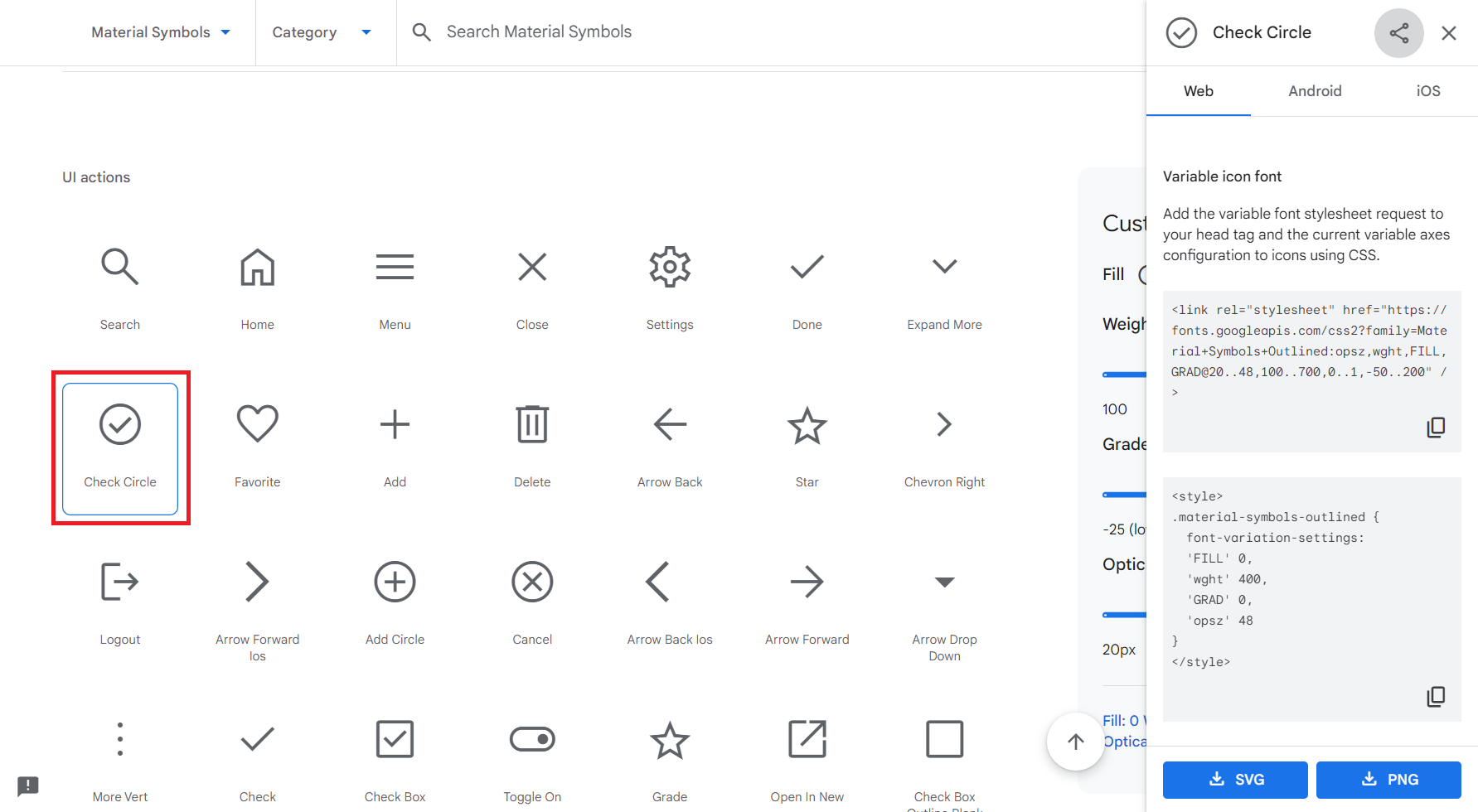
To specify the characters for the Icon in the JSON format site ID specification, follow the procedure below:
-
Open the Material Symbols page.
-
Click the icon you want to use.
-
Set the text enclosed in span tags in the "Inserting the icon" field displayed on the right side of the screen as the Icon.
Supported Versions
| Supported versions | Body |
|---|---|
| 1.4.10.0 and later | Added Url, Title, ViewMode and OpenInNewTab to the site ID specification in JSON format |