Applied Section: Authentication
Overview
The authentication functions for logging in to Pleasanter are as follows. Set in "Authentication.json" and "Security.json".
- Local authentication
- "LDAP Authentication"
- "SAML Authentication"
- Two-step authentication
- "Enable 2-step Authentication by Email"
- "Enable 2-step authentication with TOTP"
Local authentication
Authentication is performed using the login ID and password of the user information registered in "User Management".
LDAP authentication
Authentication is performed using the login ID and password on an LDAP server such as Active Directory. If the LDAP server is Active Directory, single sign-on using "Integrated Windows Authentication" can also be set.
SAML authentication
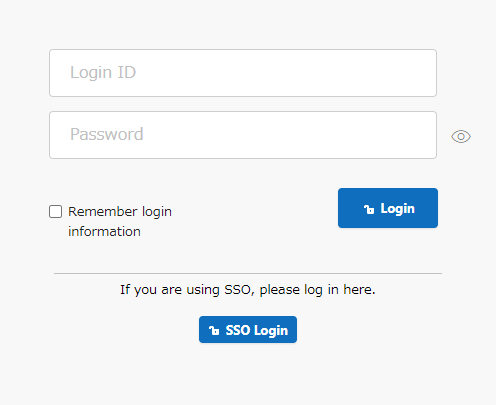
Performs SAML authentication. When SAML authentication is set, a dedicated button (the "SSO Login" button) is displayed.
Two-step authentication
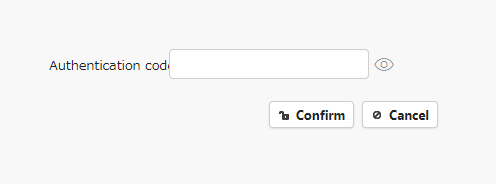
This is a two-step authentication method consisting of the above three authentication processes and entering a confirmation code. After any of the above three authentications, a confirmation code entry dialog will be displayed.
If the authentication method is email
The login process is completed by entering the confirmation code sent by email.
If the authentication method is TOTP
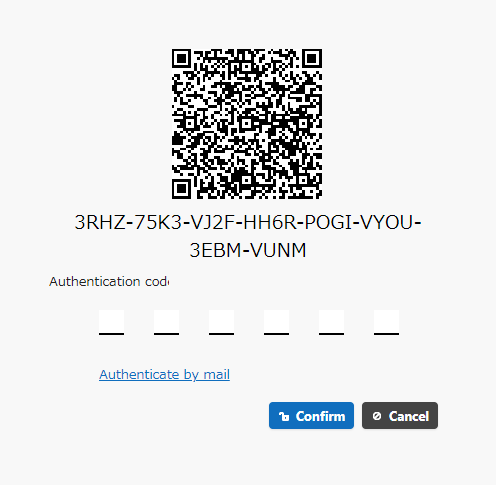
When you log in for the first time, a QR code will be displayed. You can obtain the confirmation code required to log in by reading the QR code with an authentication app that supports TOTP authentication.
Enter the confirmation code displayed in the authentication app to complete the login process.
Related Information
- Integrate Pleasanter with Active Directory
- Use SAML authentication in Pleasanter
- Use Passkey Authentication
- Enable 2-step Authentication by Email
- Enable 2-step authentication with TOTP (Time-based One-Time Password)
- User Management Function
- Setup single sign-on to Pleasanter using Windows authentication