Advanced Operation: Column Types
Overview
Among the data columns that store data in the "Table", in addition to the columns that are set by default, you can freely arrange "Class Column", "Numeric Value Column", "Date Column", "Check Column", "Description Column", and "Attachment Column" in the "Editor".
Classification
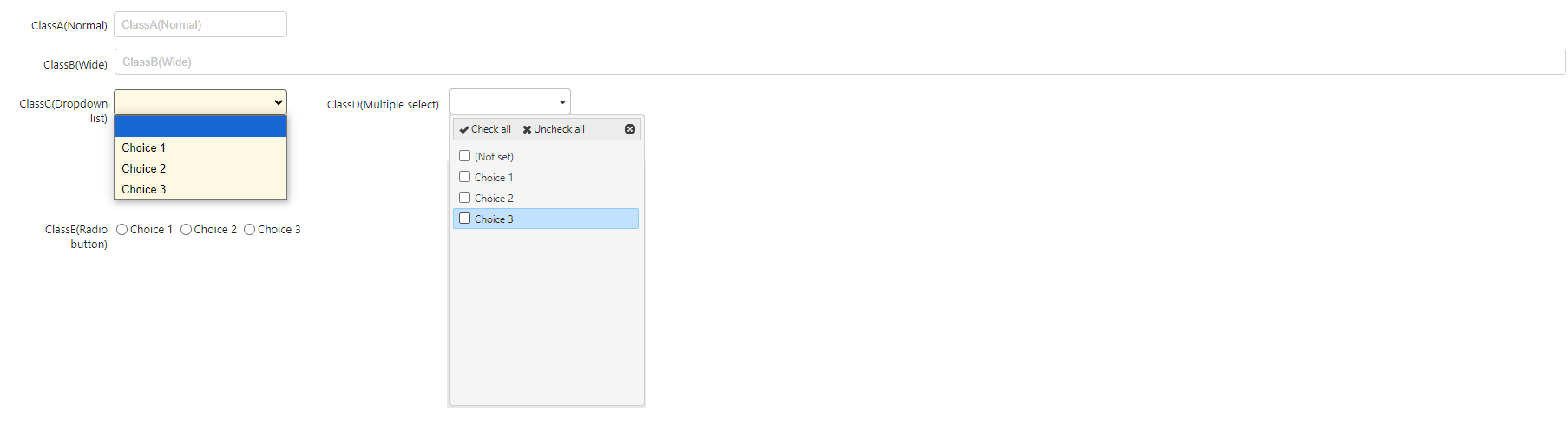
Used as a free text input and option input column. The maximum number of characters is 1024. You can choose drop-down list format or radio button format when used as option input. You can also set the options in JSON format to use filters, sorts, "Display format" settings, and automatic transcription using "Lookup". You can use the "Automatic Numbering" function to assign numbers in a specified format automatically.
Display image
Numeric Value
Used as a column to input numeric value. In addition to free text, you can select "Spinner", which allows you to change the numeric value with the up and down buttons.
Handling when no input is made
By default, 0 is automatically registered and is also displayed as 0 on the screen, but you can register NULL by checking "Nullable" to ON.
Display image

Date
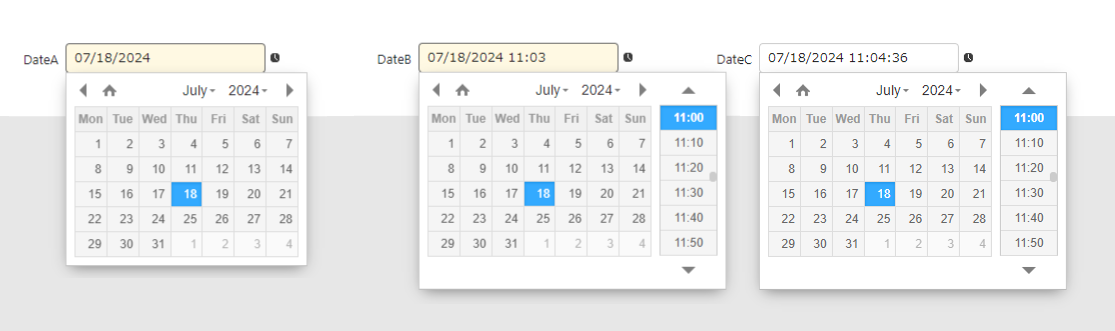
Used as a column to input date and time from free text or the calendar.
About time
If you select "Year/Month/Date" as the editor format, it will automatically be registered as "00:00:00" when registering and updating from the editing screen. However, if you intentionally specify a time when registering and updating with the API or server script, it will be registered with the specified content.
Display image
Check
Used as a checkbox. It has two states: checked ON and unchecked.
Display image

Description
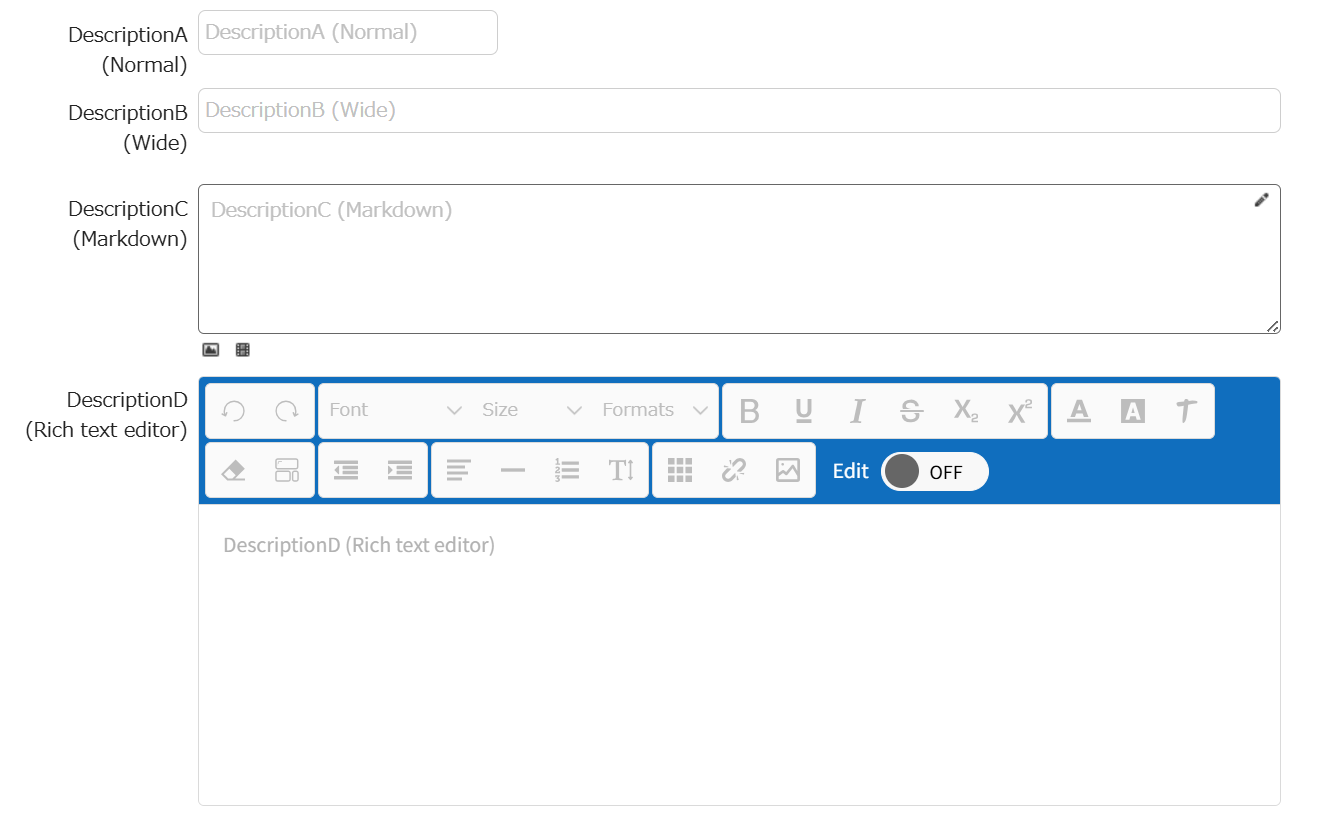
Used as a column to enter a string in free text. You can enter text using "Markdown" and register "Image".
Differences from class columns
The differences from class columns are as follows. Use them according to your requirements.
| Column | Class Column | Description Column |
|---|---|---|
| Maximum number of characters | 1024 characters | Practically unlimited |
| Configurable style | Normal Wide | Normal Wide Markdown |
| Use as selection column | Possible | Impossible |
| Automatic numbering | Available | Available |
Display image
Attachment
Used as a column to attach various files. You can specify the number of files that can be attached and the file size. There are no restrictions on file types. If the "Attachment File" can be displayed in the browser, clicking the magnifying glass icon will display a preview in a separate tab. If you want to display an image on the screen, use the "Description Column" instead of the "Attachment Column".
Display image

Related Information
- Manage Table: Items: Class
- Manage Table: Items: Date
- Manage Table: Items: Check
- Manage Table: Editor
- Manage Table: Editor: Column Advanced Settings: Option List: Filter, Sort,
- Manage Table: Editor: Column Advanced Settings: Option List: Lookup
- Manage Table: Editor: Column Advanced Settings: Automatic Numbering
- Manage Table: Editor: Column Advanced Settings: Nullable
- Common Function: Markdown
- Table Function: Register Image to Record