Advanced Operation: View Mode
Overview
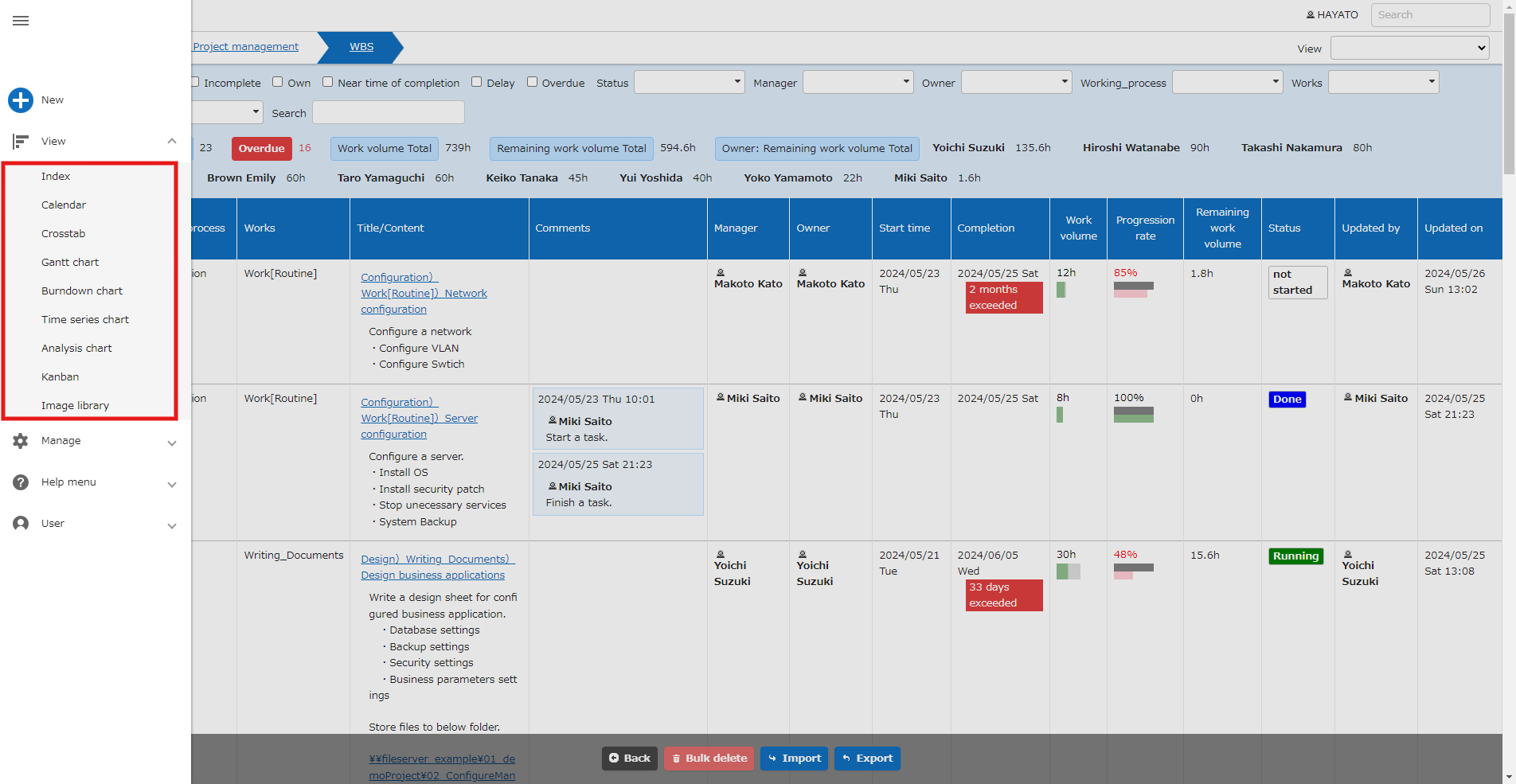
In Pleasanter, you can display records in various formats, including the list screen. In addition to "Index", you can also select "Calendar", "Crosstab", "Gantt Chart", "Burndown Chart", "Time Series Charts", "Analysis Chart", "Kanban", and "Image Library".
-
Index
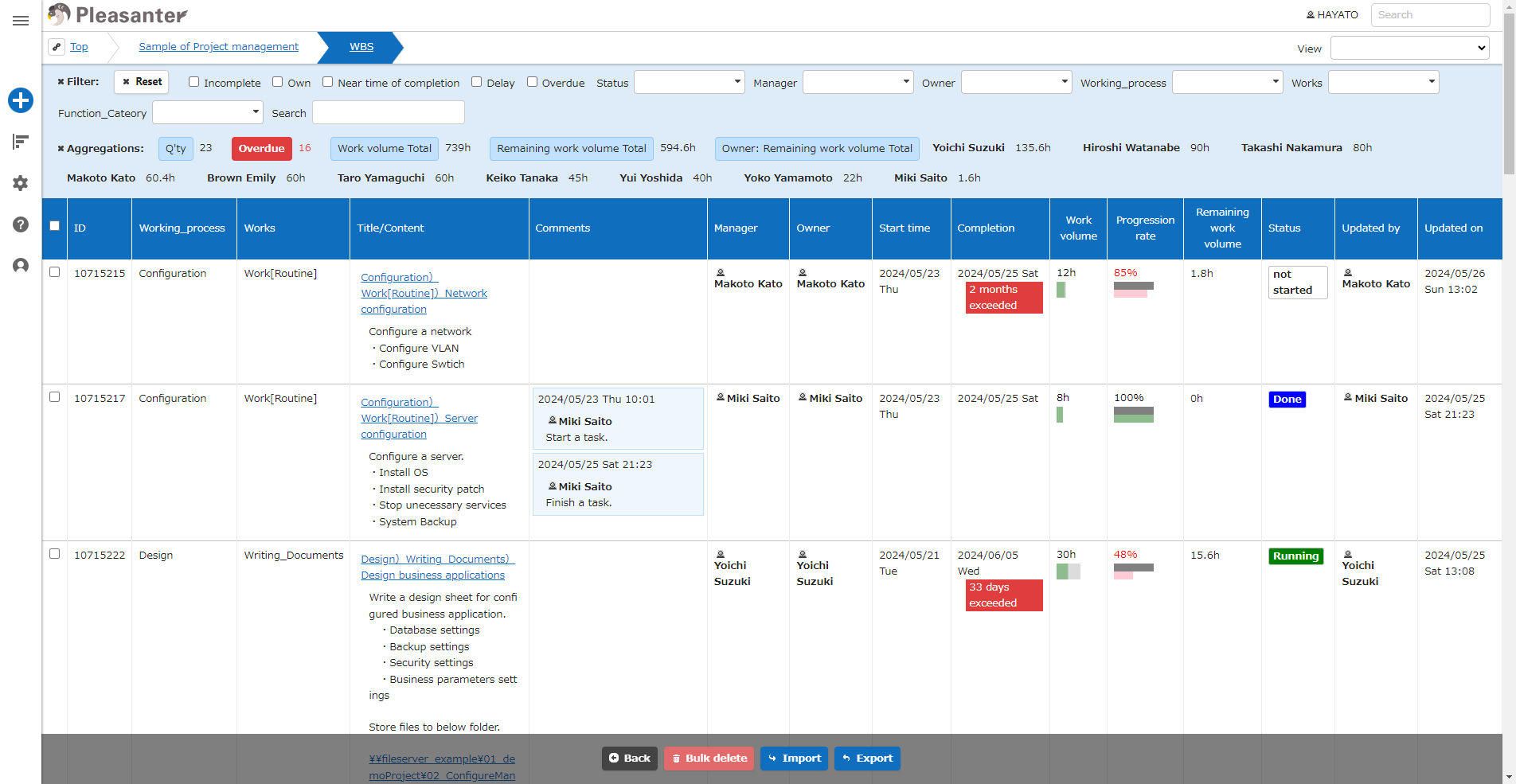
Display in table format. Display column can be set in "Manage Table" - "Index".
-
Calendar
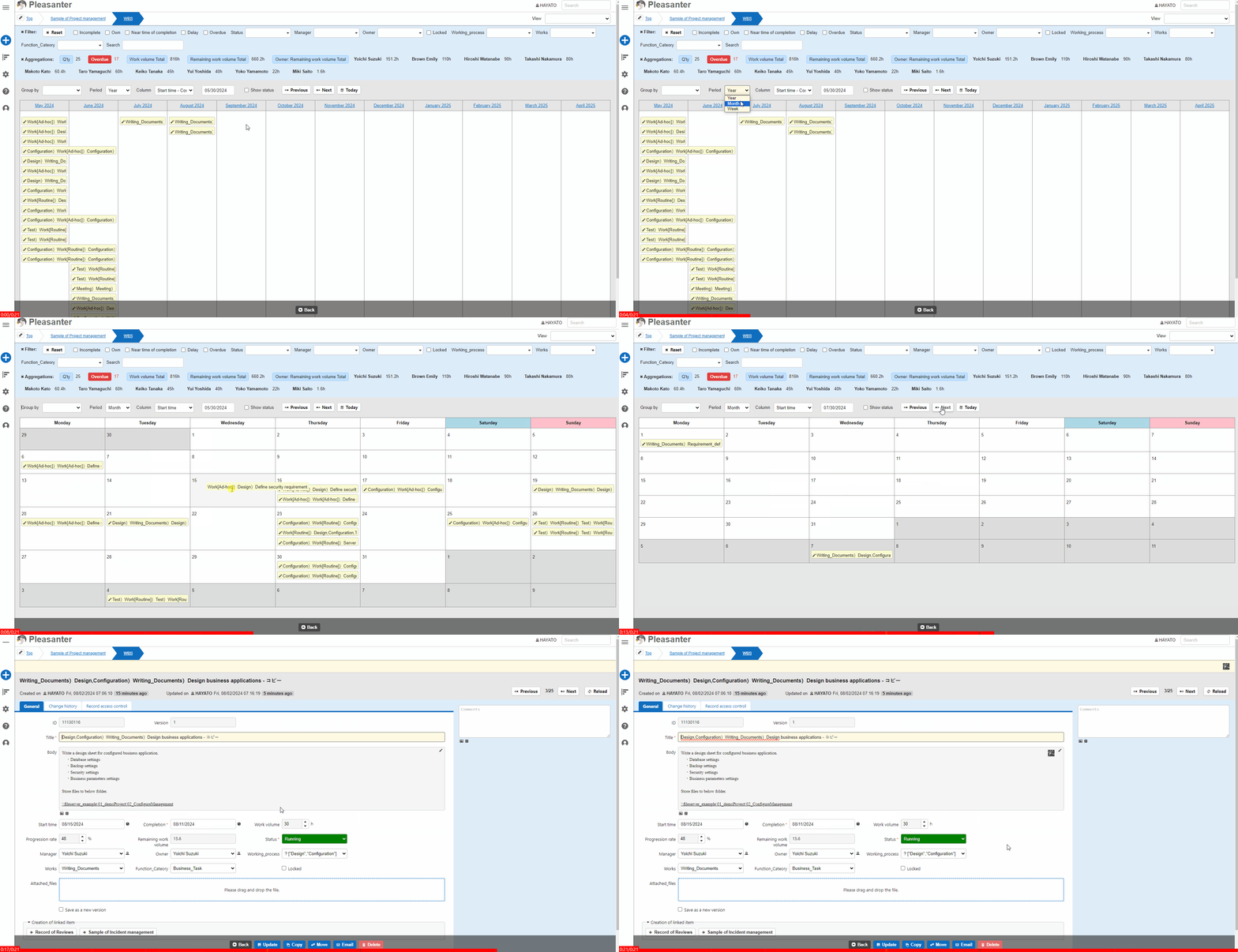
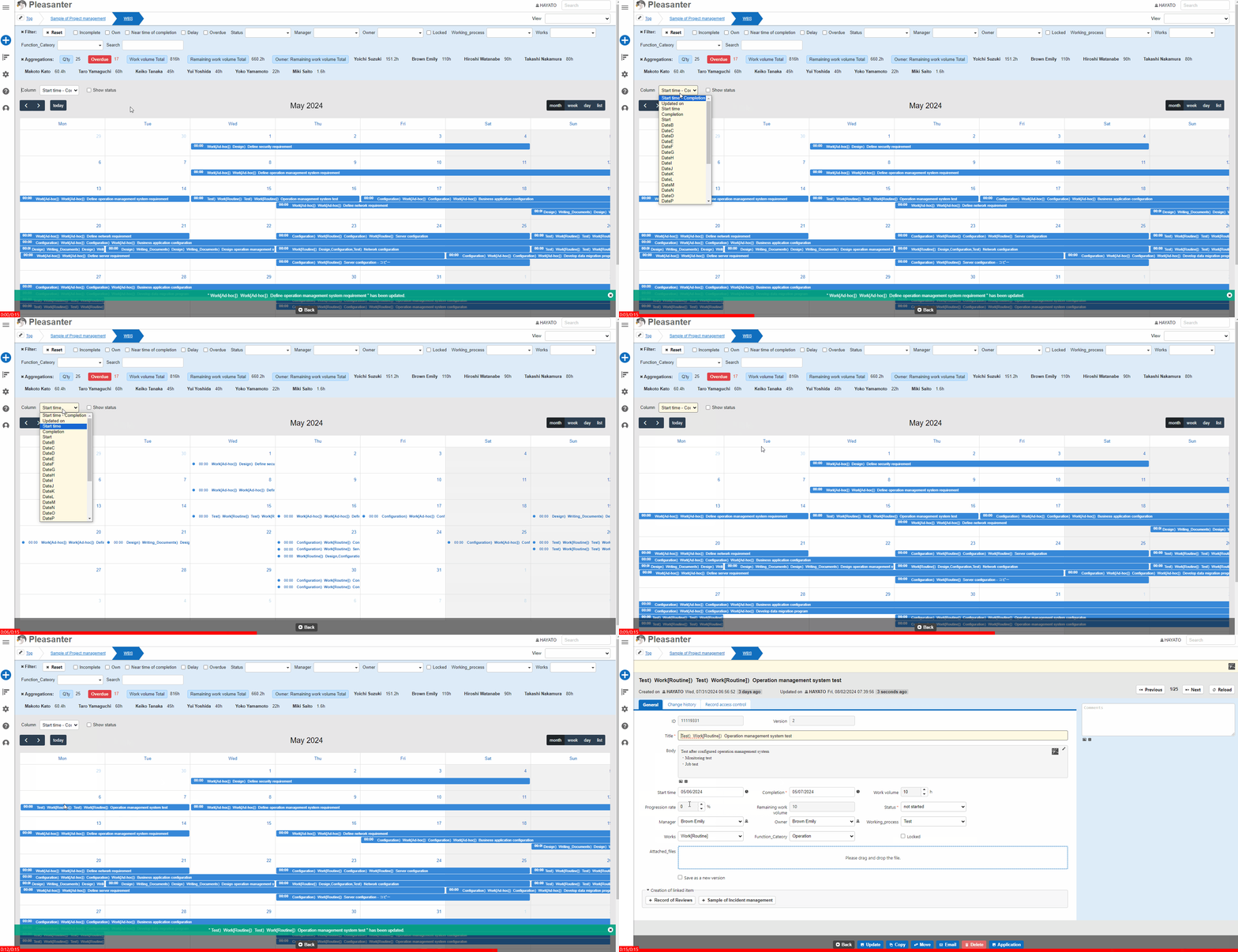
Display in calendar format.
Calendar Type: Standard
Calendar Type: FullCalendar
-
Cross tabulation
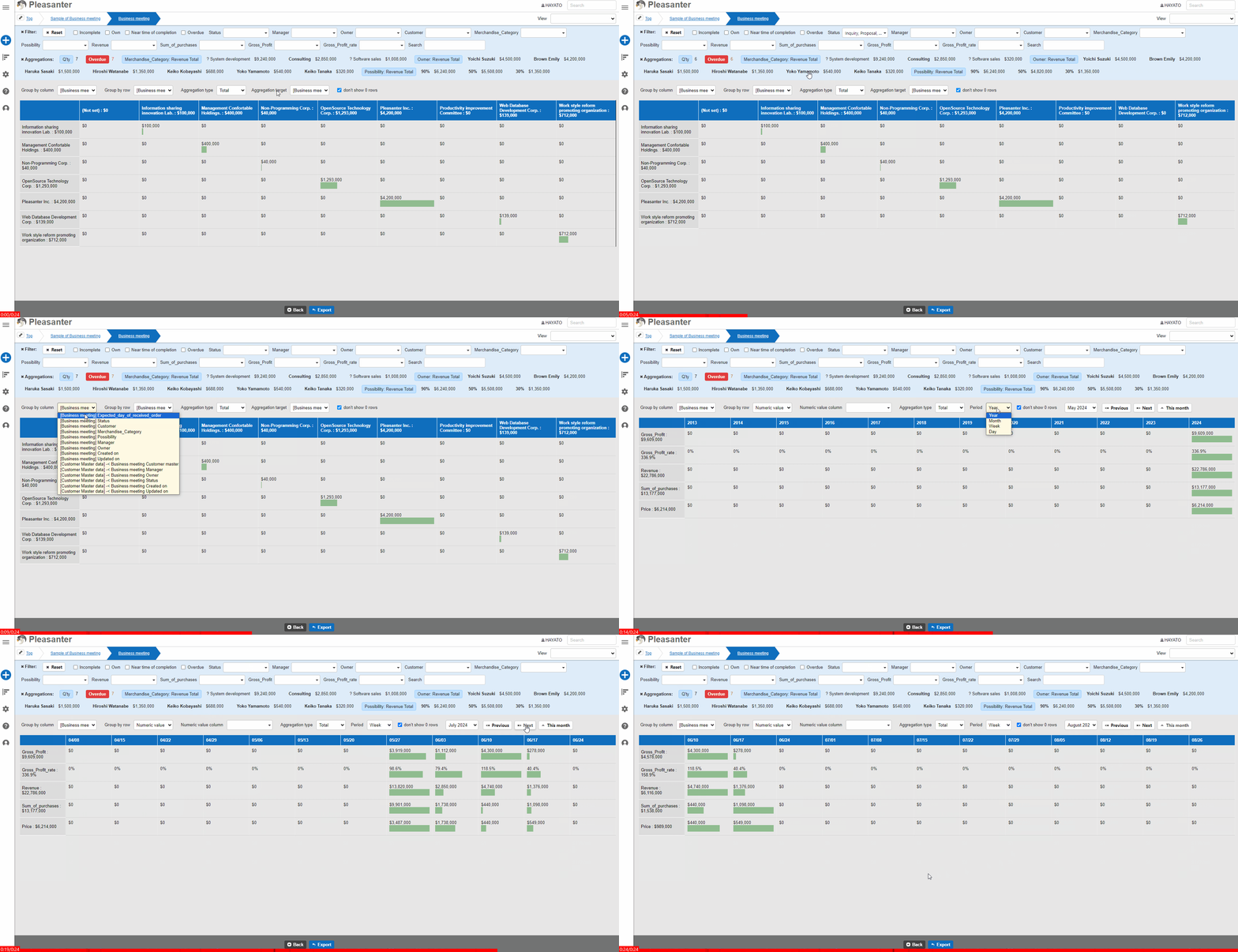
Display cross tabulation such as the number of specified columns and totals.
-
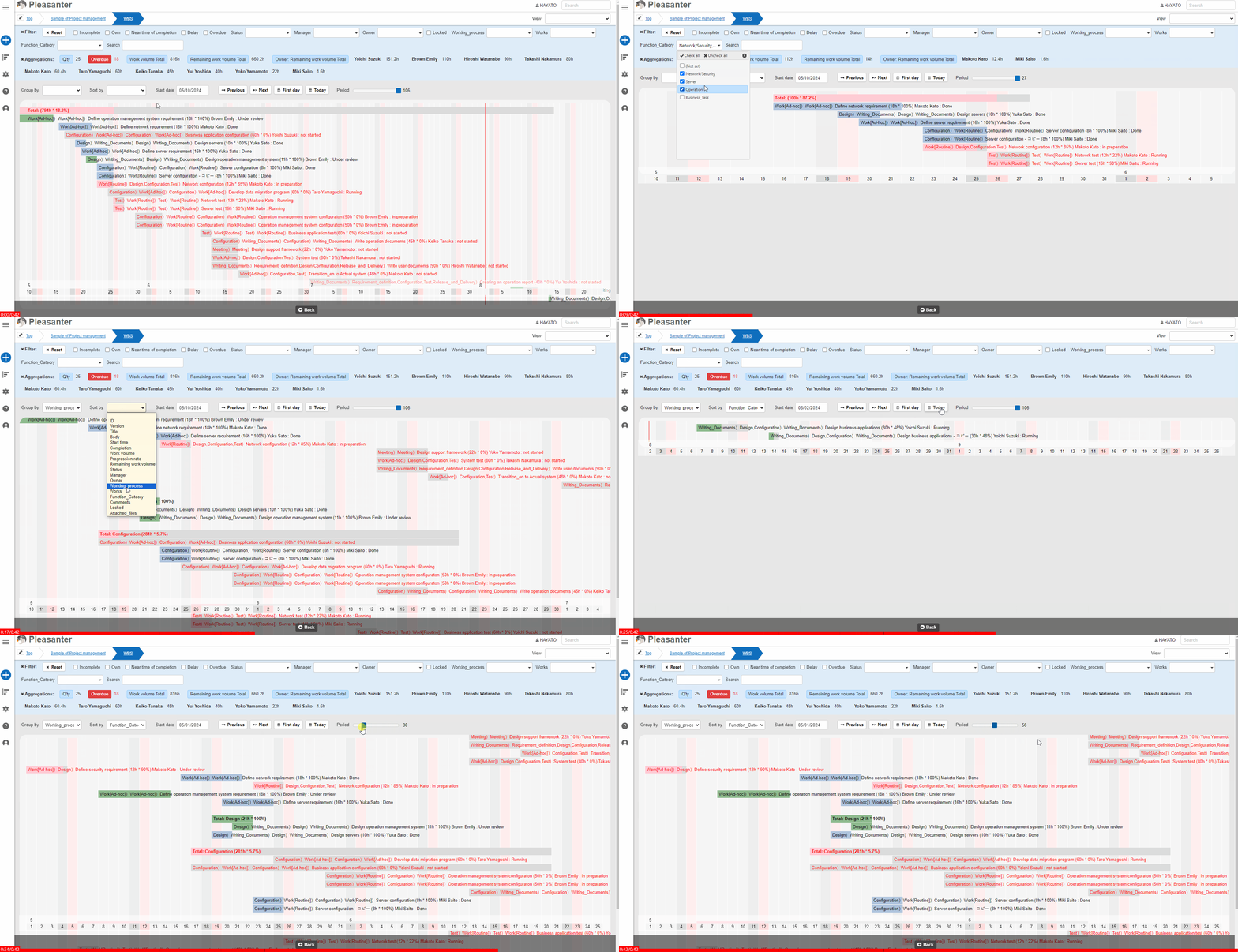
Gantt chart
Display the relationship between work tasks and periods in a bar chart. Only a time-limited table can be selected.
-
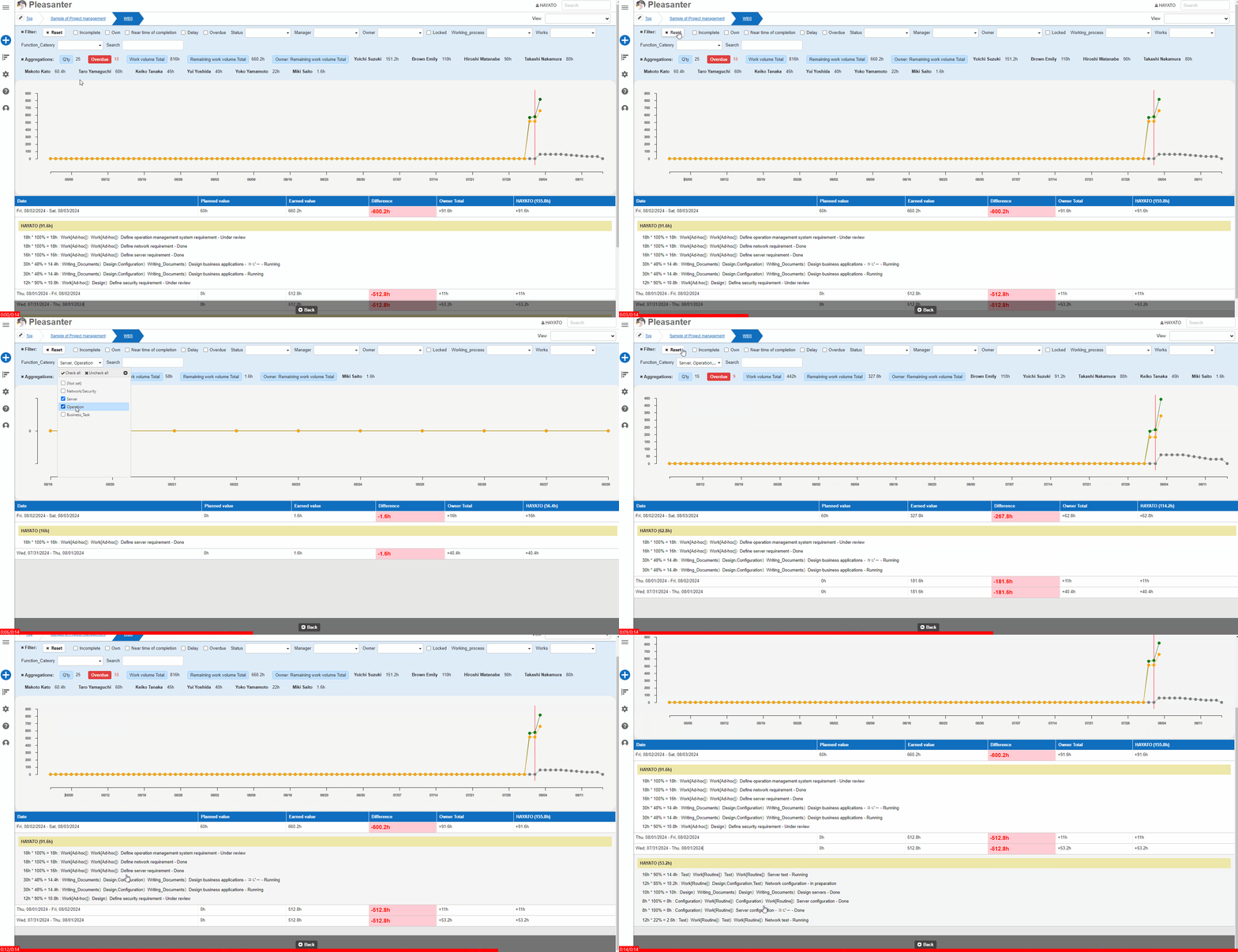
Burndown chart
Display the relationship between work volume and time in a line chart. Only a time-limited table can be selected.
-
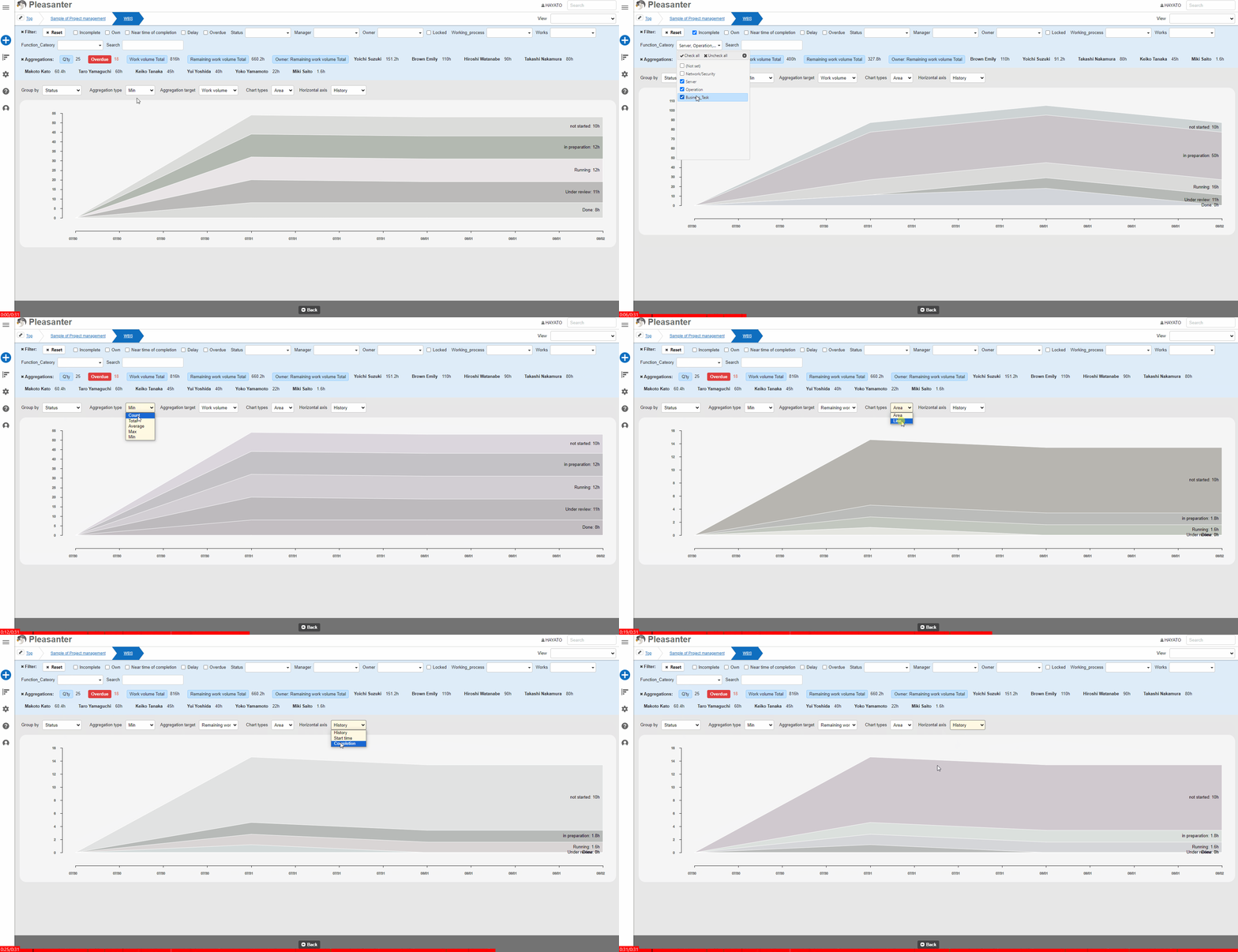
Time series chart
Display the change in value over time in a graph. The values on the vertical axis and the dates on the horizontal axis can be selected as desired.
-
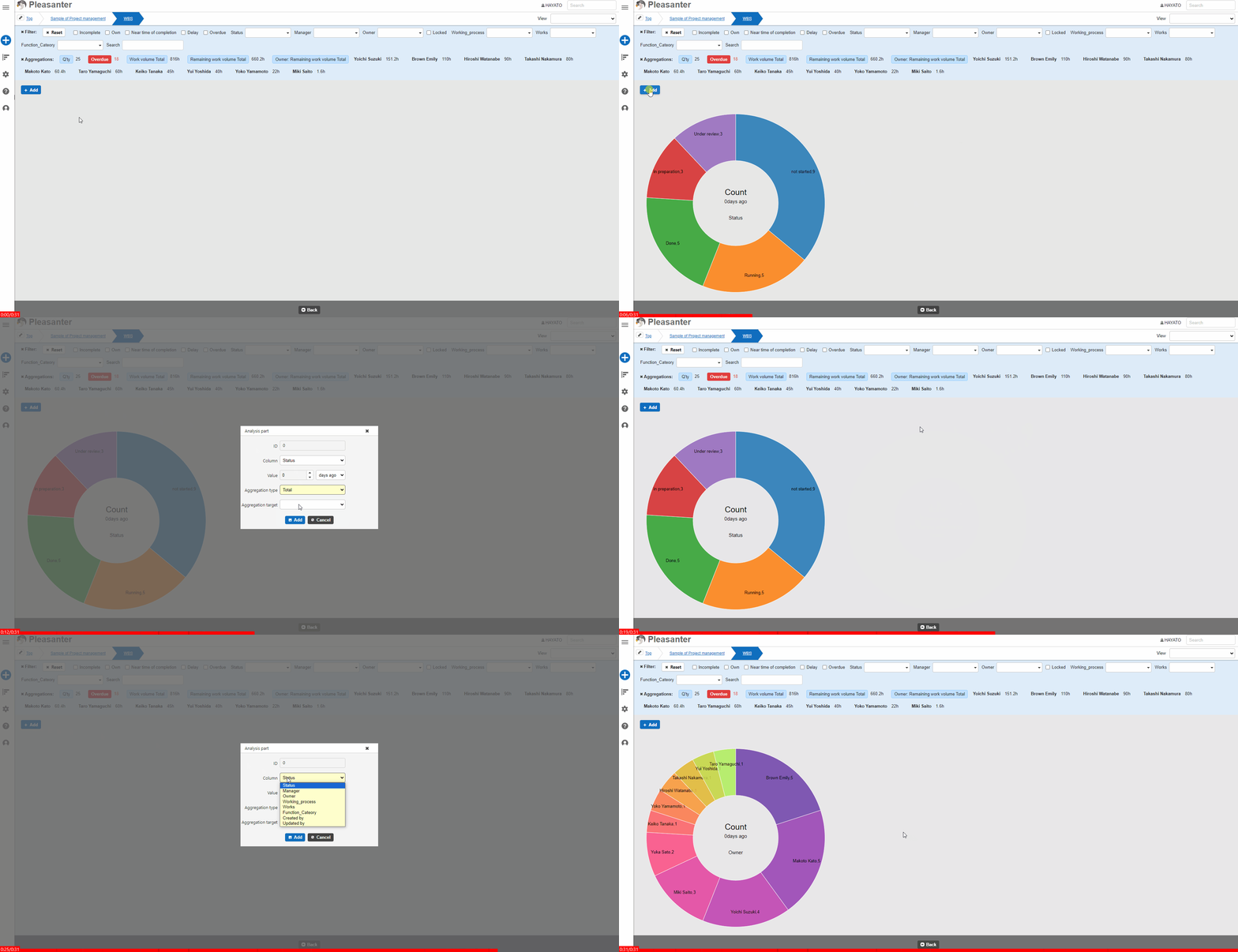
Analysis chart
Display data at a certain point in time in a pie chart. Can be selected for recorded tables and time-limited tables.
-
Kanban
Mainly display the progress of tasks by worker in a "Kanban" format. Columns for the vertical and horizontal axes can be selected as desired. Record contents can be updated by dragging and dropping the displayed records.

-
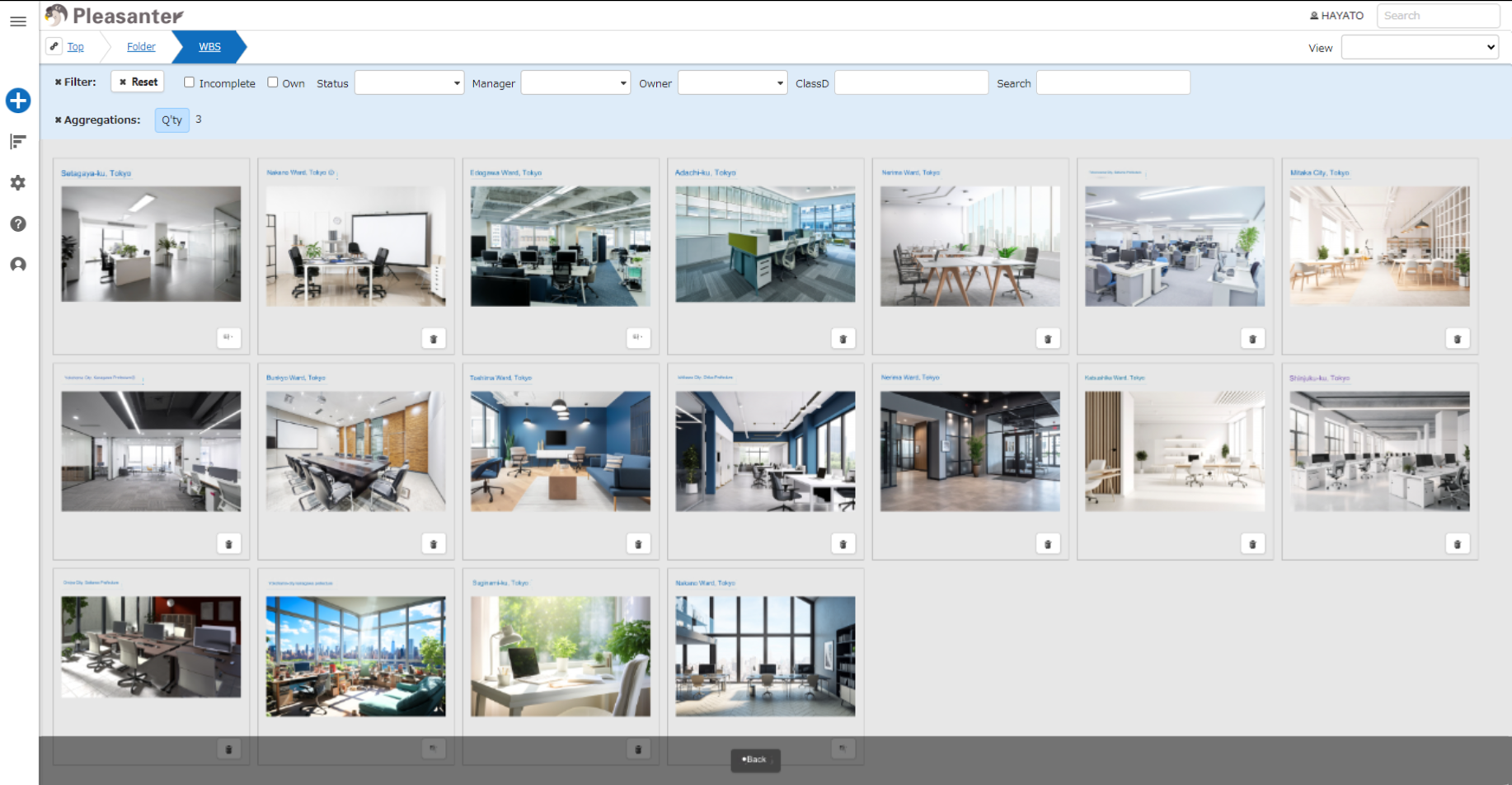
Image library
Display a list of images pasted into the contents, description, and comments.
How to switch
Switch view modes from the "Display" menu in the navigation menu.
Required permissions
Read permissions for the table are required. Also, "Site Administrator Permission" is required to change settings.
Usage settings
No settings are required for "Index". It will be displayed if "Read Permissions" are available. To display anything other than "Index", open the relevant tab from "Manage Table" and check "Enabled".

Related Information
- Manage Table: Screen Index
- Table Function: Calendar Display of Records
- Table Function: Cross-tabulation Display of Records
- Manage Table: Gantt Chart
- Table Function: Display Burndown Chart Of Records
- Manage Table: Time Series Charts
- Table Function: Display Record Analysis Chart
- Table Function: Kanban Display of Records
- Manage Table