Site Access Control
<< Return to Operation Guide Index
Site Access Control
You can restrict users and groups that can access a site (folder, table).
This manual will cover folder access control.
Preparations
To site access control, you need a site (folder or table), user, department and group.
If you have not created them yet, please refer to Create A Folder, Create A Table, Create A User, Create An Department, and Create A Group to create them.
Manual
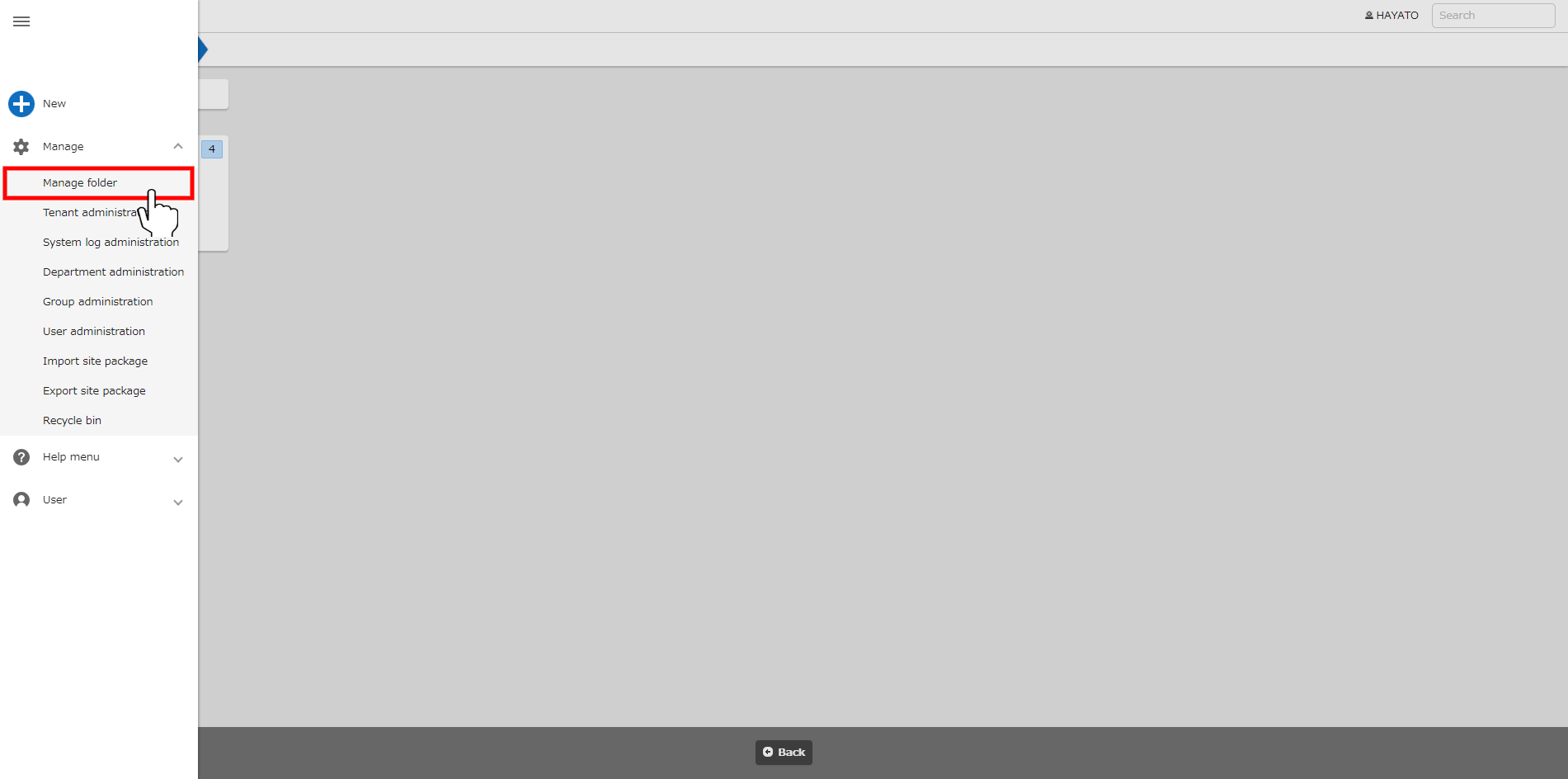
- In the target folder, click "Manage folder" from the "Manage" menu in the navigation menu.
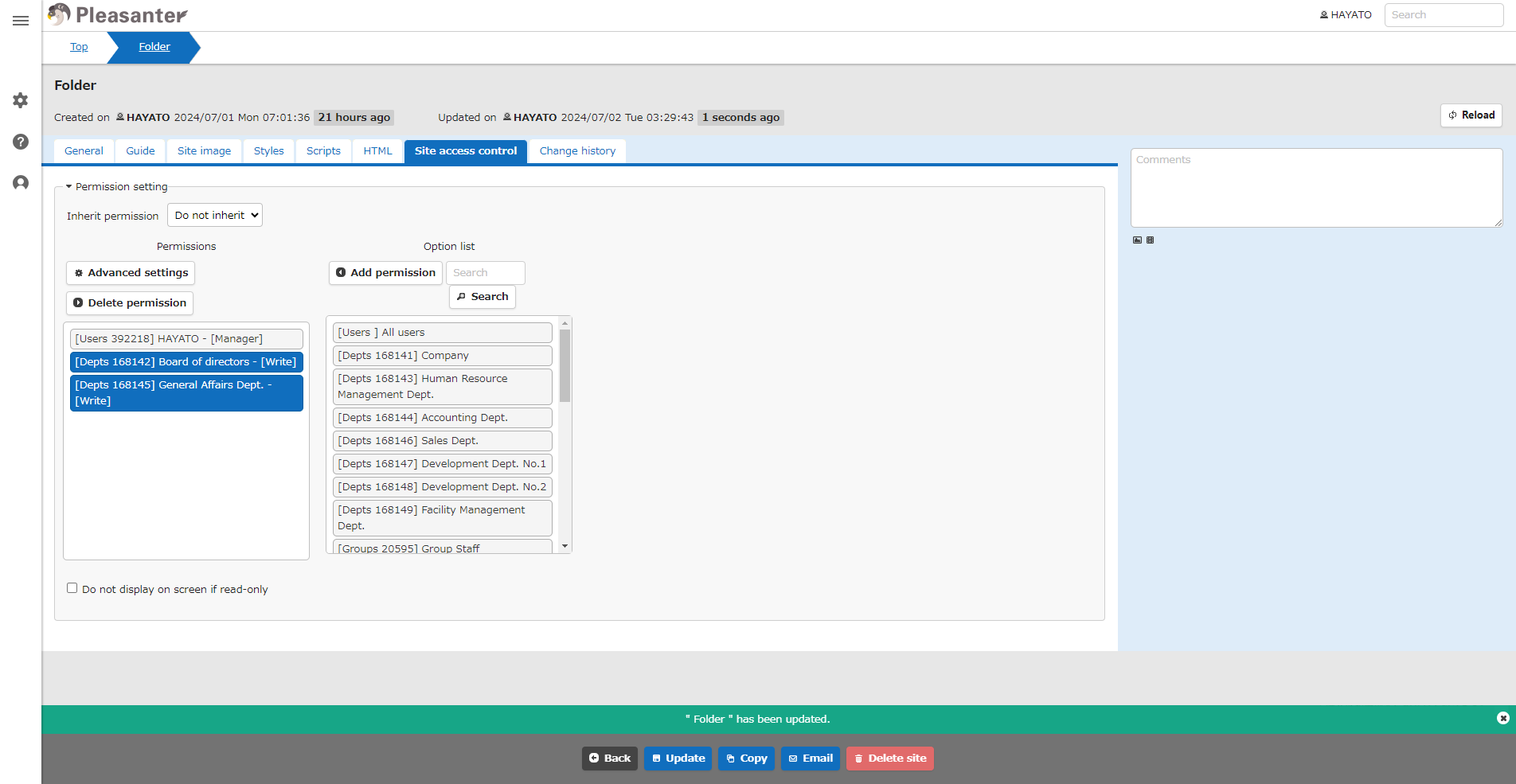
- Click the Site Access Control tab.
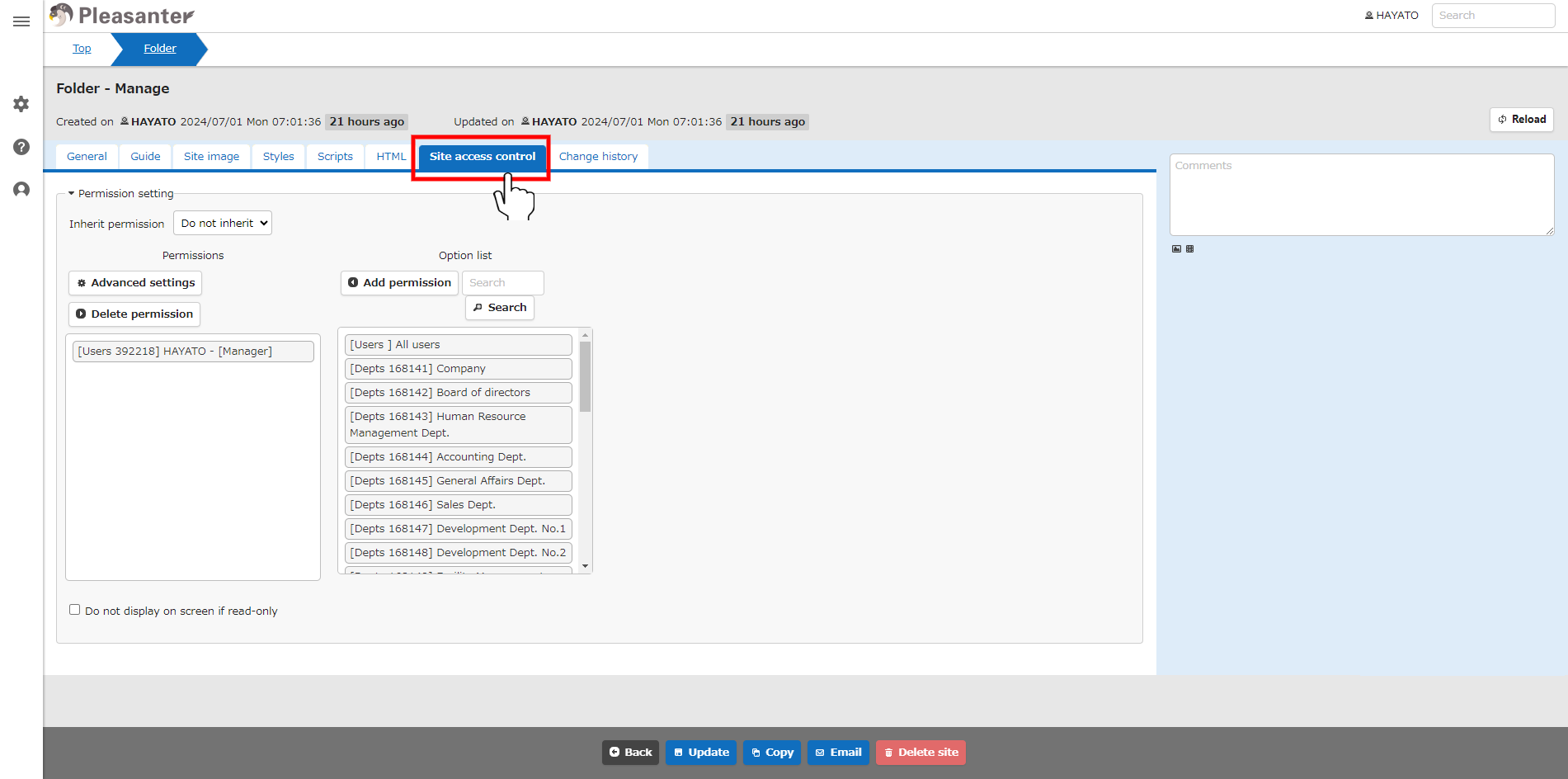
- Select "Do Not Inherit" in "Inherit Permission".

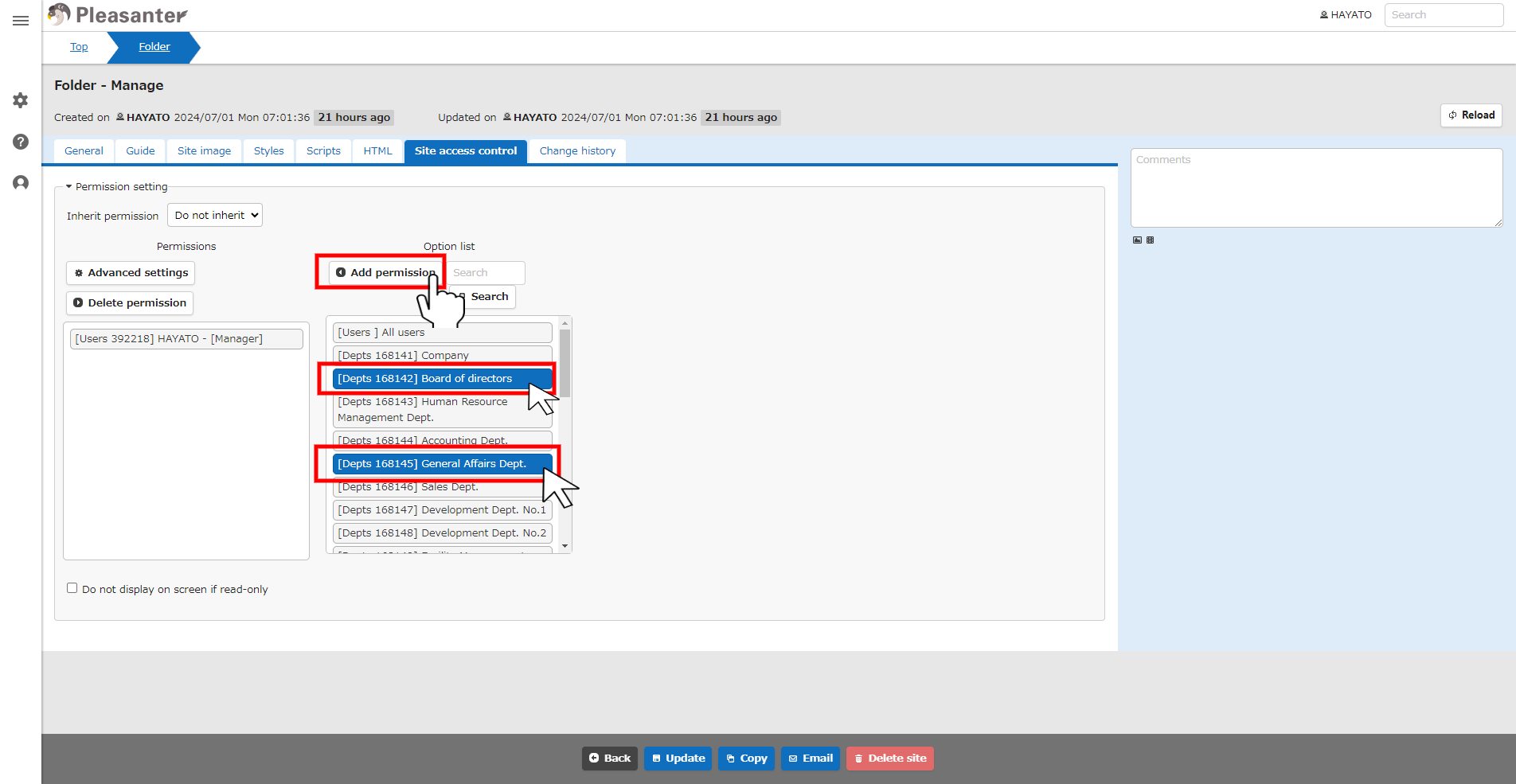
- In the Option List, select the users, departments, and groups to be allowed access and click the "Add Permission" button.
- Confirm that the users, departments, and groups users added to "Permission Setting" are there, and click the "Update" button at the bottom of the screen.
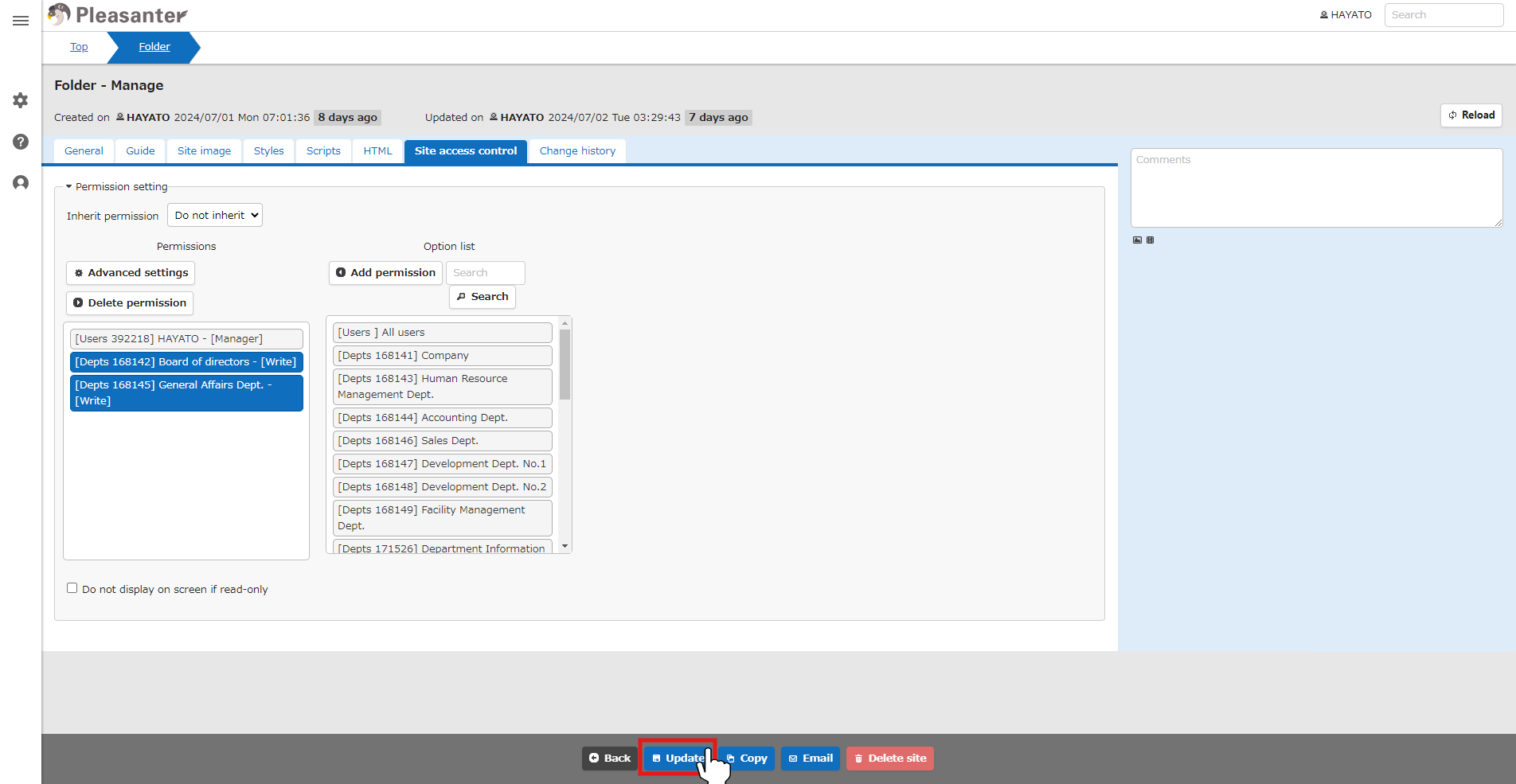
- This completes the settings for site access control.
In addition to sites and tables, you can also set access control on a record or column basis. See below for details.
Site Access Control
Site Access Control: Do Not Display On Screen If Read-Only
Table Function: Record Access Control
Manage Table: Record Access Control
Column Access Control