Create a dashboard
<< Return to Operation Guide Index
Create A Dashboard
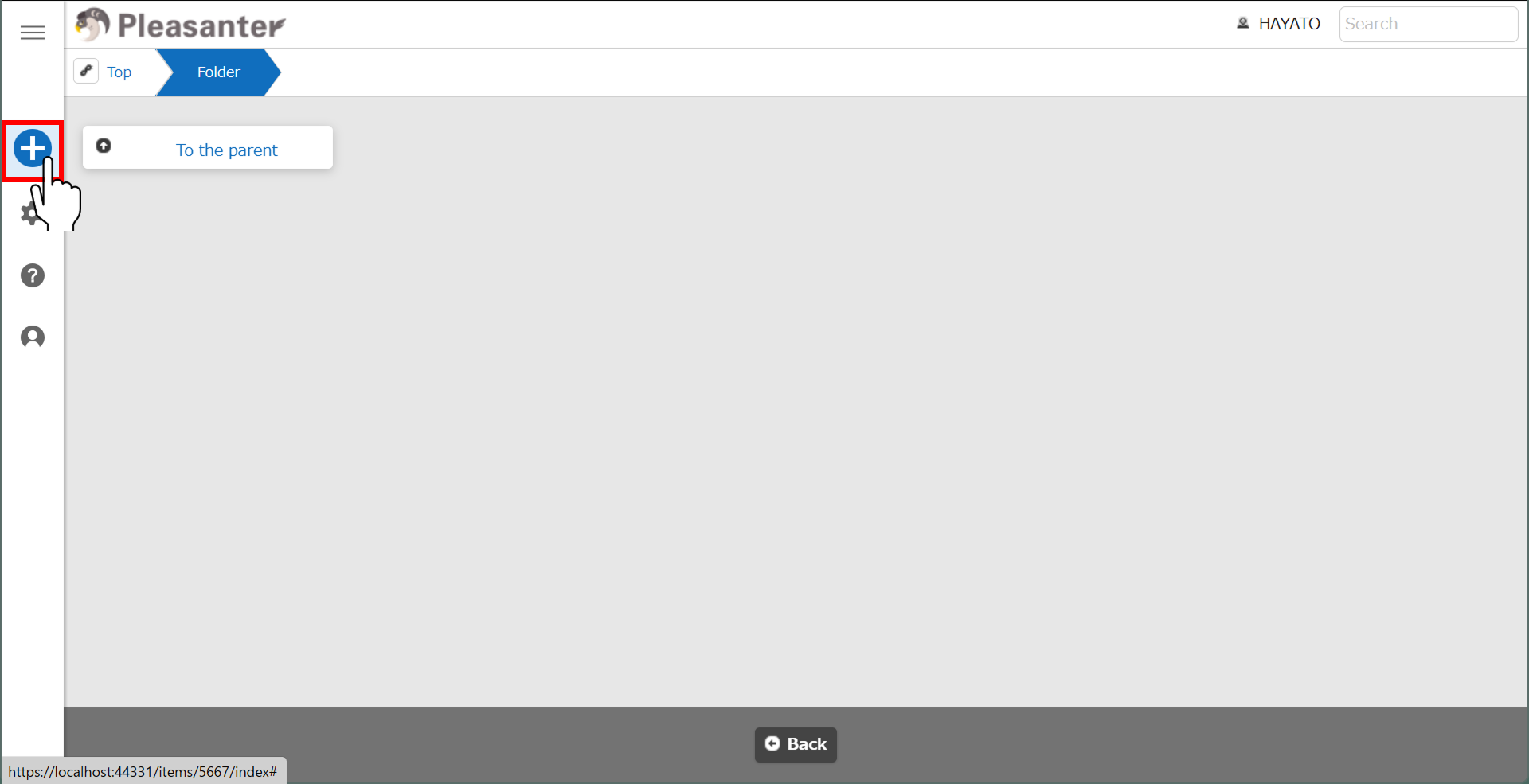
- Let's create a dashboard. Click the "New" button in the navigation menu.
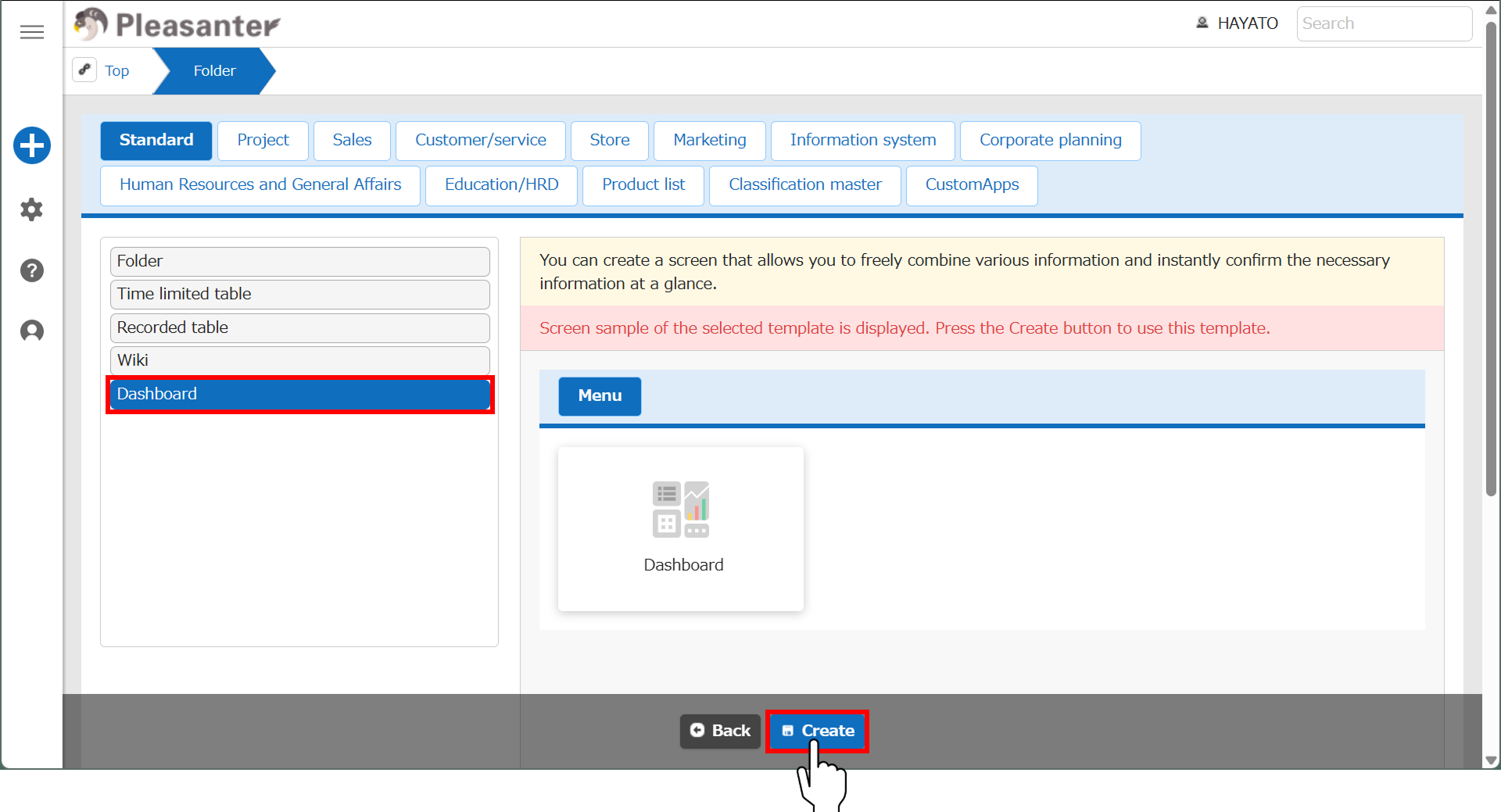
- Select "Dashboard" in the "Standard" tab. And click the "Create" button at the command button area.
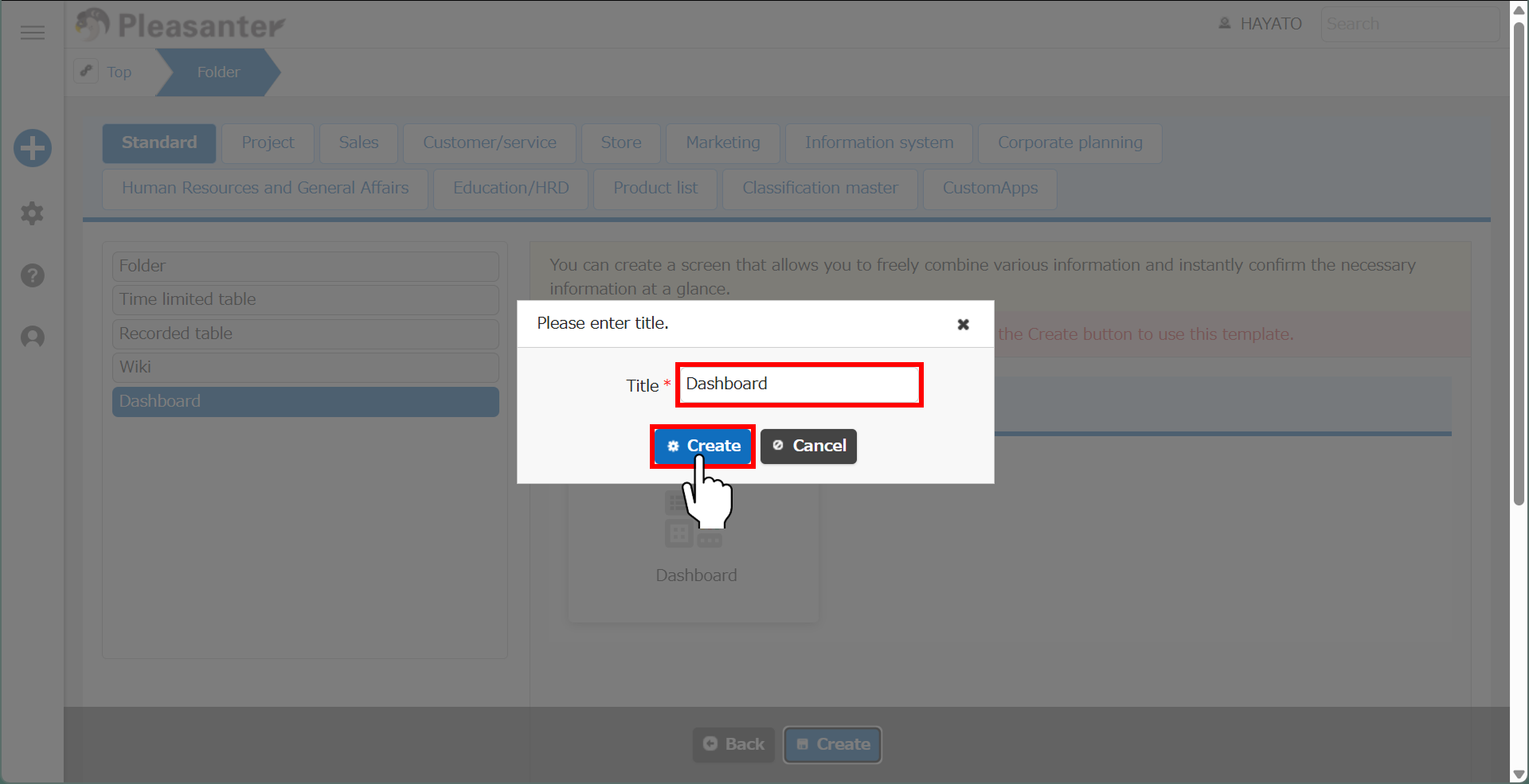
- Enter a "Title" in the dialog and click the "Create" button.
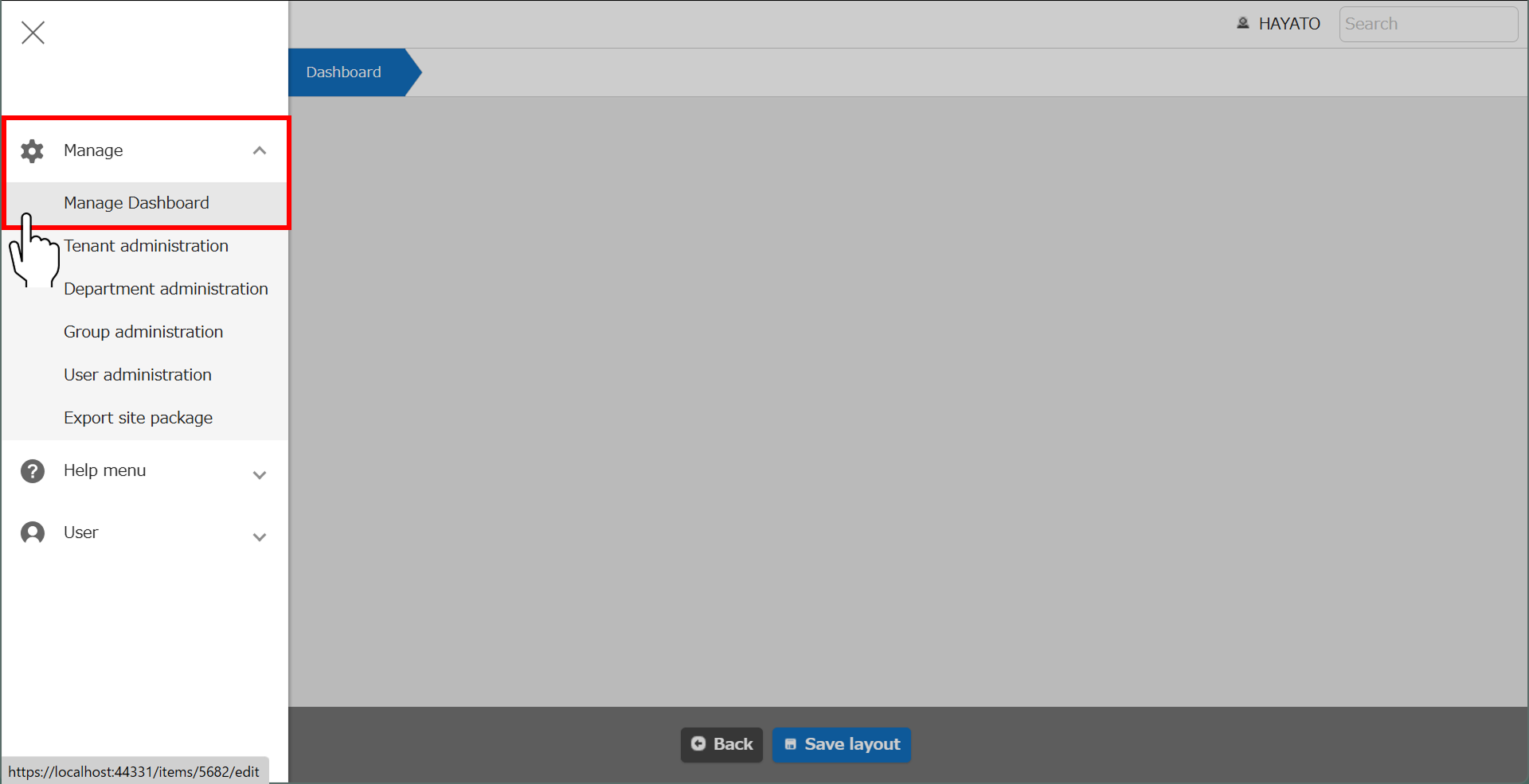
- The site for creating a dashboard is now complete.

- Let's add a "Quick access" part that allows you to create shortcuts to frequently used tables, etc. Click "Manage" - "Manage Dashboard" in the navigation menu.
- Click the "Dashboard parts" tab and click the "New" button.
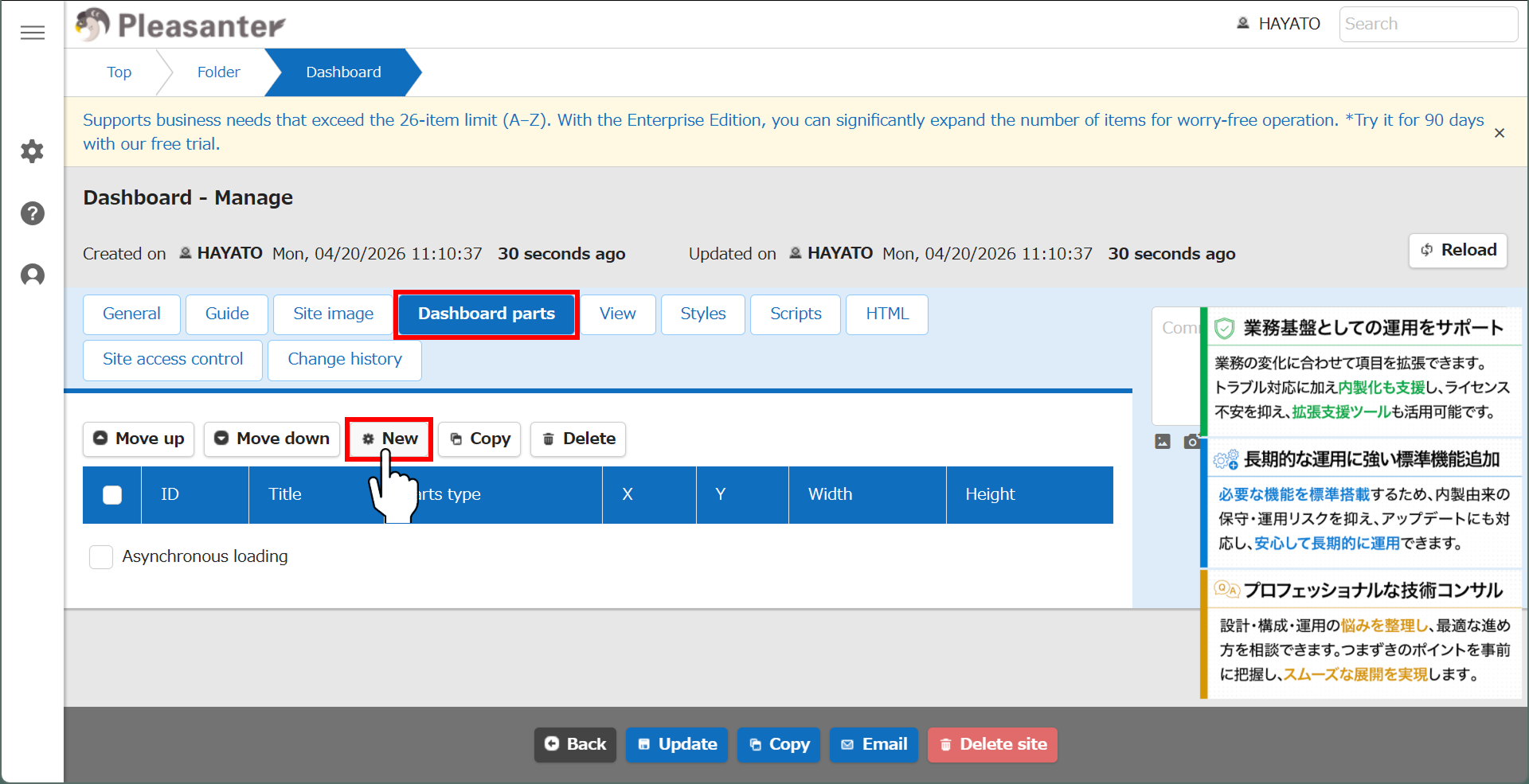
- The "Dashboard" dialog will be displayed, so enter a name in the title of the "General" tab and select "Quick access" as the "Parts type". Enter the "Site ID"s of the sites you want to display in "Quick access", separated by commas. Click the "Add" button.

- Once you have confirmed that the dashboard part has been added, click the "Update" button at the command button area.
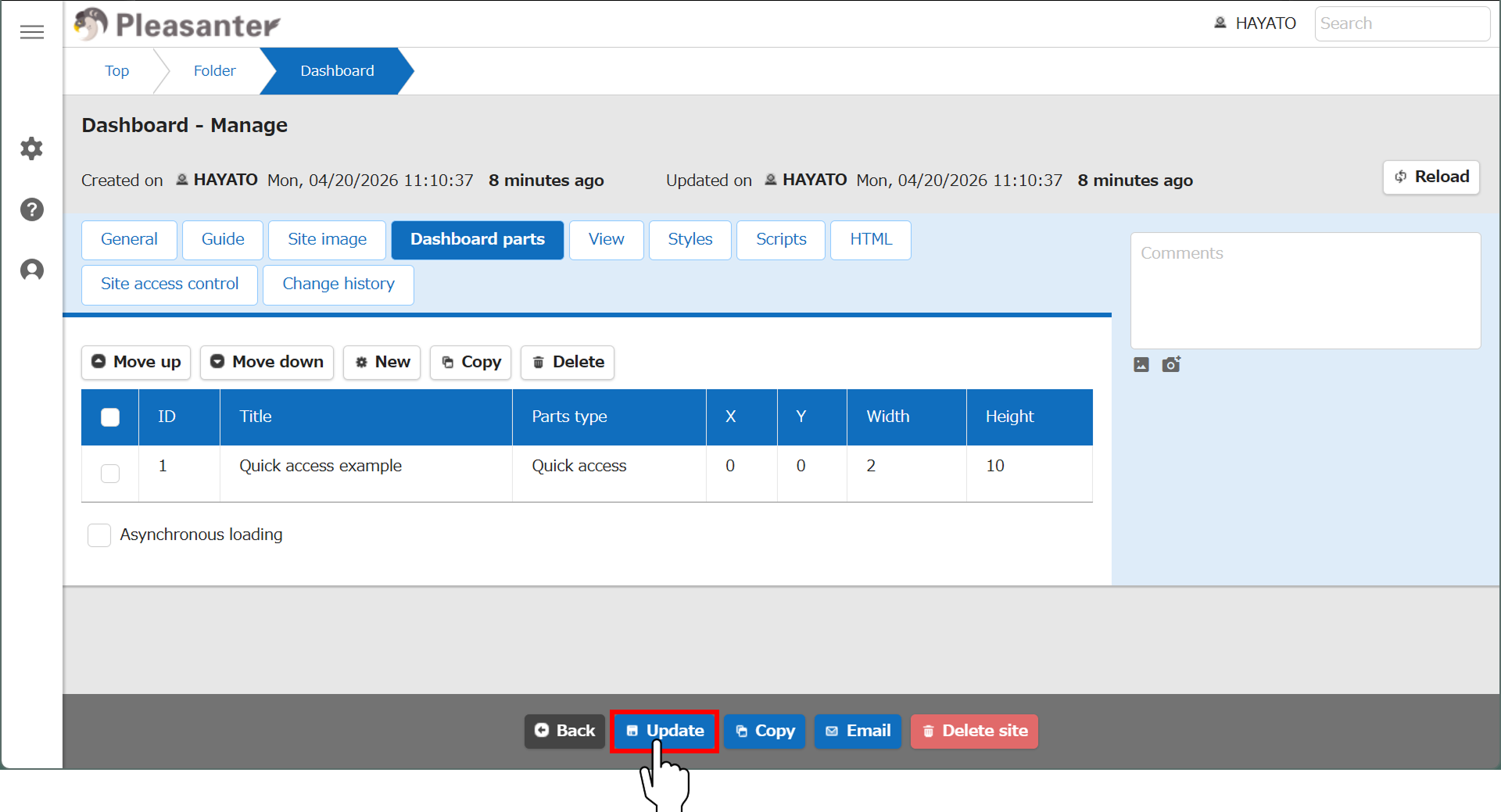
- Check the message and click the "Back" button at the command button area.

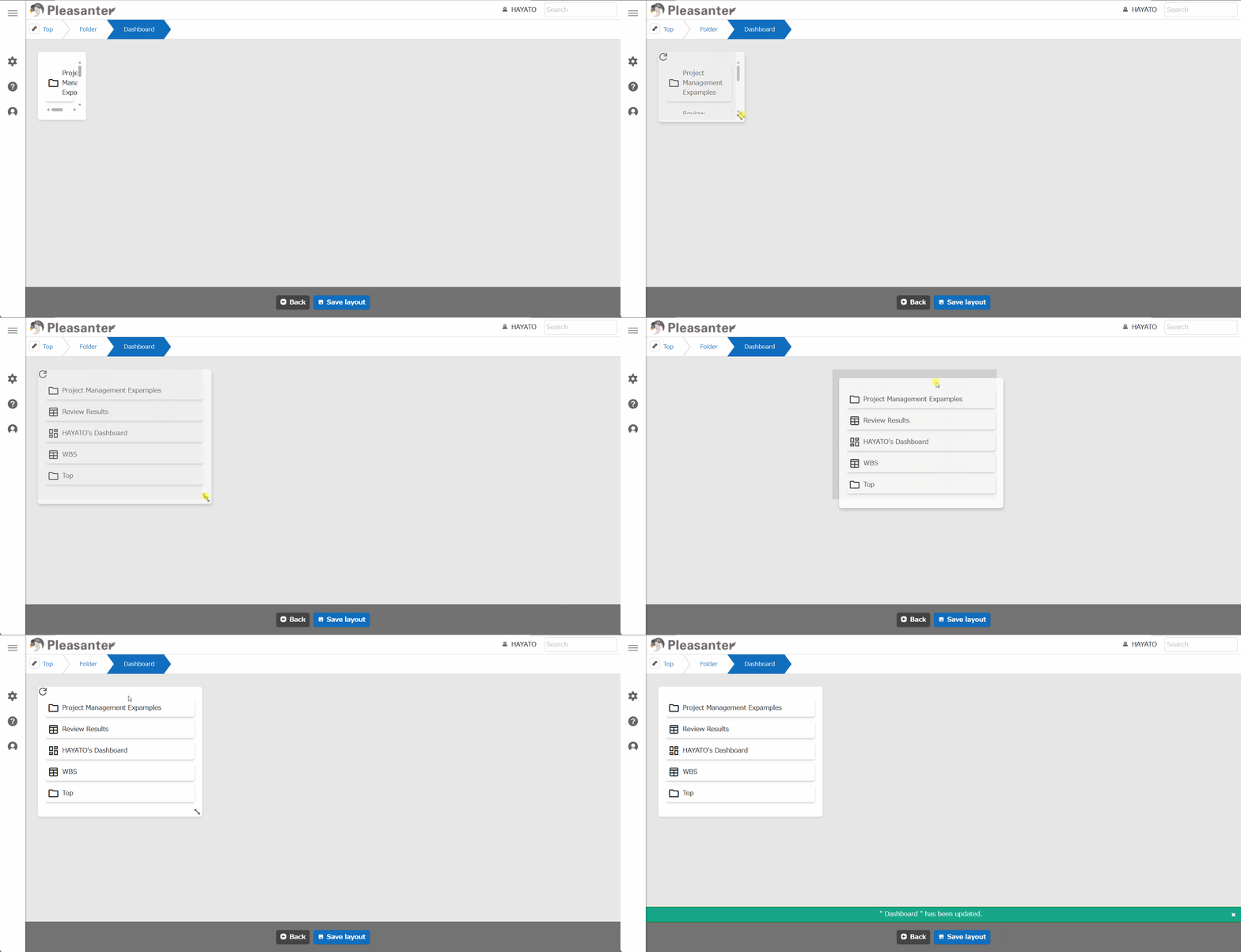
- When you move the cursor over the "Quick access" part, an arrow icon will appear in the bottom right. You can freely change the part size by placing the cursor on the arrow icon and dragging it. Once you have decided on the size, click "Save layout" button at the command button area.
You can set icons, display guides, rearrange, and more for the dashboard you created. See below for details.
- Site Functions: Breadcrumb list
- Site Function: Creating New Business Applications (Custom App)
- Site Function: Delete Site
- Site Function: Site Copy
- Site Function: Delete Site from Recycle Bin
- Site Function: Restore Site From Recycle Bin
- Site Function: View And Change Site Settings
- Site Function: Guide Settings
- Site function: Simple Mode
- Site Function: Set and Delete Site Images
- Site Function: Toggle Display of Site Information
- Site Function: Export Site Package
In addition to Quick access, you can add Timeline, Custom, and Custom HTML parts. For details, please see below.
- Dashboard Function
- Dashboard Function: Add Parts: Index
- Dashboard Function: Add Parts: Kanban
- Dashboard Function: Add Parts: Timeline
- Dashboard Function: Add Parts: Custom
- Dashboard Function: Add Parts: Custom HTML