Screen Layout and How to View
We will explain the layout and display of the Pleasanter screen.
Home page
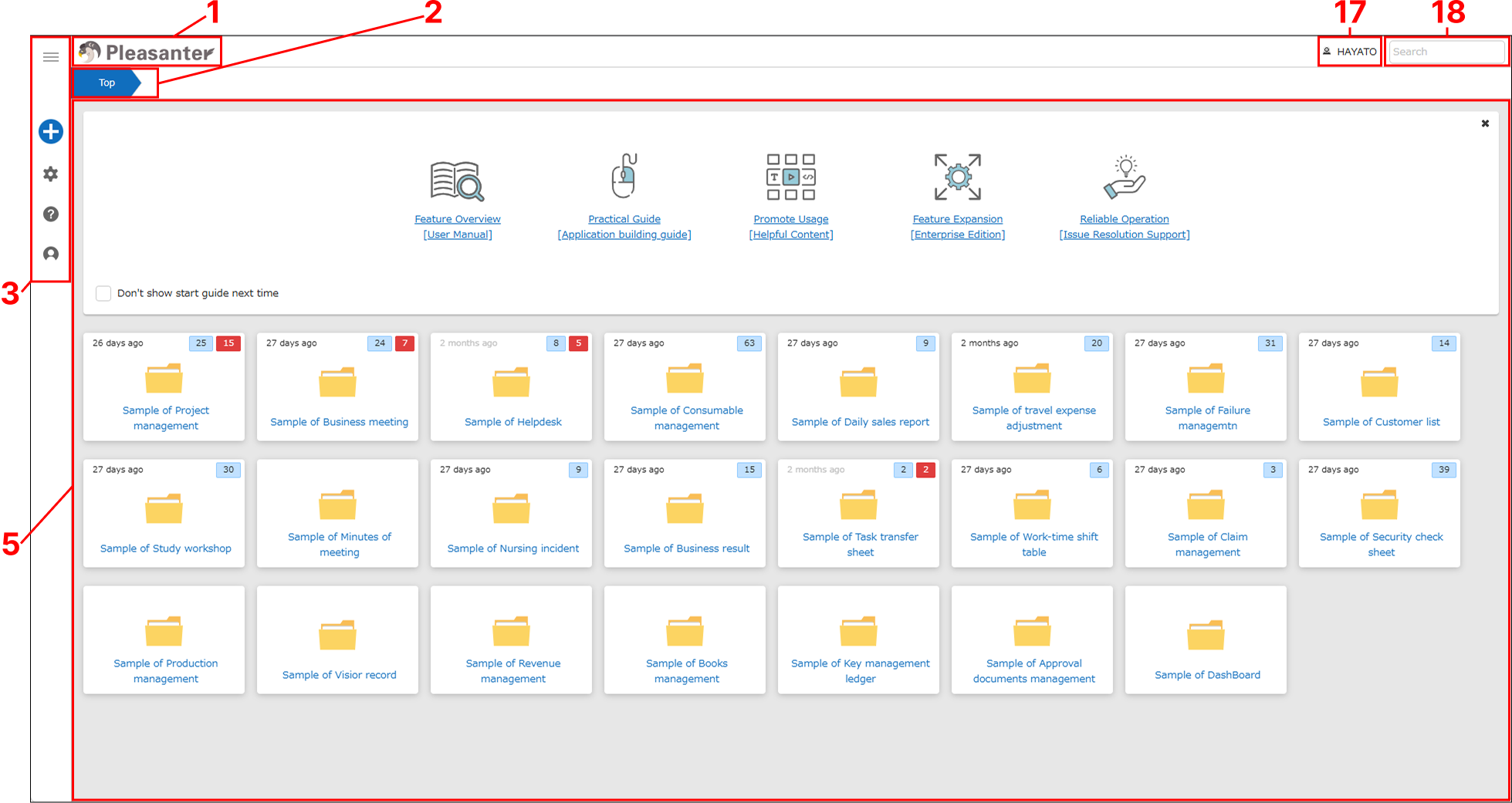
Site menu page
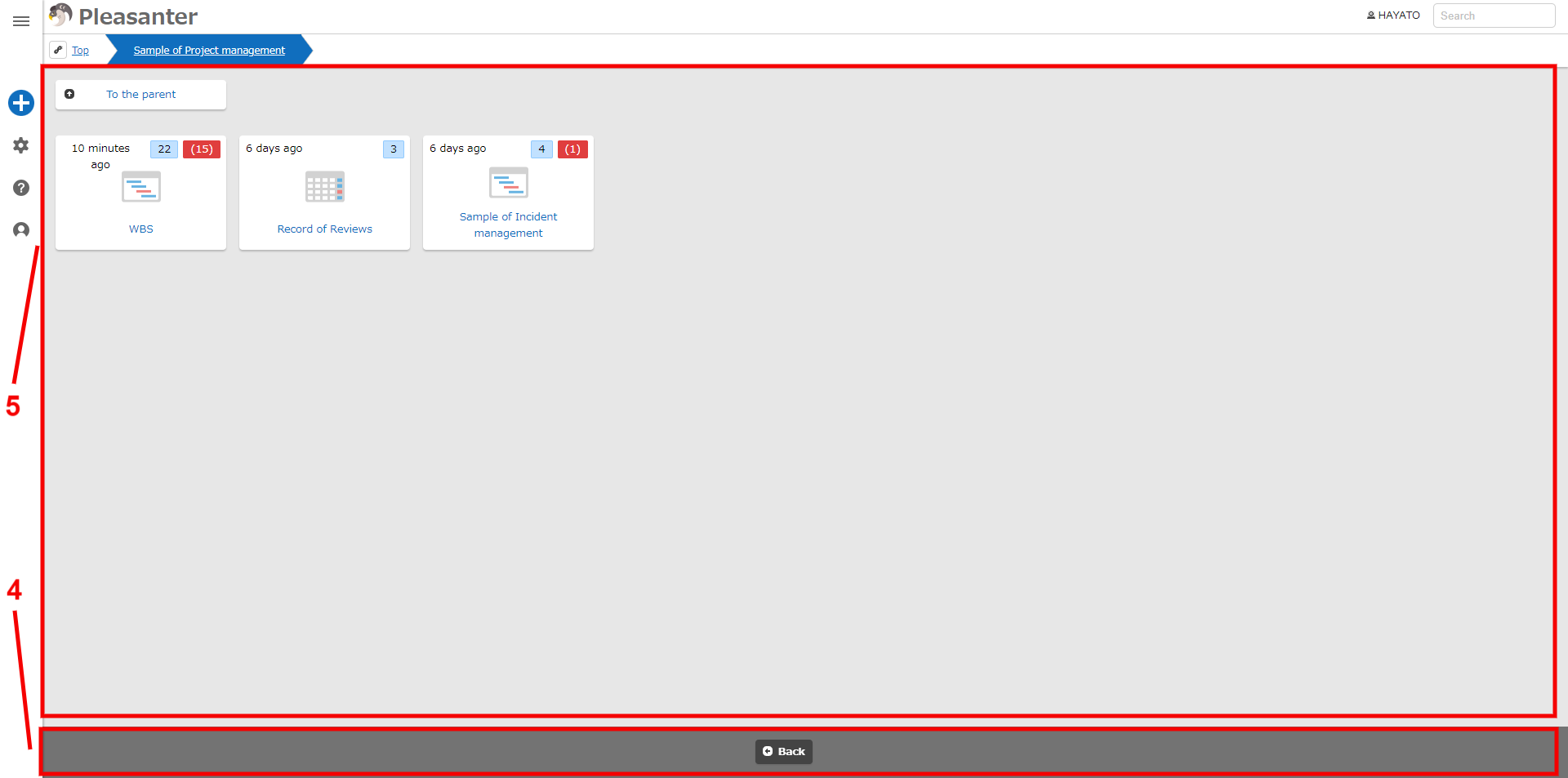
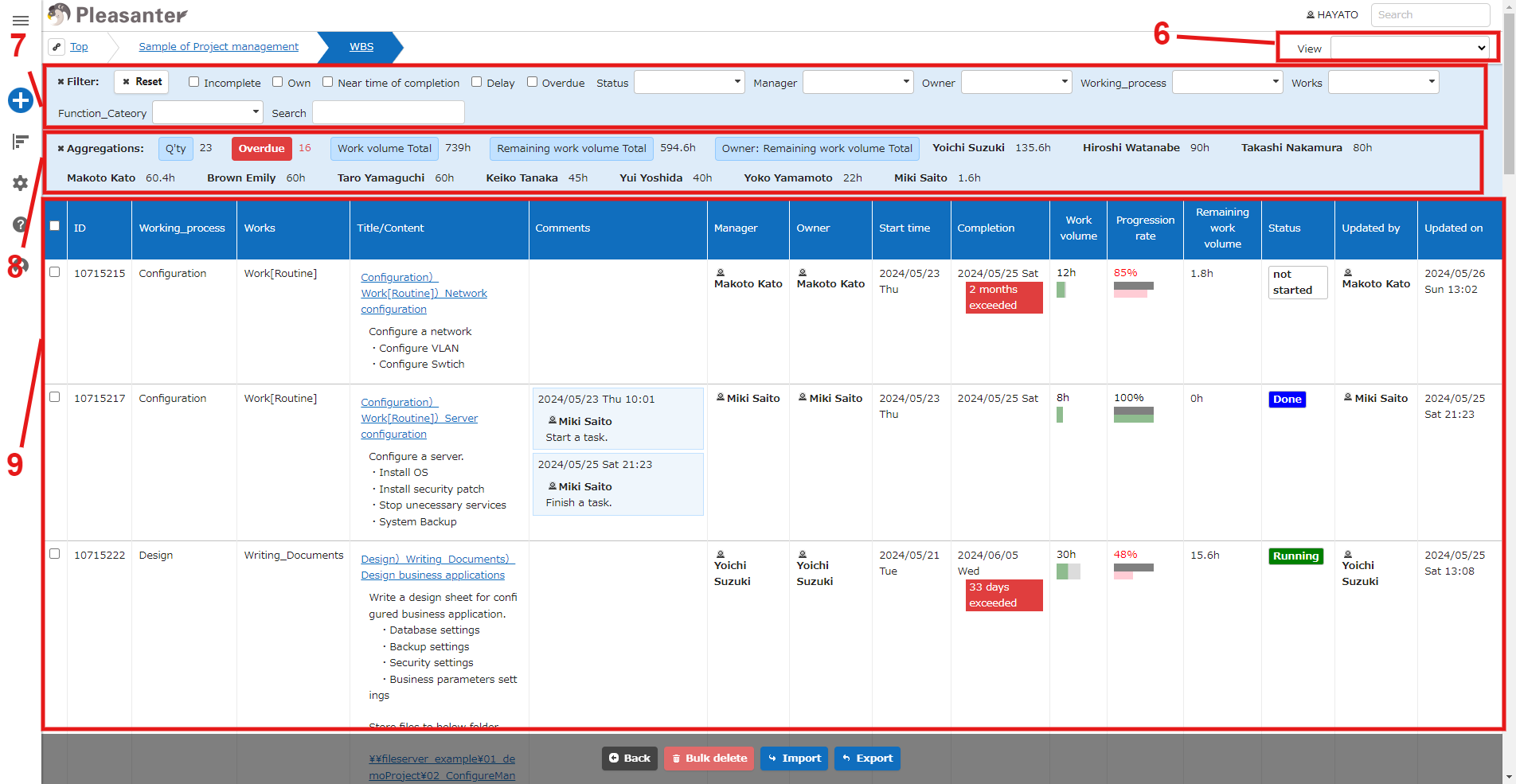
Grid page
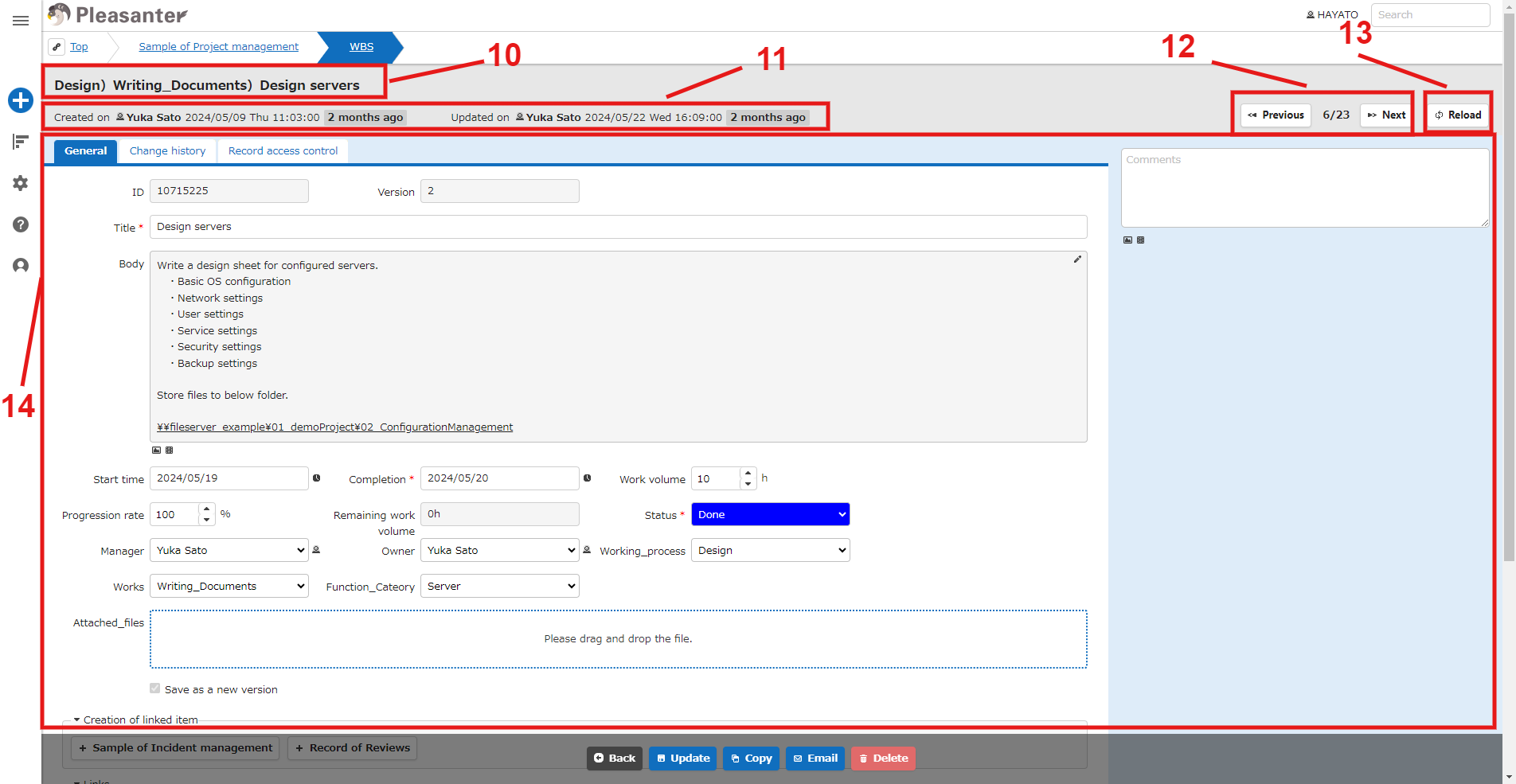
Edit page
Navigation menu
| No | Name | Description |
|---|---|---|
| 1 | Tenant name | Click to go to the top page. You can change the image and title text as desired using the "Tenant Management Function". |
| 2 | Breadcrumb list | Displays the position of the currently displayed page. |
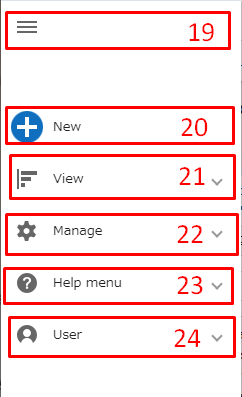
| 3 | Navigation menu | The navigation menu can be customized using Parameters and Extensions. 19: Hamburger button Click to open or close the navigation menu. You can also open it by clicking buttons No. 20 to 24. If the navigation menu is open, you can close it by clicking anywhere outside it. 20: New Displayed if you have site management permissions or table creation permissions. Click to move to the new site creation screen or new record creation screen. 21: View Displayed on the table grid screen. Displays a submenu of display formats such as lists and calendars. 22: Manage Displayed if you have site management permissions or tenant management permissions. Displays submenus for managing sites and tables, and for managing users, groups, departments, and tenants. 23: Help menu Displays submenus for links to our website, such as user manuals and annual support services, and for displaying the version of Pleasanter you are using. 24: User Displays submenus for logging out and editing users profile. |
| 4 | Command button area | This area displays buttons for each function on each screen, such as "Back" and "Update." Buttons are displayed according to various settings, such as access permissions, view settings, and adding process functions. |
| 5 | Site list | Displays a list of folders and sites on the top and site menu screens. On the site menu screen, folders are displayed "Up". |
| 6 | View selection | Displays a drop-down list if a view is created in Manage table. Search conditions and grid display content change depending on the settings of the selected view. |
| 7 | Filter | This area displays the condition of columns for record search. You can collapse it by clicking the "x" button. Filters can be set in Manage table. |
| 8 | Aggregation | This area displays aggregate values such as the number of columns, total, and average for each column. Click the "x" button to collapse it. You can set the aggregation in the Manage table. |
| 9 | Search Results List | Displays a list of records searched for using the conditions entered in the filter. |
| 10 | Title | Record title. When creating a new record, "Create New" is displayed. |
| 11 | Creator/Updater Information | Displays the record creator, creation date and time, updater, and update date and time. |
| 12 | Record Movement Buttons | Displays buttons to move to the previous record and next record. (1)Previous Button Move to the previous record. (2)Next Button Move to the next record. (3)Number of Records, Current Position Number of Records: Displays the number of records to be displayed on the grid screen. Current Position: Displays the number of records from the top of the grid screen. |
| 13 | Reload Button | Reloads the screen. |
| 14 | Display Area | This is the area where you lay out the input columns. (1)Tab area "General" and "List of change history" are displayed as default tabs. The name of the "General" tab can be modified in Manage table. You can also add any tab they like. The "Record Access Control" tab is only displayed to you who have permission to change. |
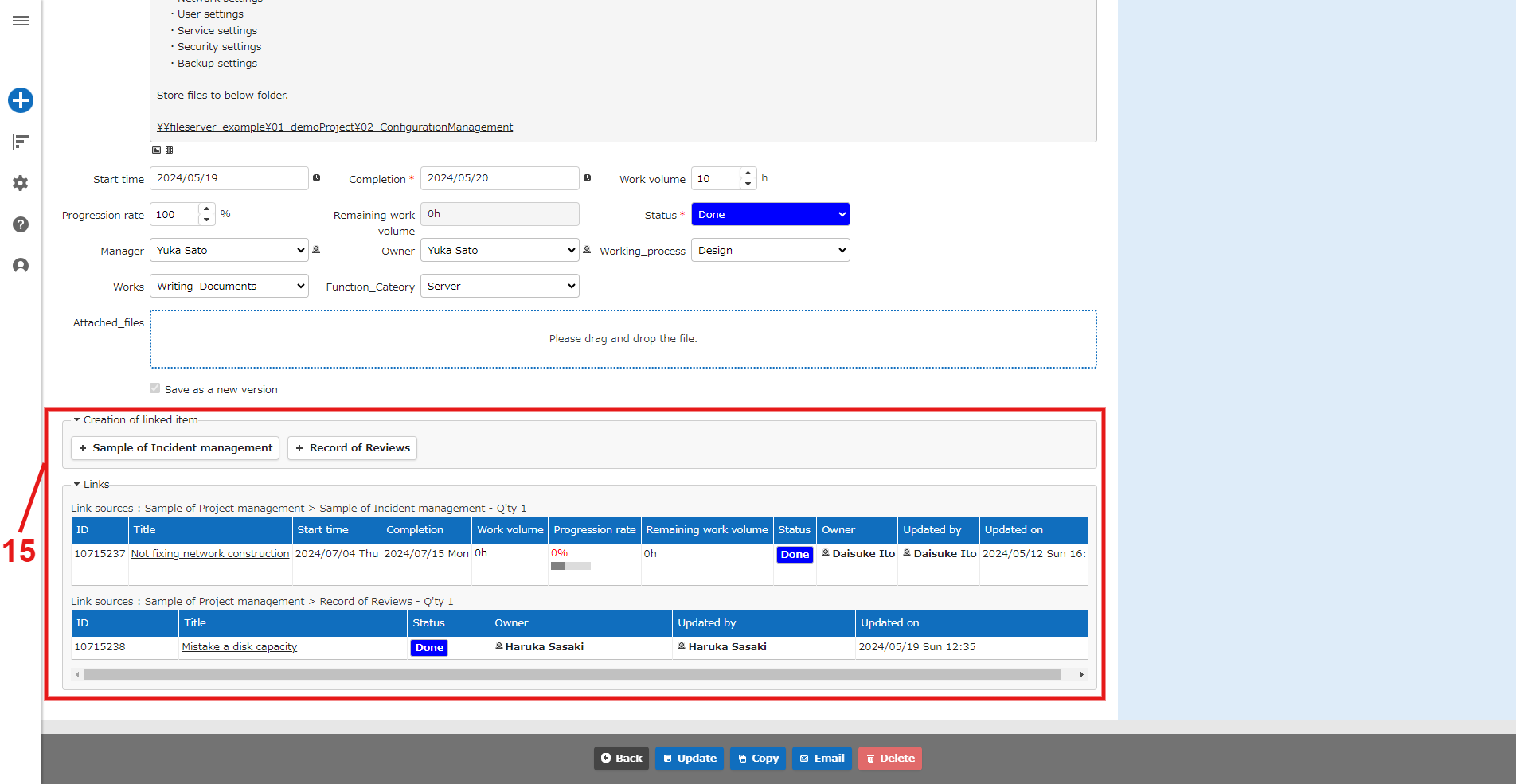
| 15 | Link table area | Displays a list of parent and child tables set with the "Link" function, as well as a button to create new tables for child tables. |
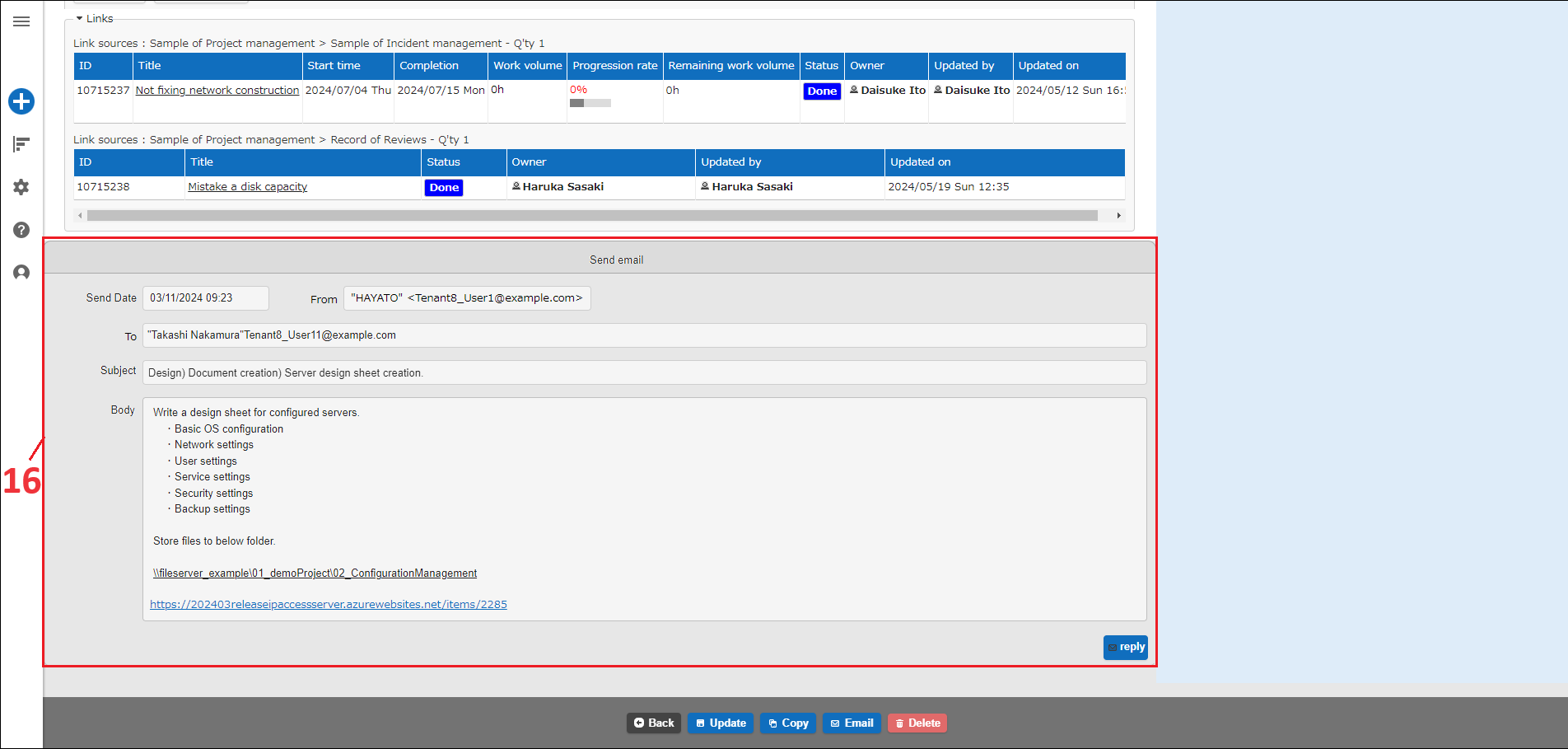
| 16 | Email sending history area | Displays the history of emails sent with the "Email" function. |
| 17 | Login user name | Displays the login user name. |
| 18 | Cross-search text box | Performs a search on all data registered in Pleasanter. |