Add Columns to Remaining Work Volume
<< Return to Operation Guide Index
Add columns to be displayed on the list screen
Preparations
A table is required to add columns to be displayed on the list screen. If you have not created one yet, please refer to Create Table to create one.
About columns displayed on the list screen and edit screen
In this manual, we will add columns to be displayed on the list screen. If you want to add columns to be displayed on the edit screen, please refer to Add Columns on The Edit Screen (New Creation Screen).
Manual
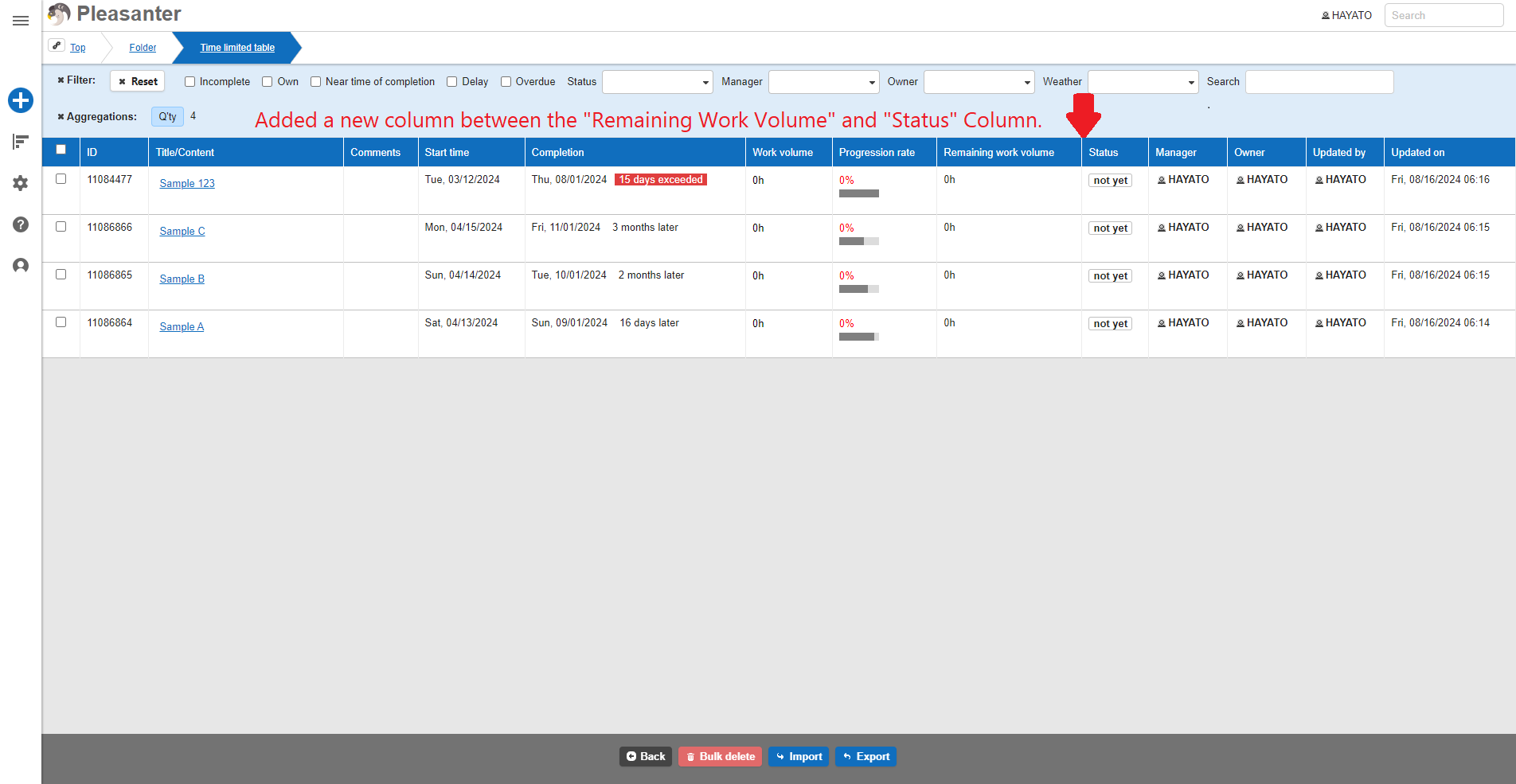
- Add a new column between the "Remaining Work Volume" and "Status" columns displayed on the list screen.
- Click "Manage Table" from the "Navigation" menu.

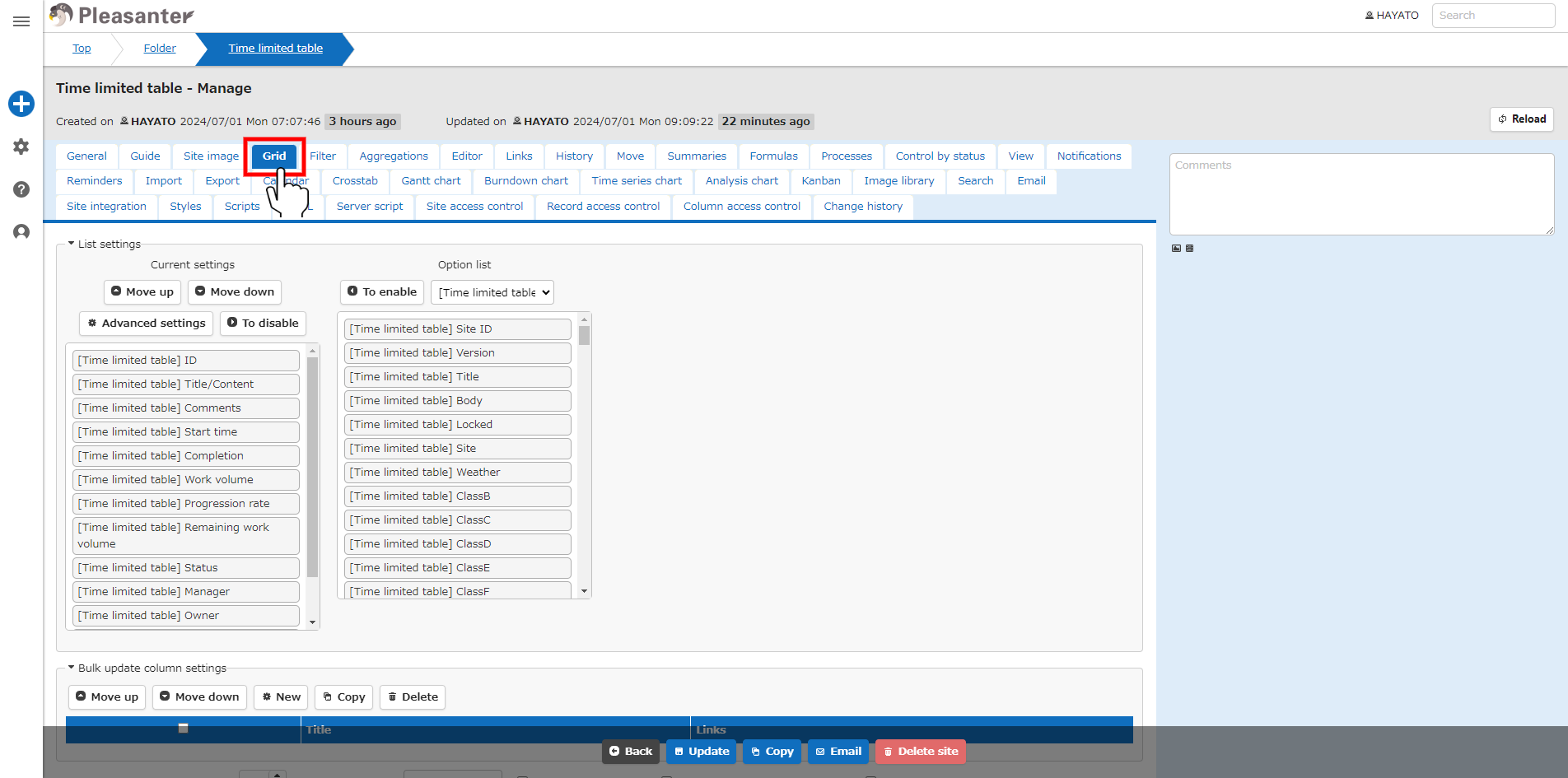
- Click the "Grid" tab.
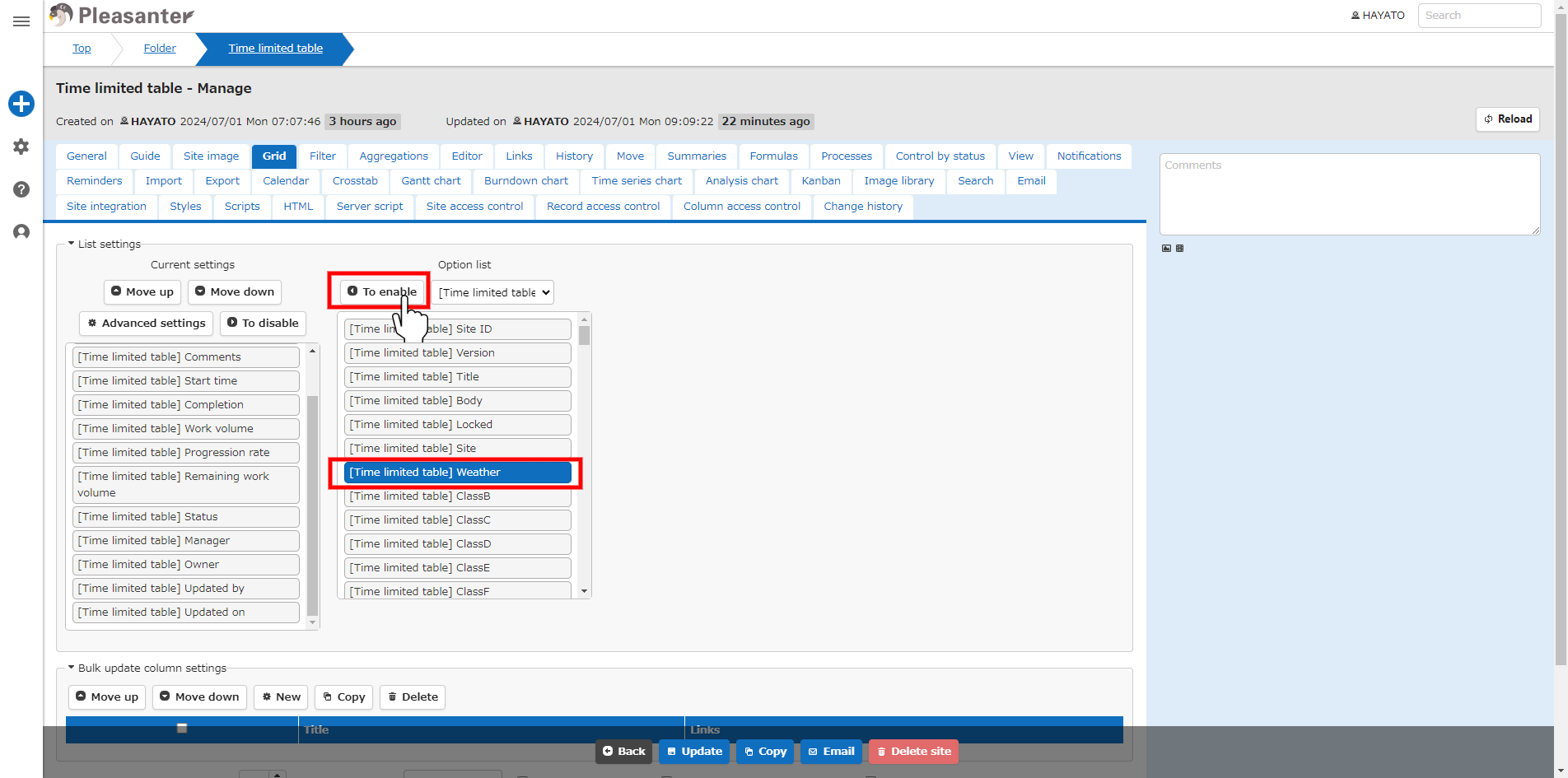
- Select the column to be added from the "Option List" and click the "Enable" button.
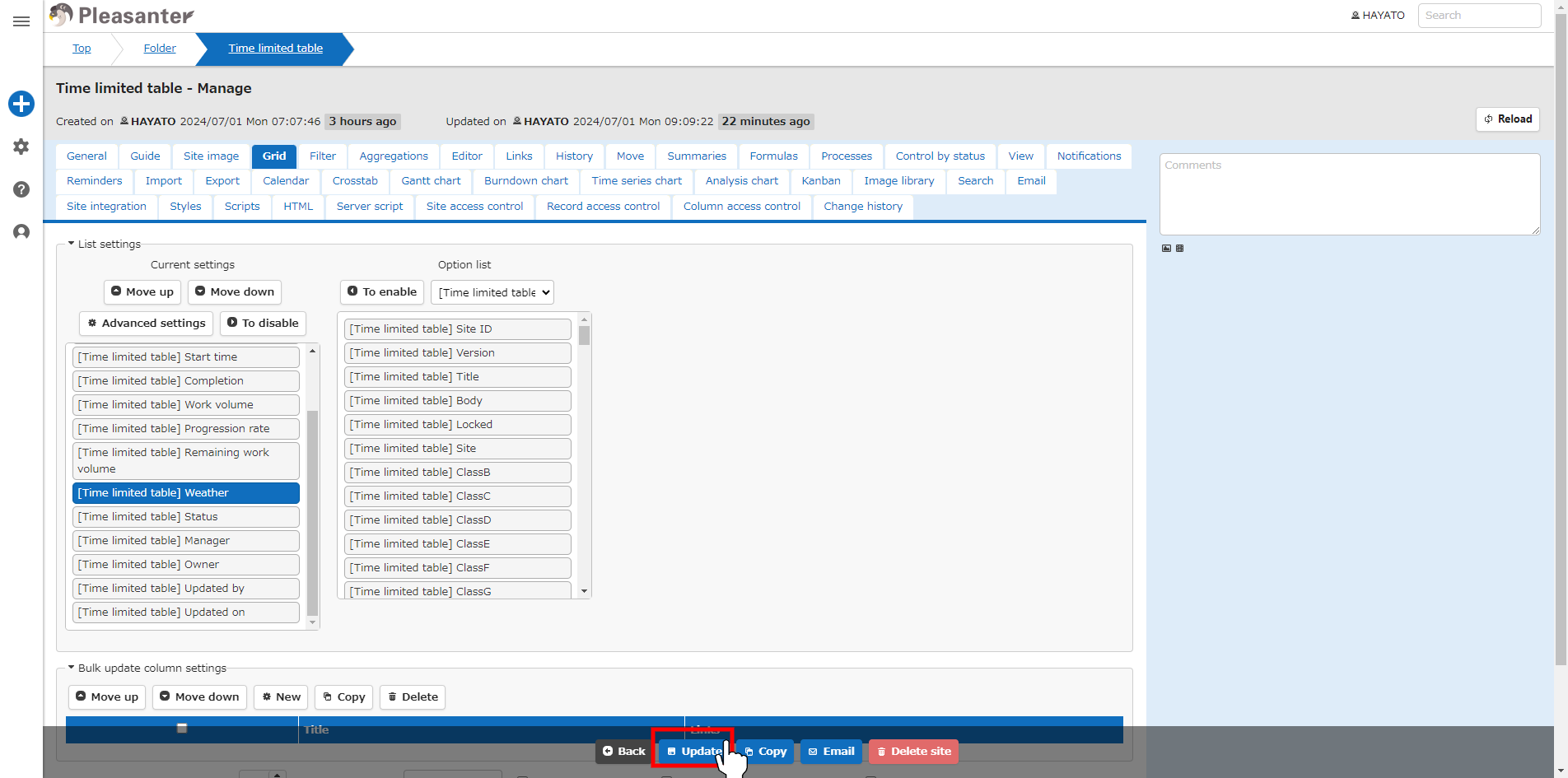
- Use the "Up" and "Down" buttons to move the column added to "Current Settings" between the "Remaining Work Volume" and "Status" columns, and click the "Advanced Settings" button.

- Set the "Name Displayed" and click the "Change" button.

- Click the "Update" button at the bottom of the screen.
- Check the message and click the "Back" button at the bottom of the screen.
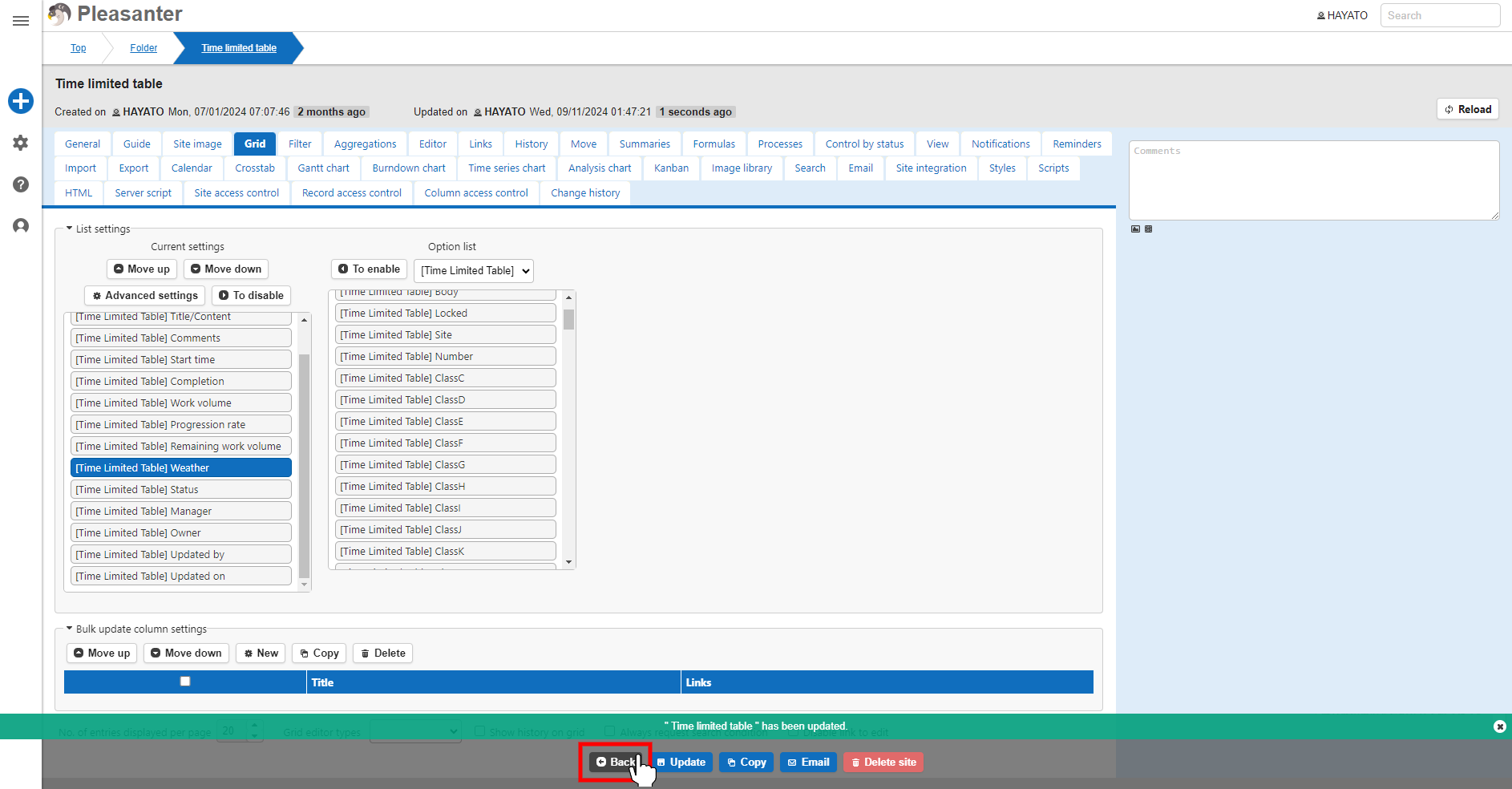
- This completes the addition of columns to the list screen.
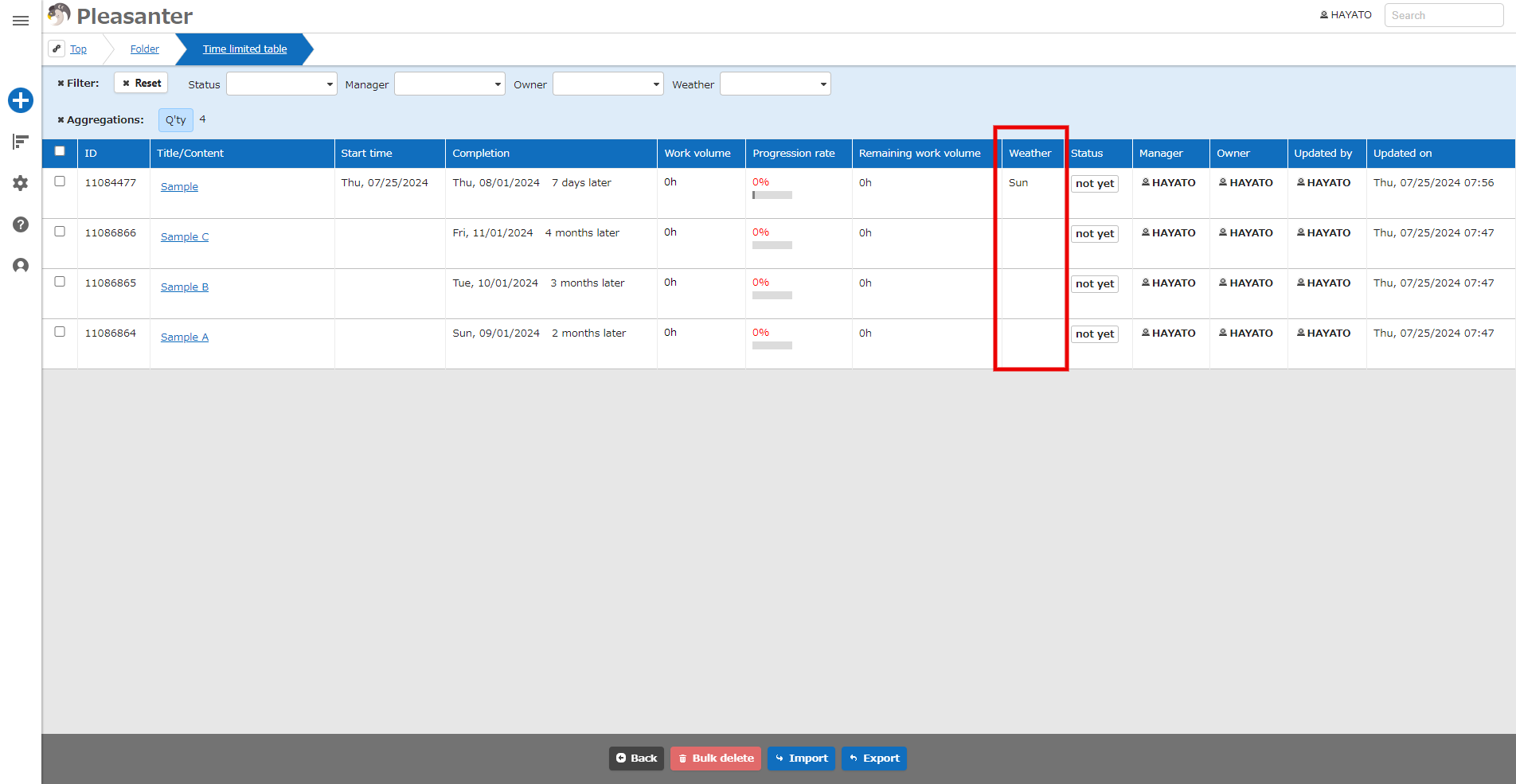
For details on adding columns to be displayed and setting up the list screen, please refer to the below.
- Manage Table: Screen Index: Column Advanced Settings: Wrap text by cell width
- Manage Table: Screen Index
- Manage Table: Screen Index: Screen Index Column Settings
- Manage Table: Screen Index: Column Advanced Settings
- Manage Table: Screen Index: Column Advanced Settings: Cell width
- Manage Table: Screen Index: Column Advanced Settings: Sticky on left edge
- Manage Table: Screen Index: Column Advanced Settings: Name Displayed on Screen
- Manage Table: Screen Index: Column Advanced Settings: Grid Format
- Manage Table: Screen Index: Column Advanced Settings: Cell CSS
- Manage Table: Screen Index: Column Advanced Settings: Use Custom Design
- Manage Table: Screen Index: Number of Items Displayed per Page
- Manage Table: Screen Index: Default View
- Manage Table: Screen Index: Index Edit Type
- Manage Table: Screen Index: Display History on the Index
- Manage Table: Screen Index: Always Request Search Conditions
- Manage Table: Screen Index: Bulk Update of Multiple Columns
- Manage Table: Screen Index: Disable Link to Edit Screen
- Manage Table: Screen Index: Open Editing Screen In New Tab
- Manage Table: Screen Index: Open Editing Screen In New Tab