Import a Record
<< Return to Operation Guide Index
Bulk add records
Use the CSV import/export function to bulk add/update records.
Preparations
To add or update records in bulk, you need a table.
If you haven't created one yet, please refer to "Create a table" to create one.
Manual
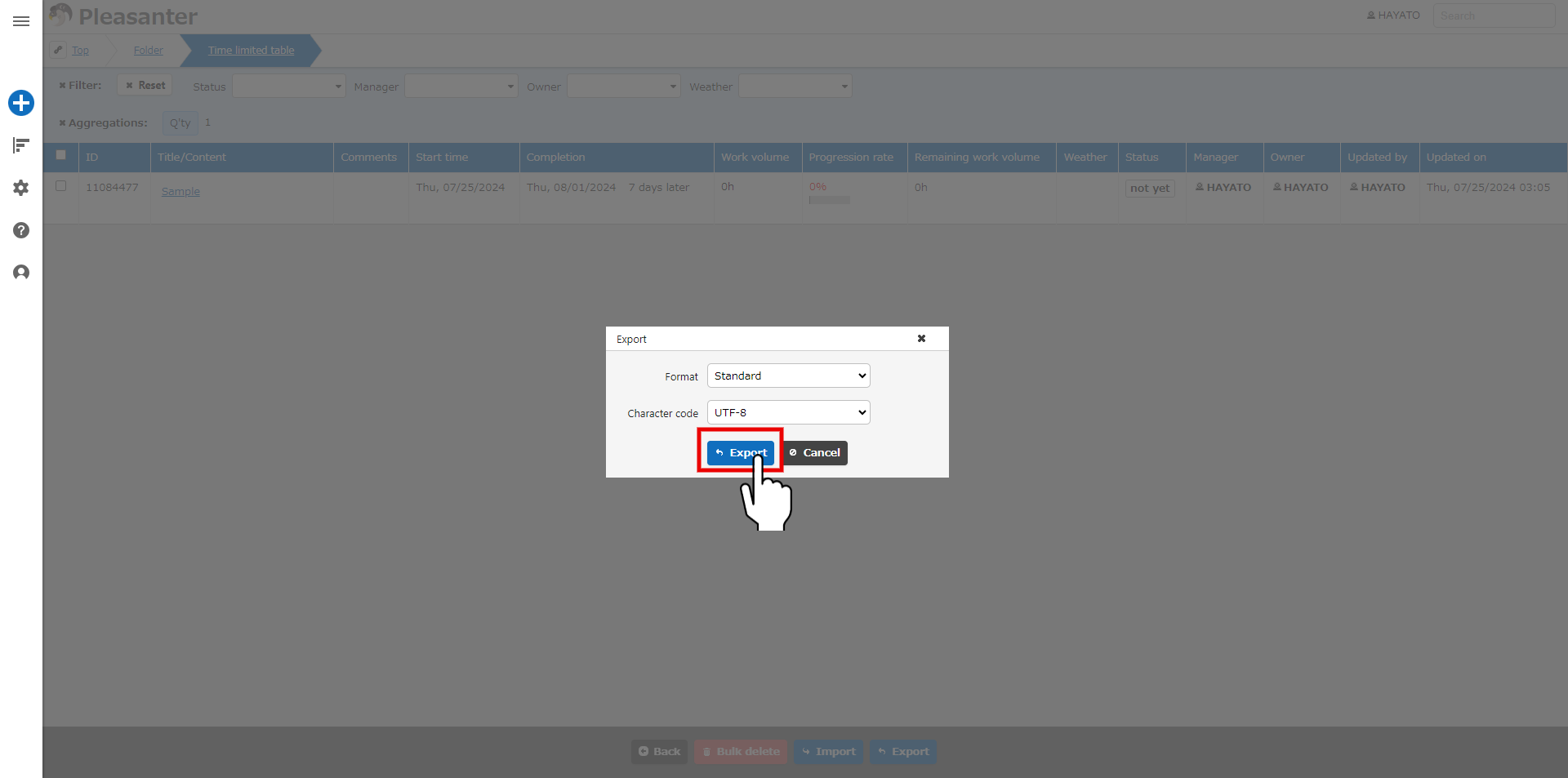
- Go to the target table and click the "Export" button at the bottom of the screen.

- Select "Format" in the dialog and click the "Export" button.
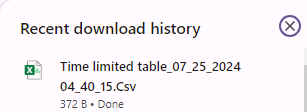
- Check that the file has been downloaded. (The method for checking the downloaded file varies depending on the browser you are using)
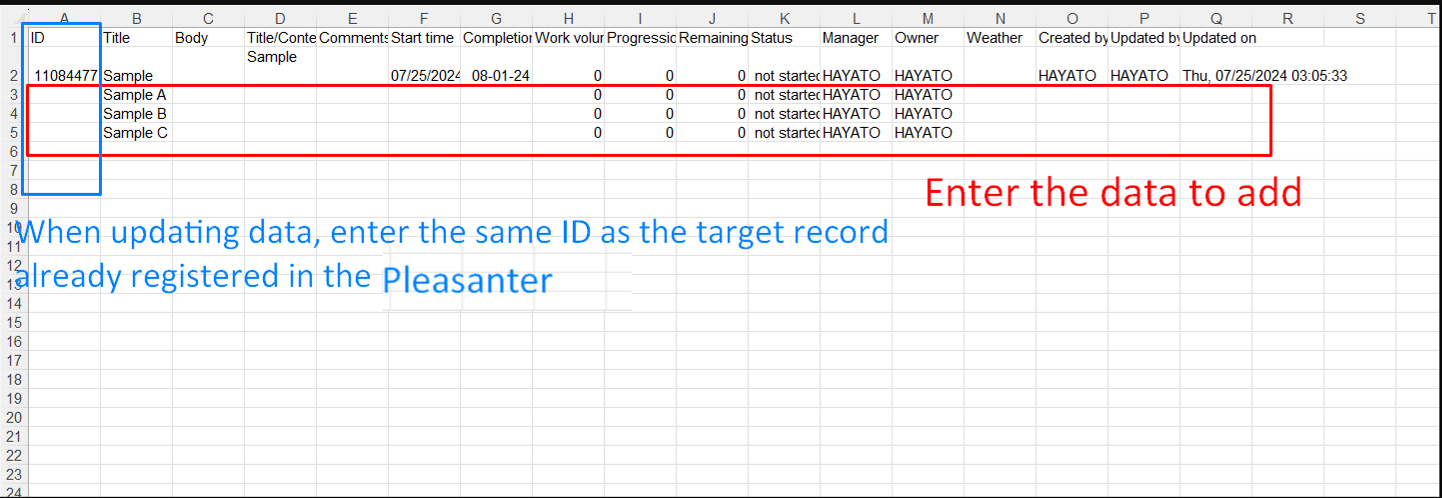
- Add the records you want to add to the exported file and save it.
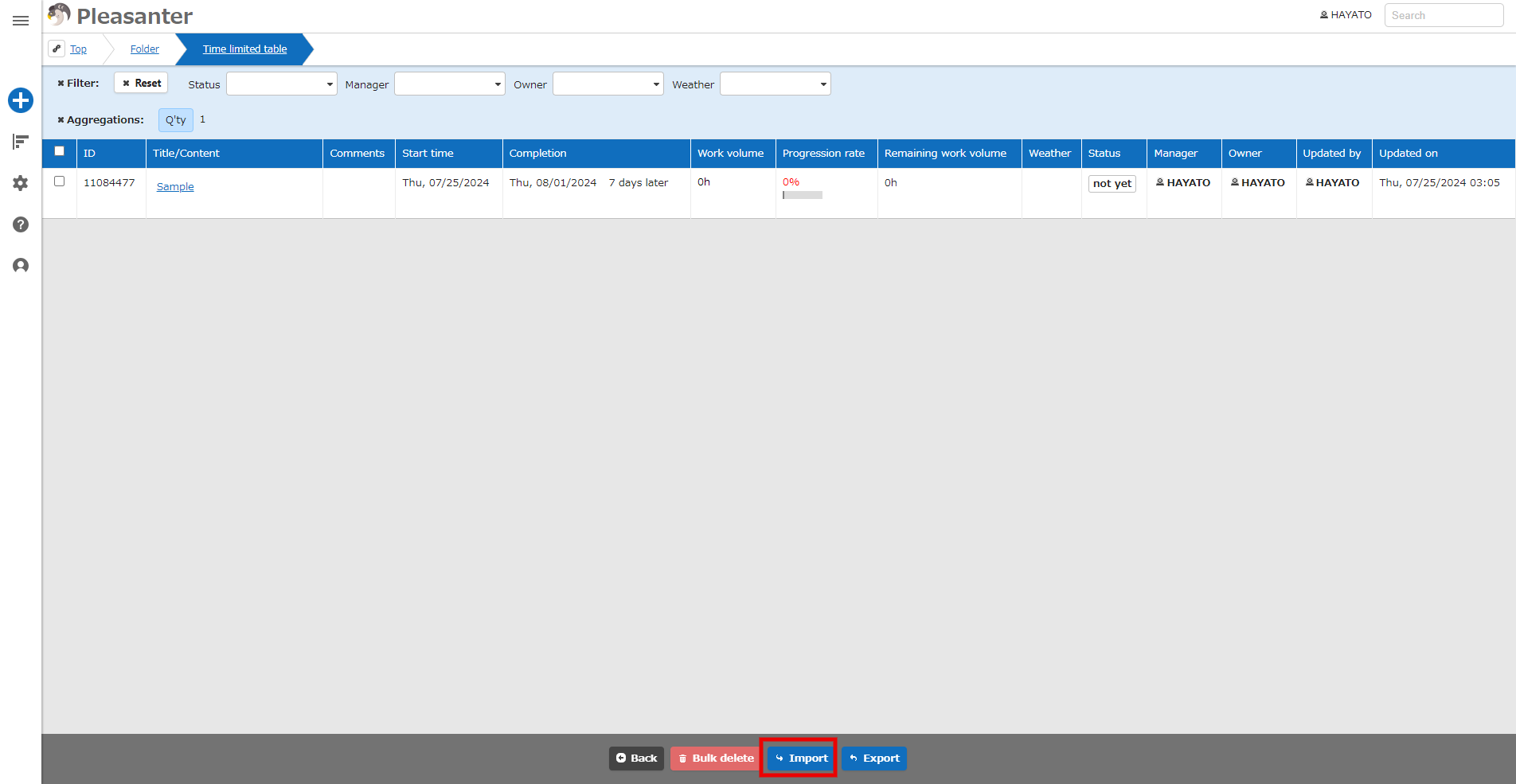
- Click the "Import" button at the bottom of the screen.
- In the dialog, set "CSV file" and "Character code", check the "Update records with matching IDs" checkbox, and click the "Import" button.
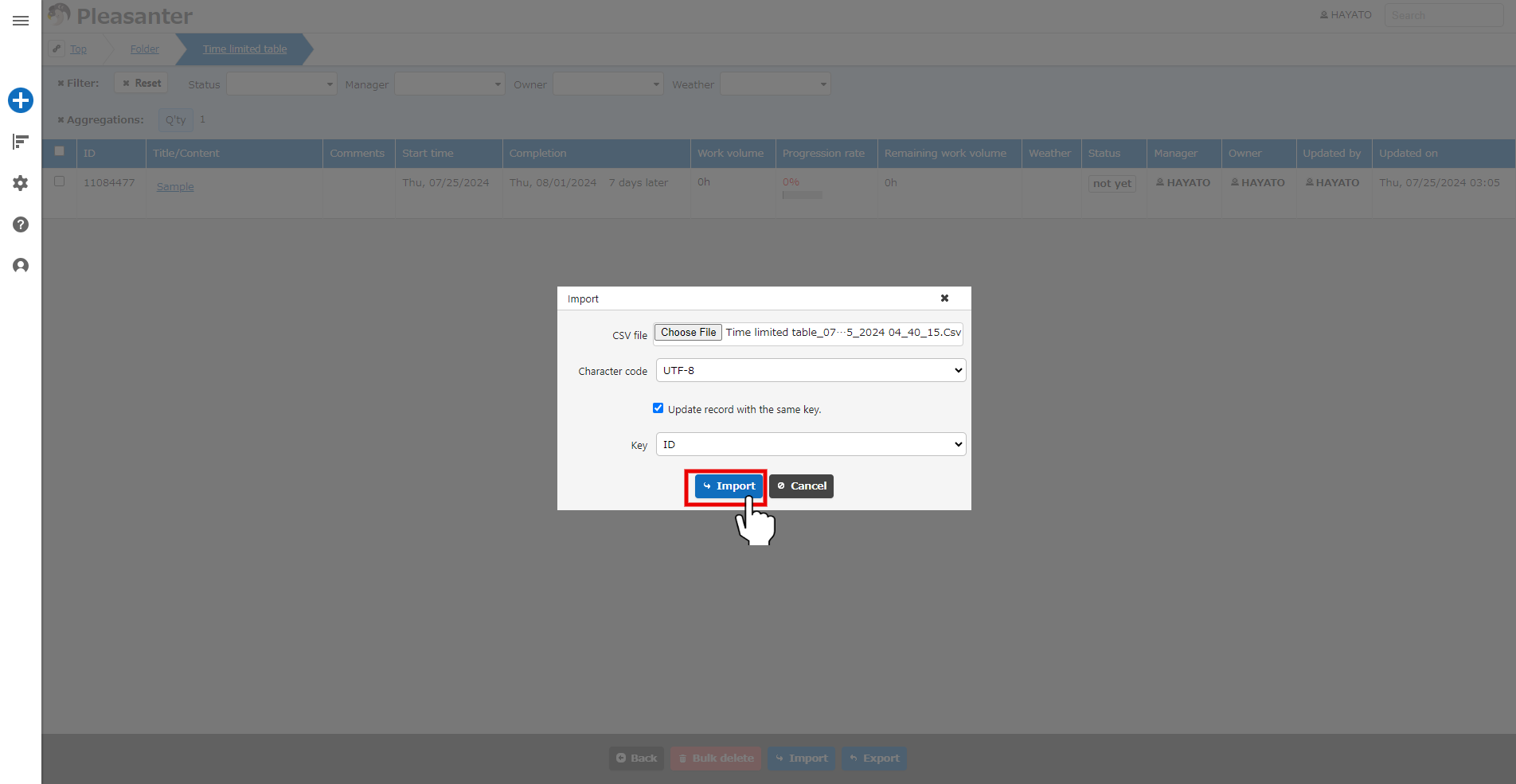
- Once you have confirmed the message, the process is complete.
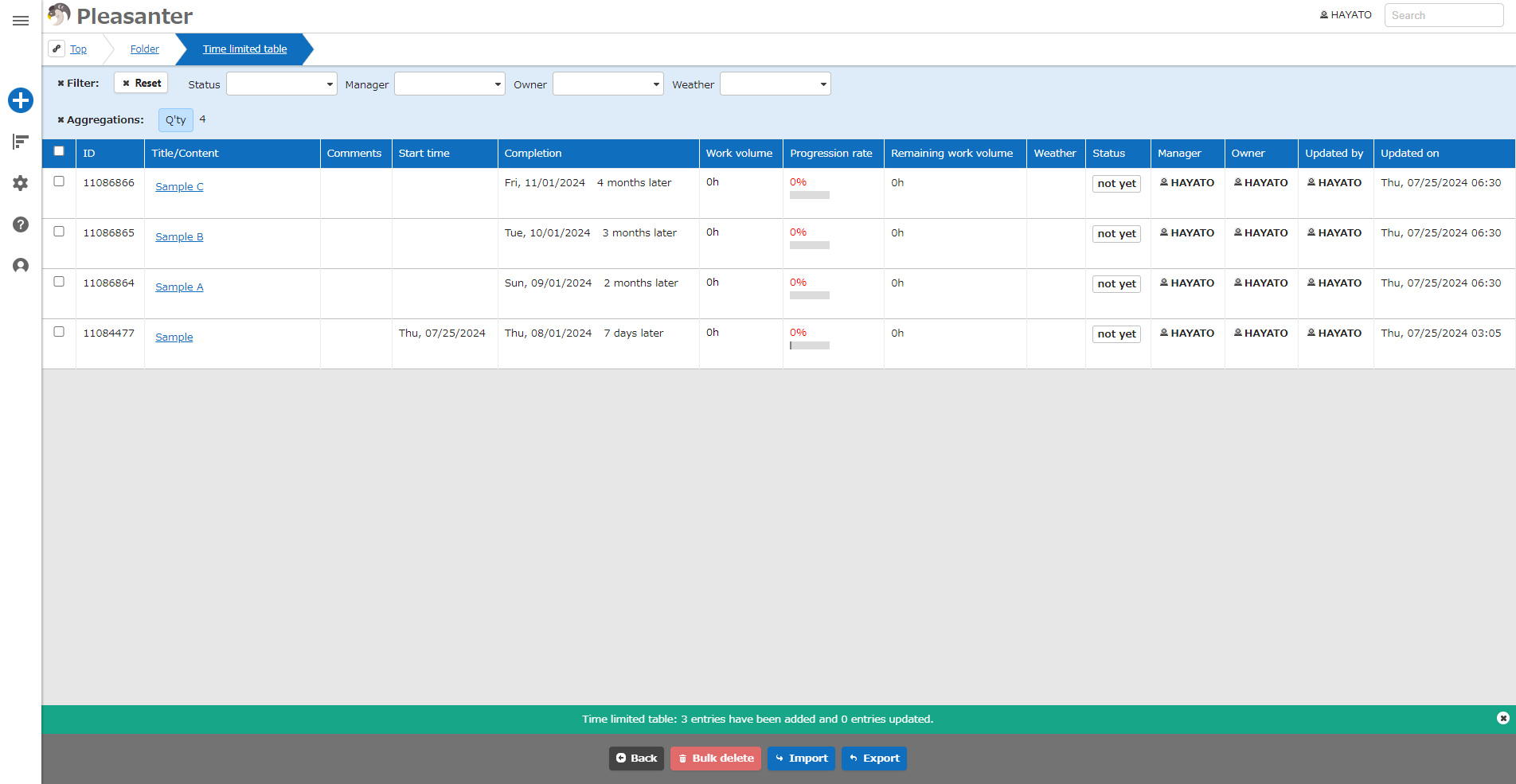
*Pleasanter.net can import up to 10,000 records in one import process.
If you want to import more than 10,000 rows of data, please import them in chunks of 10,000 rows.
For details on updating records in bulk, please see below.
- Basic Operation Guide Table of Contents
- Create a table
- Table Function: Export Records
- Table Function: Importing Records