Create a record
<< Return to Operation Guide Index
Preparations
To create a record, you need a table.
If you haven't created a table yet, please refer to "Create a table" to create one.
Manual
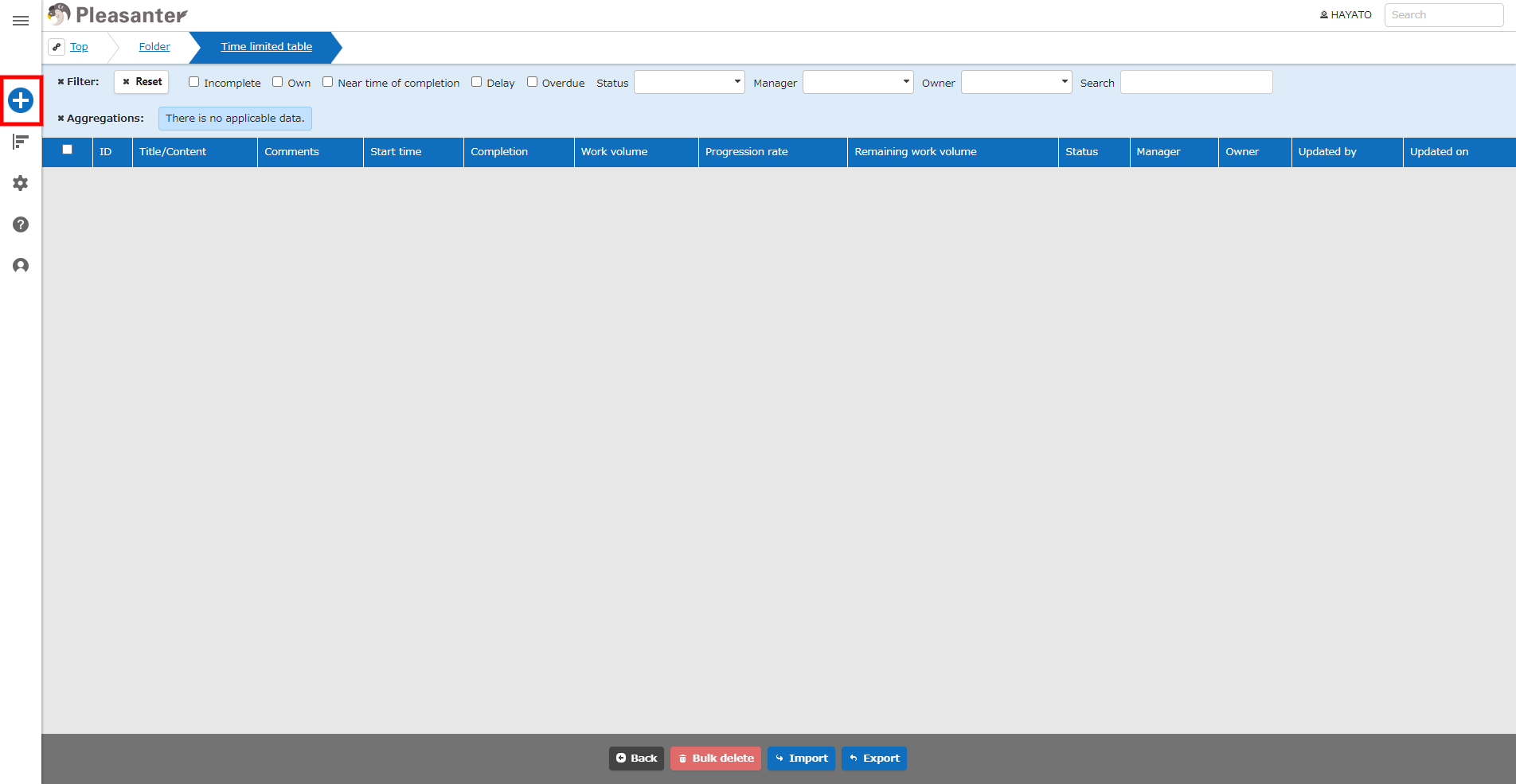
- In the table where you want to create a record, click "Create New" in the upper right corner of the screen.
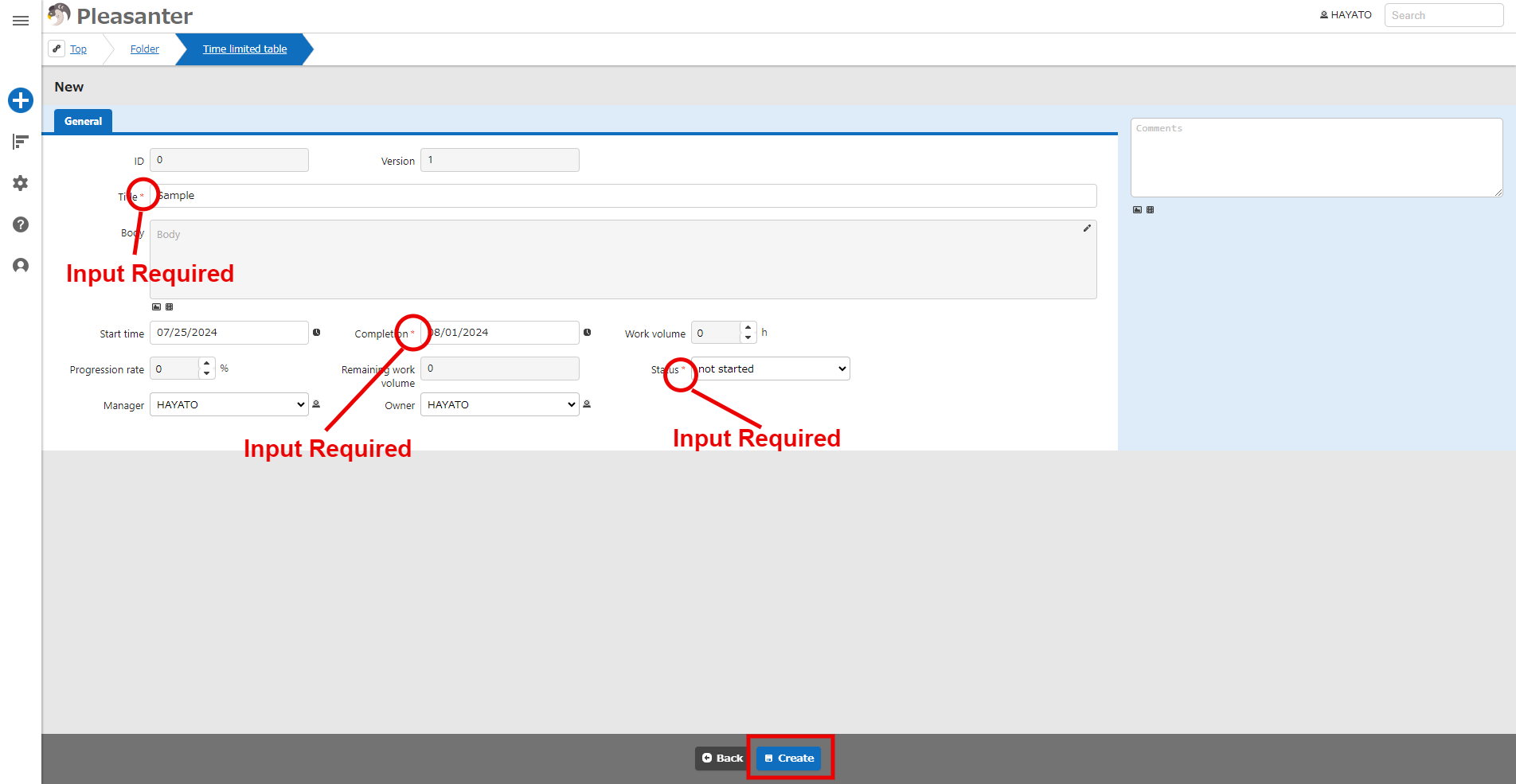
- Enter the columns on the Create New screen (columns marked with "*" must be filled in), then click "Create" at the bottom of the screen.
- Check the message and click "Back" at the bottom of the screen.
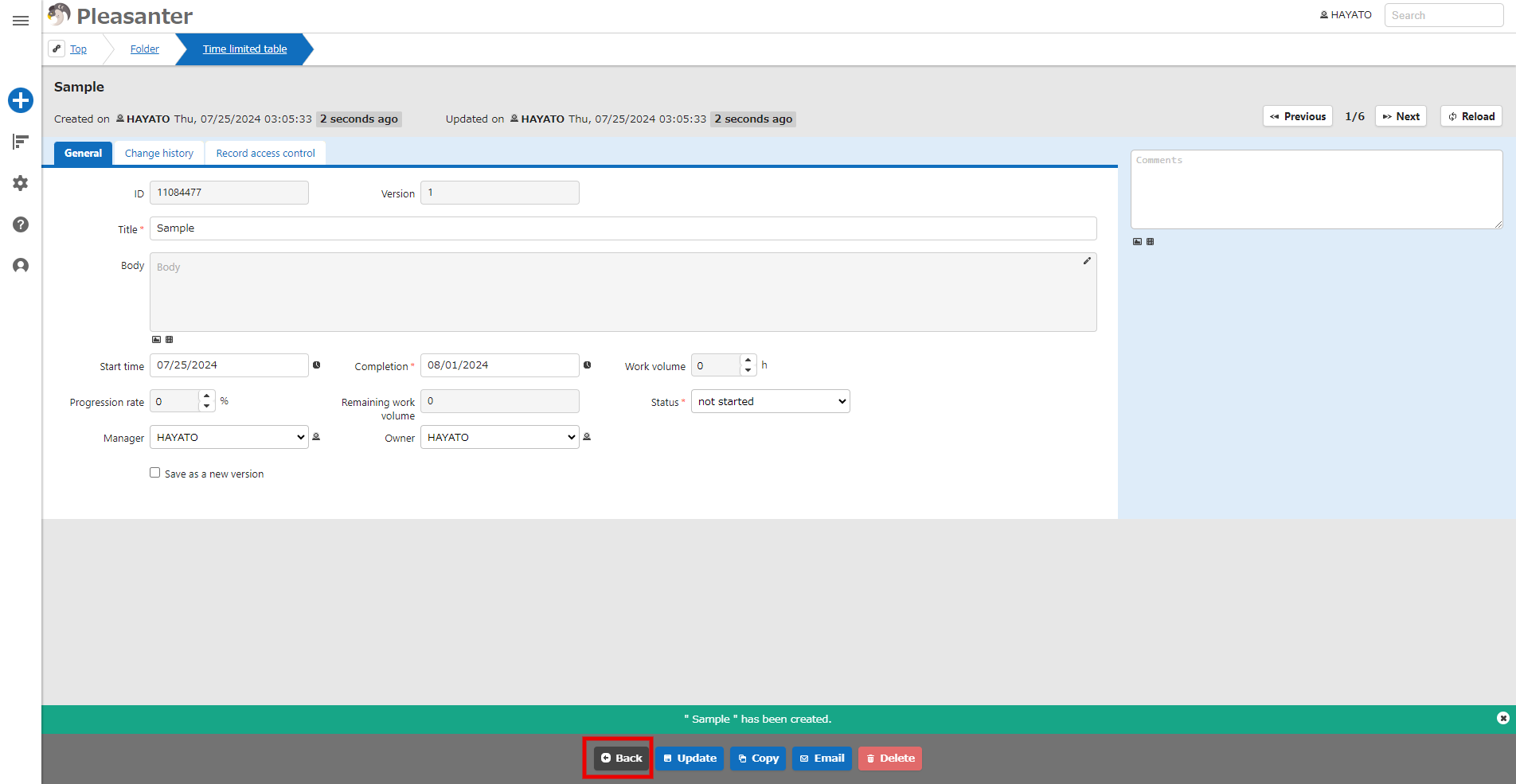
- The record is complete.

For details on creating records, see below.
Table Function: Create A New Record
Table Function: Upload Attachment File To Record
Table Function: Download Record Attachments
Table Function: Delete Record Attachment
Table Function: Register Image to Record