Update Records
<< Return to Operation Guide Index
Preparations
A record is required to update a record.
If you have not created a record yet, please refer to "Create a Record" to create one.
Manual
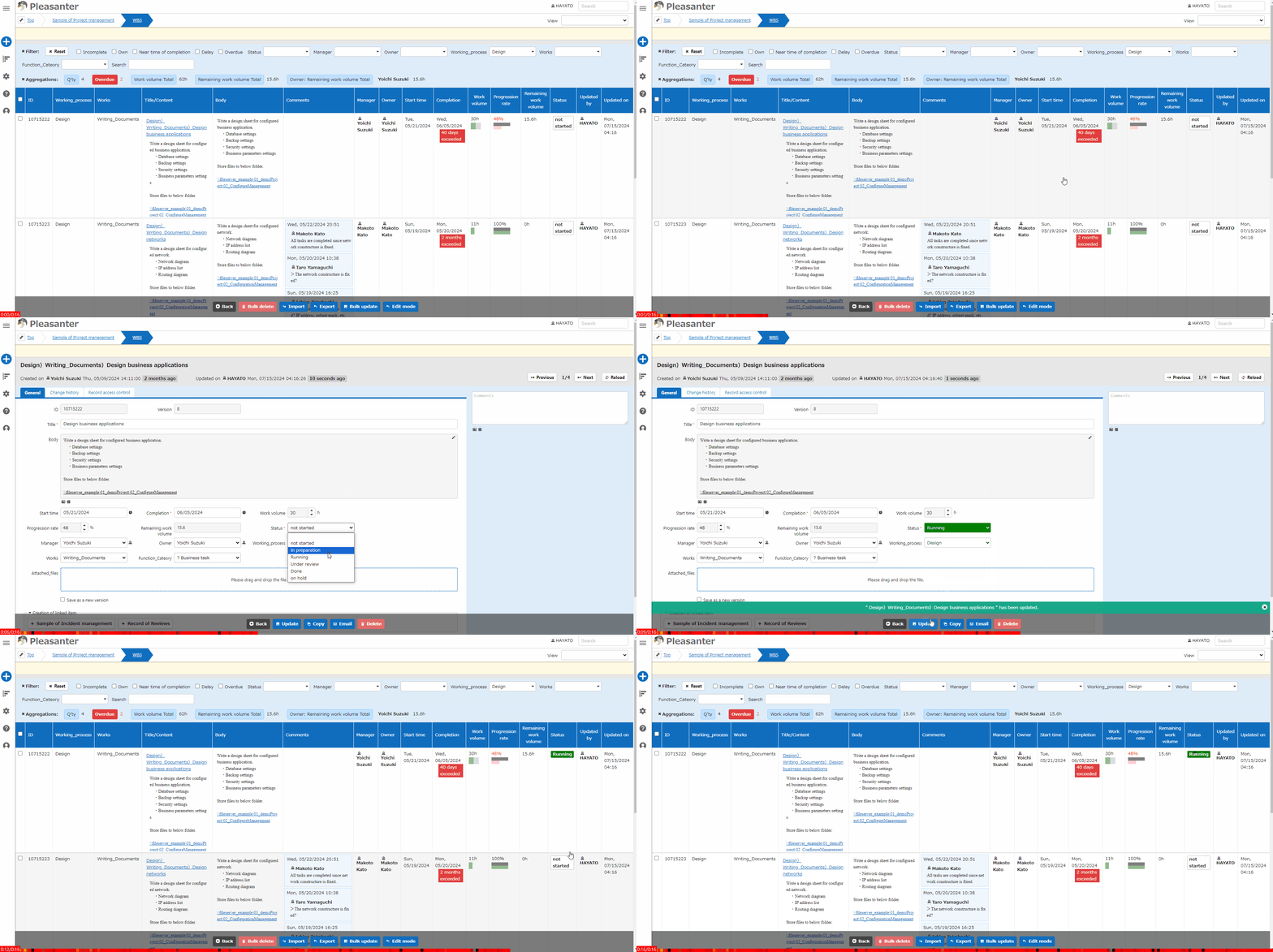
- Display the target record in the "Editor".
- Change each column and click the "Update" button.
- Check the message.
Change history and version
Version
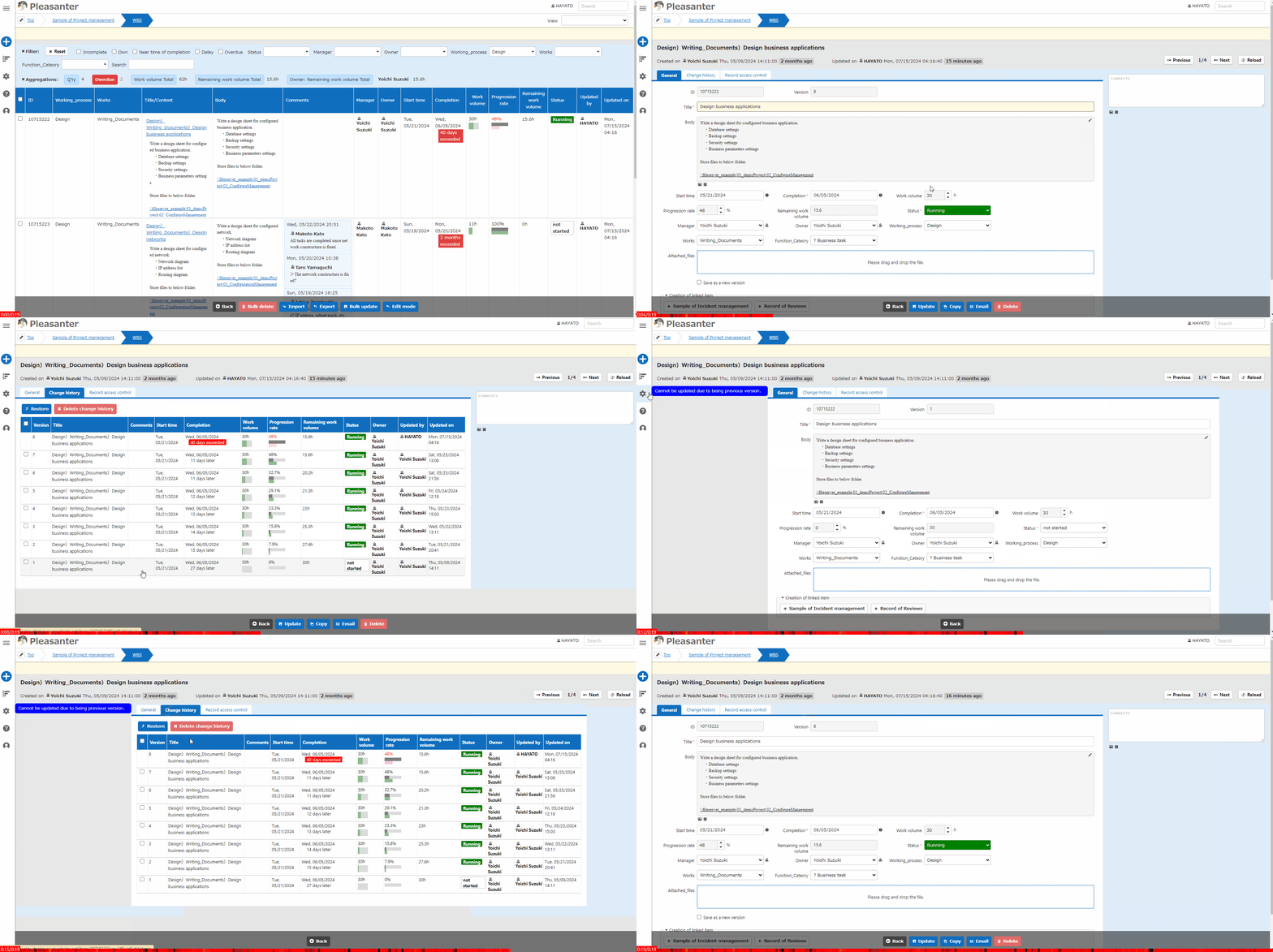
Pleasanter saves the change history when updating a record. When updating with "Save as a new version" at the bottom of the screen checked, the version number will automatically increase. The old record will also be saved as a change history. The default behavior for upgrading a record is to upgrade if the person who updated the target record is different from the operating user, or if the update date of the target record is different from the operation date. This behavior can be changed in the settings.
Change history
You can view the change history of a record by clicking the "Change history" tab. Click the history you want to check to view the history of the target version on the editing screen. History cannot be updated. History can be restored or deleted.
For details on updating records, please see below.
Table Function: Record Bulk Update
Table Function: Edit An Index Of Records
Table Function: Copy Records
Table Function: Divide Records
Table Function: Move Records
Table Function: Move Records In Bulk
Table Function: Lock Record
Table Function: Unlock A Record
Table Function: View Record Change History
Table Function: Restore From Record Change History
Table Function: Delete Record Change History