Editor: Column: Body
Overview
This article explains the column editing dialog for "Body" in "Smart Design". For details on "Body Column", please refer to the following page.
Manage Table: Items: Body
Settings
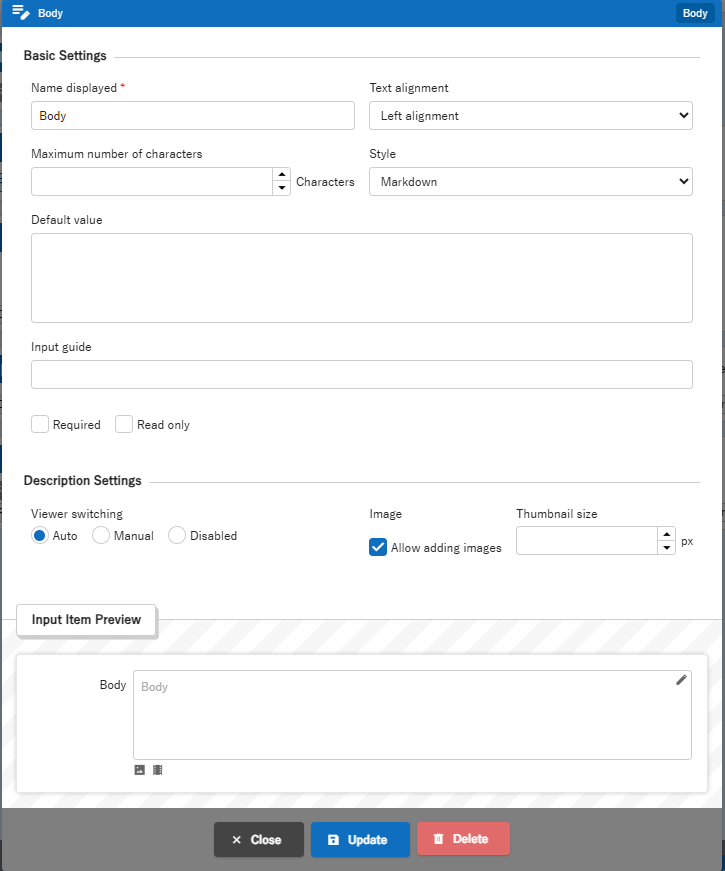
| Column | Summary | Notes |
|---|---|---|
| Name Displayed | Set the string to display as the label of the column | For details, see Manage Table: Editor: Column Advanced Settings: Name Displayed |
| Text Alignment | Set the horizontal alignment of the column body (left or right) | For details, see Manage Table: Editor: Column Advanced Settings: Alignment |
| Maximum number of characters | Set the number of characters that can be entered in the column | For details, see Manage Table: Editor: Column Advanced Settings: Maximum Number of Characters |
| Style | Set the style of the Input column (Normal, Wide, Markdown, Rich text editor) | For details, see Manage Table: Editor: Column Advanced Settings: Input Column Style |
| Default value | Set the default value of the "Input column" when "Create new" a record. " | For details, see Manage Table: Editor: Column Advanced Settings: Default Value |
| Input guide | Set the input guide for text Input column | For details, see Manage Table: Editor: Column Advanced Settings: Input Guide |
| Required | Set this when you want the "Input column" to be "Required" in the editor | For details, see Manage Table: Editor: Column Advanced Settings: Input Required |
| Read only | Set the "Input column" to "Read only" in the editor " is displayed. | For details, see Manage Table: Editor: Column Advanced Settings: Read-only. |
| Viewer switching | Sets the viewer switching (auto, manual, disabled). | For details, see Manage Table: Editor: Column Advanced Settings: Viewer Switching Test. |
| Allow adding images | Sets when allowing image registration in Body column, Description column, Comment column, etc. | For details, see Table Function: Register Image to Record. |
| Thumbnail size | Sets the size of the thumbnail that is displayed when an image is registered in the Body column, Description column, or Comment. | For details, see Manage Table: Editor: Column Advanced Settings: Thumbnail Size. |
Supported Versions
| Supported versions | Body |
|---|---|
| 1.4.15.0 or later | Added function |
| 1.4.20.0 or later | Added Rich text editor |
Related Information
Manage Table: Editor: Column Advanced Settings: Name Displayed
Manage Table: Editor: Column Advanced Settings: Alignment
Manage Table: Editor: Column Advanced Settings: Maximum Number of Characters
Manage Table: Editor: Column Advanced Settings: Input Column Style
Manage Table: Editor: Column Advanced Settings: Default Value
Manage Table: Editor: Column Advanced Settings: Input Guide
Manage Table: Editor: Column Advanced Settings: Input Required
Manage Table: Editor: Column Advanced Settings: Read-only
Manage Table: Editor: Column Advanced Settings: Viewer Switching Test
Table Function: Register Image to Record
Manage Table: Editor: Column Advanced Settings: Thumbnail Size
- Body
- Manage Table: Items: Body
- Manage Table: Editor: Column Advanced Settings: Name Displayed
- Manage Table: Editor: Column Advanced Settings: Alignment
- Manage Table: Editor: Column Advanced Settings: Maximum Number of Characters
- Manage Table: Editor: Column Advanced Settings: Input Column Style
- Manage Table: Editor: Column Advanced Settings: Default Value
- Manage Table: Editor: Column Advanced Settings: Input Guide
- Manage Table: Editor: Column Advanced Settings: Input Required
- Manage Table: Editor: Column Advanced Settings: Read-only
- Manage Table: Editor: Column Advanced Settings: Viewer Switching Test
- Table Function: Register Image to Record
- Manage Table: Editor: Column Advanced Settings: Thumbnail Size
- Common Function: Rich text editor