Editor: Column: Line Break
Overview
Smart Design visualizes the editor's input column setting "No Wraparound", and you can easily set the line break position by dragging and dropping from "Other > Line break".
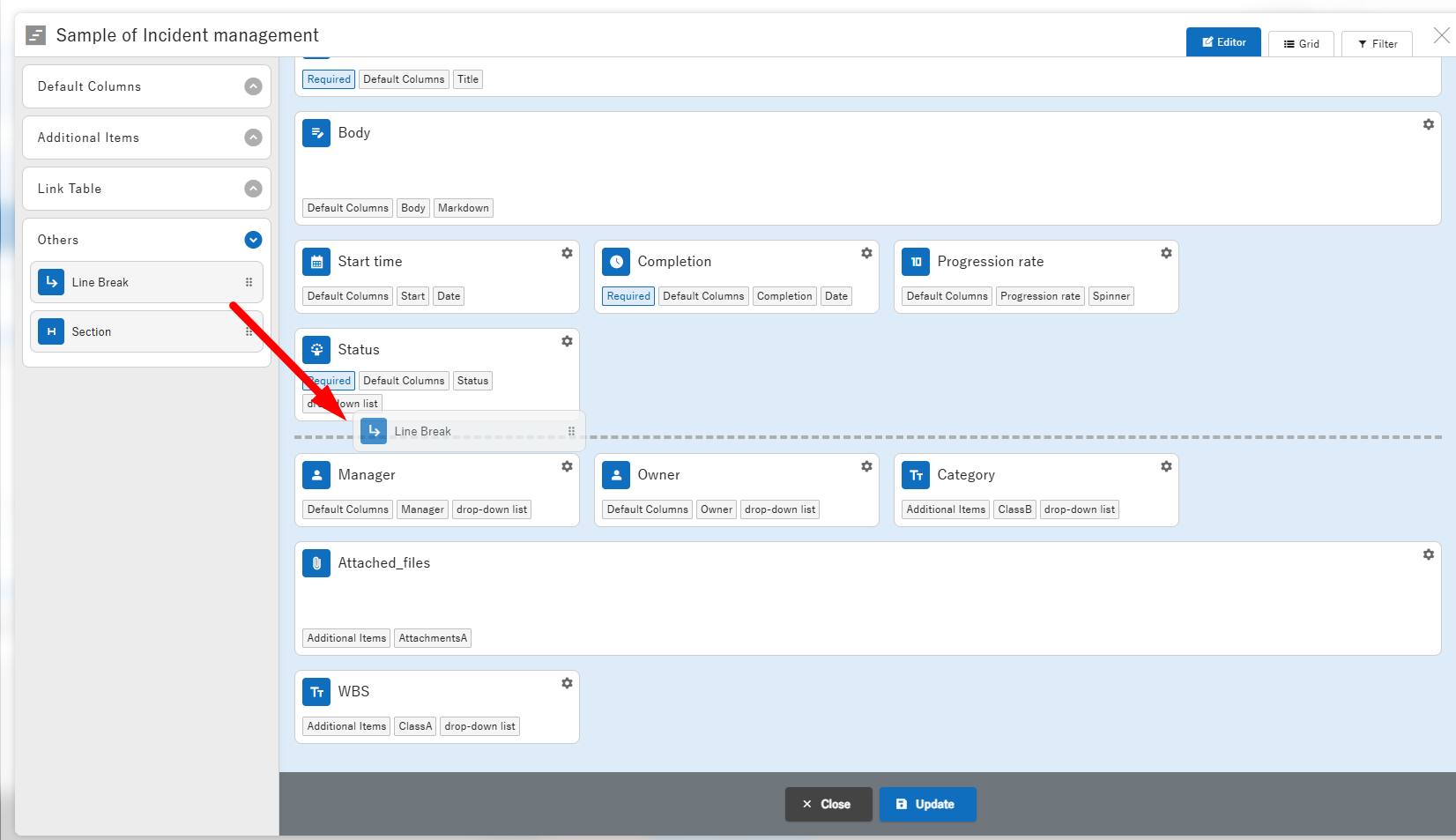
Manage Table: Editor: Column Advanced Settings: No Wraparound
Limitations
- If you place a line break part at the top or bottom, it will be automatically deleted.
- If you place two line break parts in succession, one of them will be deleted.
- You cannot place a line break part before a column card that cannot be set to "No Wraparound", such as a heading or link table.
How to Delete a Line Break

1. Hover the mouse over the placed line break part and press the delete button that appears to the right of the part.
1. The delete dialog will appear, so press the delete button.
1. The placed line break part will be deleted.
Supported Versions
| Supported versions | Body |
|---|---|
| 1.4.15.0 or later | Added function |