Index: Operation Method
Overview
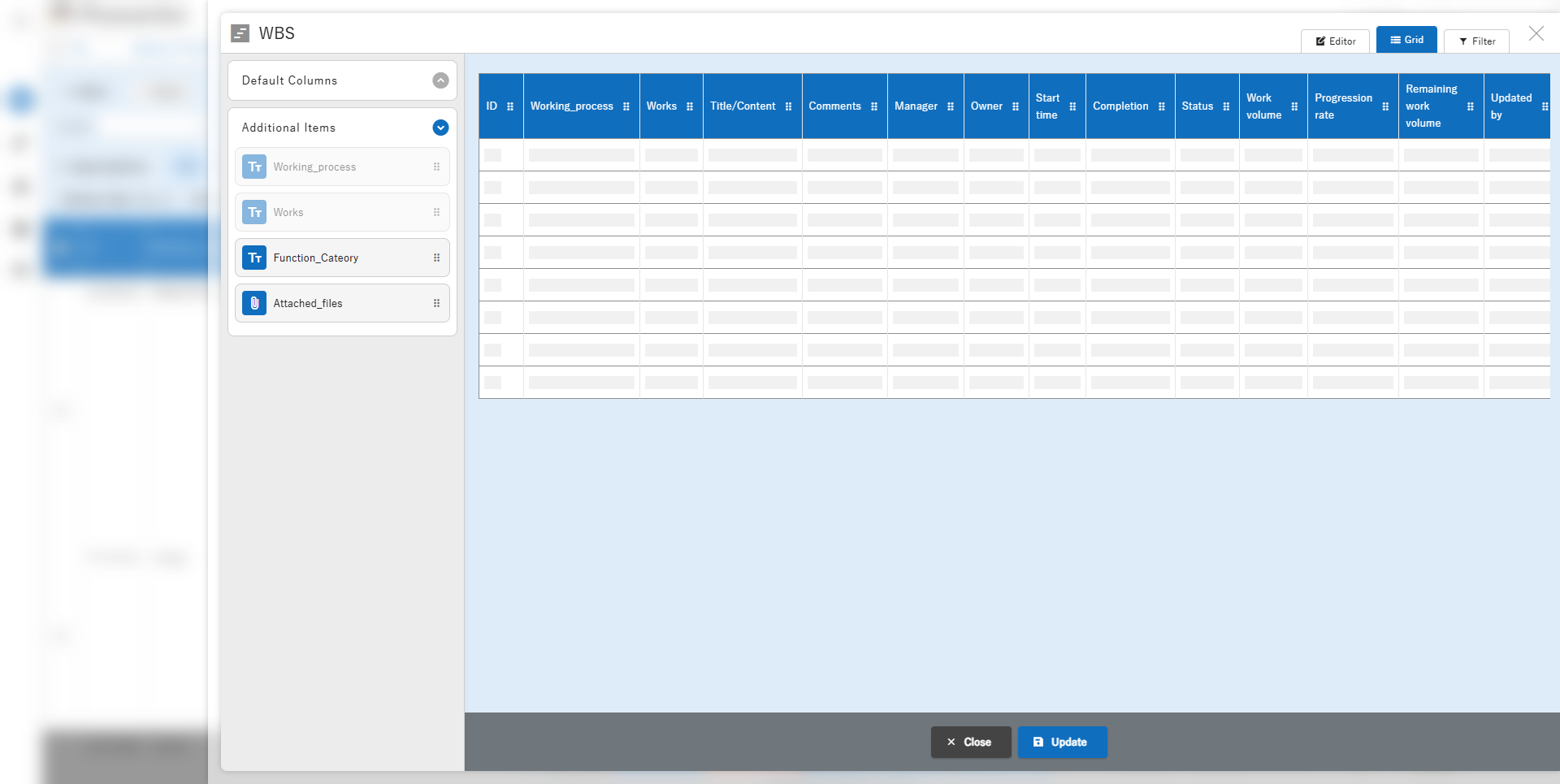
In "Smart Design", you can easily edit the layout of the list screen by dragging and dropping.
You can also change the display options for each item individually in the dialog.
Limitations
- Only the column enabled in [General] can be edited on the Smart Design screen index. Columns enabled in Added tabs cannot be added.
- The linked column cannot be edited on the Smart Design screen index. They will not be displayed on Smart Design, but the settings will be retained and only the arrangement of the column displayed in the index will be changed.
- Please also refer to the limitations in "Smart Design: Overview".
Screen Description
Draggable Area
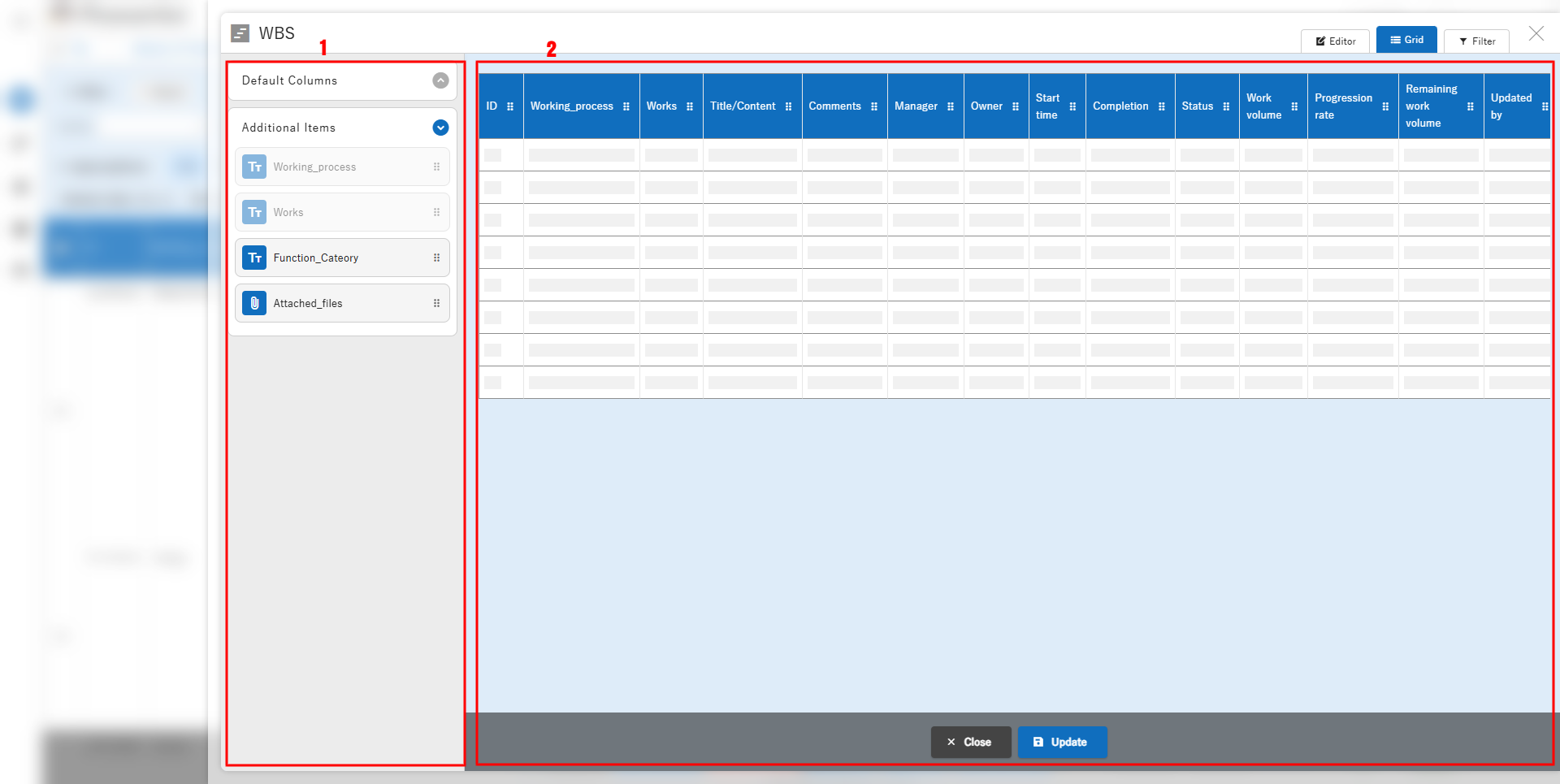
1. Column Index
You can place a column on the index by selecting it on the left side of the screen and dragging and dropping it into the layout area on the right.
The column group name is an accordion button, and by expanding it, the column that can be placed will be expanded.
Details of each group are as follows.
| Column Group Name | Description |
|---|---|
| Basic Columns | These are the basic columns that make up the site. |
| Additional Columns | Columns that end with A-Z, such as classification/number/date/description/check/attachment. |
2. Layout area
Columns placed on the screen index on the right side of the screen are laid out in cell-type units.
Placed column cells can be freely rearranged by dragging and dropping.
Various column cells
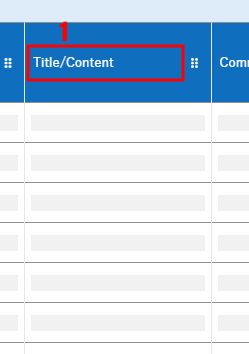
| No | Tag | Description |
|---|---|---|
| 1 | Name Displayed | Display name of the placed column. |
Operation Procedure
Placement and rearrangement of columns
When Smart Design is launched, the current configuration of the Manage Table > Screen "Index" is displayed.
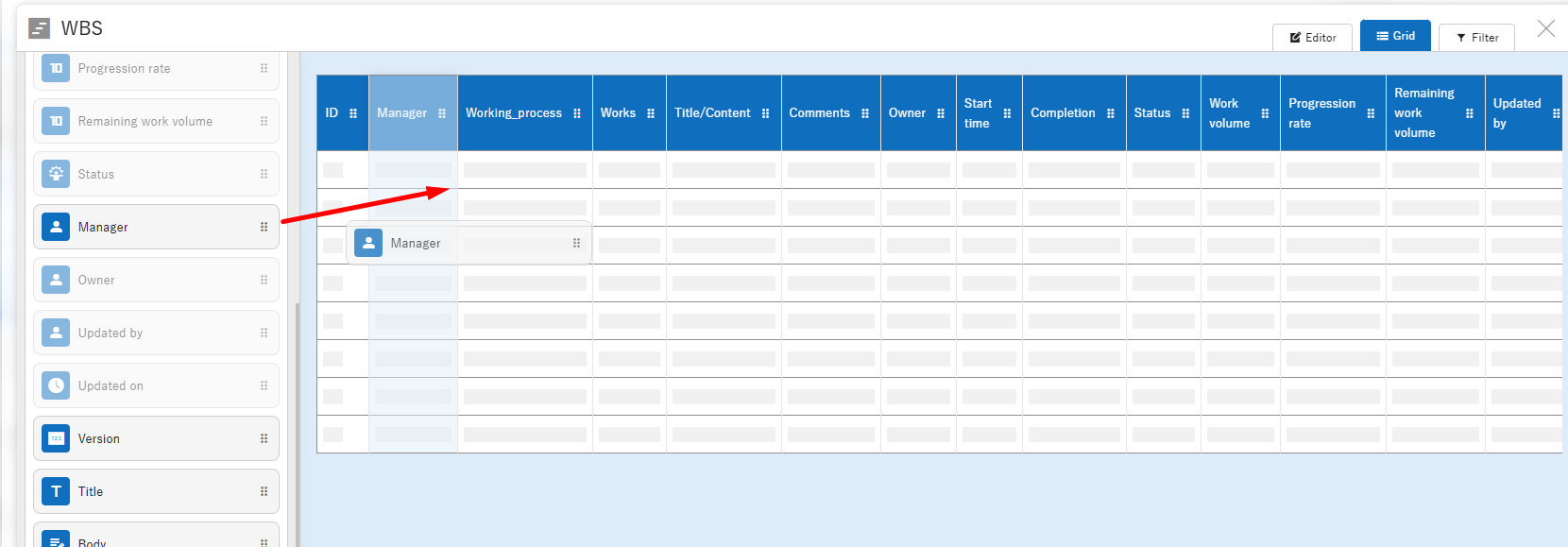
You can place the necessary columns in the list by dropping them from the column index on the left side of the screen, and you can freely rearrange the columns already placed, so you can intuitively design the layout of the screen index.
Delete a column from the layout
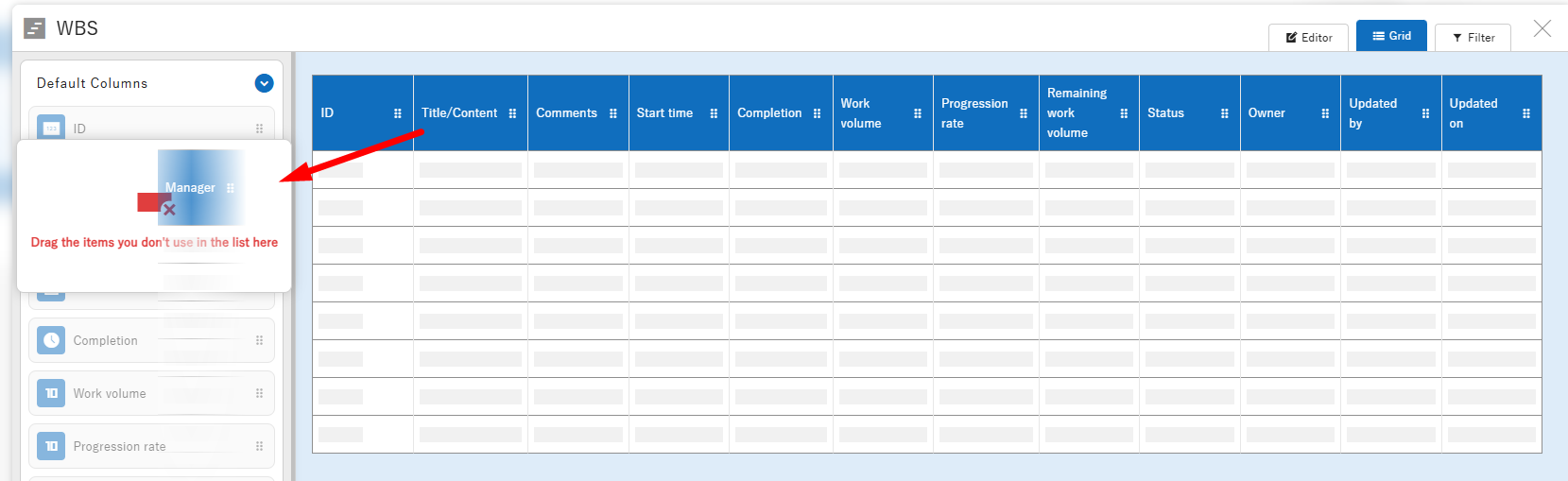
If you want to delete a column cell from the layout, drag the column you want to delete to "Drag columns you don't want to use in the index here", displayed in the column index.
* Release the column after making sure that the text "Drag columns you don't want to use in the index here" turns red.
Supported Versions
| Supported versions | Body |
|---|---|
| 1.4.15.0 or later | Added function |
Related Information
Manage Table: Screen Index: Screen Index Column Settings
- Smart Design: Editor: How to Use
- Added tabs
- Manage Table: Screen Index
- Manage Table: Screen Index: Screen Index Column Settings