Table Function: What To Check If Records Are Not Imported Properly
Overview
When "Import" data into Pleasanter, the column names in the original data (CSV) must match the name displayed in Pleasanter.

Set the name display on the Pleasanter side in "Editor" rather than "Grid".

Check whether the CSV data you want to import is saved in Shift-JIS or UTF-8 format, and select the format in which it is saved in the "Character Code" field displayed in the Pleasanter import dialog below.
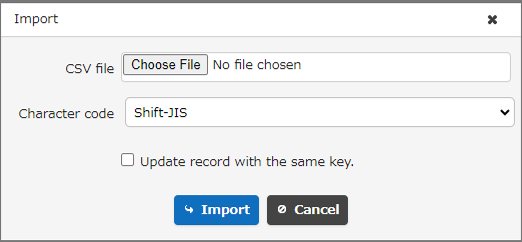
Things To Check If The Import Doesn't Work
-
If the data can't be imported or only part of it is imported.
Please check that the correct character code is selected when importing.
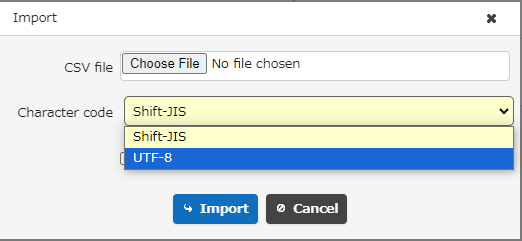
If you can import alphanumeric characters but cannot import Japanese characters, it may be that the character code is incorrect, so if this doesn't work, please try the other option.
Things To Check If Your Imported Data Doesn't Link Properly
-
Import the master table first before importing the child table
If you have already imported the child table, after importing the data into the master table, export the child table data and import that file with the "Update records with matching IDs" check box checked.
-
Import the child table's link column name as the child table's column name, not the parent table's column name.
For a time-limited table, a value is required for the "Completed" column. There is no "Completed" column for recorded table.
When importing data into a time-limited table, be sure to enter a value in the "Completed" column.
Limits When Using Pleasanter.net
- Pleasanter.net can import up to 10,000 records in one import process. If you want to import more than 10,000 rows of data, please import in chunks of 10,000 rows.