Table Function: Importing Records
Overview
This is an example of importing data from a simple employee list managed in Excel so that it can be managed in Pleasanter.
-
Pleasanter 1.4.16.0 and later
Migration mode was added, which makes it possible to import "Created by", "Created at", "Updated by" and "Updated at".
→Importing Records in Migration Mode -
Pleasanter 1.3.11.2 and later
It is now possible to import data by specifying key columns.
→Specifying Key Columns When Importing
Operation Procedure
The general procedure is as follows.
-
Open the employee list Excel data, select "Save As", and save it with one of the following file formats
- "CSV (Comma Separated Values) (.csv)"
- "CSV UTF-8 (Comma Separated Values) (.csv)"
-
Create a recorded table for "Employee list"
- Set the columns in the Editor
- Import "Employee list.csv"
- Set the display columns of the list screen in the Grid
Notes
-
The title of the CSV data to be imported (the first line of the CSV data) must match the column name in Pleasanter.
(Please match the column names displayed in the Editor, not in Manage Table - Grid) -
For time-limited tables, the "Completed" column is required.
(For recorded tables, there are no required columns) -
When importing date data in year-month-day format, please use 4 digits for the year (yyyy-mm-dd).
If the year is 2 digits, it cannot be imported correctly due to specifications.
Import Procedure
We will explain the following Excel data configuration as an example.
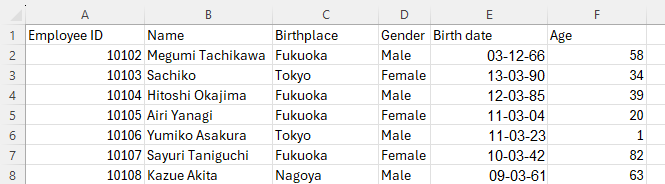
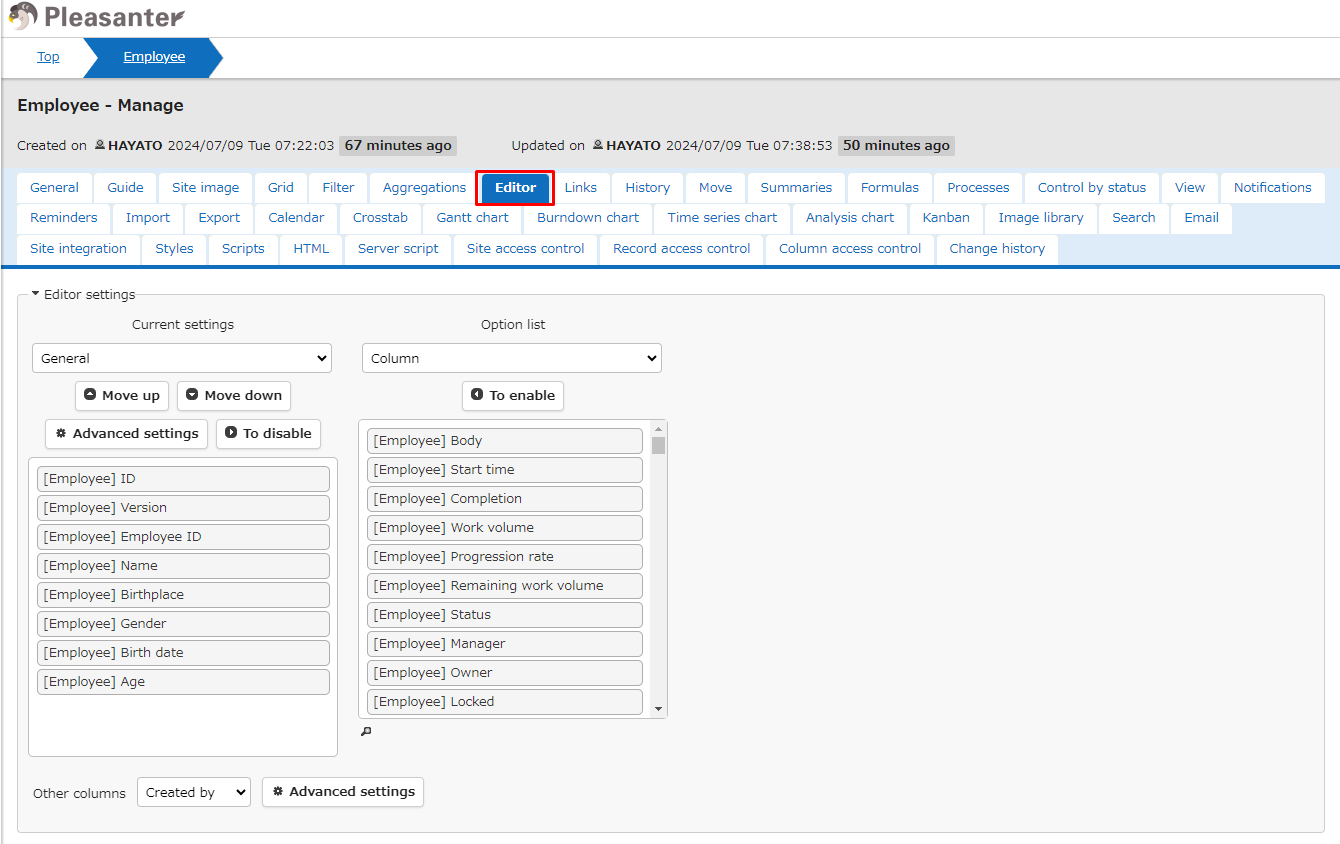
- Select the "Manage" - Manage Table - Editor tab.
-
Due to the specifications of Pleasanter, "ID" and "Version" cannot be disabled, so leave these two columns, disable the others, and enable each column as follows.
Pleasanter "Editor" setting screen
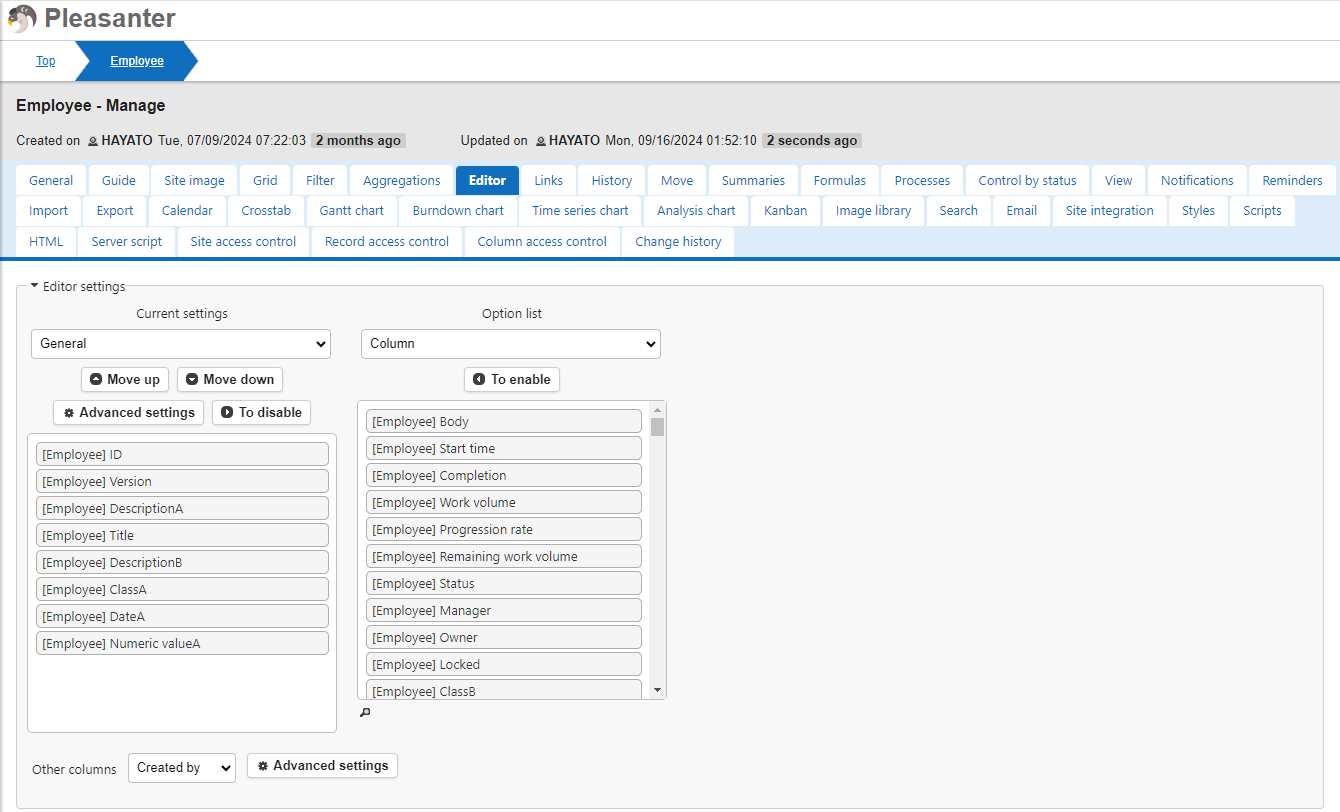
-
Change the settings of the enabled columns as follows. Select an enabled column and click the "Advanced Settings" button to set each column.
Column name Data type Pleasanter column Setting column Employee ID String DescriptionA Style: Normal Name String Title Birthplace String DescriptionB Style: Normal Gender String CategoryA Options list: Male (Line break) Female Birth date Date DateA Age Numerical value NumA -
Set the contents of the option list of "Gender" (CategoryA) as follows.
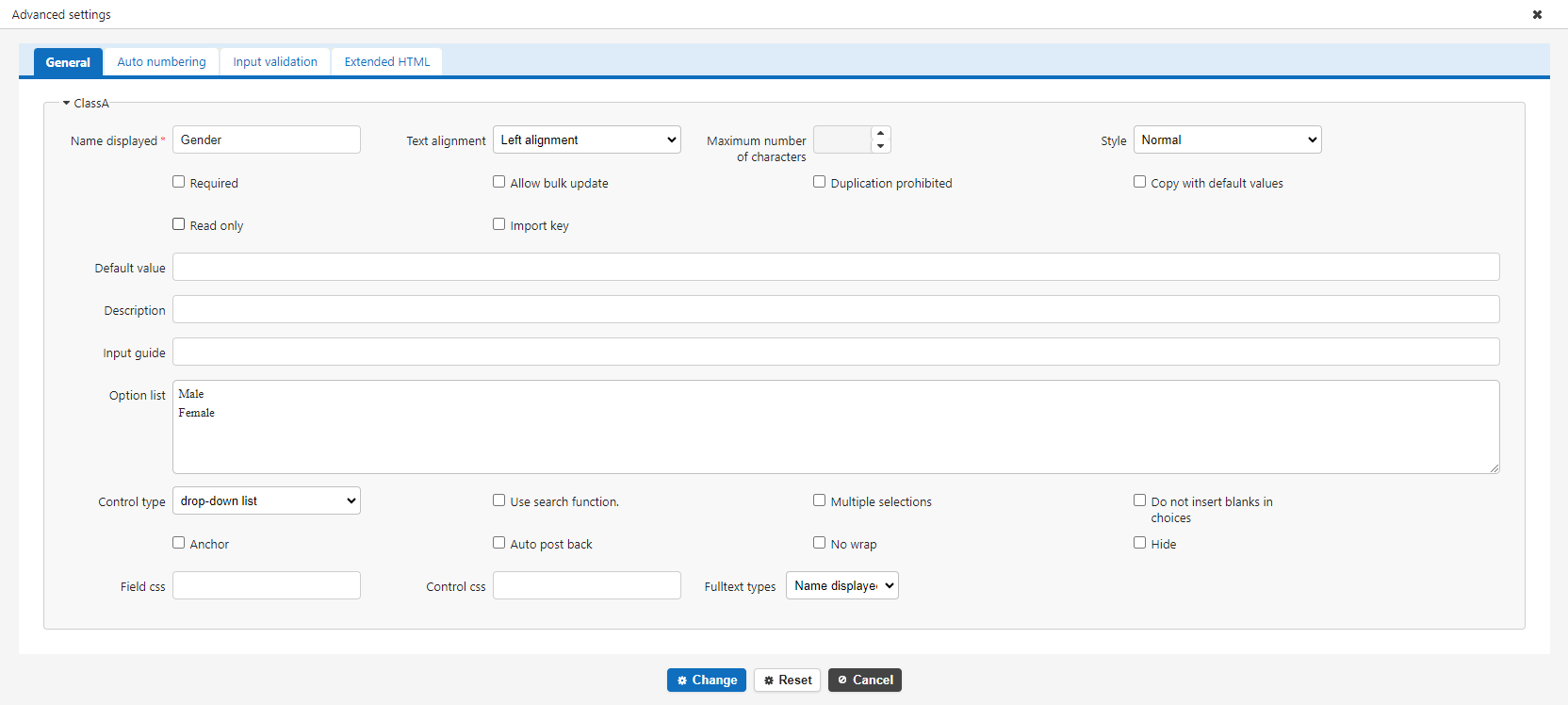
Editor screen after setting the column names
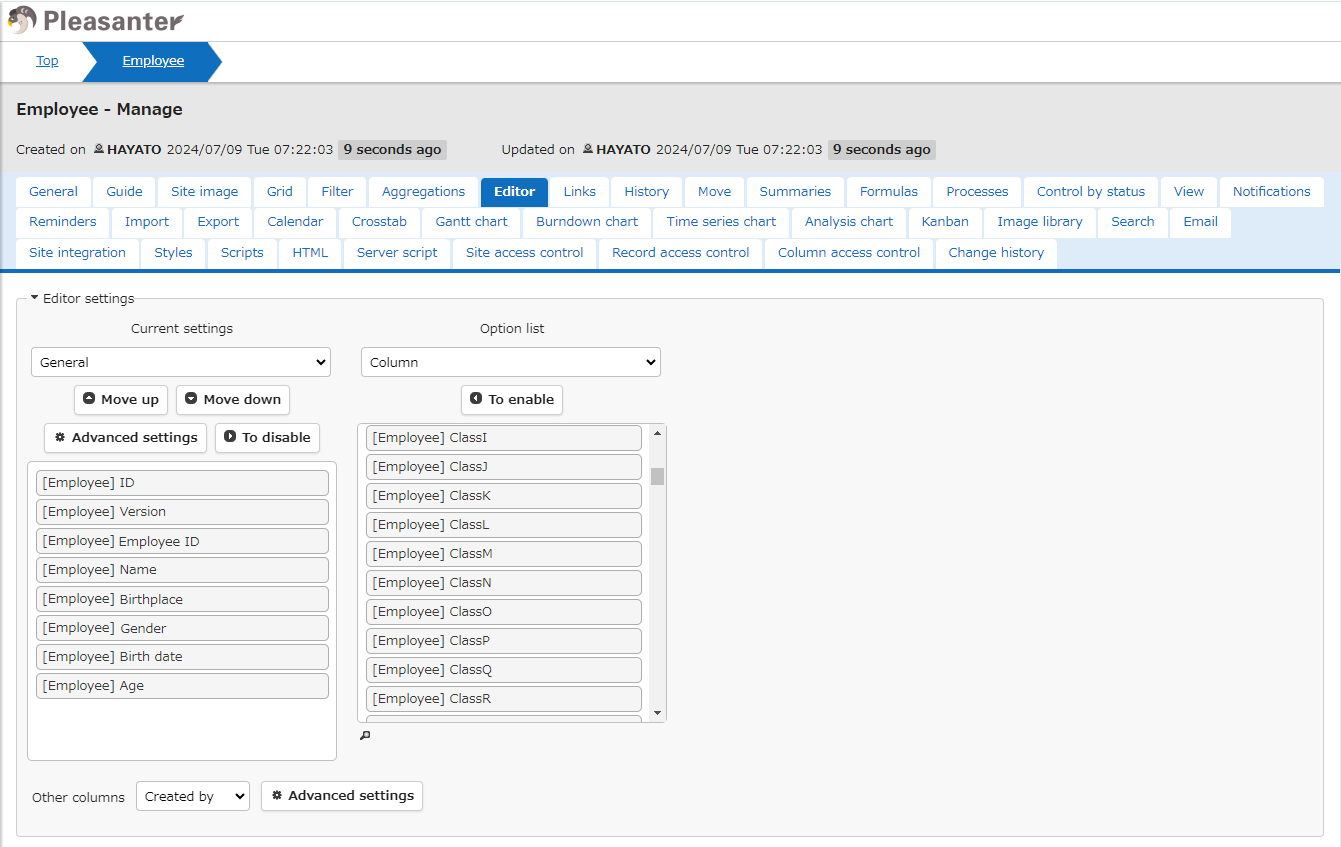
-
To import the data into Pleasanter, make the column names of the original data (CSV) match the column names in Pleasanter.
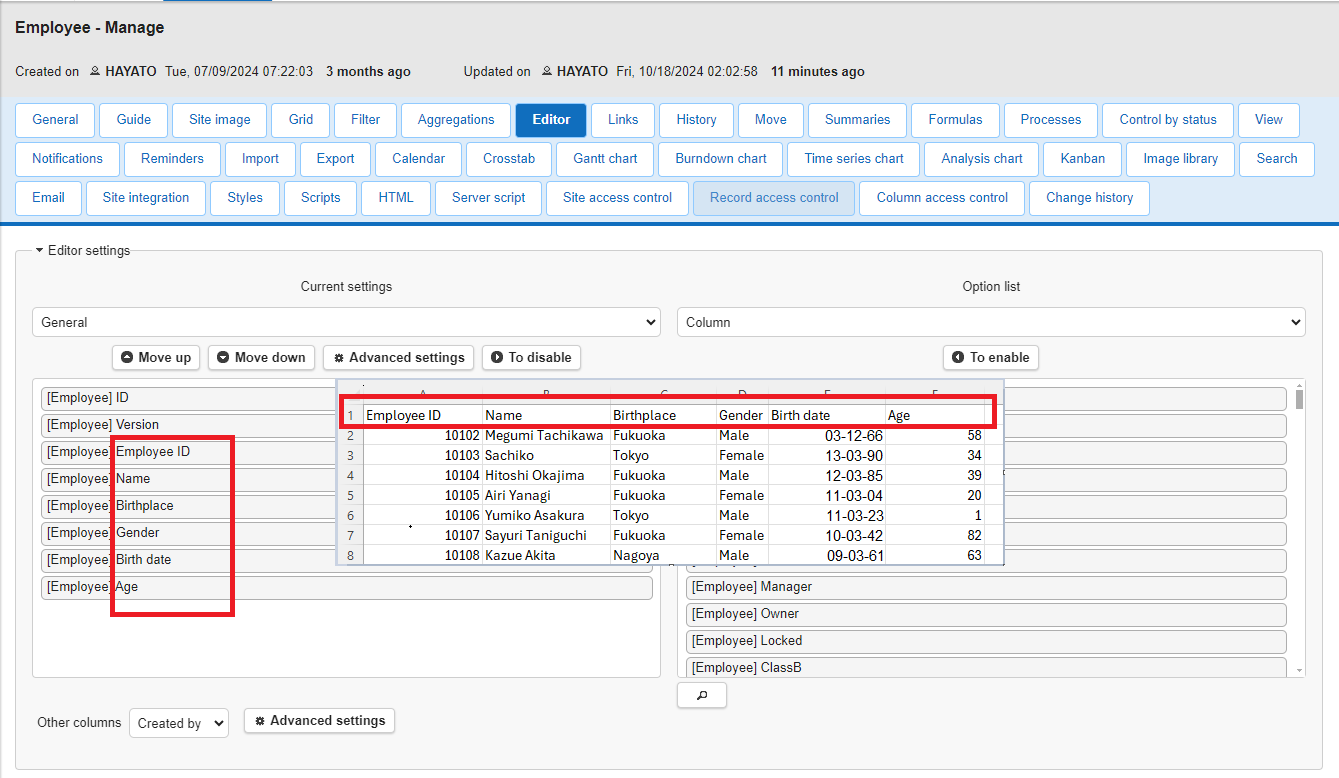
-
Once the columns are set, click "Update" to return to the list screen, and click the "Import" button.
- When the dialog box appears, select the CSV file to import.
-
Select the character code of the CSV file and click the "Import" button.
Notes
Check whether the CSV data to be imported is saved in Shift-JIS or in UTF-8, and select the format it is saved in from the "Character Code" field of the Pleasanter import dialog box shown below.
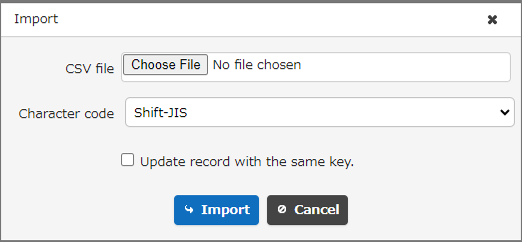
-
When the import is completed, the records are displayed on the list screen as shown below.
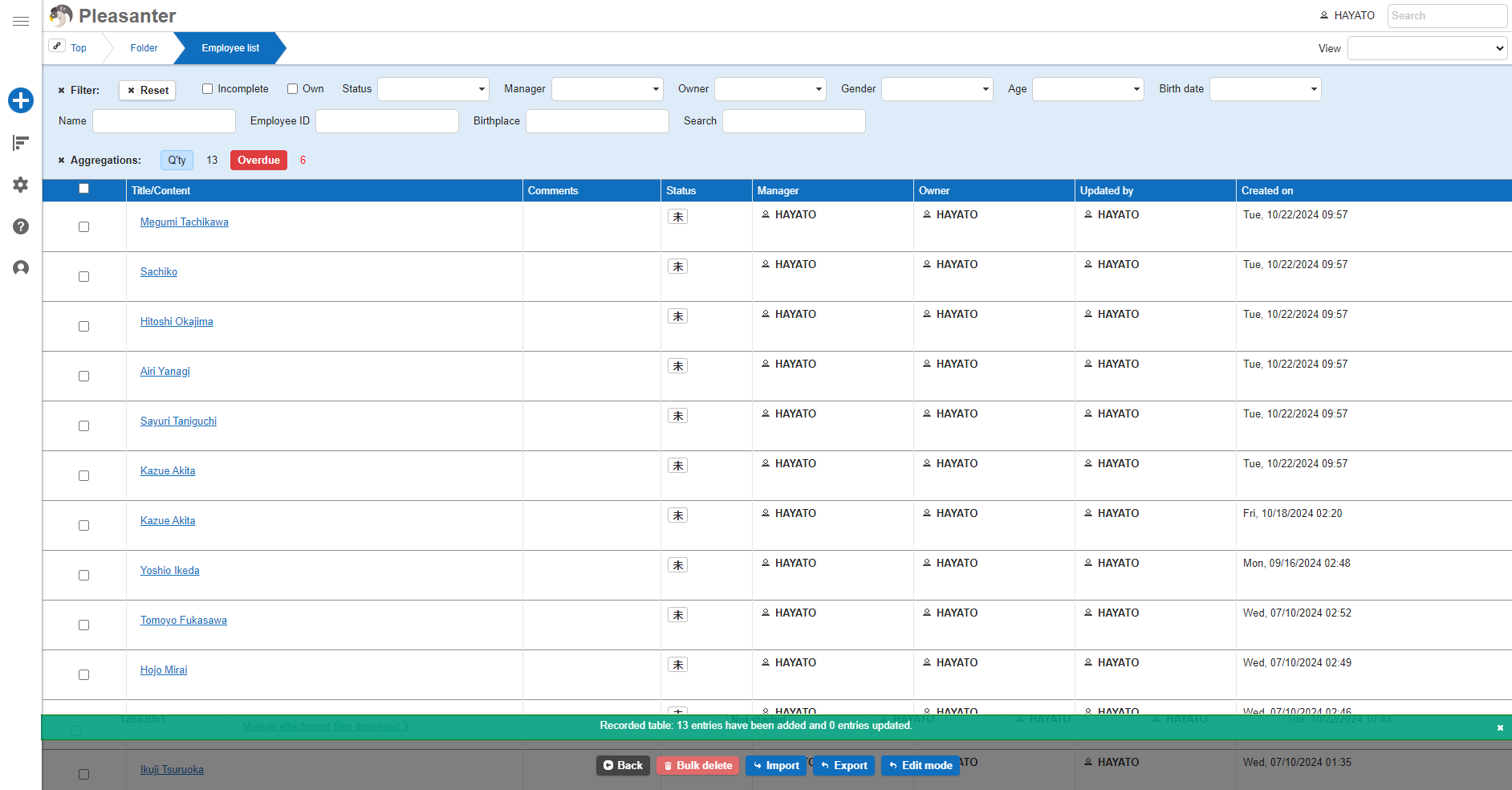
-
Next, set the list screen so that it displays the same content as when the data was managed in Excel.
-
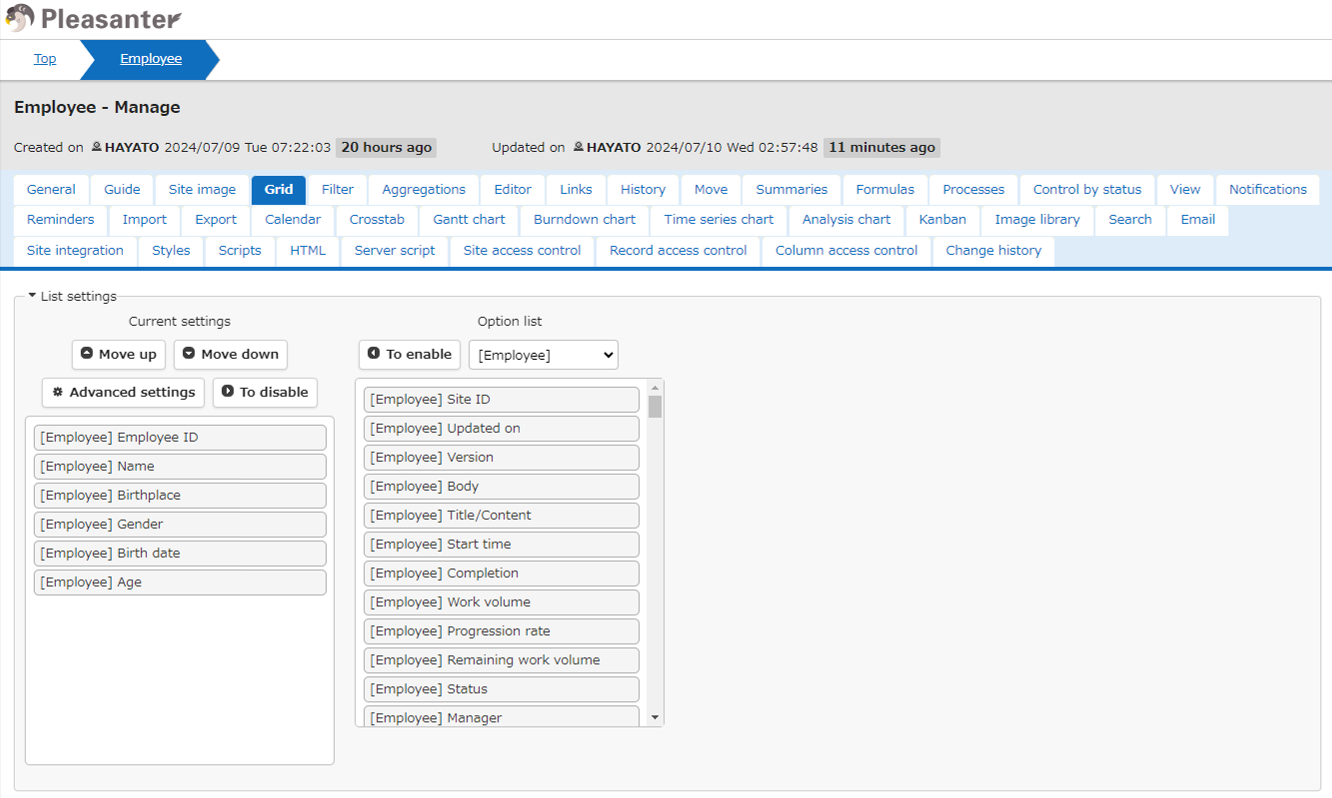
Select the "Manage" - Manage Table - Grid tab. The default settings are as follows.
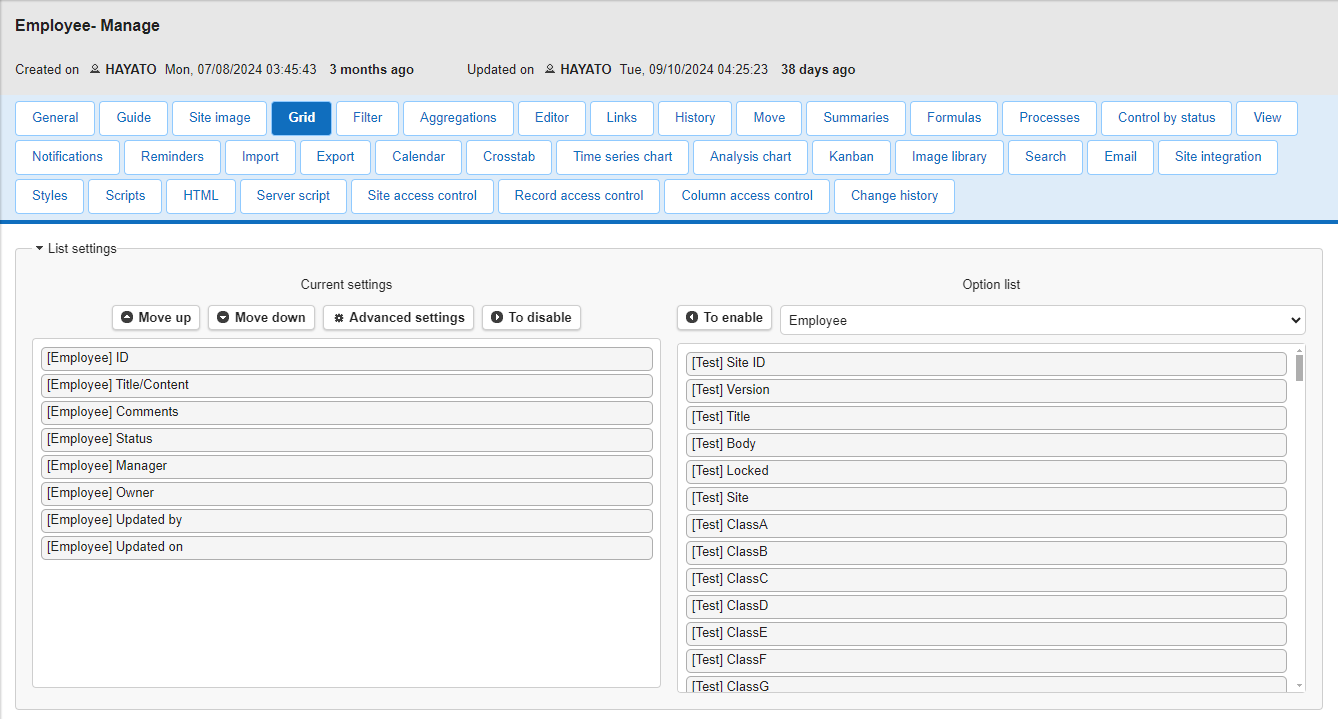
Set it to display all the columns imported this time, as follows. For this data example, enable the following columns. (All others are disabled.)
- Employee ID
- Name
- Birthplace
- Gender
- Date of birth
- Age
-
After enabling the columns, click the "Update" button, and then click "Back" to display the list screen.
-
The list is now displayed in the same way as the original Excel data.
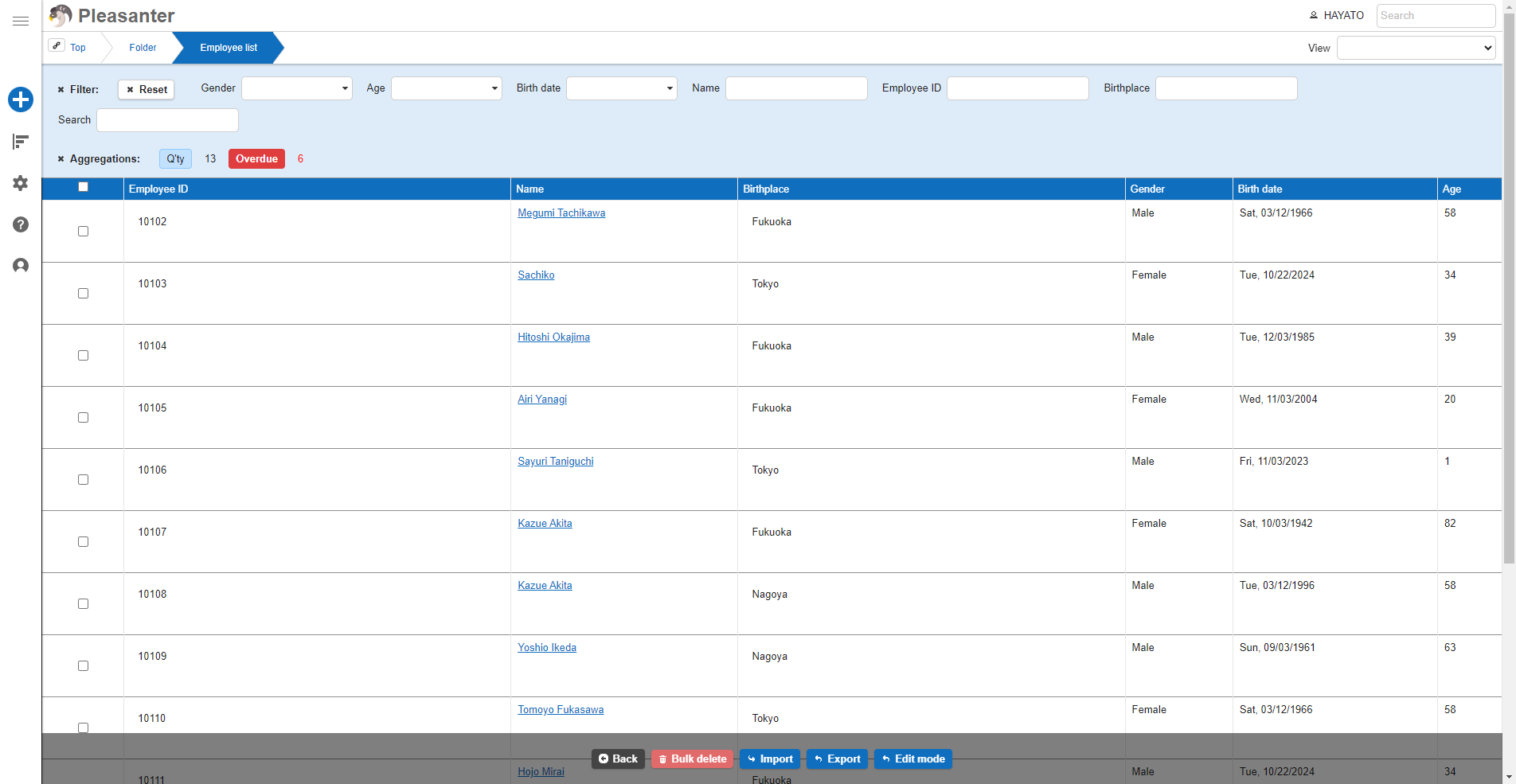
You have now transferred the Excel data to Pleasanter.
Things to check if the import does not go well
Data cannot be imported, or only part of it has been imported
-
Check that the column names set in the "Editor", not in "Manage Table" - "Grid", match the titles of the CSV data.
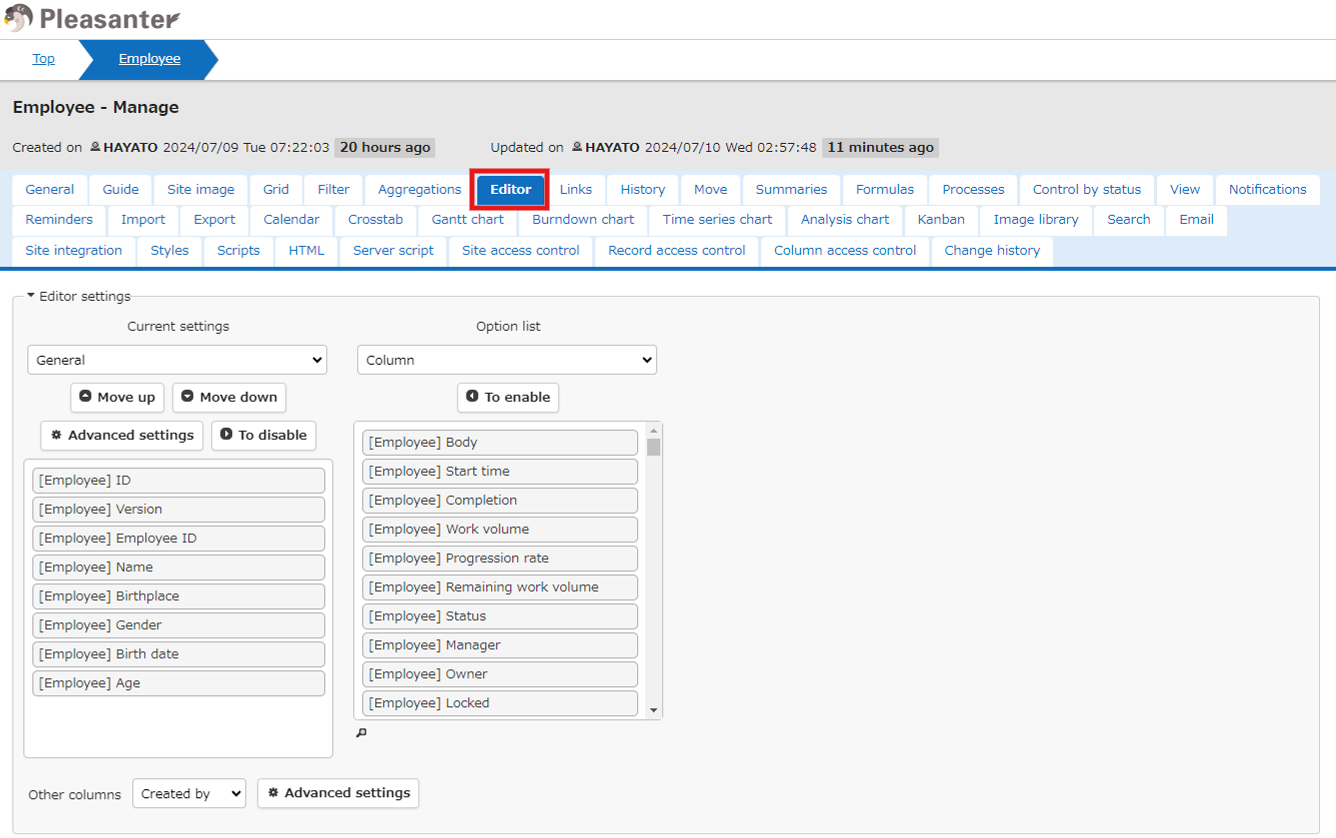
-
Check that the character code is selected correctly when importing.
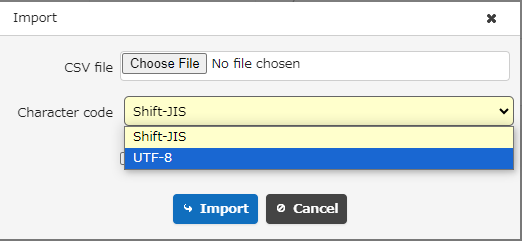
If alphanumeric characters can be imported but Japanese cannot, the character code may be incorrect. If it does not work, try the other one.
-
For time-limited tables, a value is required for the "Completed" column.
When importing data into a time-limited table, be sure to enter a value in the "Completed" column. 1
-
At Pleasanter.net, the number of records that can be imported in one import process is 10,000 rows.
If you want to import more than 10,000 rows of data, please import them in groups of 10,000 rows.
-
Some columns are not imported even if values are set in the CSV file.
See the table below for details.
Column name When adding a record When updating a record ID Automatic numbering by Pleasanter Not updated Version Automatic numbering by Pleasanter Automatic numbering by Pleasanter Creator User who performed the import operation 2 Not updated Created date and time Date and time of the import operation 2 Not updated Updater User who performed the import operation 2 User who performed the import operation Update date and time Date and time of the import operation 2 Date and time of the import operation Comment Value in the CSV file 3 In the case of JSON format, updated by replacement
In the case of string format, not updated
Supported Versions
| Supported Versions | Contents |
|---|---|
| 1.4.18.0 and later | Added the ability to update comments when updating records in CSV import |
Related Information
- Table Function: Specify Key Column When Importing
- Manage Table: Editor
- Manage Table
- Manage Table: Screen Index
- Developer's Guide: JSON Data Layout: Comment
-
There is no "Completed" column for recorded tables. ↩
-
In migration mode, the values set in the CSV file can be imported. See "Importing Records in Migration Mode" for details. ↩↩↩↩
-
The values can be imported with the JSON format data layout. See JSON Data Layout: Comment for details. ↩