Table Function: Record Screen Index
Overview
When you open the "Grid" screen, the records stored in the table are immediately displayed in a list format.
Structure and Usage of the "Grid" screen
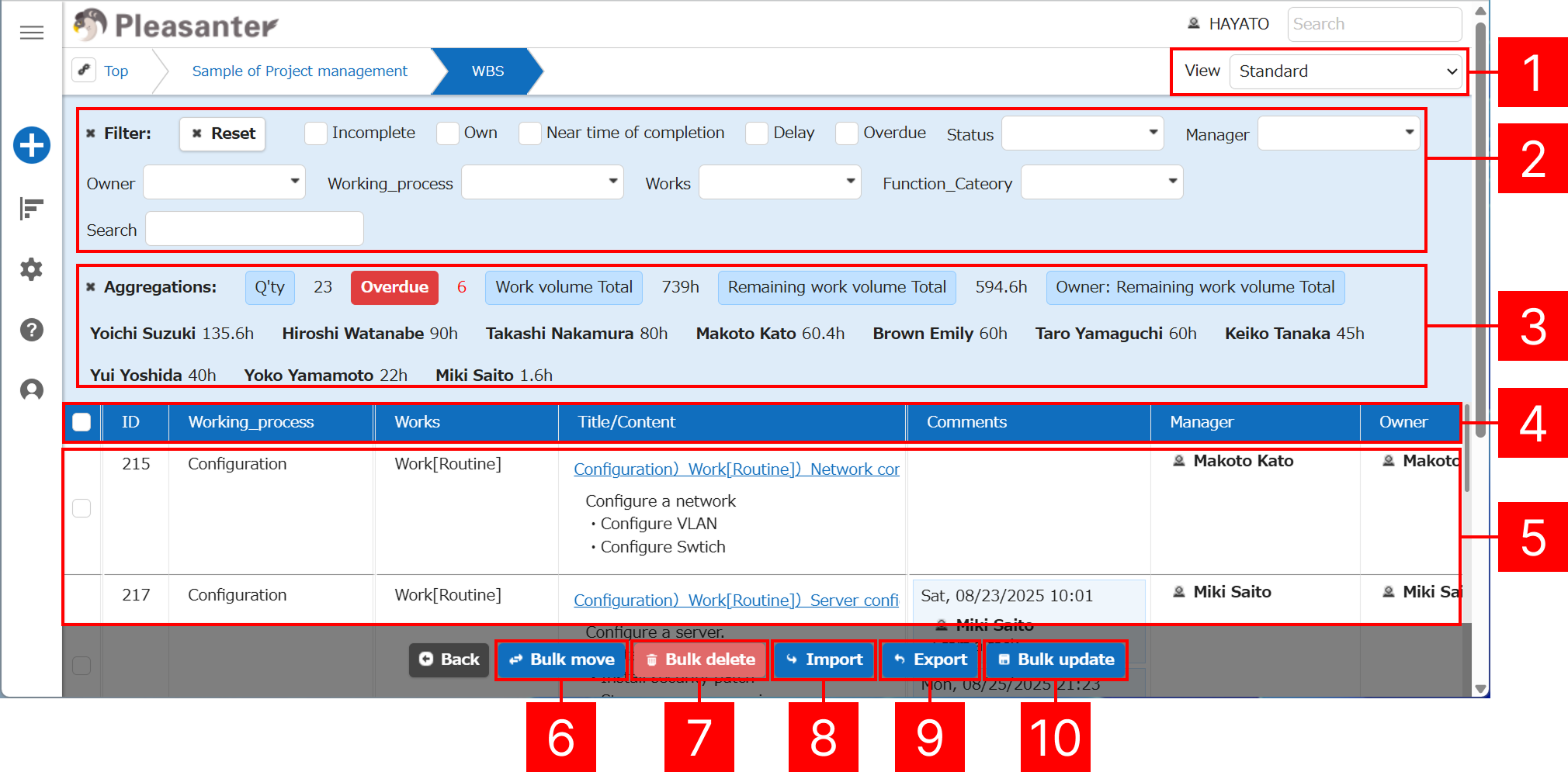
| No | Name | Description |
|---|---|---|
| 1 | View selection | Allows you to configure the initial display items, sort order, and filter conditions when the table is first opened. |
| 2 | Filter | Specify conditions to narrow down the records. |
| 3 | Aggregations | Displays the number of records, as well as totals and averages for numeric items. |
| 4 | Sort | Sorts records in ascending or descending order based on specific items. By default, records are shown in descending order of saved date. |
| 5 | Search results List | Displays records that match the filter conditions (or all records if no filter is set). |
| 6 | Bulk move | Moves selected records in bulk. Requires configuration. |
| 7 | Bulk delete | Deletes selected records in bulk. |
| 8 | Import | Adds records to the table in bulk by importing a CSV file. |
| 9 | Export | Exports records from the table to a CSV file. The output reflects the current filter and sort settings. |
| 10 | Bulk update | Updates values of selected items in bulk. Requires configuration. |
Note: Filters and sorting are affected by the "View Save Type."
About Text Selection in Search Results List
You can select text in the "Search results list" by holding down the "Alt" key ("Option" key on macOS) while dragging.
If you're using the "Alt+Tab" shortcut to switch windows on Windows and text gets selected unintentionally, please press the "Alt" key.
About the "Search results list"
The number of records displayed in the "Search results list" is determined by the "Number of Items Displayed per Page" setting. As you scroll down, the next set of records is loaded and displayed in the same quantity.
If you're using the Second-generation user interface, starting from version 1.4.20.0, you can freely move the "Search results list" in all directions via drag operations. For details, see "Scroll Operations in Grid-like UI."
Settings related to displaying the "Search results list"
In "Screen Index Column Advanced Settings", you can finely control how the "Search results list" is displayed.
Cell width
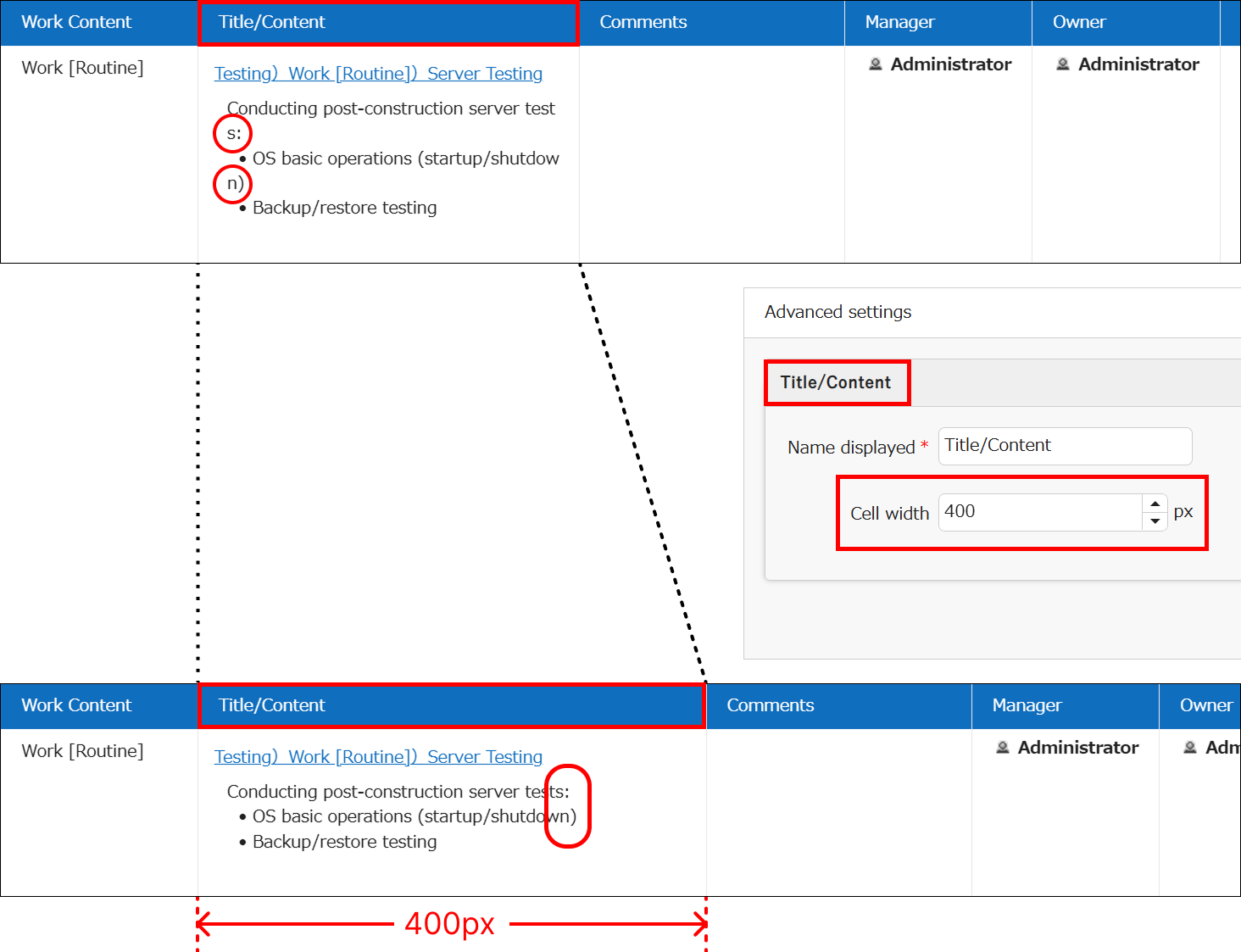
You can specify the display width of items in pixels (px). This helps prevent issues like truncated text or line breaks in specific items. For details, see "Cell width."
Usage Example
In the image below, the width of the "Title/Content" item in the "Search results list" is set to 400px, allowing the full title to be visible.
Sticky on left edge
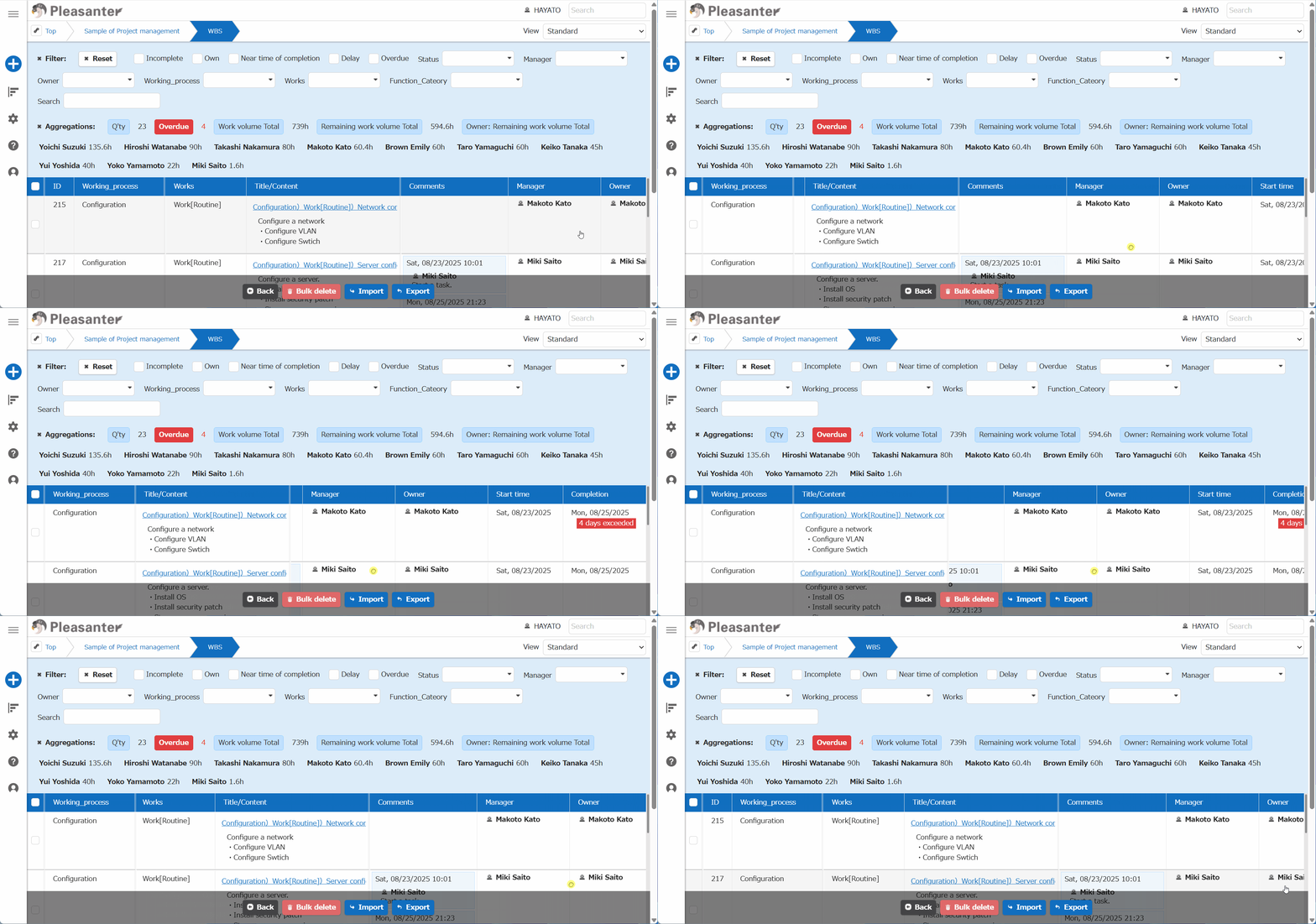
You can scroll by dragging while keeping specific items (columns) displayed (see the usage example below). For details, see "Sticky on left edge".
Usage Example
Multiple items can be fixed. In the image below, the "Working_process" and "Title/Content" items are fixed on the left edge.
Other Configuration Options
In addition to the two above, the following settings are available:
Limitations
- Columns without "Read" permission under "Field Access Control" cannot be displayed.
- If child table fields are displayed in the Grid view, the row selection checkboxes on the left edge will not appear.
- If you lack "Update," "Delete," or "Export" permissions, the row selection checkboxes on the left edge will not appear.
- Drag operations for the search results list, supported from version 1.4.20.0 onward, are not available in the First-Generation User Interface.
Prerequisites
- To view records, you need "Site" or record-level "Read" permission.
- To use "Aggregations," it must be enabled via "Table Management."
- To use "View," it must be enabled via "Table Management."
- To use "Bulk Move," it must be enabled via "Table Management."
- To use "Inline Editing," it must be enabled via "Table Management."
Supported Versions
| Version | Details |
|---|---|
| 1.4.20.0 or later | ・Added drag operation for "Search results list" ・Added new customization options ("Cell width", "Sticky on left edge") |
Related Information
- Manage Table: View
- Manage Table: Filter
- Table Function: Record Aggregation
- Manage Table: Editor: Column Advanced Settings: Option List: Filter, Sort,
- Table Function: Move Records In Bulk
- Manage Table: Move
- Table Function: Bulk Delete Records
- Table Function: Importing Records
- Table Function: Export Records
- Table Function: Record Bulk Update
- Manage Table: Editor: Column Advanced Settings: Allow Bulk Update
- Dashboard Function: View Save Type
- Manage Table: Screen Index: Number of Items Displayed per Page
- Common Function: Scrolling for Grid-like UI
- Manage Table: Screen Index: Column Advanced Settings: Cell width
- Manage Table: Screen Index: Column Advanced Settings: Sticky on left edge
- Manage Table: Editor: Column Advanced Settings: Name Displayed
- Manage Table: Screen Index: Column Advanced Settings: Grid Format
- Manage Table: Screen Index: Column Advanced Settings: Cell CSS
- Manage Table: Screen Index: Column Advanced Settings: Use Custom Design
- First-Generation User Interface
- Site Function
- Manage Table