Table Function: Export Records
Overview
You can export individual records or all records stored in a table as a CSV file.
Configuring the export format
Settings such as the order of fields to export can be configured in "Export Format Settings." Administrator privileges are required to access Export Format Settings.
Limitations
- If fields from a "child table" are displayed on the list screen, the record selection checkboxes on the far left of the list screen will not be displayed.
- If you do not have any of the "Update", "Delete", or "Export" permissions, the record selection checkboxes on the far left of the list screen will not be displayed.
Prerequisites
- The "Export" permission for the "Table" is required.
Operation Procedure
You can export records in a specified format.
- Use the checkboxes on the far left of the "List" screen to select the records you want to export. If no records are selected, all records will be exported.
- Click the "Export" button in the command button area. If the "Export" button is not visible, please consult your administrator.
- Select a "Format".
- Select a "Character Encoding".
- Click the "Export" button.
- The file will either be downloaded directly, or you will receive an email containing a download URL.
Exporting Comments in JSON Format
When you select the "Standard" format as the export format, a checkbox labeled "Export comments in JSON format" will appear.
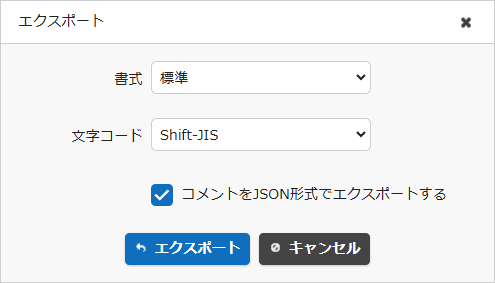
Enable it if needed.