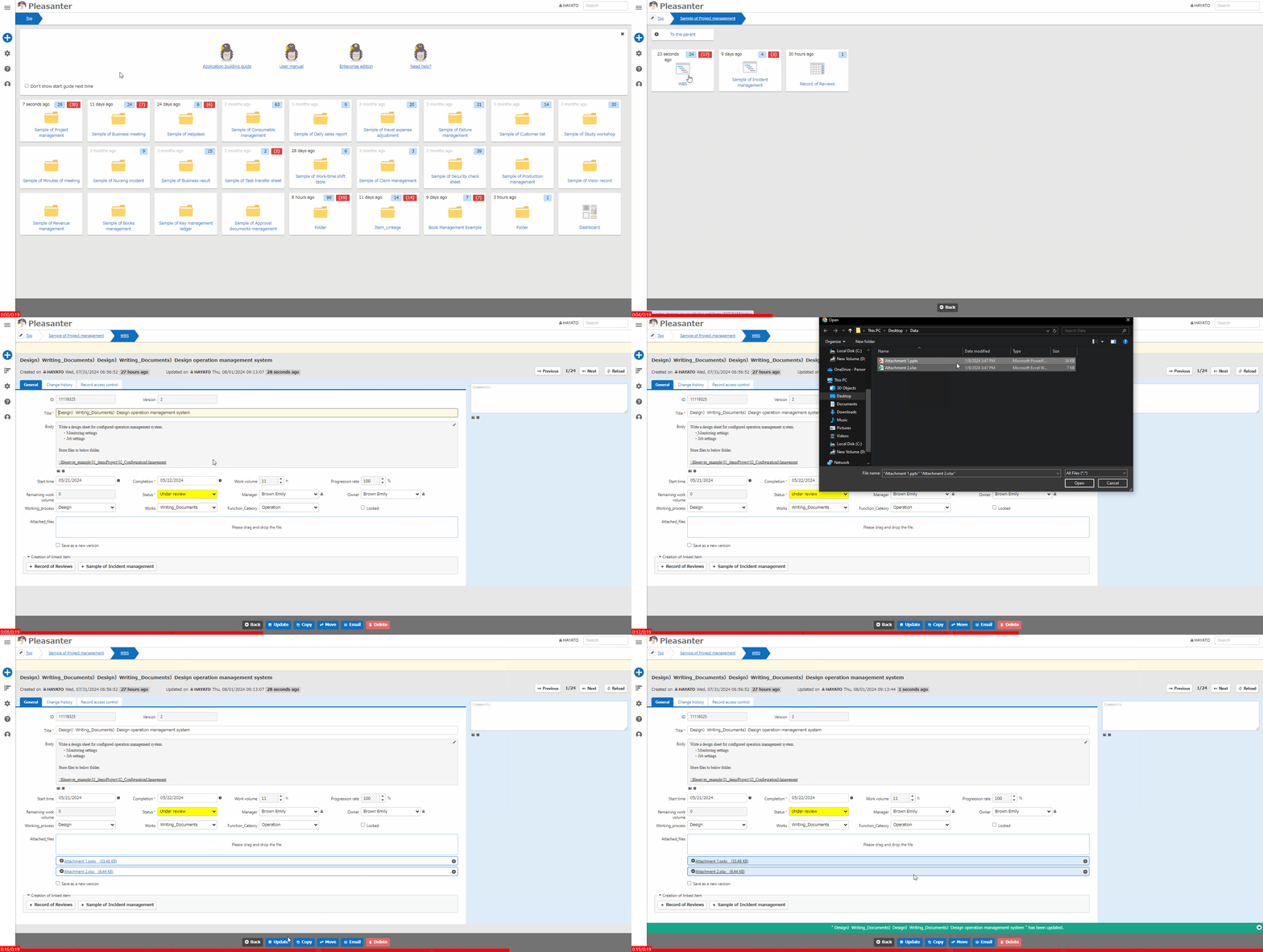
Table Function: Upload Attachment File To Record
Overview
You can "Upload" and register "Attachment" to table records.
Limitations
- When uploading large files, you may need to make settings in advance. Please refer to the related information.
- There is no function to restrict the type of attachment.
- In the Table's default settings, when you upload a file with the same file name, it is added as a separate file without being overwritten. If you want to overwrite, set "Overwrite Files With The Same Name".
- If you try to update by uploading a file that exceeds the "File limit" set in the advanced settings of the attachment column, the message "The number of files that can be attached is up to nn" is displayed and the update cannot be performed. nn will display the numerical value of "File limit".
- If you try to update and upload a file that exceeds the "Capacity Limit" set in the advanced settings of the attachment column, the message "There is a file that exceeds the capacity limit nn Mbytes" will be displayed and the update cannot be performed. nn will display the numerical value of "Capacity Limit".
- If you try to upload and update a file that exceeds the "Full Capacity Limit" set in the advanced settings of the attachment column, the message "The maximum size of the attachment is nn Mbytes" will be displayed and the update cannot be performed. nn will display the numerical value of "Full Capacity Limit".
Prerequisites
- "Update Permission" is required.
- The "Attachment" column must be enabled in the editor.
- The cloud service Pleasanter.net (Japanese text only)requires a separate storage capacity contract. (Except for dedicated environments)
Operation Procedure
- Go to the target table.
- Search for the target record from the "List Screen".
- Click the target record.
- Select the file in Explorer, etc., and drop it into the "Drag and Drop File" area. Multiple files can be uploaded at the same time. If you click on the area, a dialog box for selecting the file to upload will appear. You can also upload in the same way by selecting the file from the dialog box.
- Once the attachment has been uploaded, click "Update".