Table Function: Copy Records
Overview
Use the "Editor" to copy table records. When copying, the string "- Copy" is added to the end of the title. The ID of the original record will not be changed. A new record will be created at the destination.
Limitations
- "Attachments" cannot be copied.
- "Change History" cannot be copied.
- "Record Access Control" settings cannot be copied.
- If "Copy with Default Value" is enabled in "Column Advanced Settings", the value will not be copied and the default value will be entered.
Prerequisites
- You must have "Read permission" for the record and "Create permission" for the site.
- "Allow Copy" must be turned on for the target "Table".
Operation Procedure
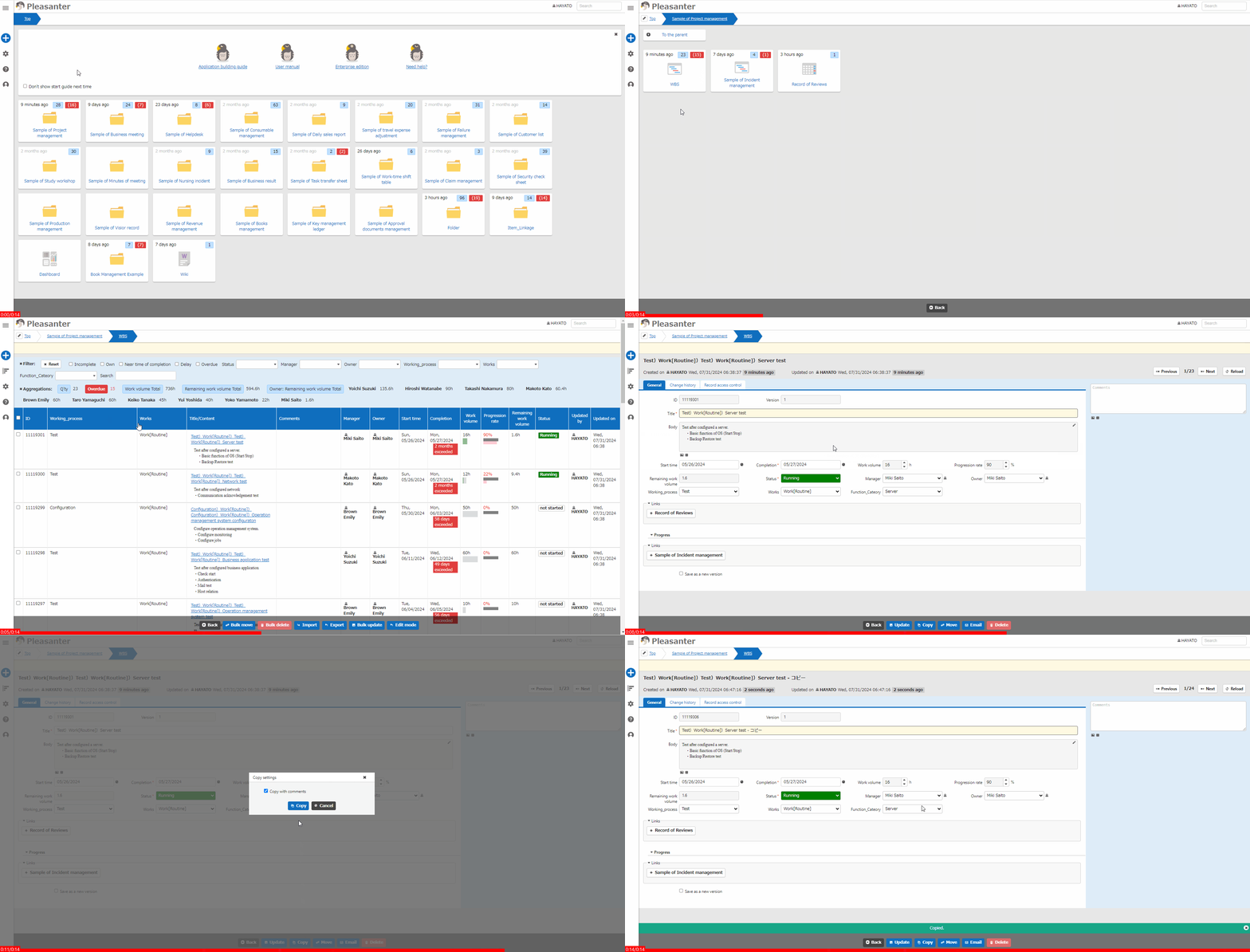
- Go to the target table.
- Search for the target record from the "List Screen".
- Click the target record.
- The "Editor" will be displayed, so click the "Copy" button.
- A dialog box for setting the copy settings will be displayed. If you want to duplicate the record including comments entered in the original record, check "Copy comments". If not necessary, uncheck it.
- Click the "Copy" button in the dialog.
- When the message "Copied" appears at the bottom of the screen, the process is complete.
Related Information
- Manage Table: Editor
- Table Function: Upload Attachment File To Record
- Table Function: View Record Change History
- Table Function: Record Access Control
- Manage Table: Editor: Column Advanced Settings: Copy with Default Value
- Manage Table: Editor: Allow Copy
- Table Function
- Table Function: Record Screen Index