Table Function: View Record Differences
Overview
1.5.9.0
On the "Difference" tab of the editor, you can compare two versions of a record side by side. Changed characters are highlighted in color, so you can see which items were changed and how.
By default, the version currently displayed is compared with the version just before it. You can change the two versions to compare.
Limitations
- The items compared are the items displayed in the editor that you are allowed to read. Items that you are not allowed to read by "Column Access Control" are not displayed.
- "Version", "Updated by", and "Updated on" are not compared. The version number and the updater of each compared version are displayed under the version selection box.
- For a record that has only one version, "There is no previous version to compare." is displayed and you cannot compare versions.
- You cannot edit values on the "Difference" tab. To return to the contents of an earlier version, use "Restore From Record Change History".
Prerequisites
- "Read Permission" is required.
Operation Procedure
Display the Differences
- Go to the target table.
- Click the target record in the list screen.
- The editor is displayed. Click the "Difference" tab.
-
The version currently displayed and the version just before it are displayed side by side. The left side is the old version and the right side is the new version.
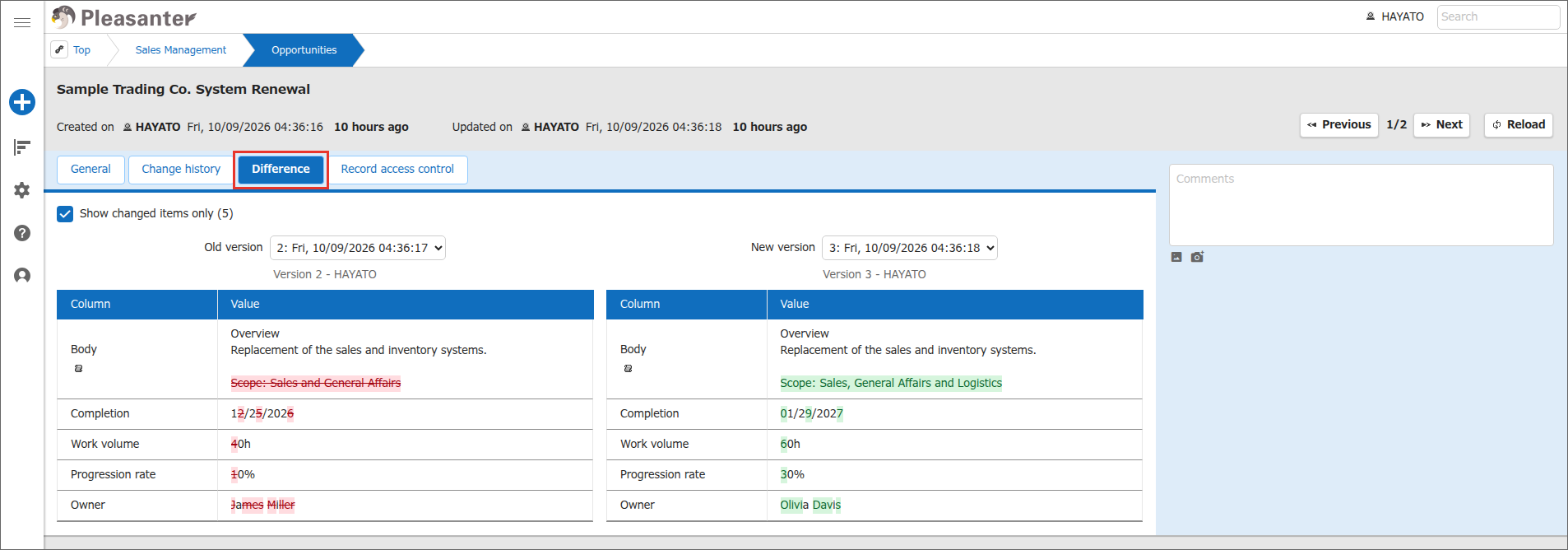
Changed characters are displayed as follows.
| Side | Display |
|---|---|
| Old version | Deleted characters are shown in red with a strikethrough |
| New version | Added characters are shown in green |
The "Difference" tab is also displayed when you click a row in the change history list in "View Record Change History". In this case, the version you clicked is compared with the version just before it.
Change the Versions to Compare
-
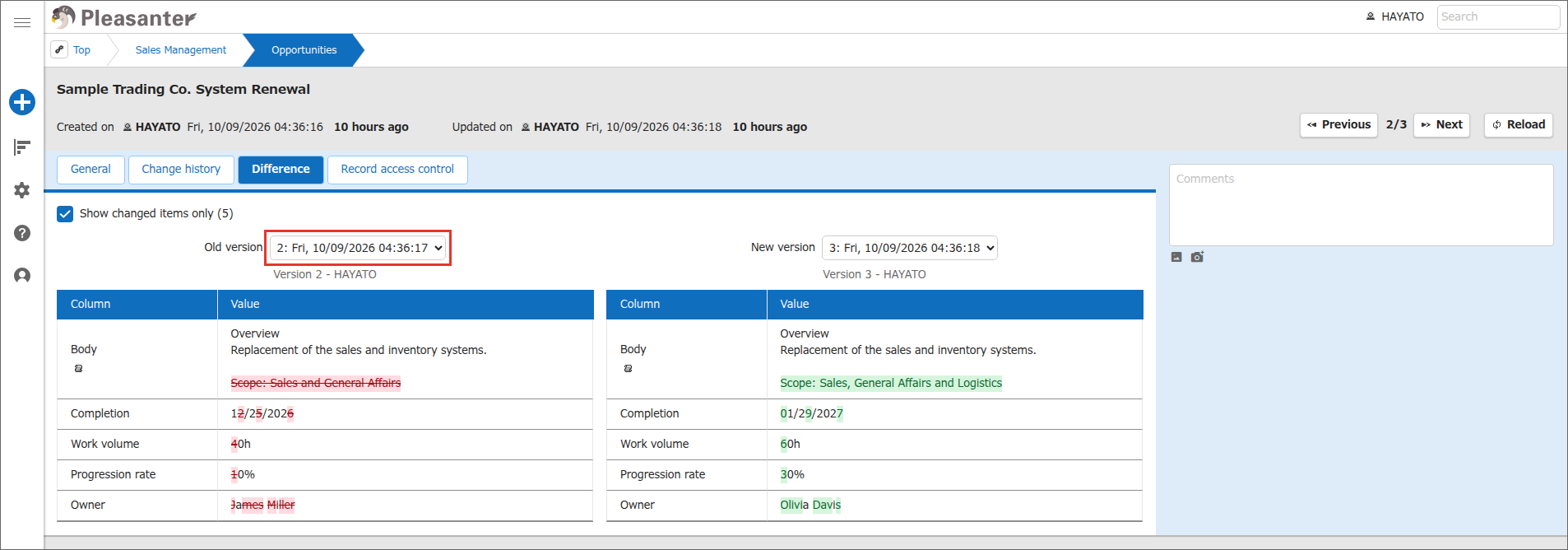
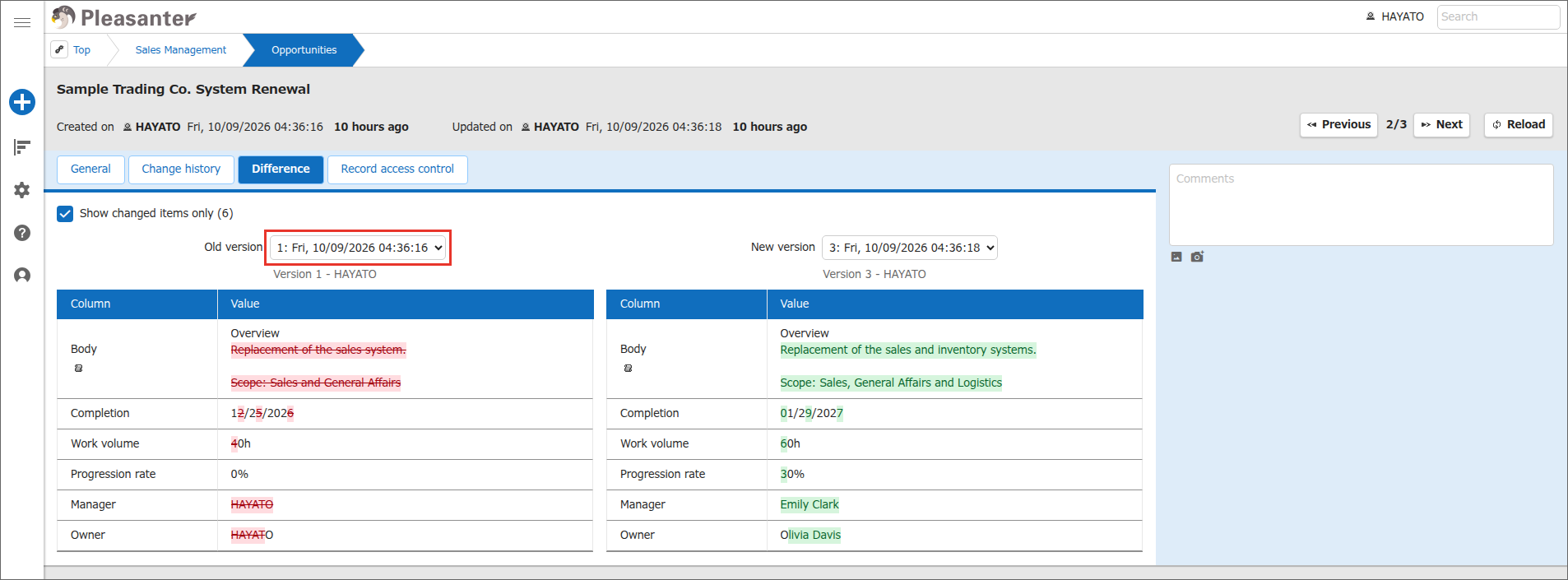
Select a version in the "Old version" or "New version" selection box. All versions are listed from newest to oldest in the form "version number: updated date and time".
-
The comparison of the two selected versions is displayed.
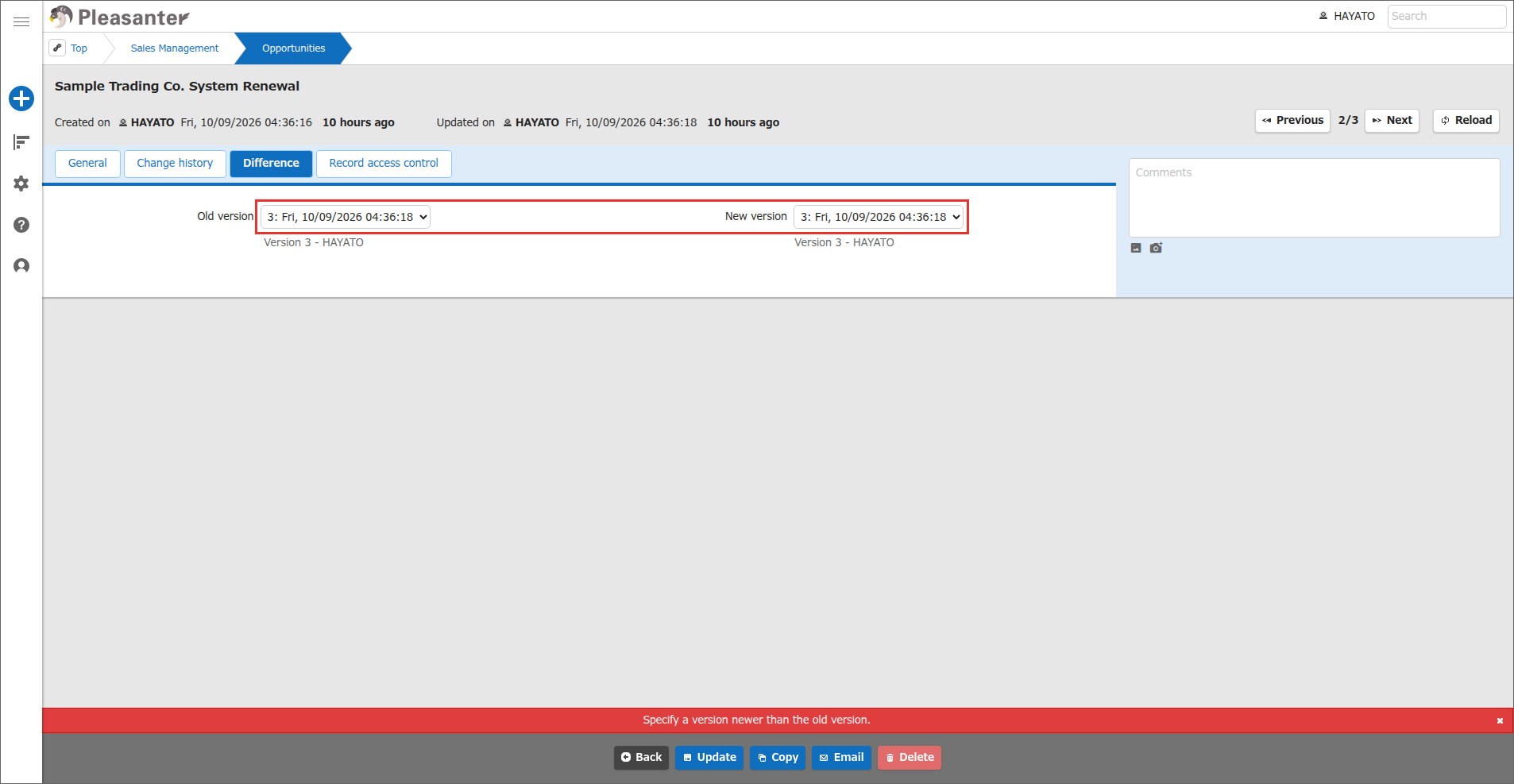
Select a version newer than the "Old version" for the "New version". If you select the same or an older version, "Specify a version newer than the old version." is displayed at the bottom of the screen and the comparison is not displayed.
Display Unchanged Items
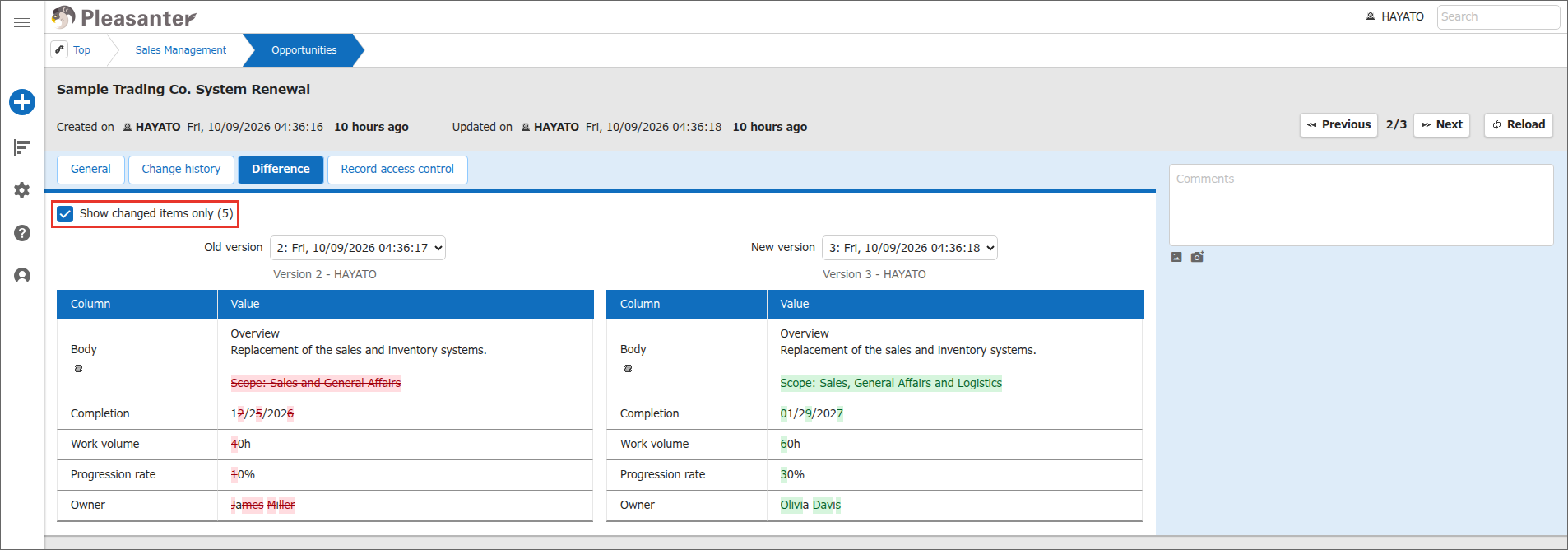
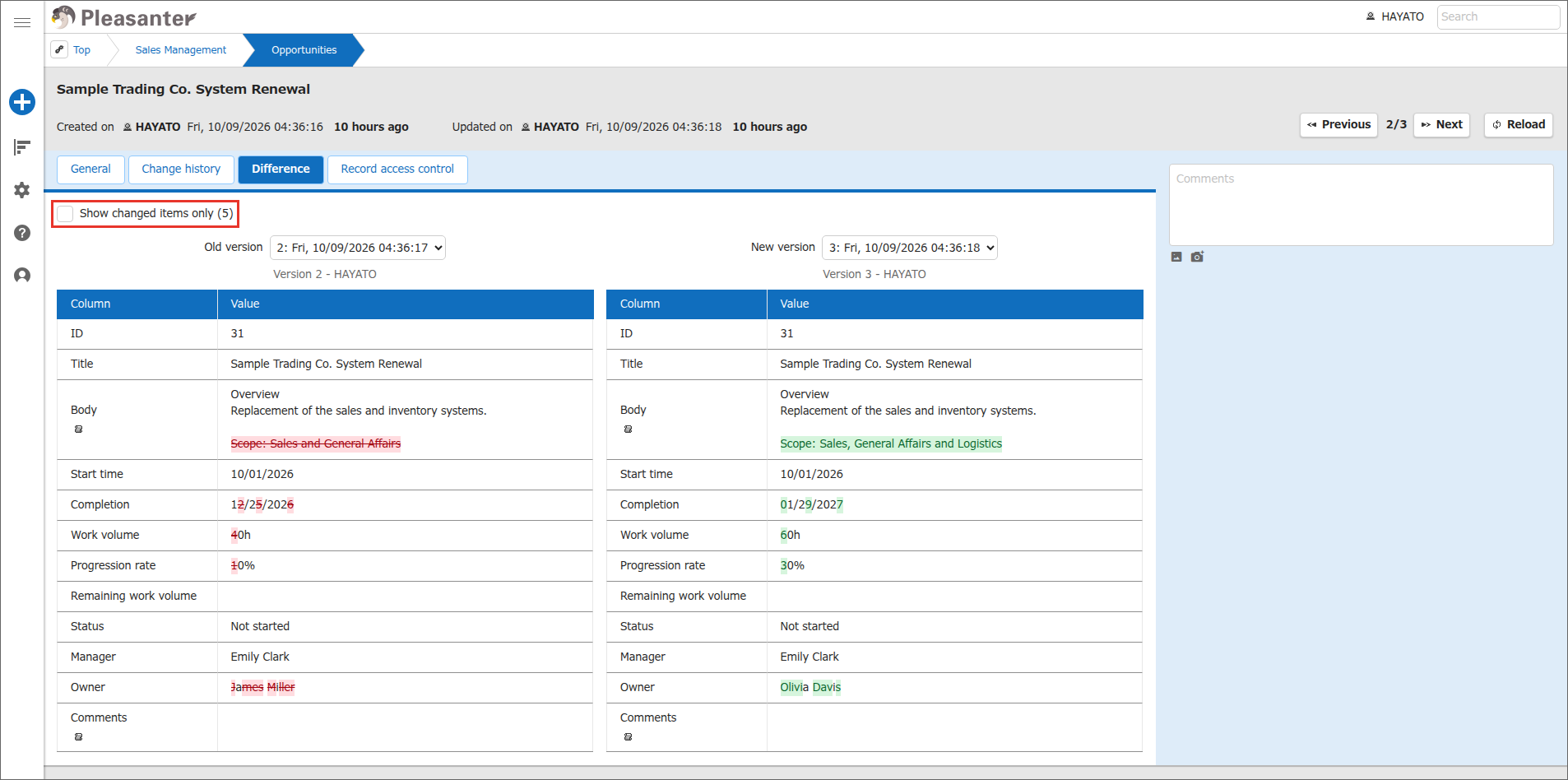
By default, only changed items are displayed. Turn off "Show changed items only (n)" at the top of the screen to also display unchanged items. n is the number of changed items.
Only changed items are displayed.
All items are displayed, including unchanged items.
Display Long Values
Long values are displayed only partially. When you hover the mouse pointer over a value, the value expands and the rest is displayed. The same item on the left and right sides expands together.
To keep a value expanded, follow the steps below.
-
For an item that is displayed only partially, the "Keep expanded" icon is displayed under the item name. Click this icon.
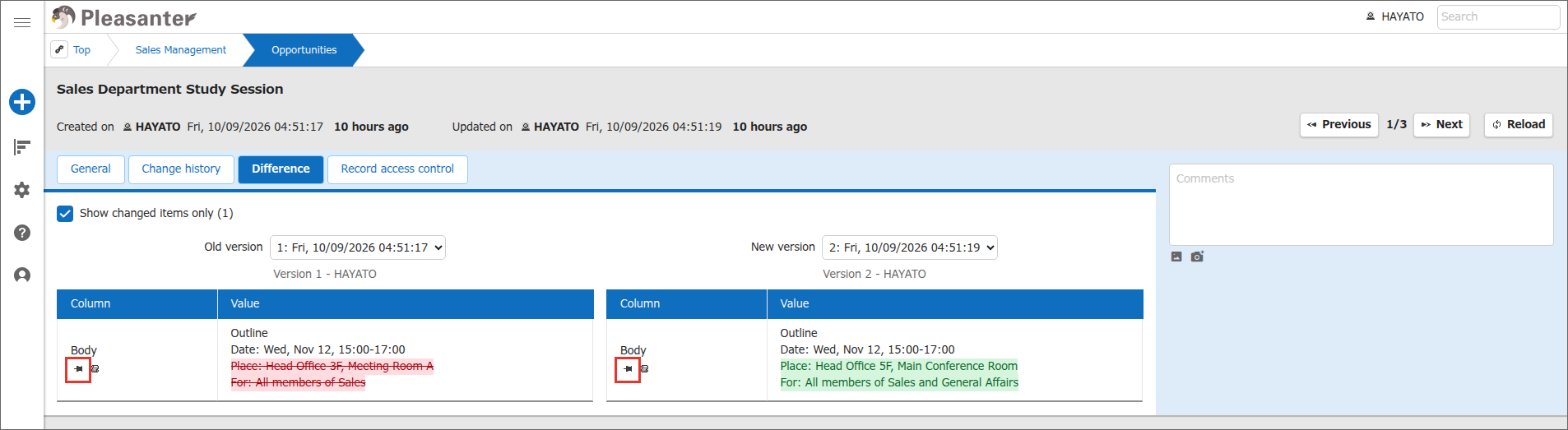
-
The values on both sides stay expanded and are displayed in full. The icon changes to the pressed state. To undo it, click the icon again.
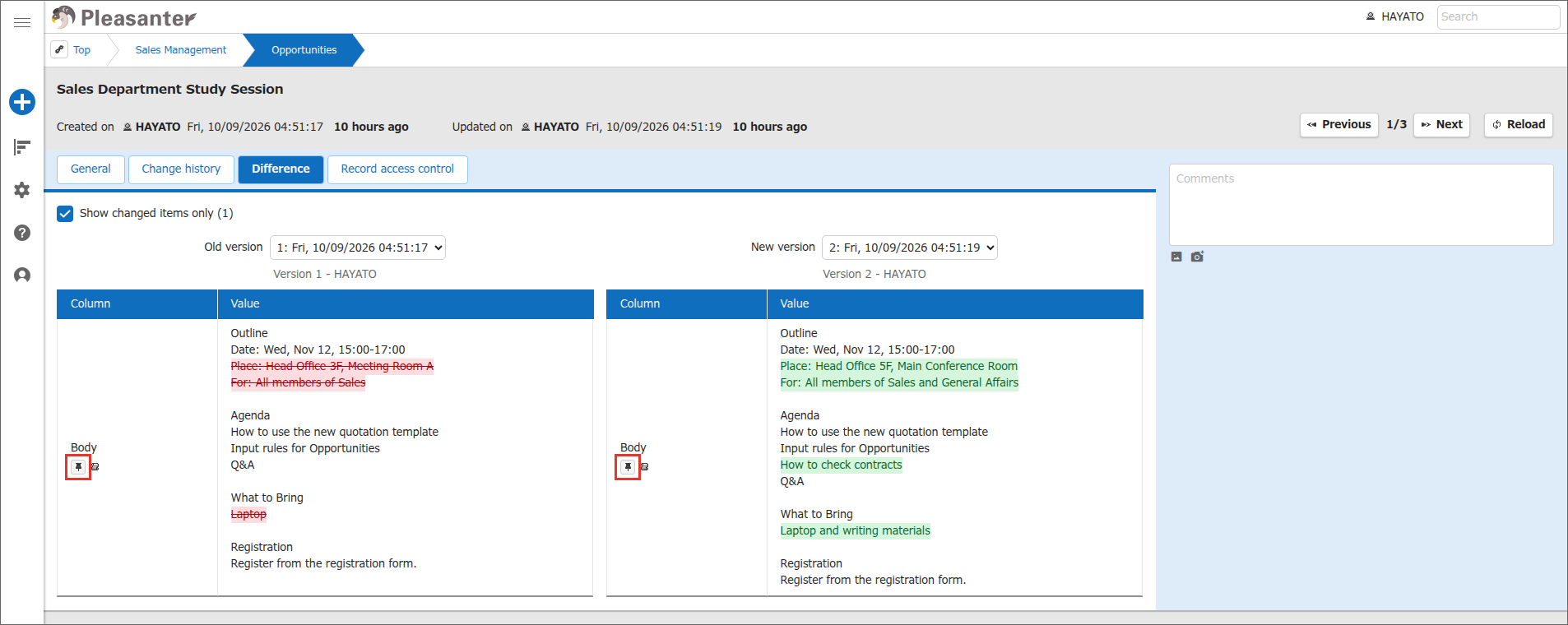
Compare Markdown Items Including the Notation
Items in Markdown, such as "Body", are compared by default as text without the Markdown notation. To compare the text as entered, including the notation, follow the steps below.
-
For a Markdown item, the "Compare source text" icon is displayed under the item name. If the "Keep expanded" icon is displayed, it is to the right of that icon. Click this icon.
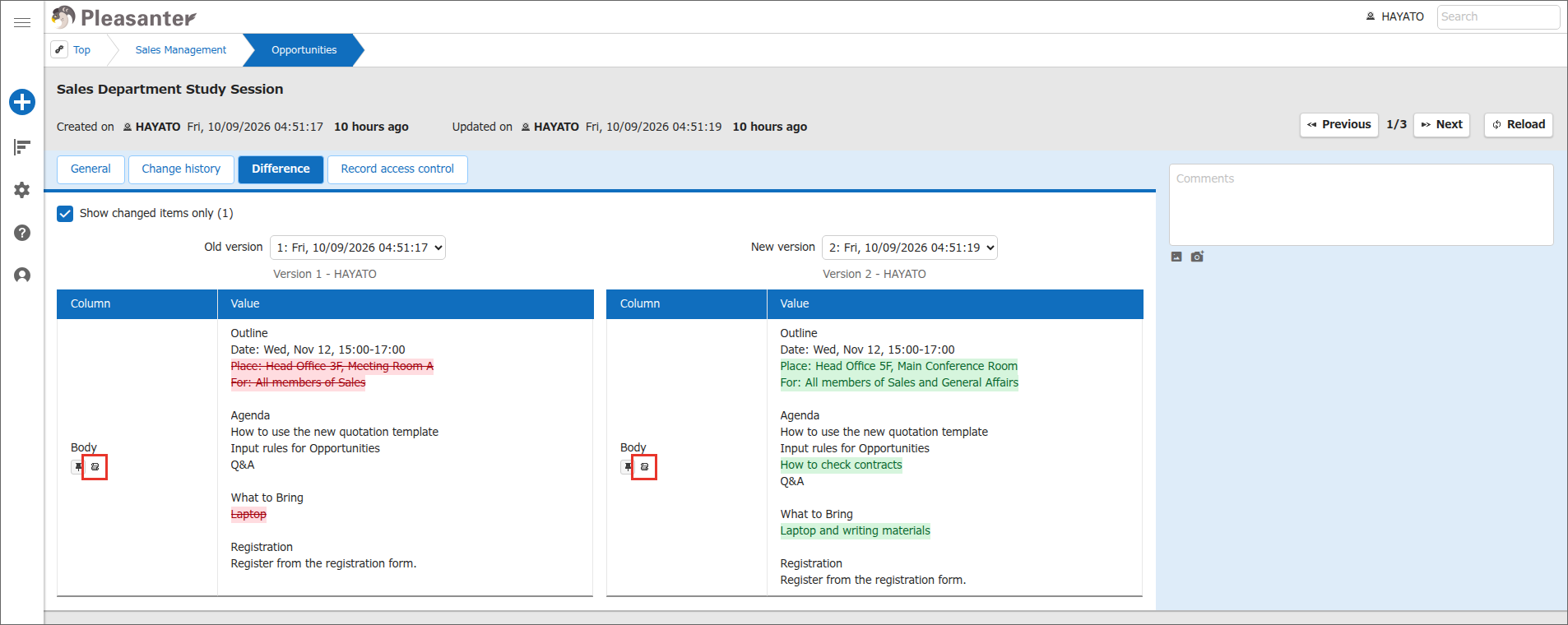
-
The values on both sides are displayed as entered, including notation such as "##" and "**". To return, click the "Compare rendered result" icon in the same position.
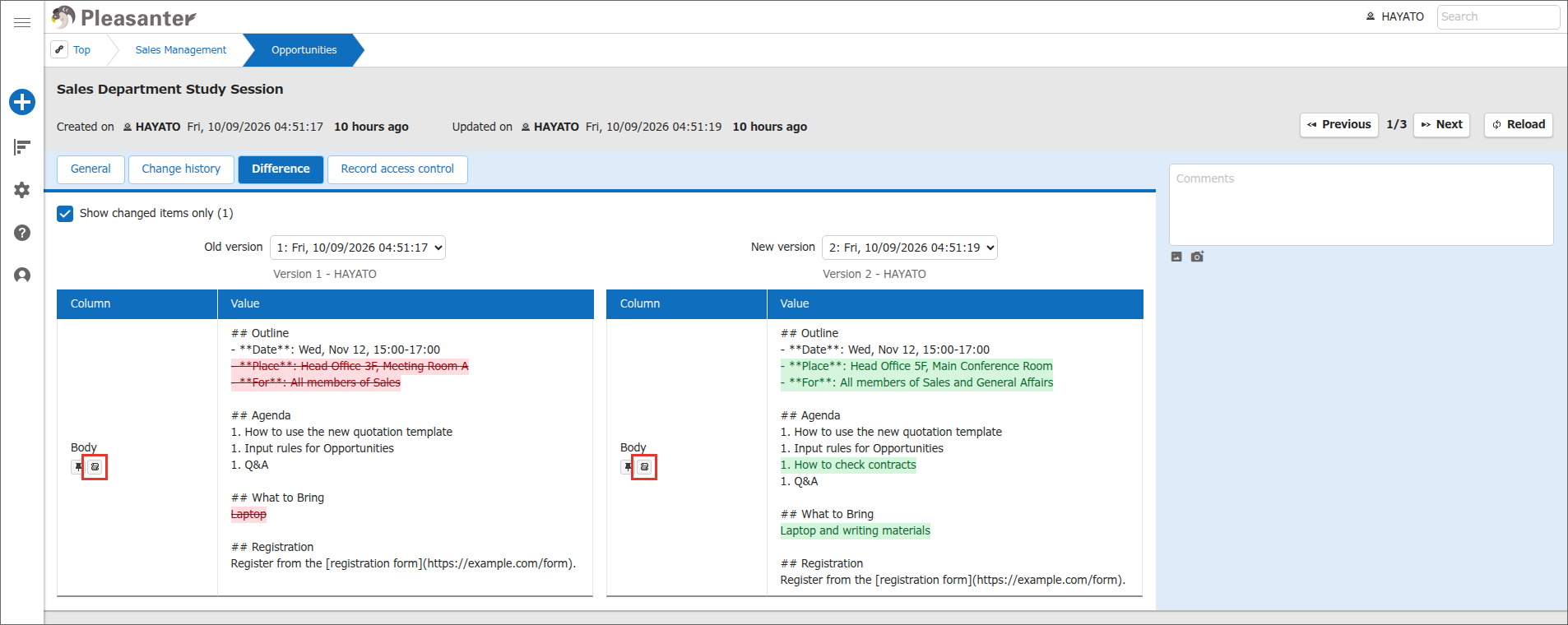
Images written in Markdown are displayed as images. Click an image to enlarge it.
Supported Versions
| Supported Version | Description |
|---|---|
| 1.5.9.0 and later | Function added |