Introduction to Useful Recommended Functions
Overview
Here are some useful and recommended functions.
- Process function that allows you to create workflows such as approval requests
- Automatic numbering function that can handle a variety of formats
- Lookup function that can be used like Excel's VLOOKUP function
- Dynamically change the recipient with the email notification function
- Customize the navigation menu
- Multiple selection of class columns
- Sorting and filtering by specifying a view for the options
- Customize the screen color theme
1. Process function that allows you to create workflows such as approval requests
The approval workflow function used for approval requests is realized using the process function.
You can set various approval routes and conditions with just a few mouse operations.

FAQ▶ Using the process function to create workflows (approval processes) such as approval requests
2. Automatic numbering function that can handle a variety of formats
The automatic numbering function can be used for columns that can handle strings (title, content, class, description). It is possible to specify various formats for numbering.
| Registration Order | Sequential Number | Description |
|---|---|---|
| 1 | 202203Tokyo Branch-001 | Group by the string 202203Tokyo Branch and count from 1 |
| 2 | 202203Tokyo Branch-002 | Count up as it is the same string |
| 3 | 202203Yokohama Branch-001 | Count from 1 as it has changed to Yokohama Branch |
| 4 | 202203Tokyo Branch-003 | Count from 3 as it has returned to Tokyo Branch |
| 5 | 202204Tokyo Branch-001 | Count from 1 as the month has changed |
User Manual ▶ Automatic numbering
3. The long-awaited lookup function that can be used like Excel's VLOOKUP function
When you select a "Linked Column" , you can transcribe the "Column" of the linked "Table".
For example, when linking a sales table to a customer table, you can transfer the address and phone number columns from the customer table to the sales table.
Until now, this was only possible using the script function, but the lookup function can achieve it with a very simple description method.
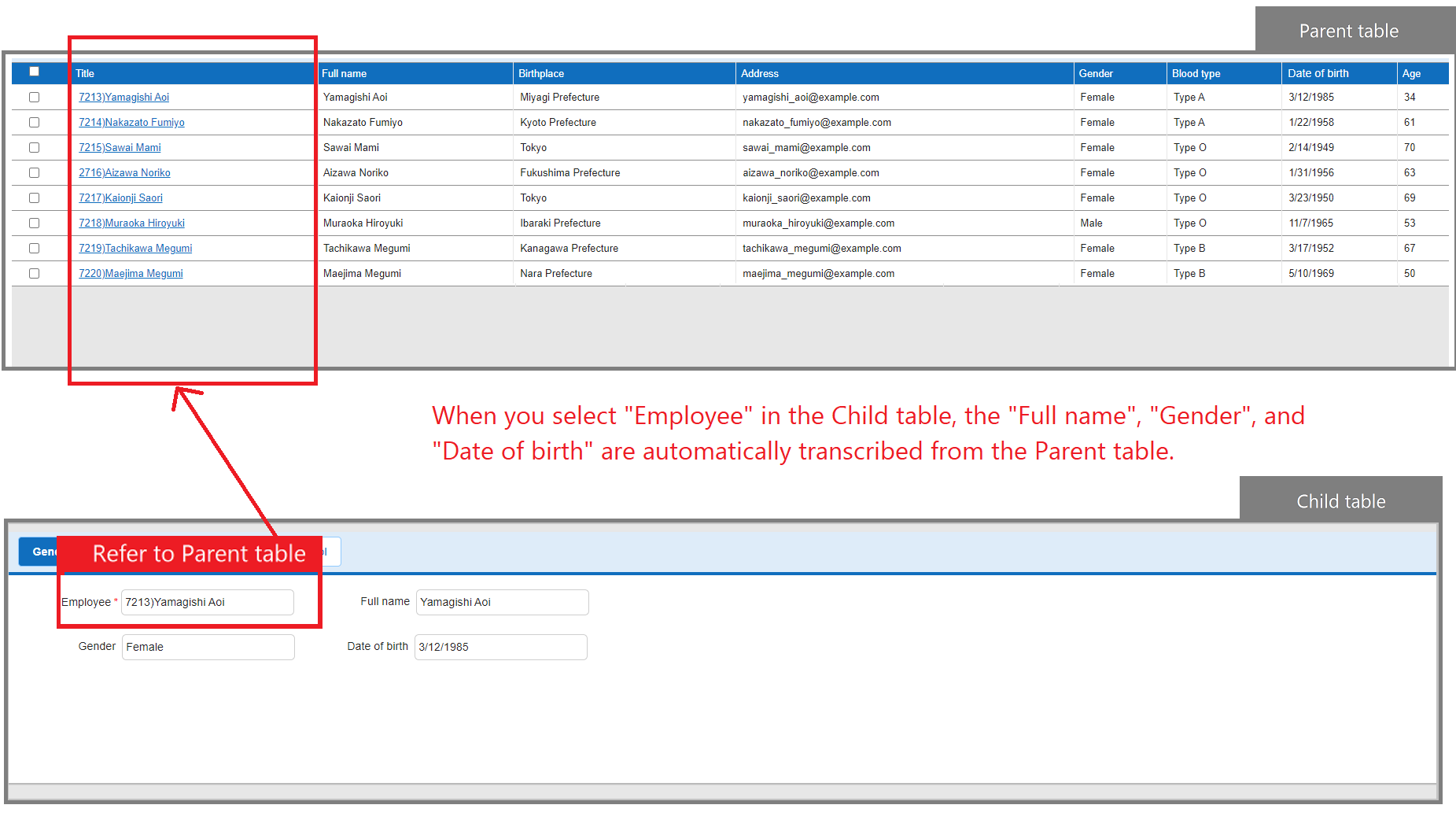
Blog article▶ Introduce the new function that can be used like Excel: Lookup
User manual▶ Manage Table: Editor: Column Advanced Settings: Option List: Lookup
4. Dynamically change the recipient with the email notification function
In addition to directly specifying the address, email notifications can now be sent to the email address entered or selected in the specified column. The notification function can now be used in many tasks, such as process management.
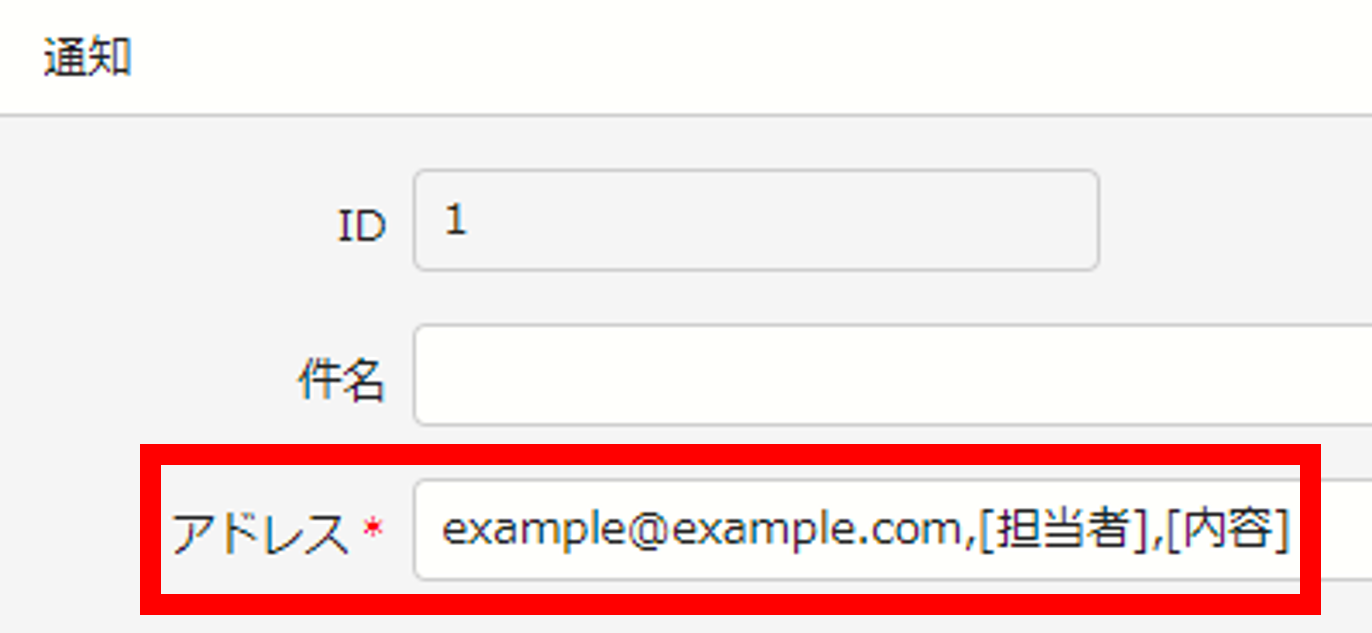
User Manual ▶ Manage Table: Notification
5. Customize the Navigation Menu

You can now customize the navigation menu on the left side of the screen.
You can delete menus that you don't use often, and you can also add new menu column.
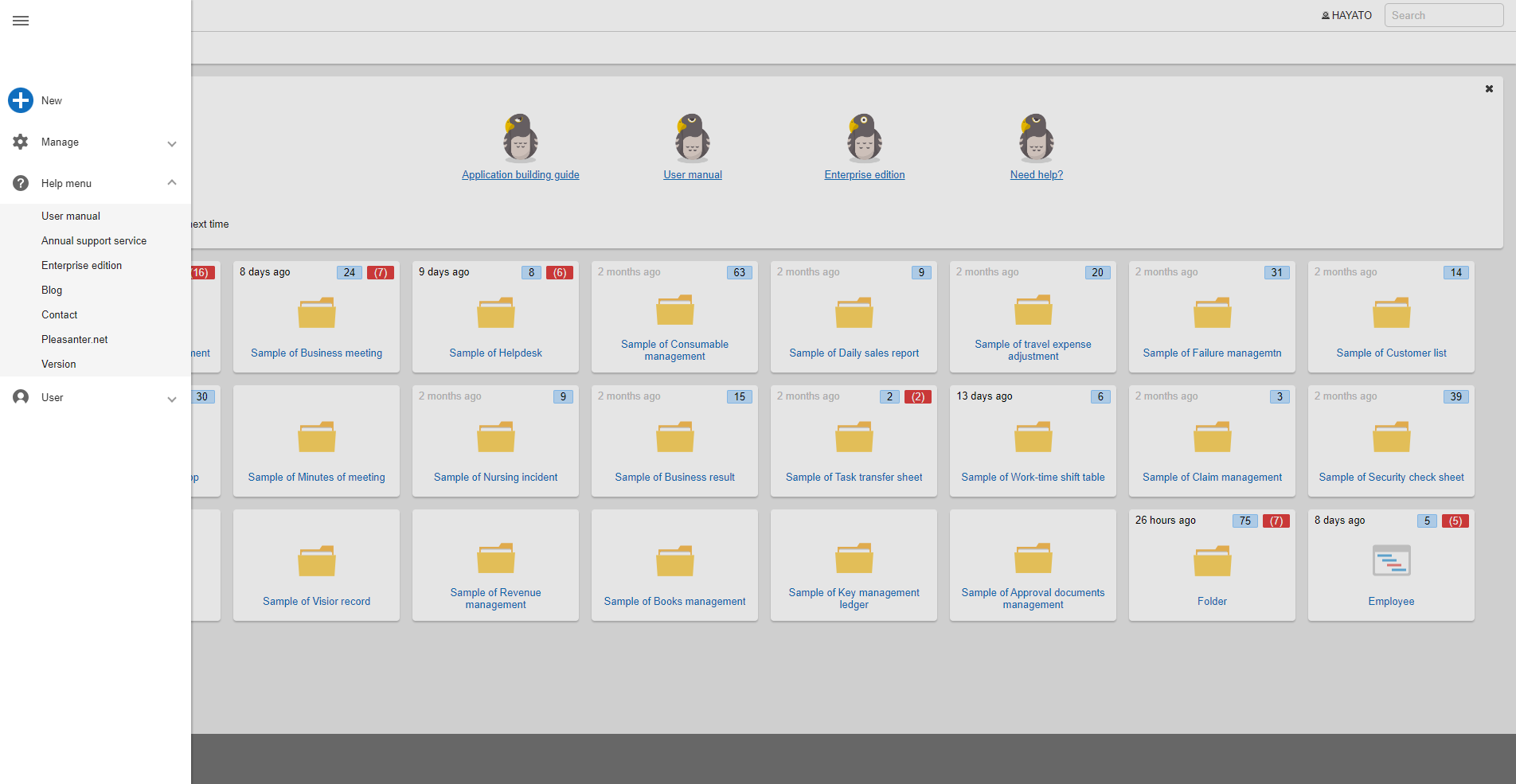
User Manual▶ NavigationMenus.json
6. Multiple selection of class column

You can now select multiple options in class column. With this new function, you can efficiently implement requirements that previously required placing multiple classes or checks.
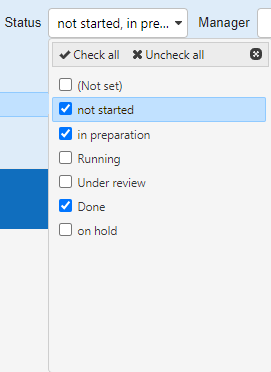
User Manual▶ Manage Table: Editor: Multiple Selection of Class Column
7. Sorting and filtering by specifying a view for the options
It is now possible to customize options by writing them in JSON format, such as sorting and filtering options displayed in class column.
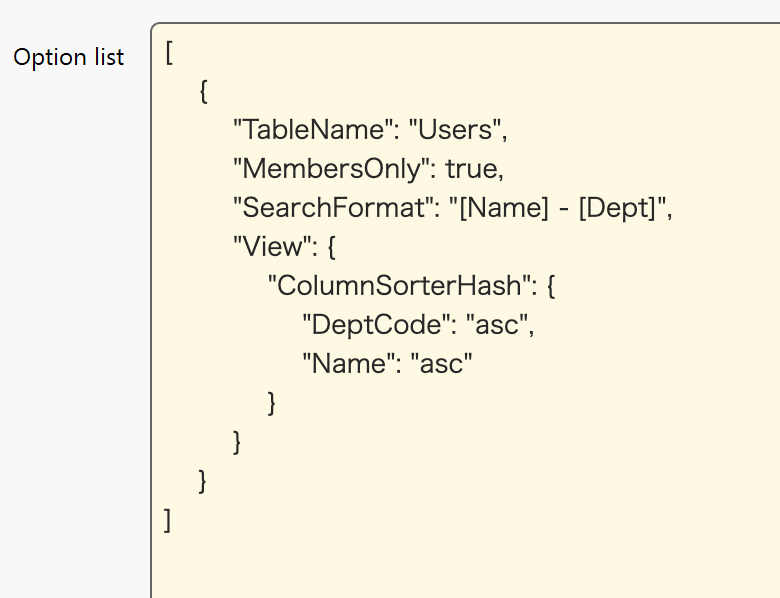
User Manual▶ Manage Table: Option List: Filter, Sort, Display Format
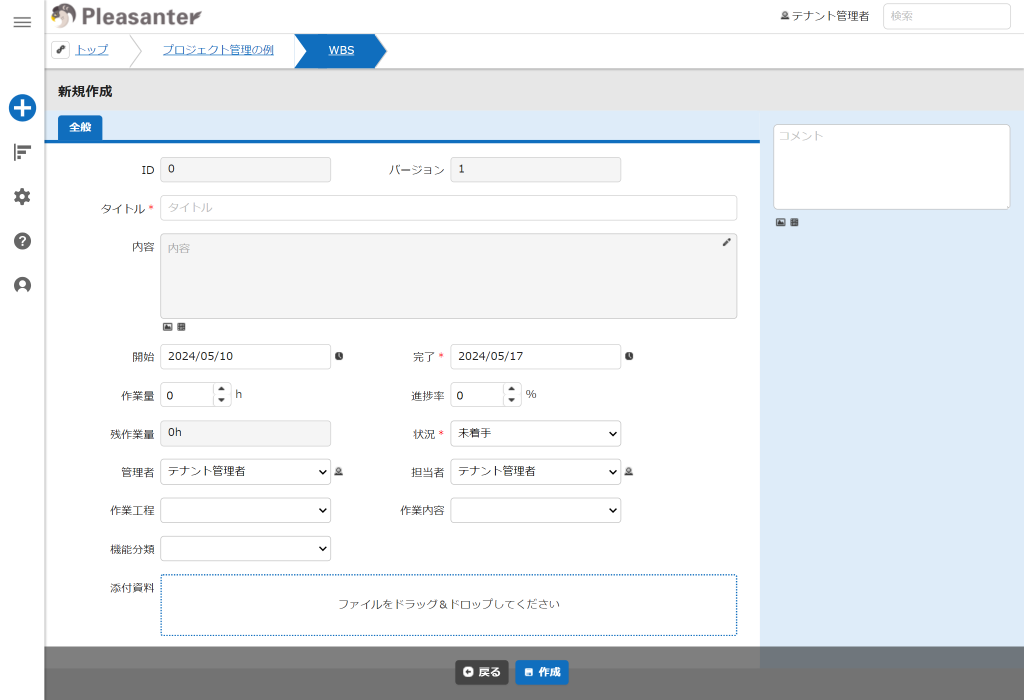
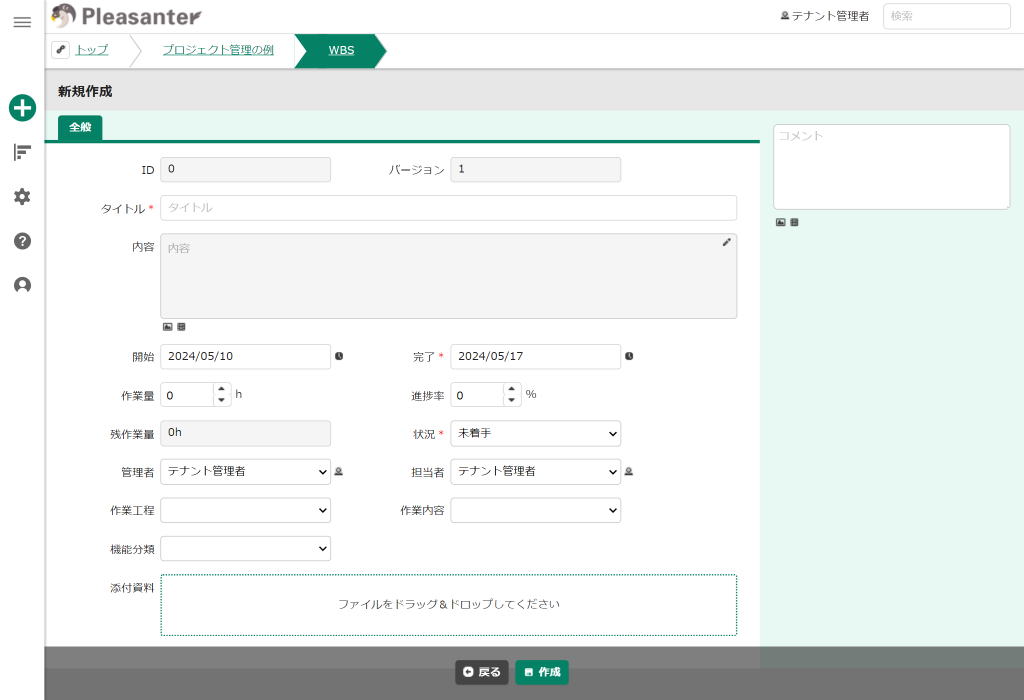
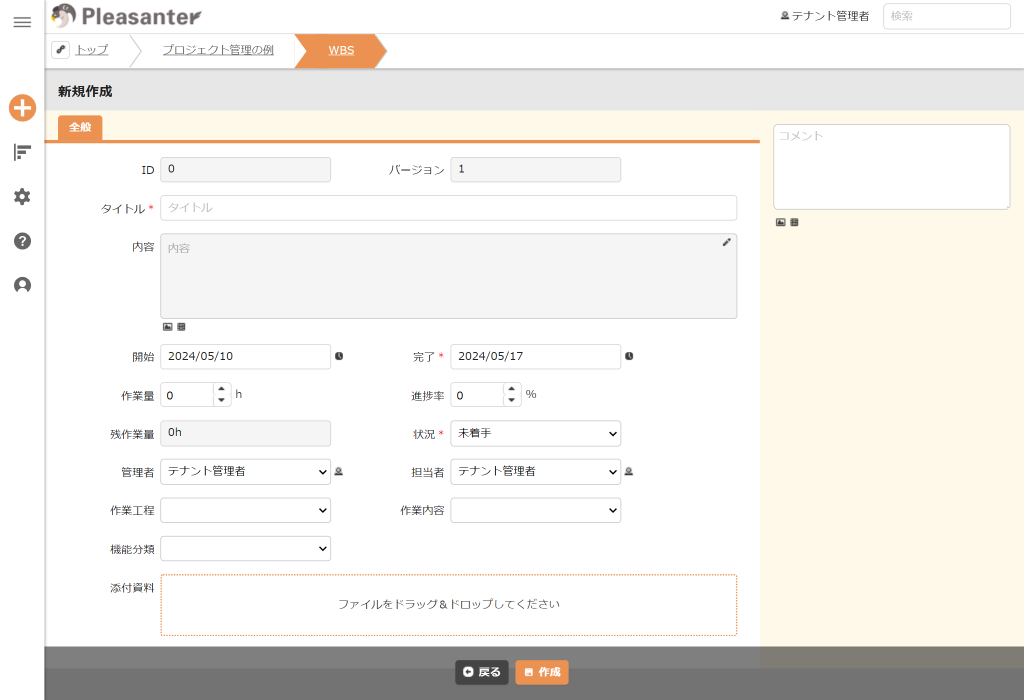
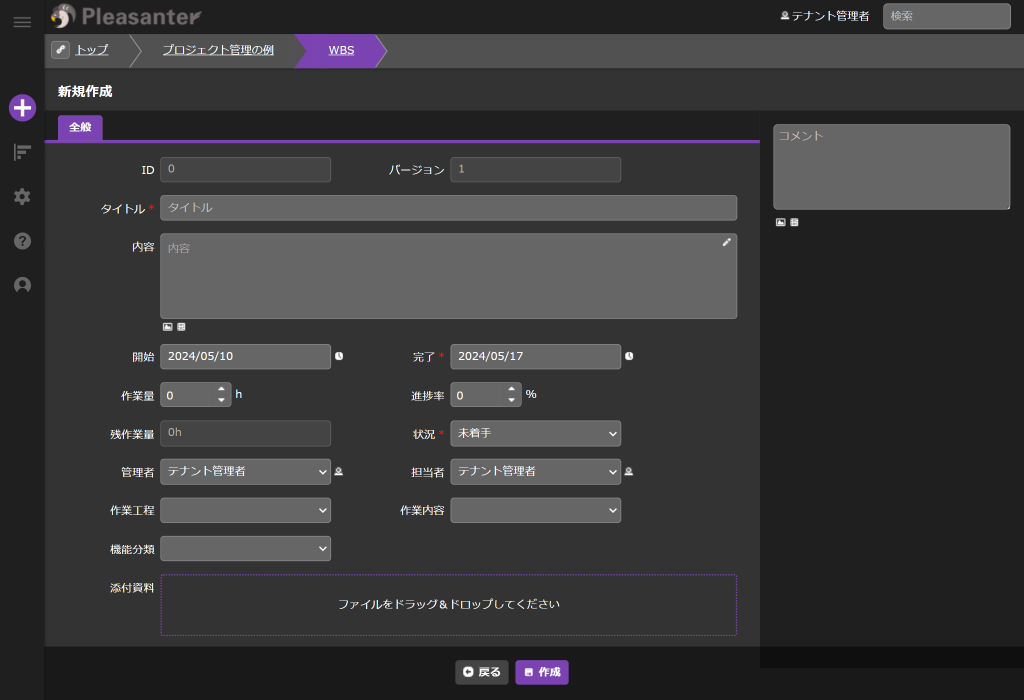
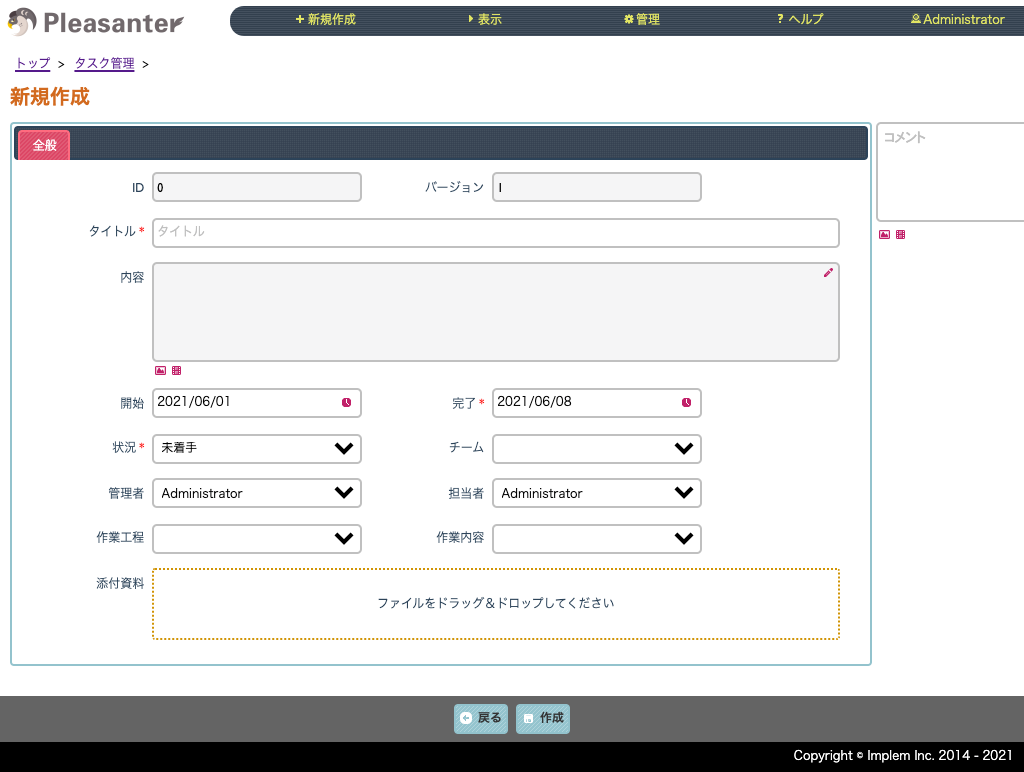
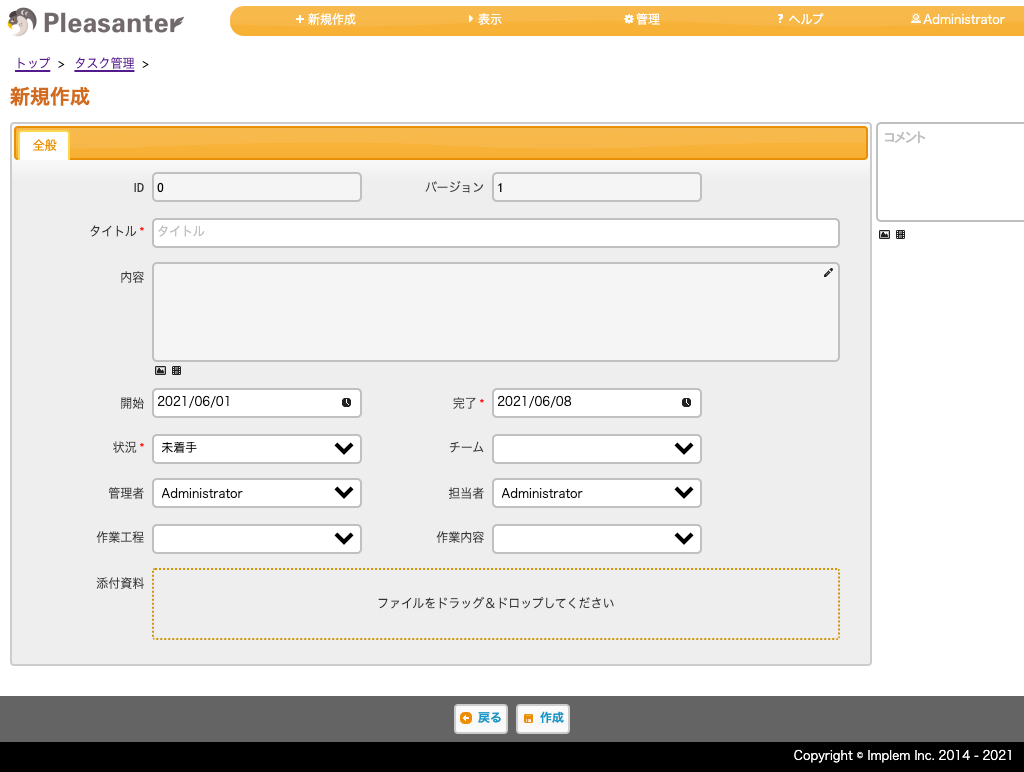
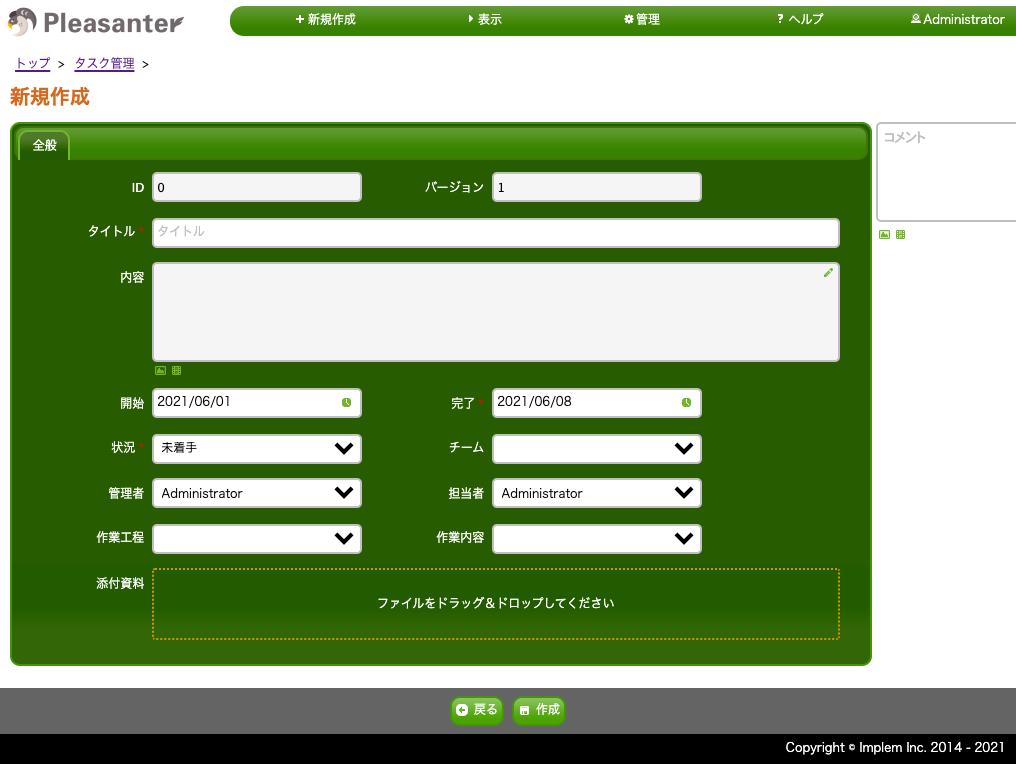
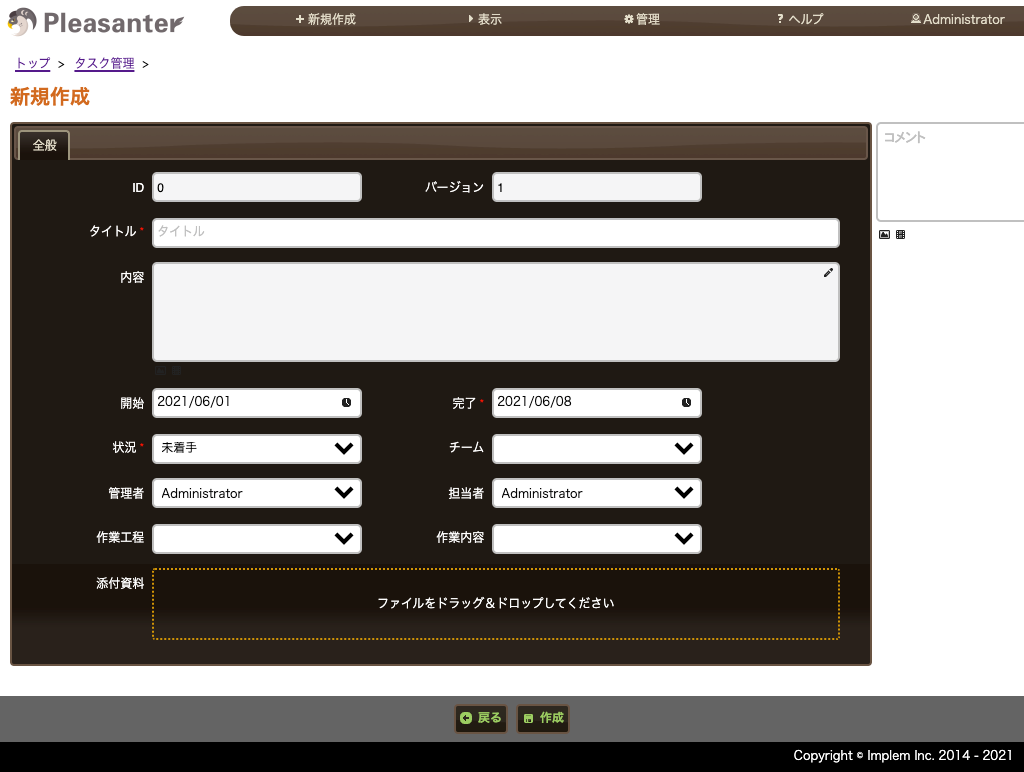
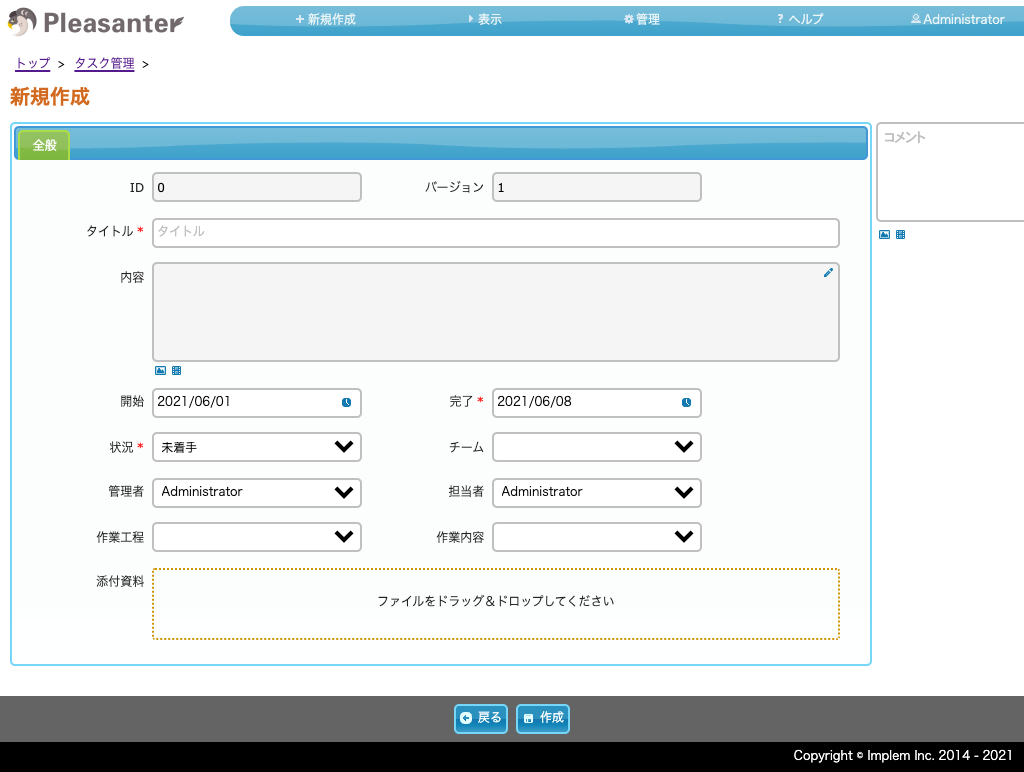
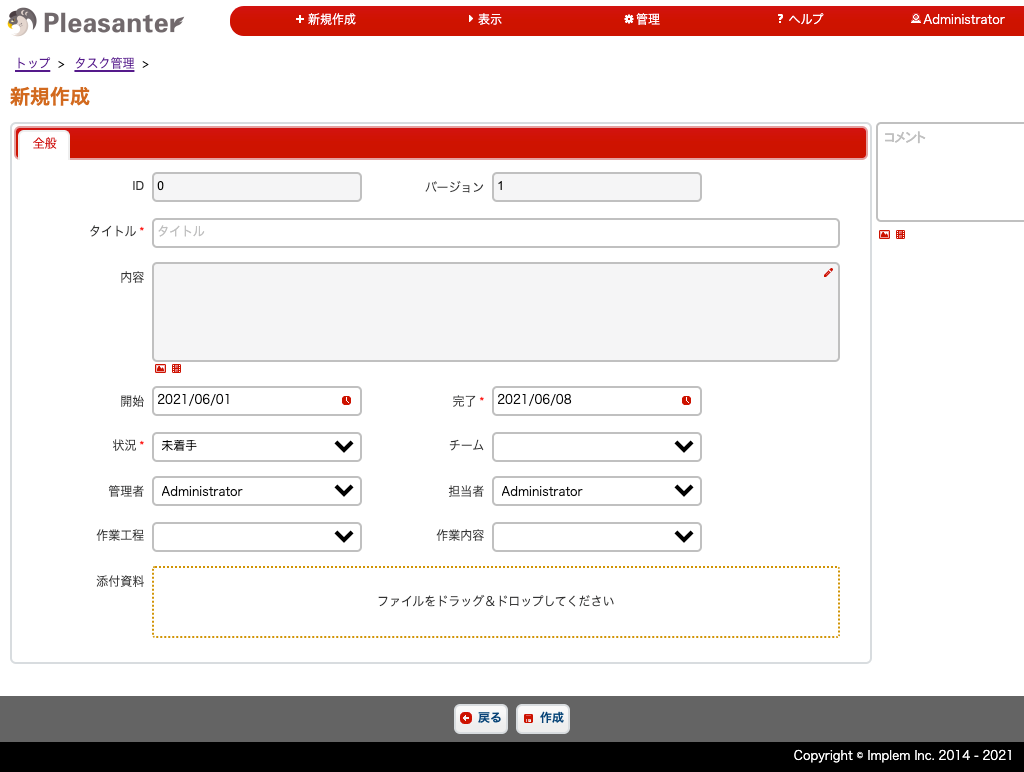
8. Customize the screen color theme
Second-generation user interface theme
In the second generation, each user can set their own color variation from four themes.
 |  |
 |  |
First-generation user interface theme
You can choose from a total of 25 themes in the first generation.
 |  |  |
 |  |  |
User Manual▶ User Management: Customize the User Interface Theme | Pleasanter